
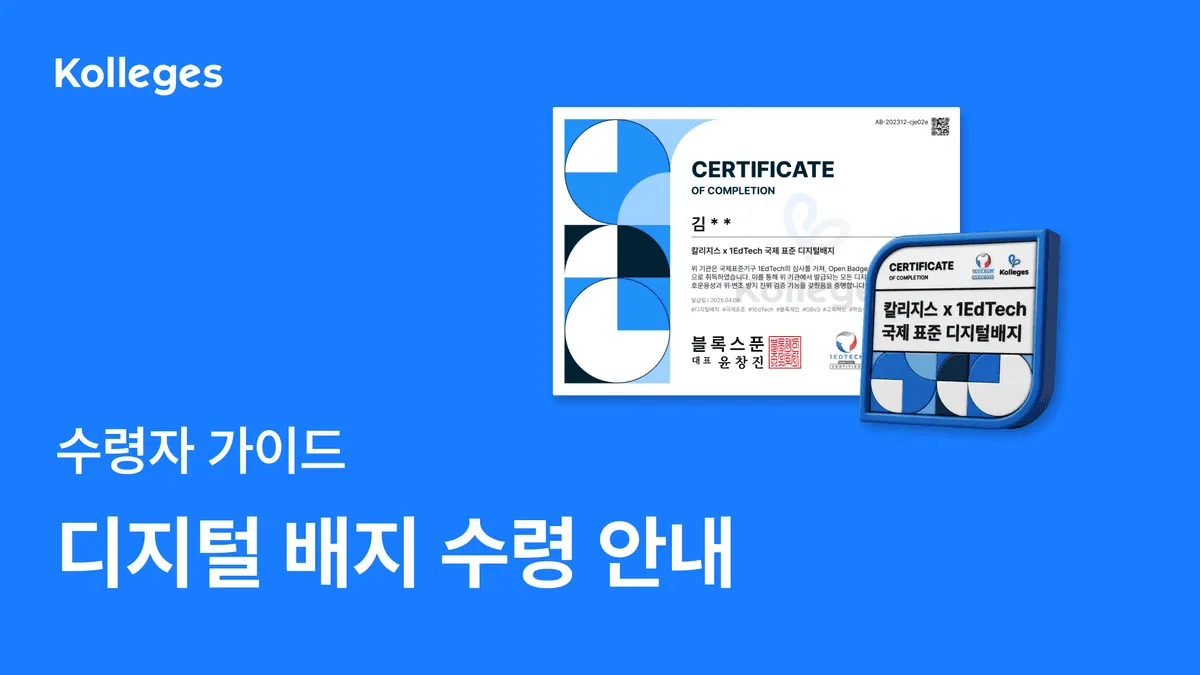
After clicking the [Receive] button in the email or the [View Certificate] button in the KakaoTalk notification and completing identity verification with KakaoTalk simple authentication, your digital badge is permanently stored in your wallet.
A guide to receiving certificates. Easily check your digital certificates on the Kolleges platform.
Receiving Your Certificate
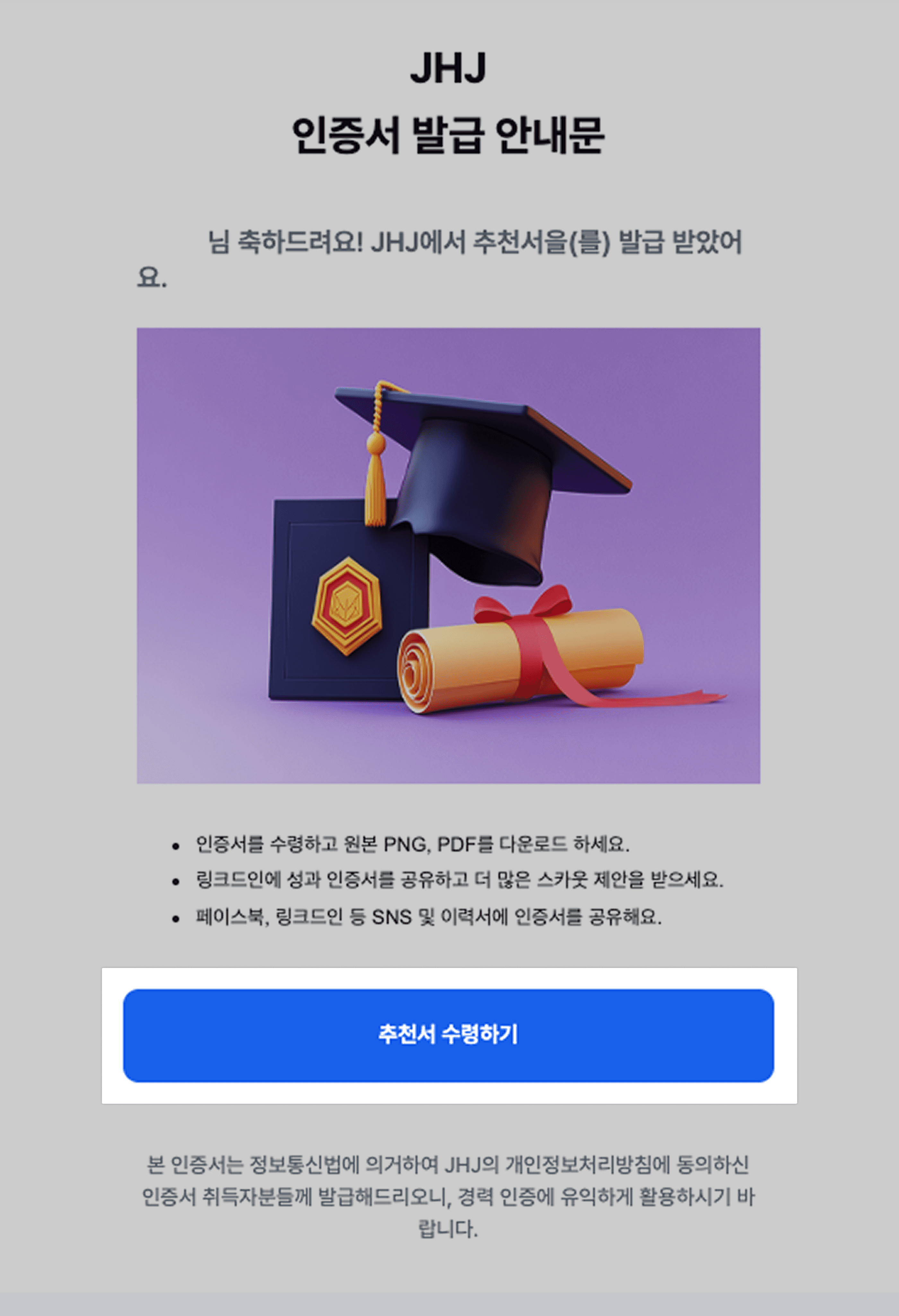
- Click the [Receive] button in the email.
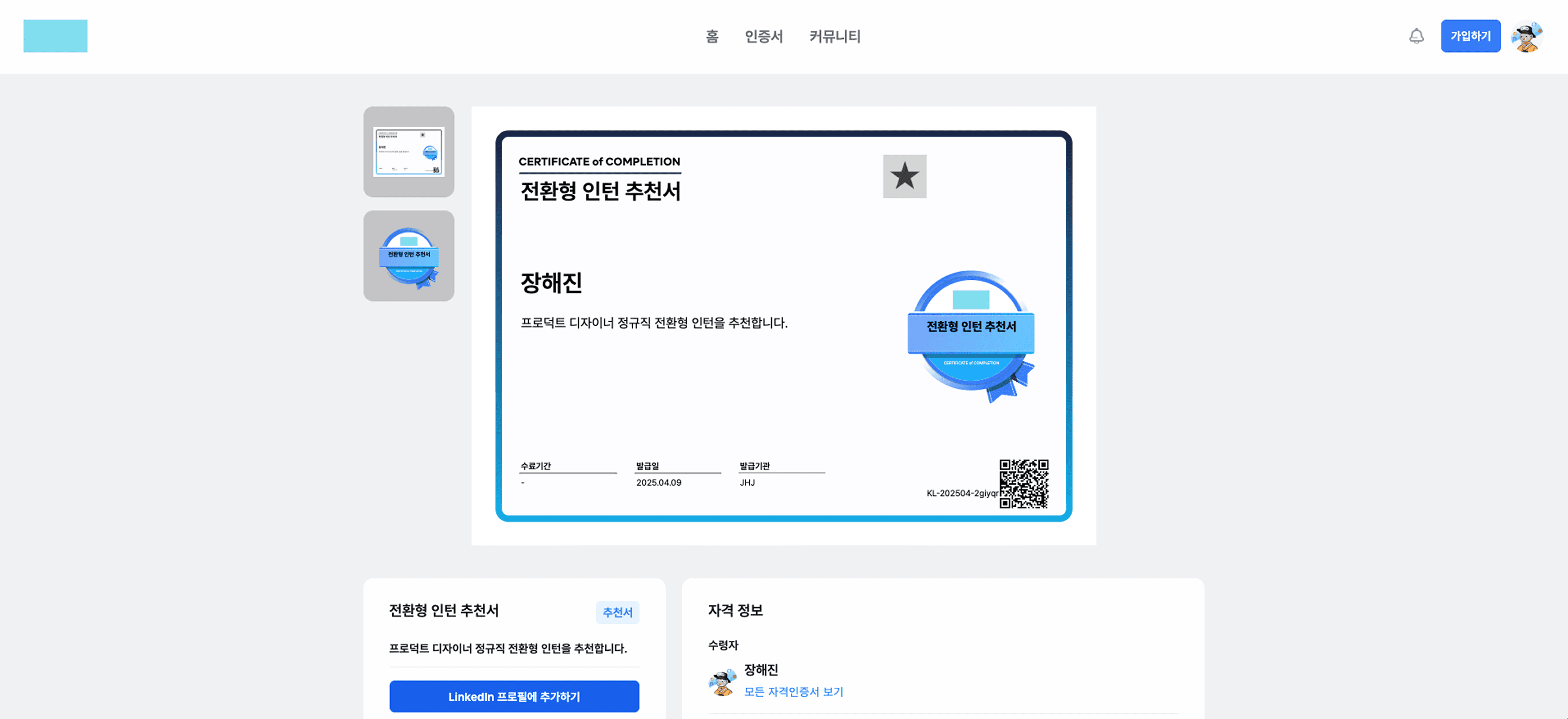
- You are taken to the certificate lookup page.
[ If you received the issuance notification via KakaoTalk ]
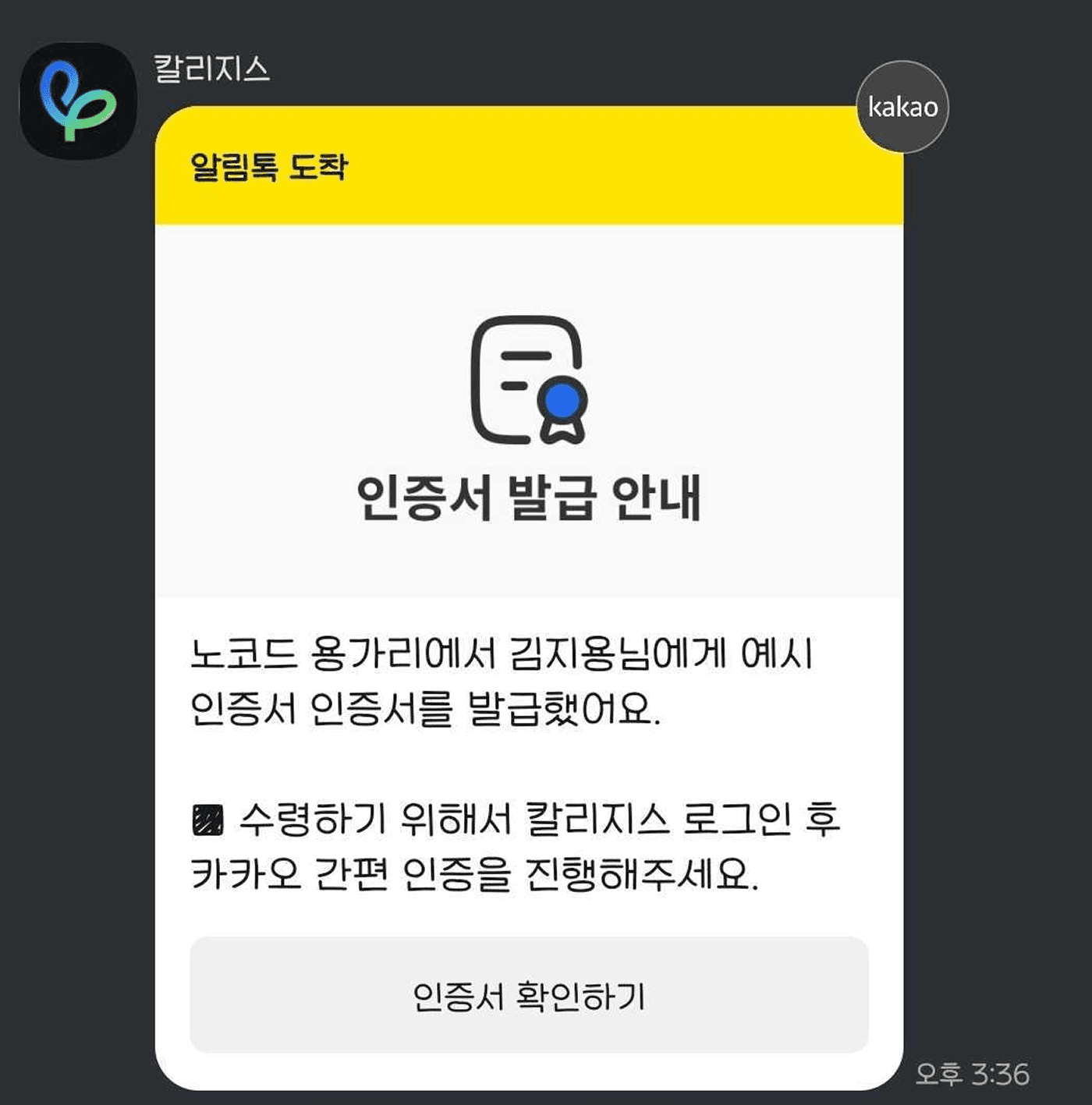
- In the KakaoTalk notification, click the [View Certificate] button to go to the certificate lookup page.
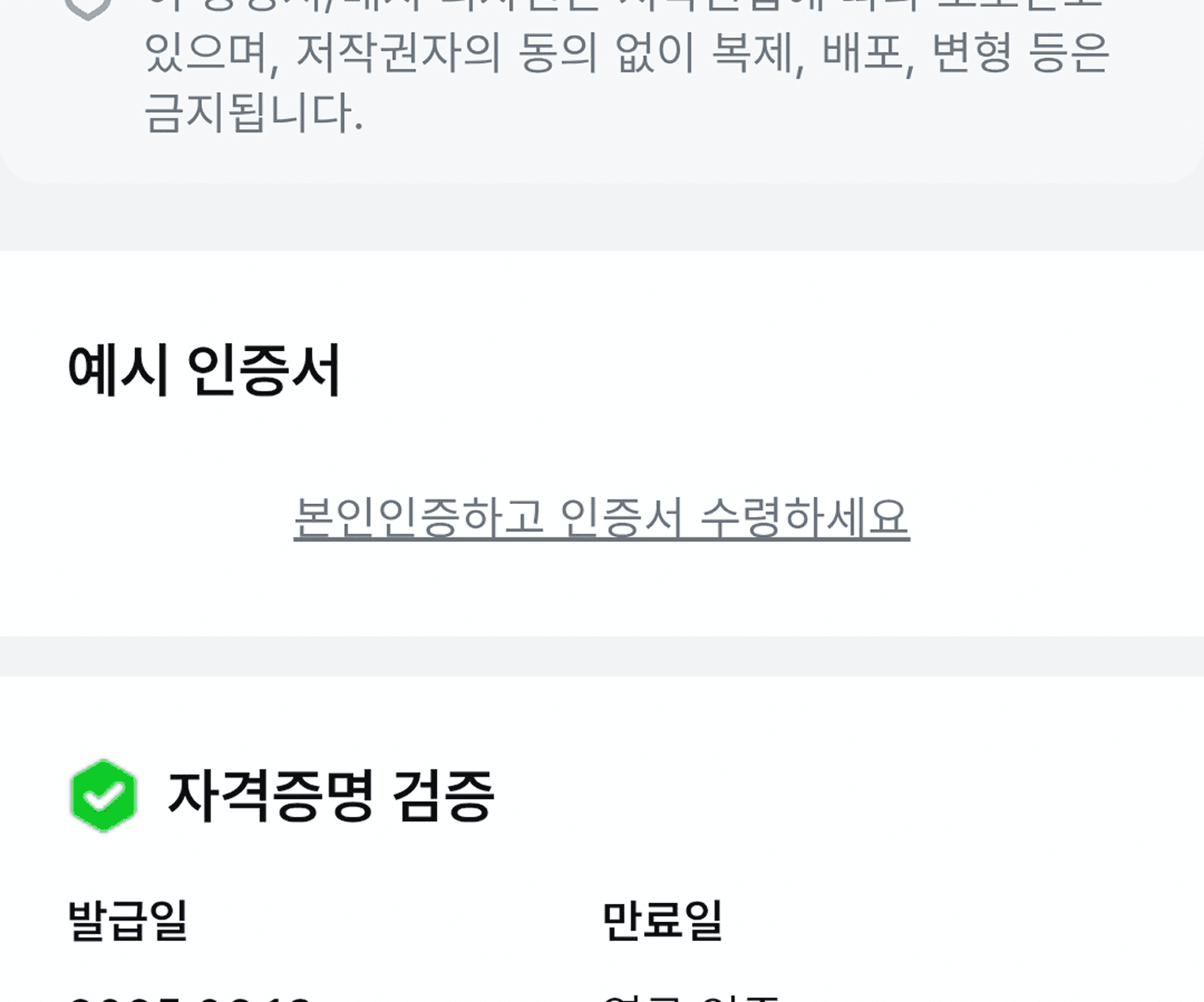
- Certificates issued to a mobile phone number require identity verification.
→ Click the [Verify your identity and receive your certificate] button.
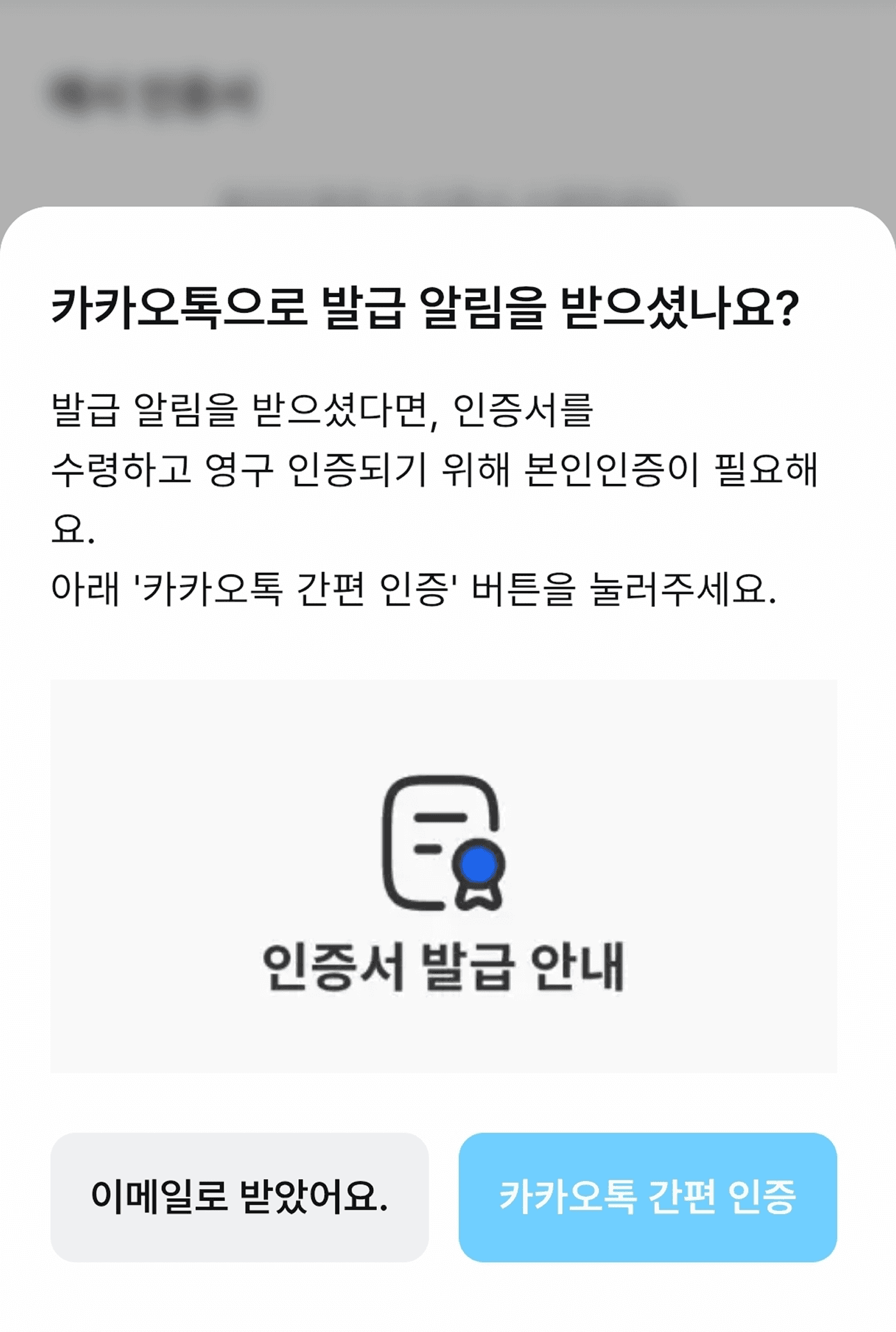
- Click the [KakaoTalk simple authentication] button.
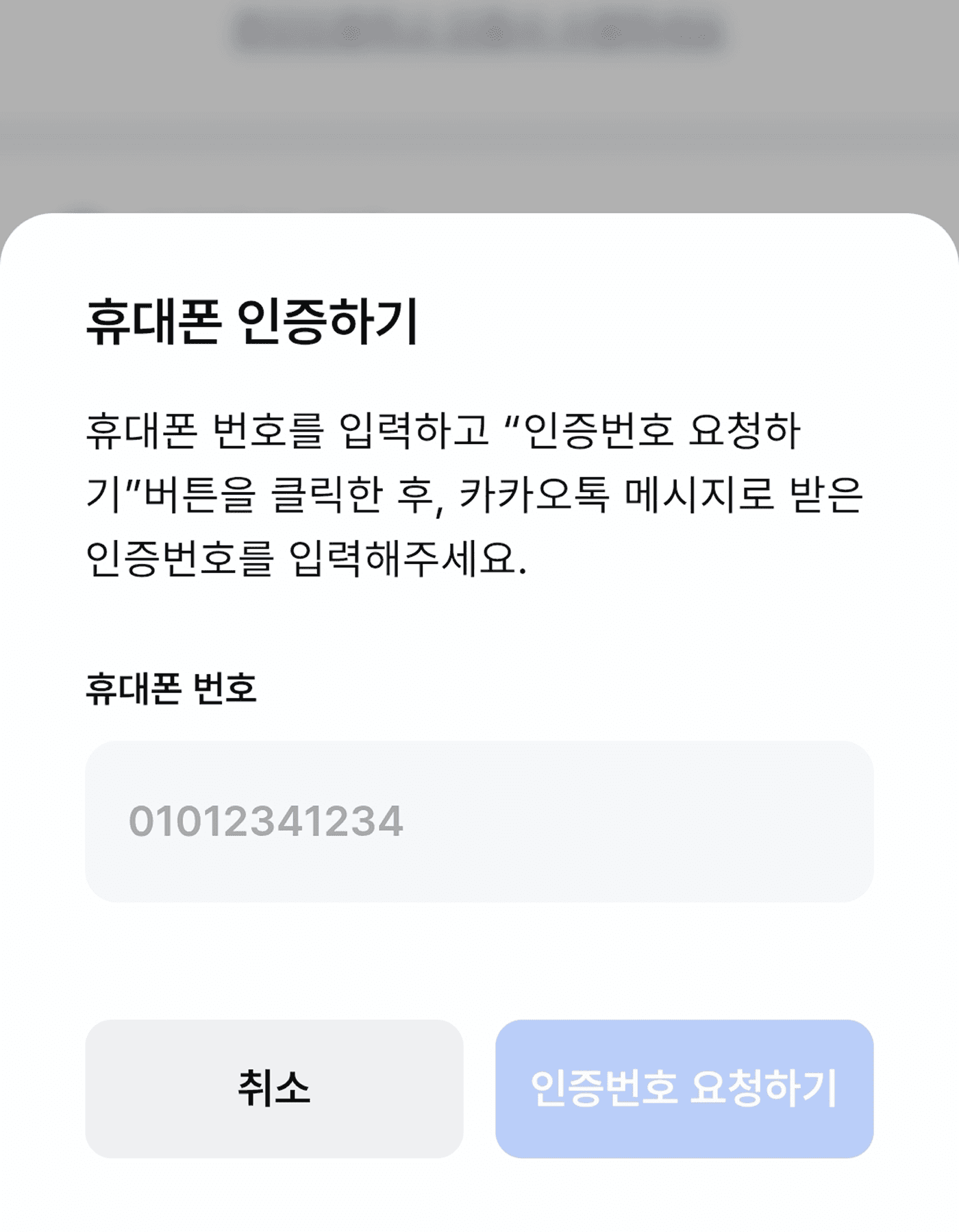
- Once you complete authentication in the popup, your certificate is received.
Frequently asked questions
Want to turn learning outcomes into verifiable assets?
From issuing to verifying and amplifying, see it for yourself with Kolleges.
Request a Kolleges demo
Related posts

Digital Badge Wallet
This guide explains step by step how to store issued digital badges, check unreceived badges, and share to SNS all in one place using the Kolleges badge wallet.
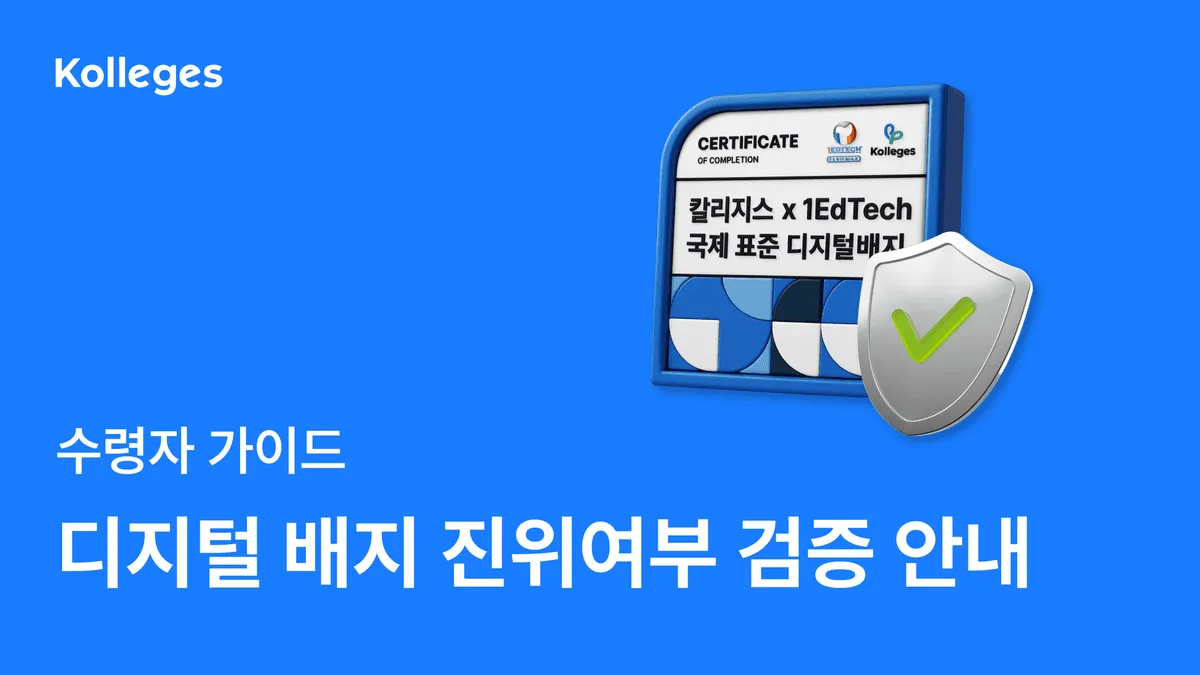
Verifying the Authenticity of a Digital Badge
On a digital badge's detail page, instantly check its validity with a single click of the Verify credential button, and look up the original data using the blockchain ID to verify whether there has been any tampering or forgery.

Tips for Using Digital Badges
A step-by-step guide to automatically linking your Kolleges digital badge to the LinkedIn Licenses section and attaching portfolio supporting materials to concretely prove your competencies on social media and your resume.