
A step-by-step guide to automatically linking your Kolleges digital badge to the LinkedIn Licenses section and attaching portfolio supporting materials to concretely prove your competencies on social media and your resume.
Certificate usage guide. Discover how to effectively use a digital badge issued by Kolleges.
How to Use Your Certificate
Adding It to Your LinkedIn Profile
You can register a certificate issued by Kolleges on your LinkedIn profile to effectively showcase your expertise.
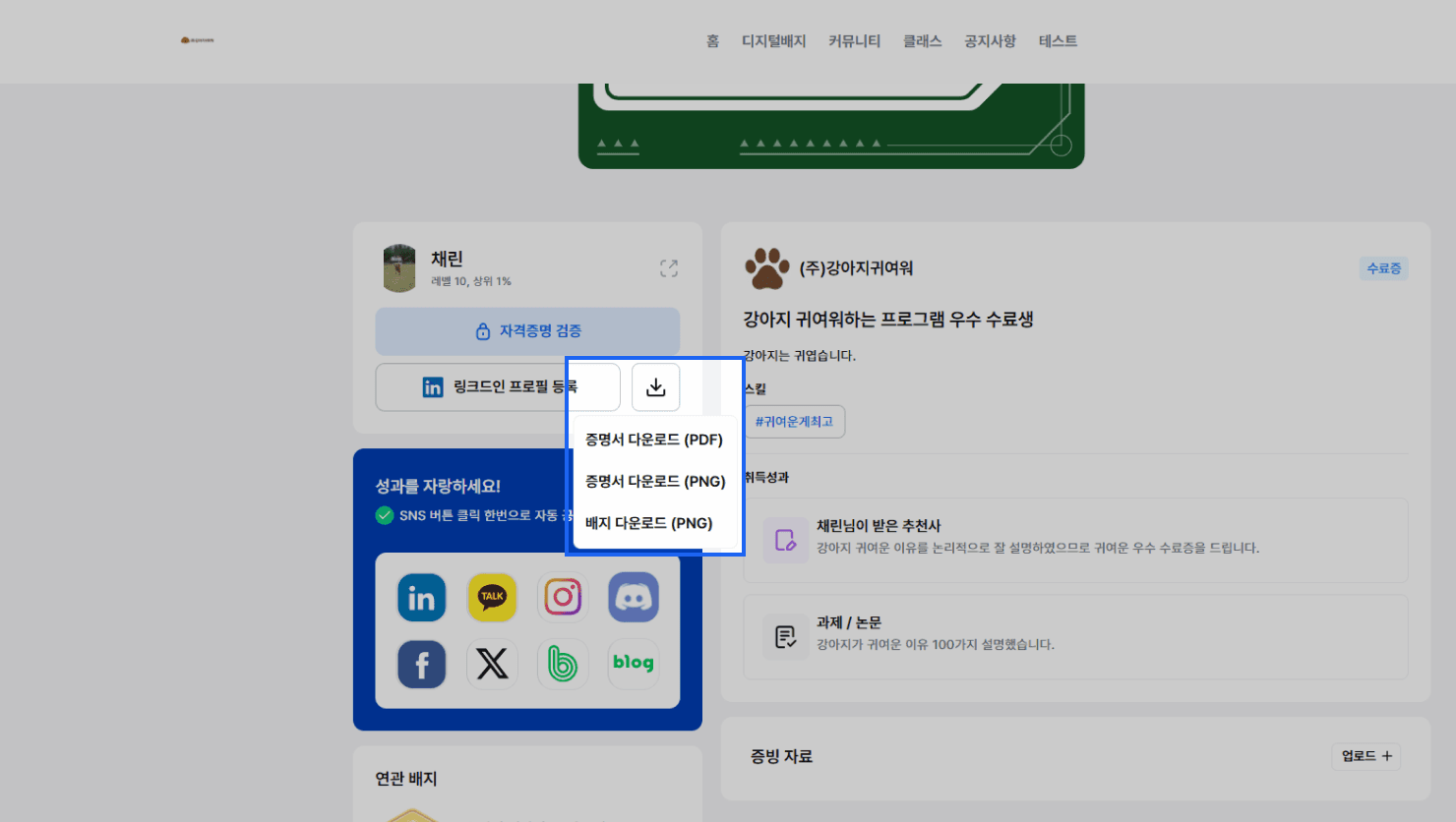
- Download the badge or certificate PNG file.
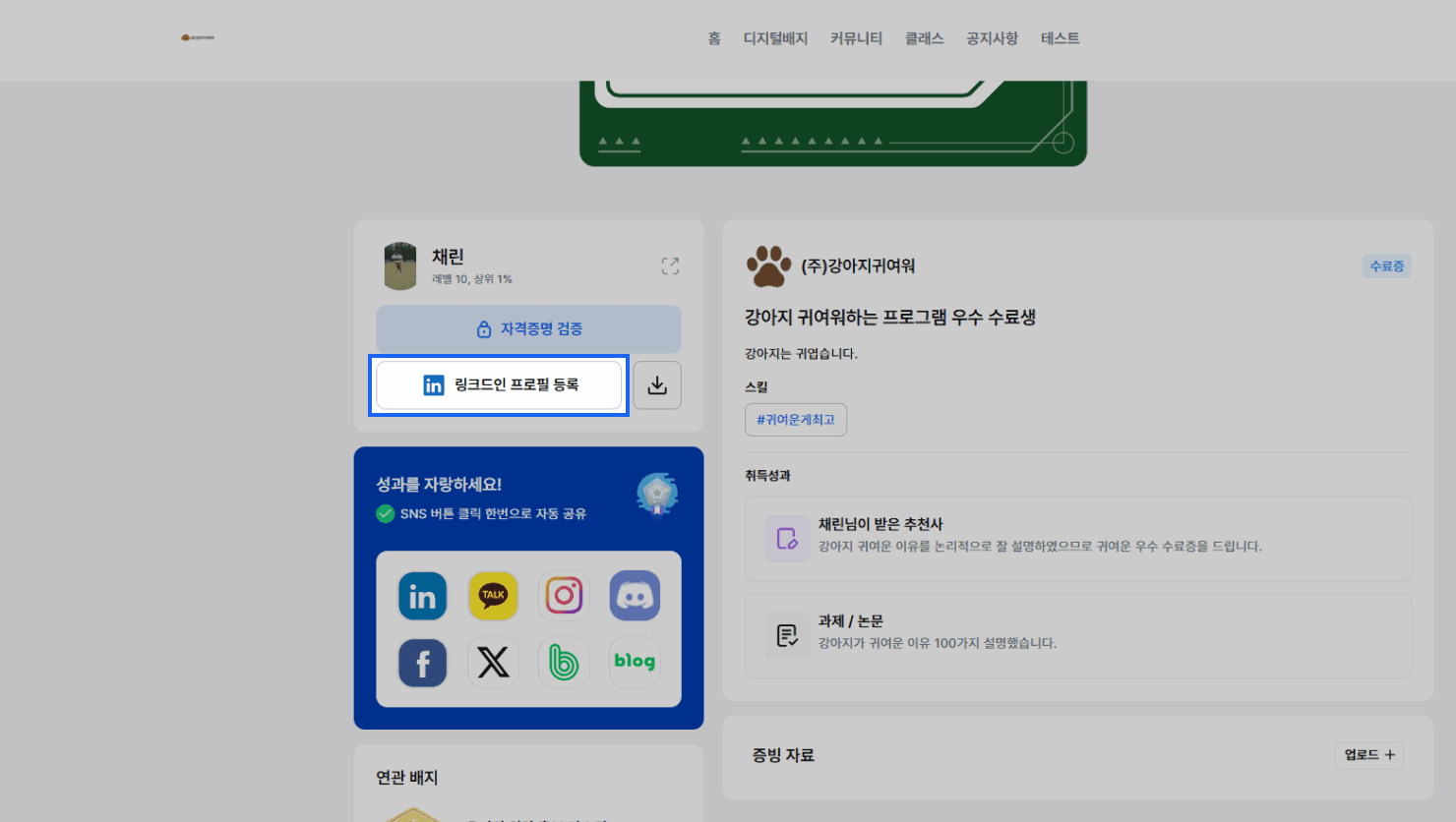
- Click the {Add to LinkedIn Profile} button to go to the LinkedIn page.
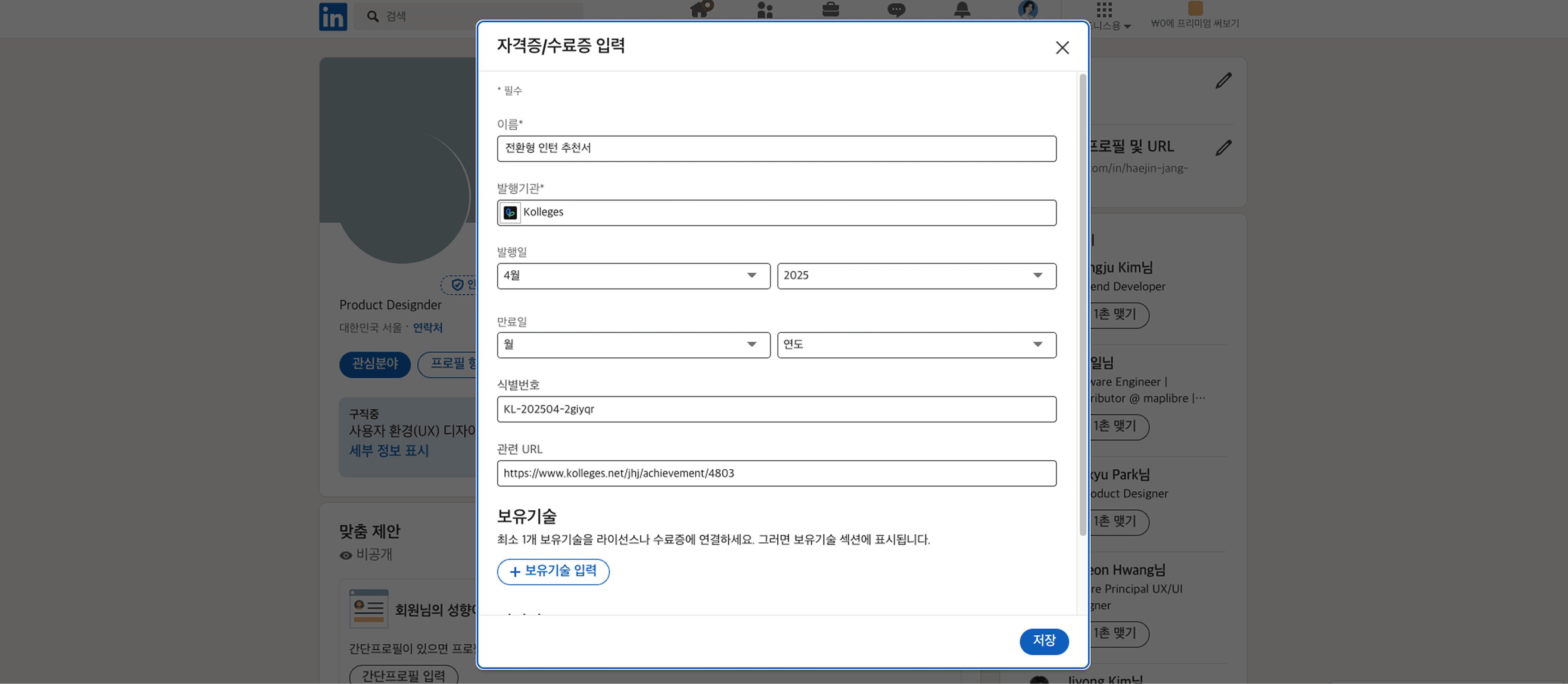
- The data is automatically linked into the Licenses & Certifications fields on LinkedIn.
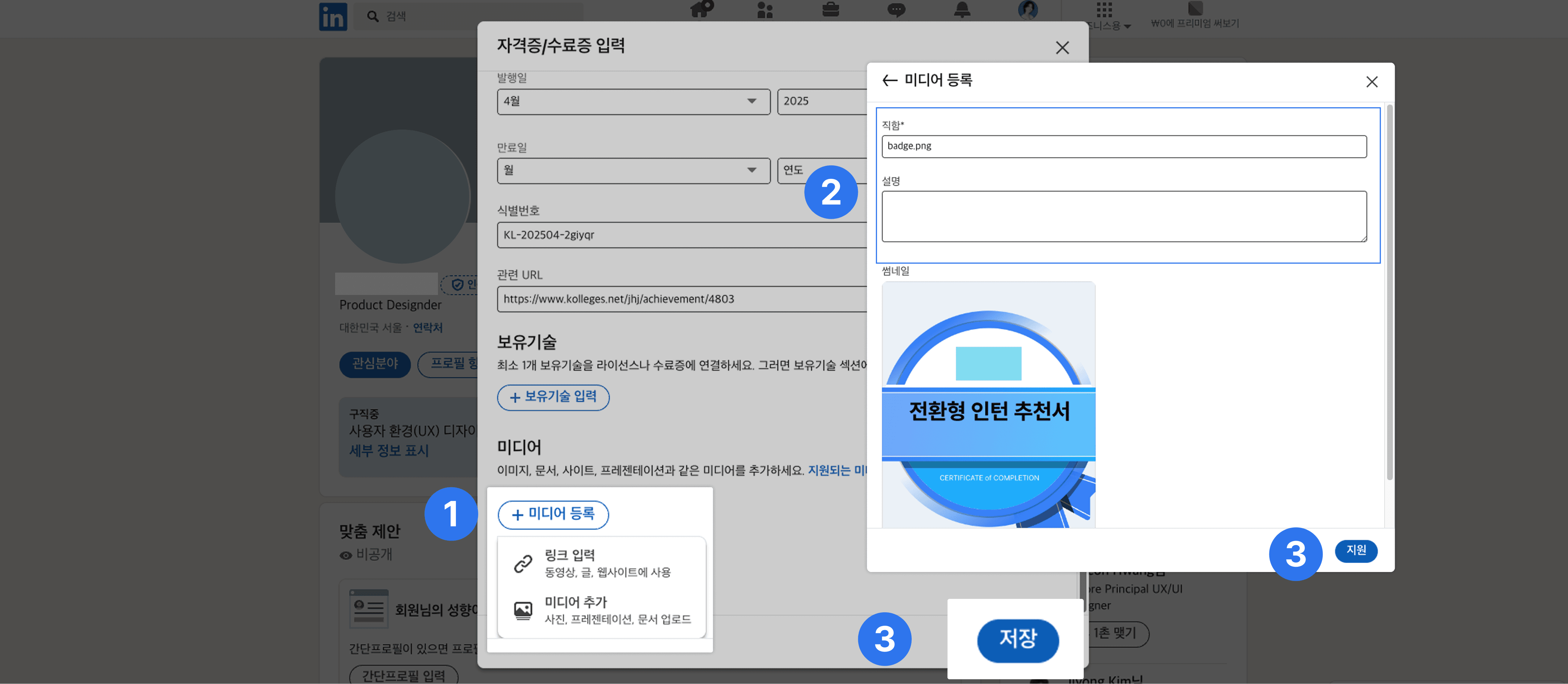
- Adding media:
- Click the {+ Add Media} button to upload the badge or certificate image you saved.
- Enter the certificate-related information in the title and description fields.
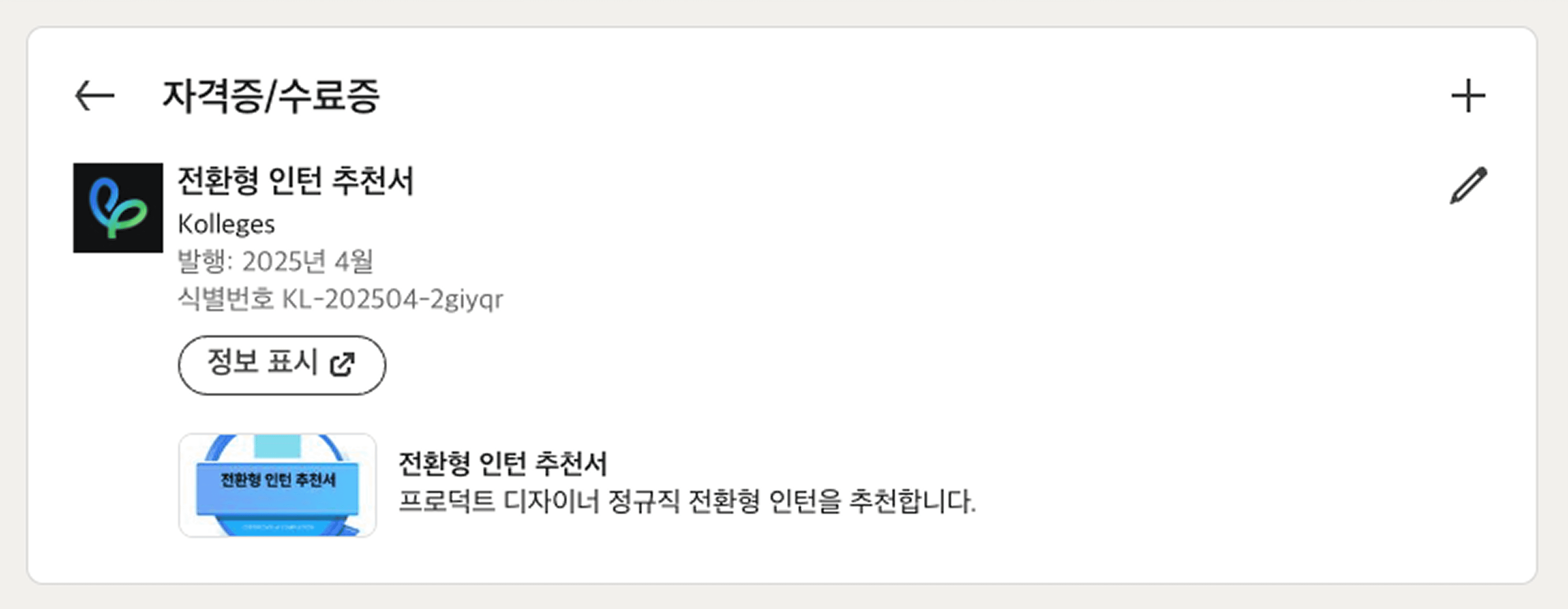
You have successfully registered your Kolleges certificate on LinkedIn.
Adding My Achievement Materials
The Add Achievement Materials feature lets you attach a learner’s deliverables, completion outputs, assignment files, portfolio links, and more to an issued digital badge, boosting the badge’s credibility and usefulness.
Through this, learners can prove their concrete competencies and output beyond simple completion verification, and it becomes a more powerful personal branding tool when shared on social media.
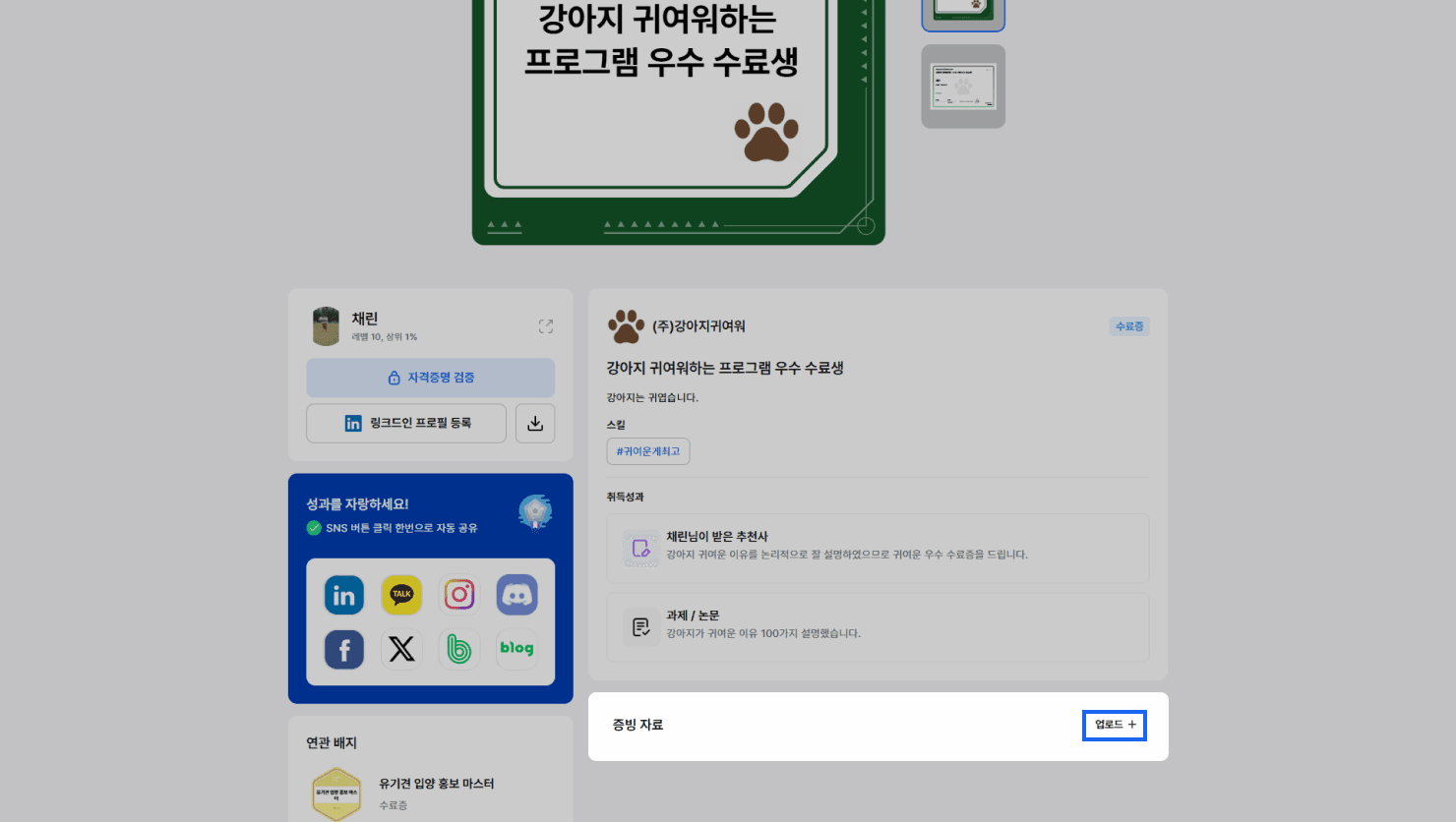
- On my digital badge detail page > [Supporting Materials] > click the {Upload+} button to open the [Add Achievement/Activity Materials] popup window.
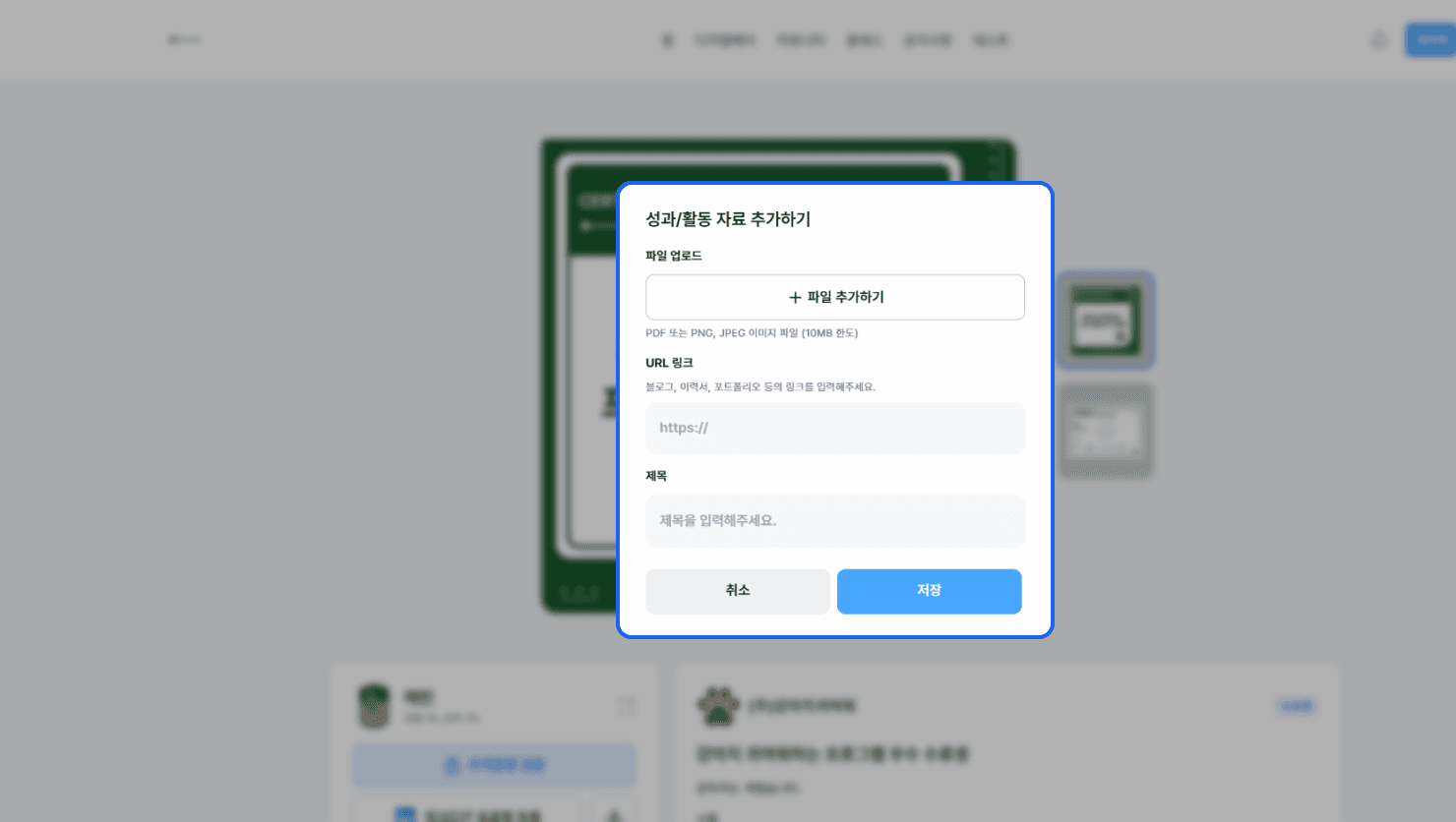
- In the [Add Achievement/Activity Materials] popup window, click the {+ Add File} button.
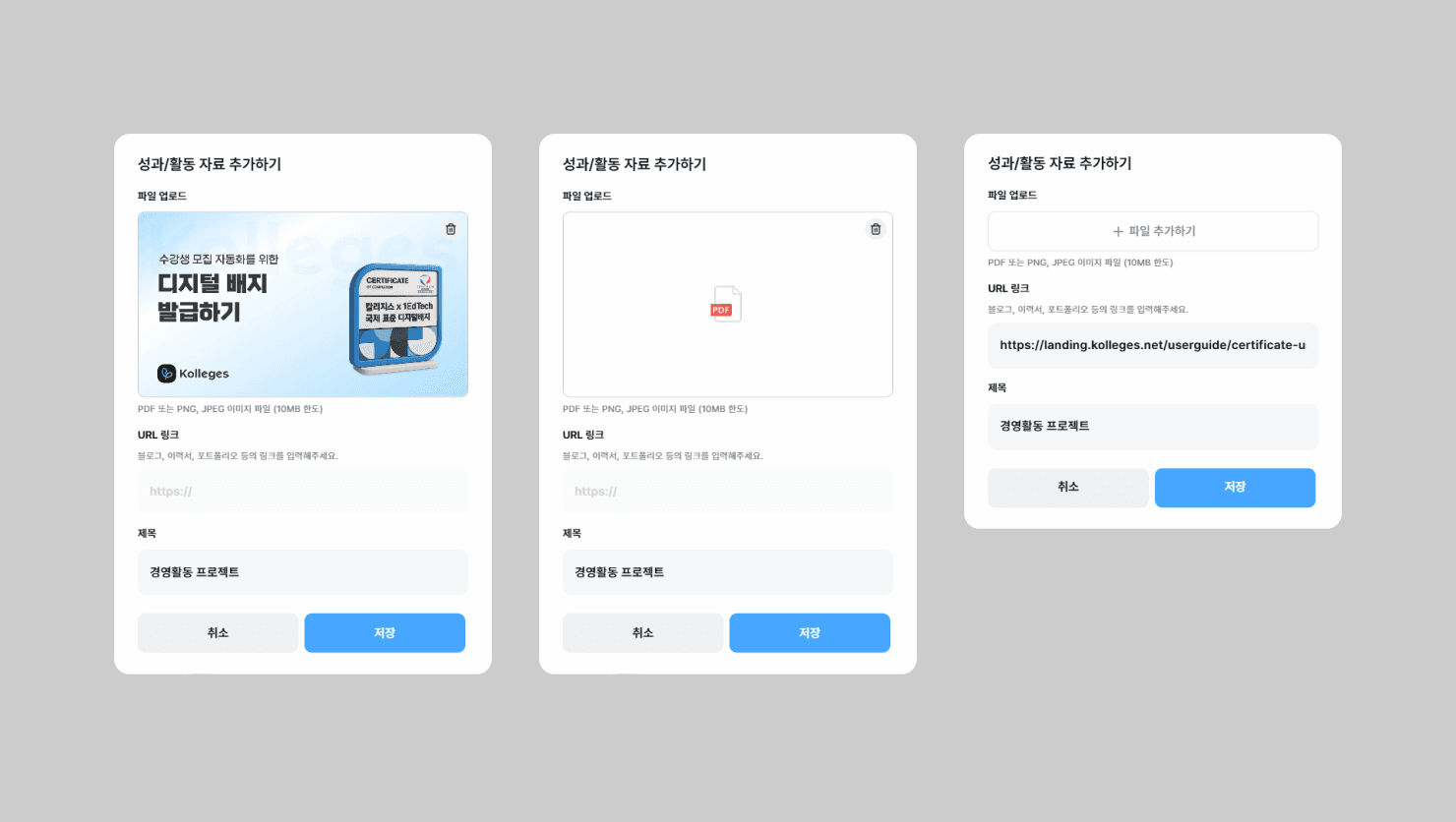
- Upload a URL link, PDF document, or PNG image for your achievement supporting materials, such as a portfolio, project report, or activity photo.
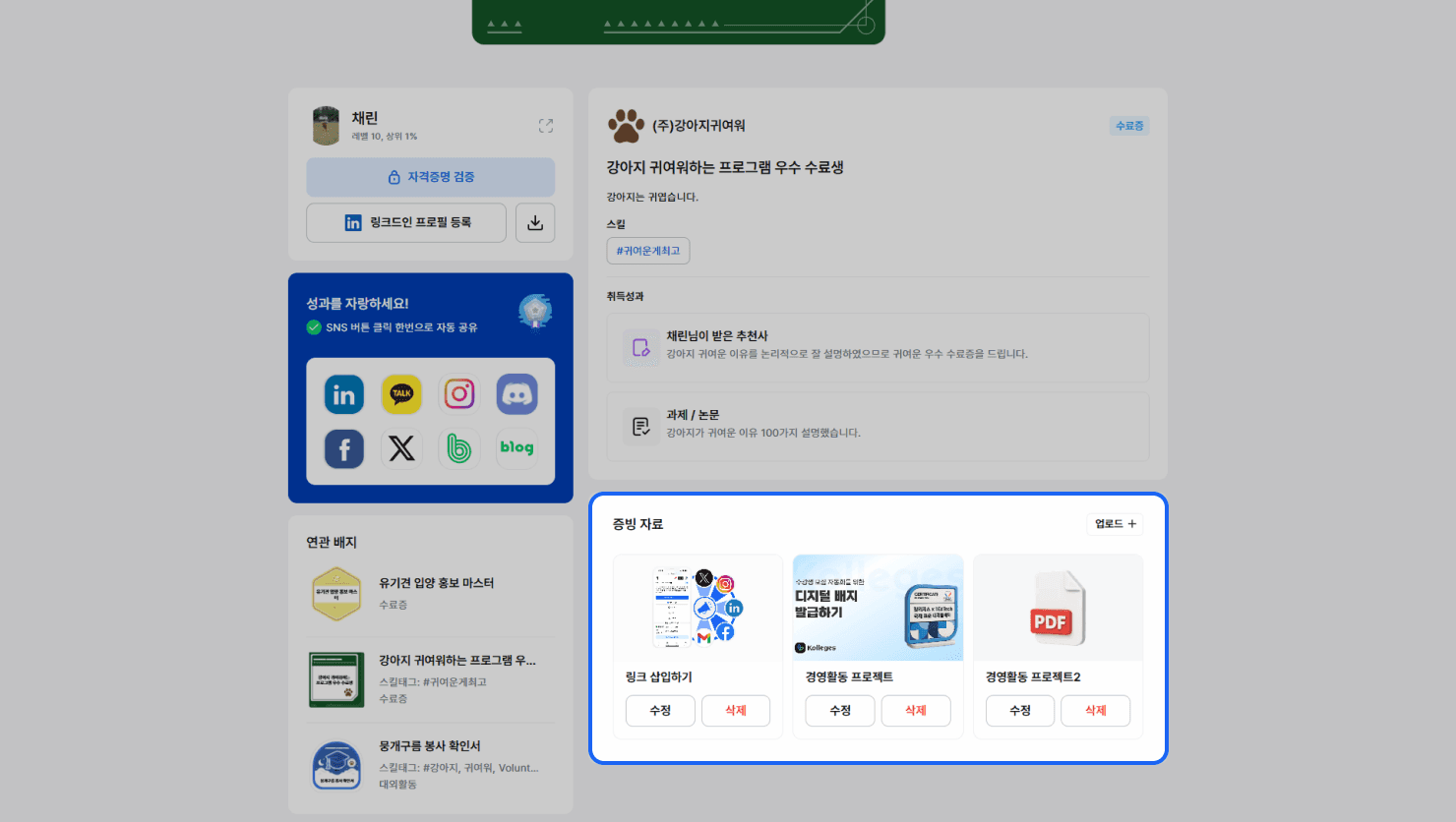
Registered achievement materials can be edited or deleted by the badge owner.
Adding It to Your Resume
- Download the badge or certificate PNG file.
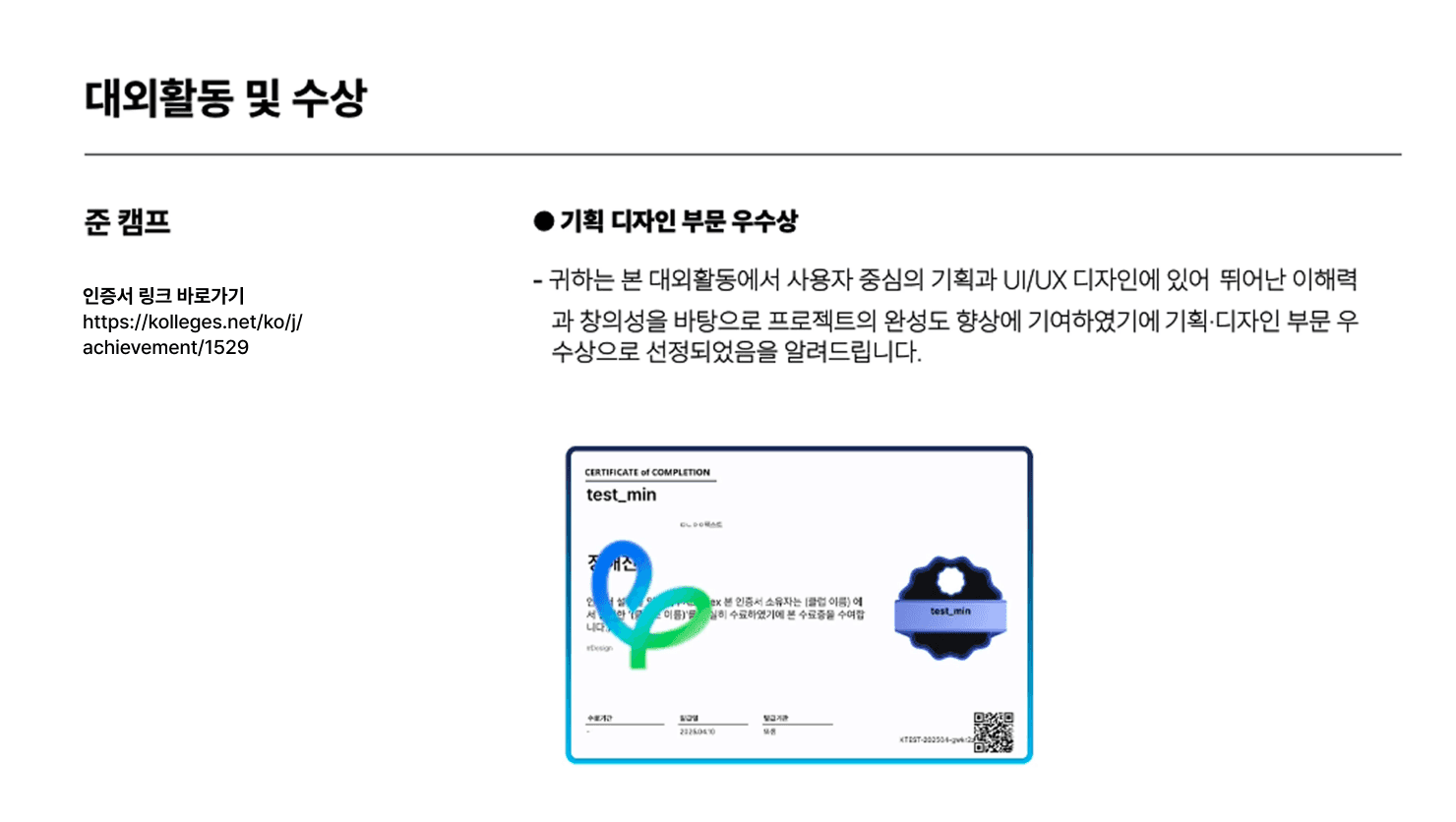
- You can include the badge image or verification link in your resume to prove it to recruiters.
Sharing on Social Media
A certificate issued by Kolleges can be easily shared to various social media channels.
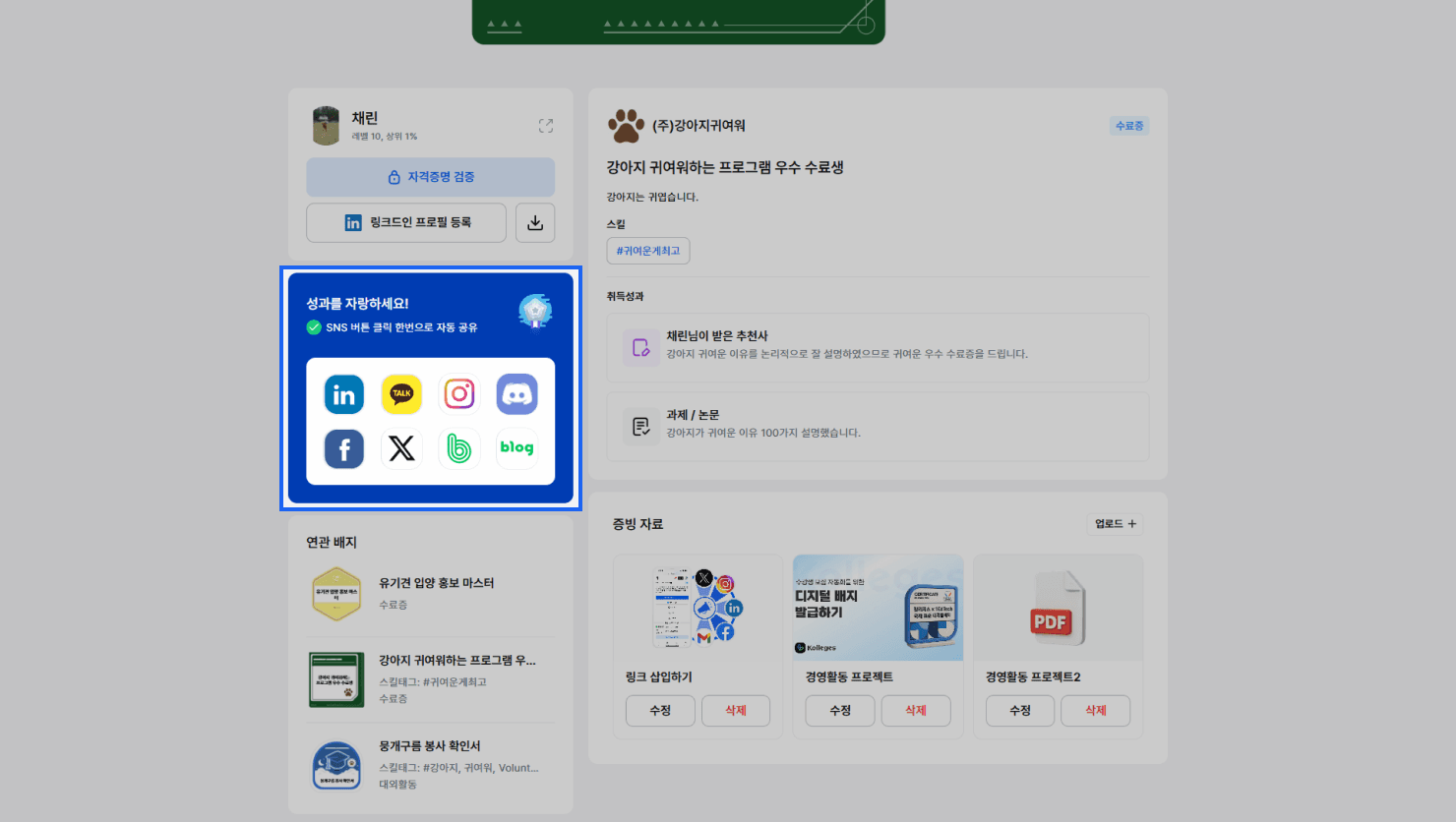
Click the {Share to Other Channels} button to view the social media sharing options.
The sharing options are as follows.
- Copy link
- When clicked, the link to that page is copied to your clipboard.
- Share to Facebook / Twitter
- When clicked, you are automatically taken to a post composition page with the link included.
- LinkedIn / KakaoTalk / Instagram / Naver Band / Naver Blog / Discord
- When you click each button, a popup opens with instructions on how to share to that social media platform. Please follow the instructions to share.
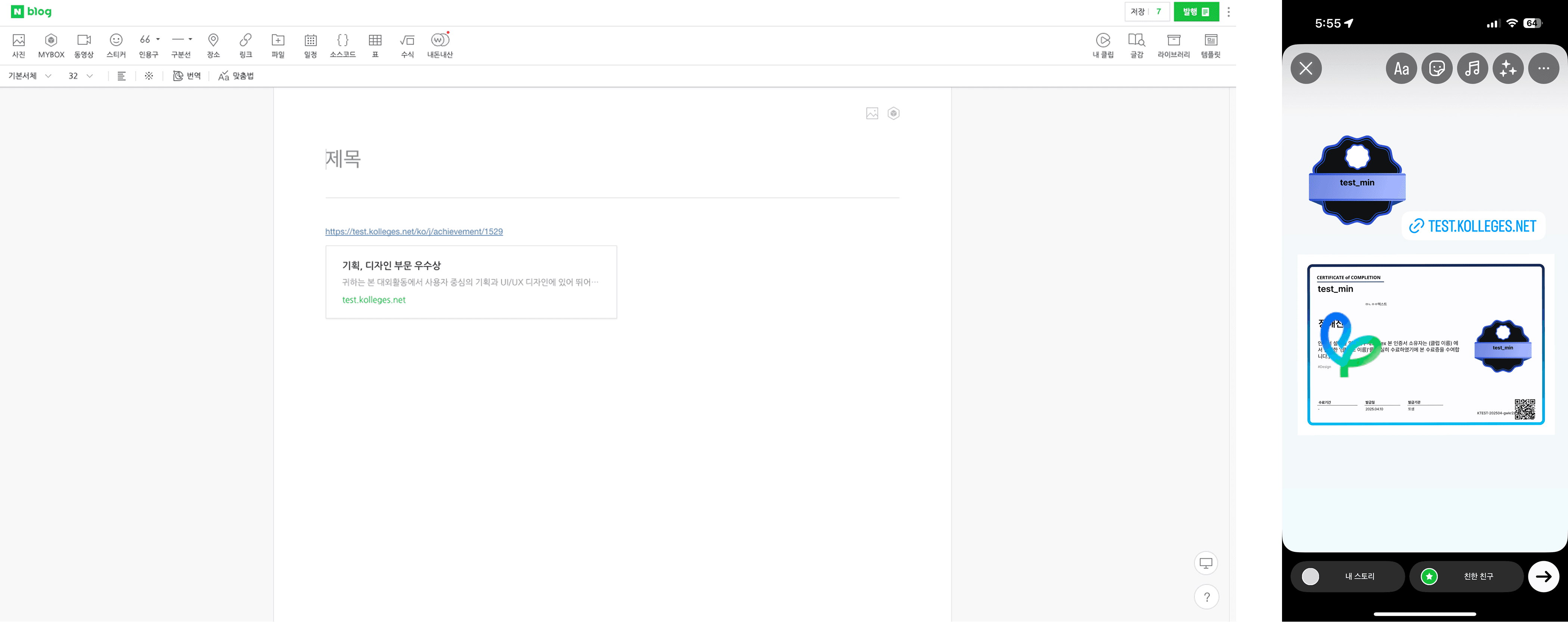
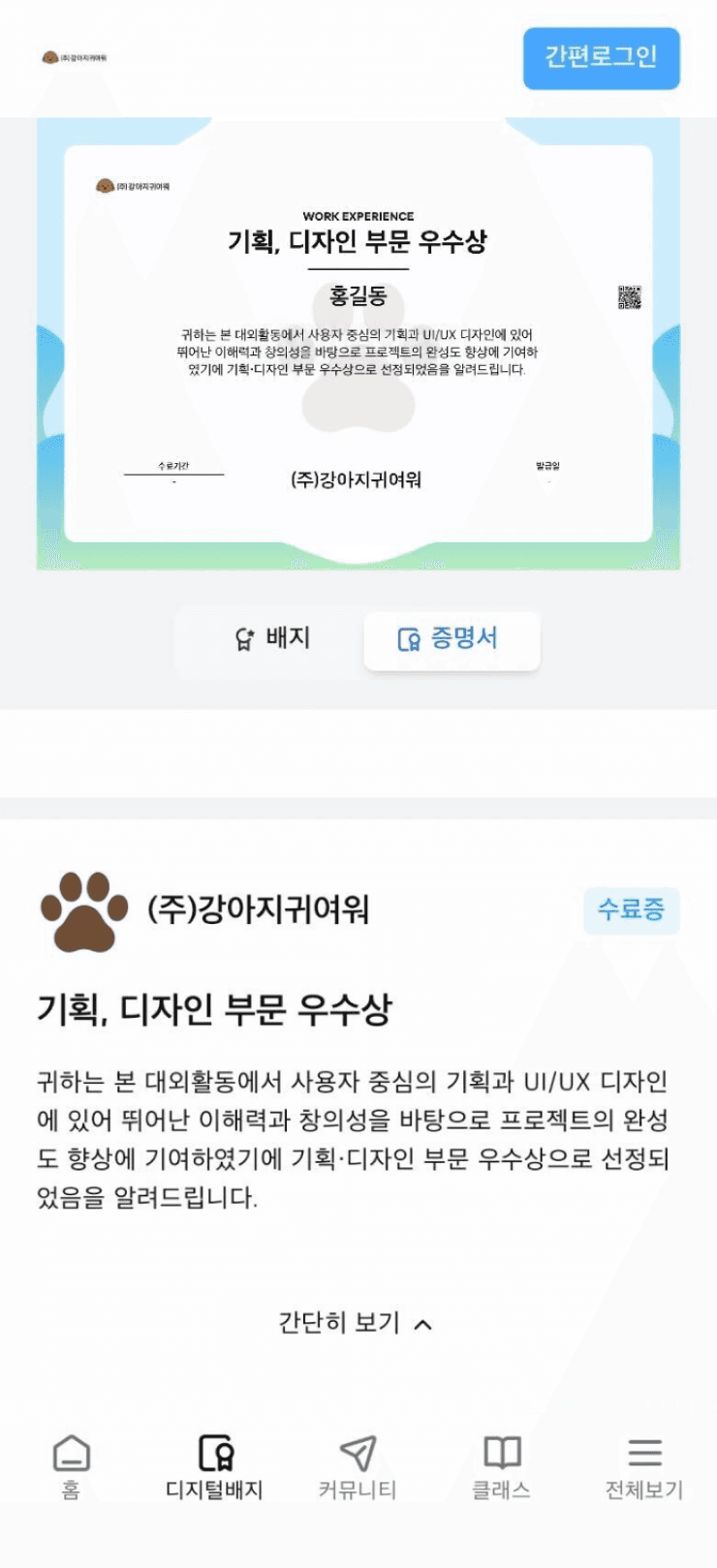
When you click the shared link, the certificate detail page opens so that anyone can view the content.
Frequently asked questions
Want to turn learning outcomes into verifiable assets?
From issuing to verifying and amplifying, see it for yourself with Kolleges.
Request a Kolleges demo
Related posts
Digital Badge Wallet
This guide explains step by step how to store issued digital badges, check unreceived badges, and share to SNS all in one place using the Kolleges badge wallet.
Verifying the Authenticity of a Digital Badge
On a digital badge's detail page, instantly check its validity with a single click of the Verify credential button, and look up the original data using the blockchain ID to verify whether there has been any tampering or forgery.

Discord Integration Guide: How Individual Users Connect Kolleges Badges
On the certificate receive page, you can integrate your Discord account once, join the issuer's server, and then share certificates directly to Discord channels using the share button.