
Discord Integration Guide: How Individual Users Connect Kolleges Badges
 Robin Yoon · Customer Success Team Published
On the certificate receive page, you can integrate your Discord account once, join the issuer's server, and then share certificates directly to Discord channels using the share button.
This guide explains how individual users can connect their Discord account with their Kolleges account to set up activity-history-based badge receiving. It walks through, step by step, how to automatically connect attendance, activity, and participation data and how to check the digital badges you receive.

About Discord Sharing
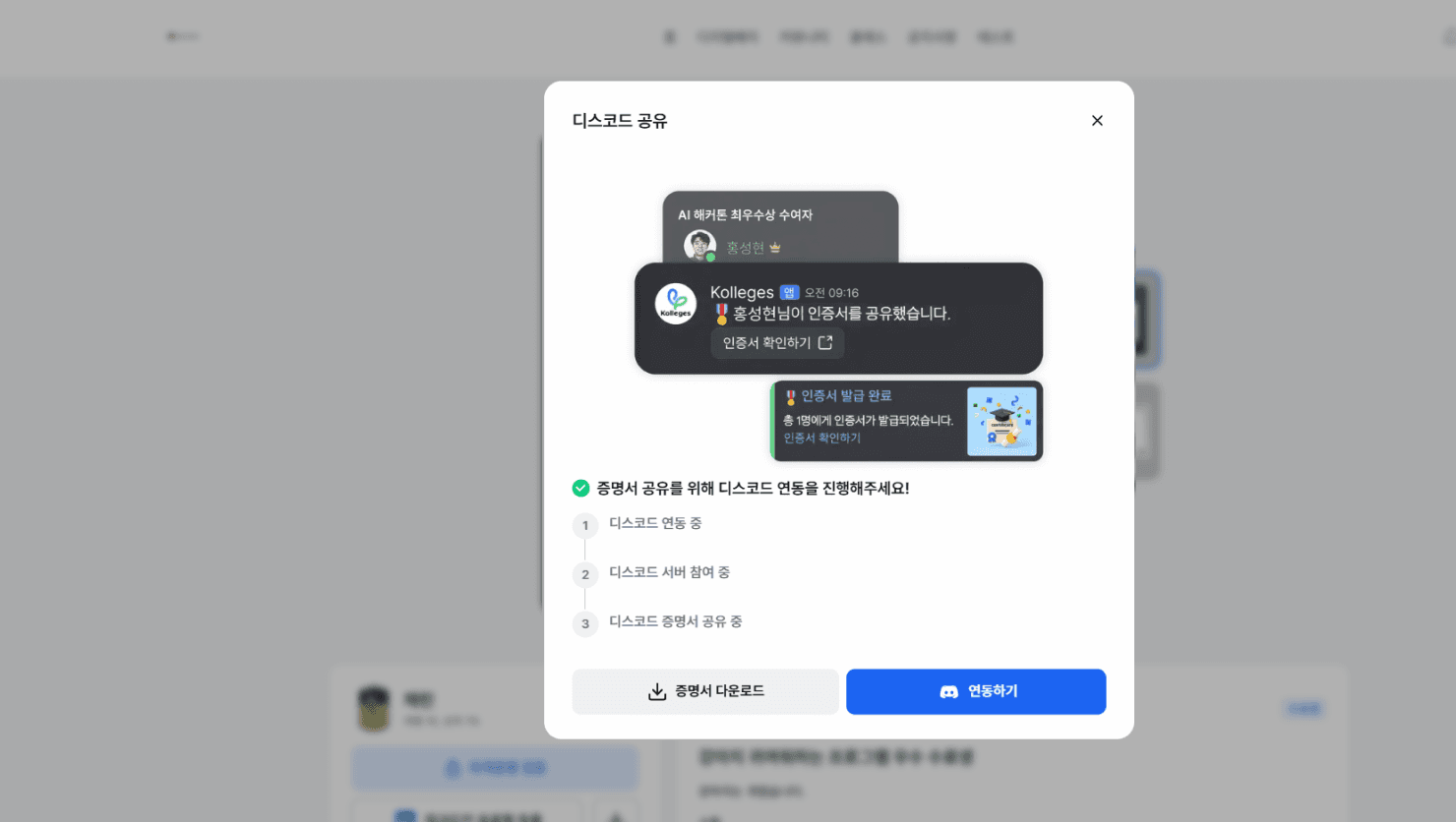
- If the issuer operates a Discord channel as its official community, you may need to request Discord integration from the group operator in order to use the Discord sharing feature.
- With the Discord feature, you can use the following:
- Share certificates directly to a Discord channel
- Share certificate issuance information with the issuer and other recipients
- Before sharing to Discord, please check the following:
- The issuer must have completed Discord integration.
- A Discord account is required.
- Discord permission authentication is required once.
Integrating Discord
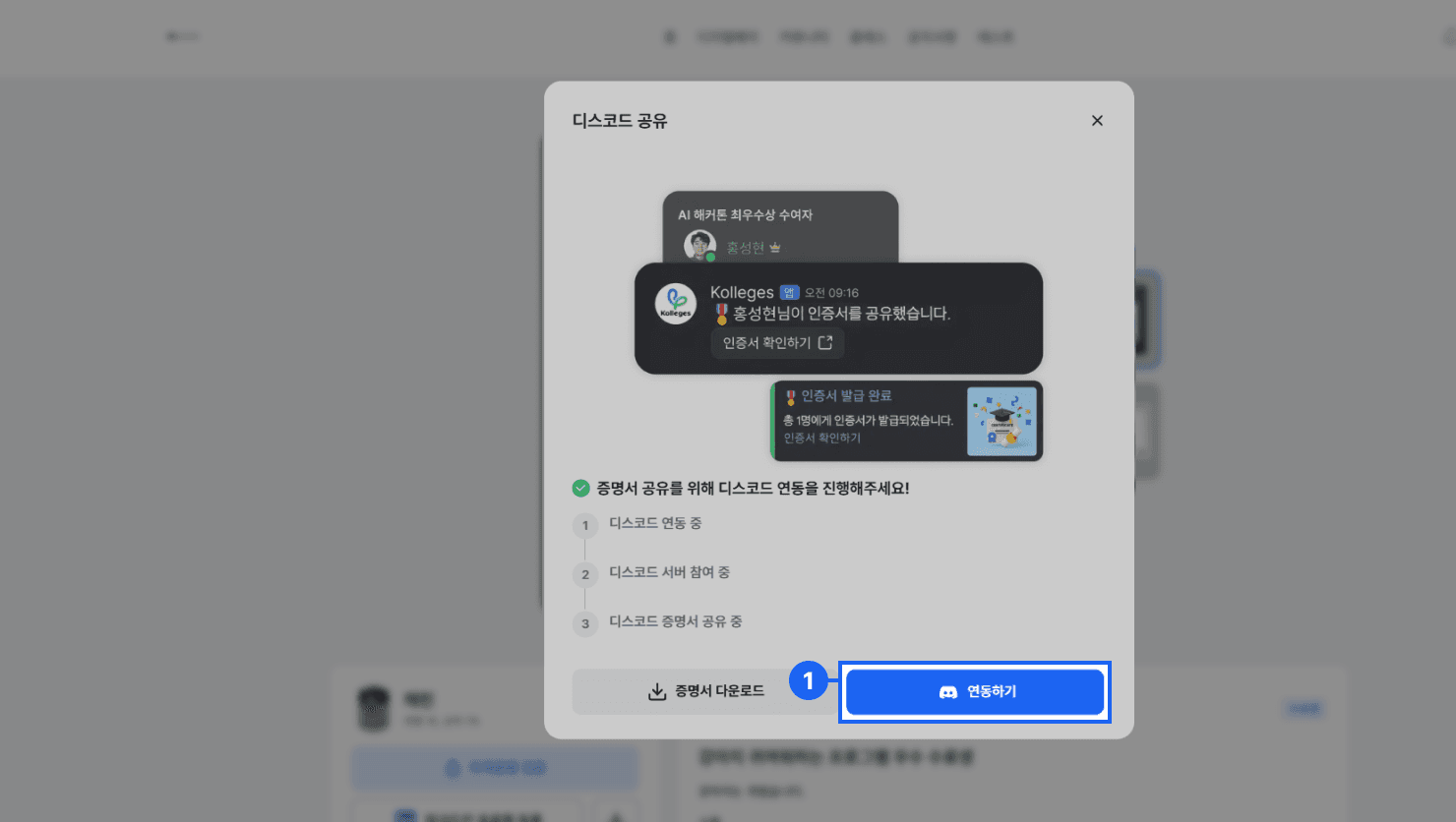
- When you click the {Integrate} button on the certificate receive page, you are taken to the [Discord Login and Permission Approval] screen.
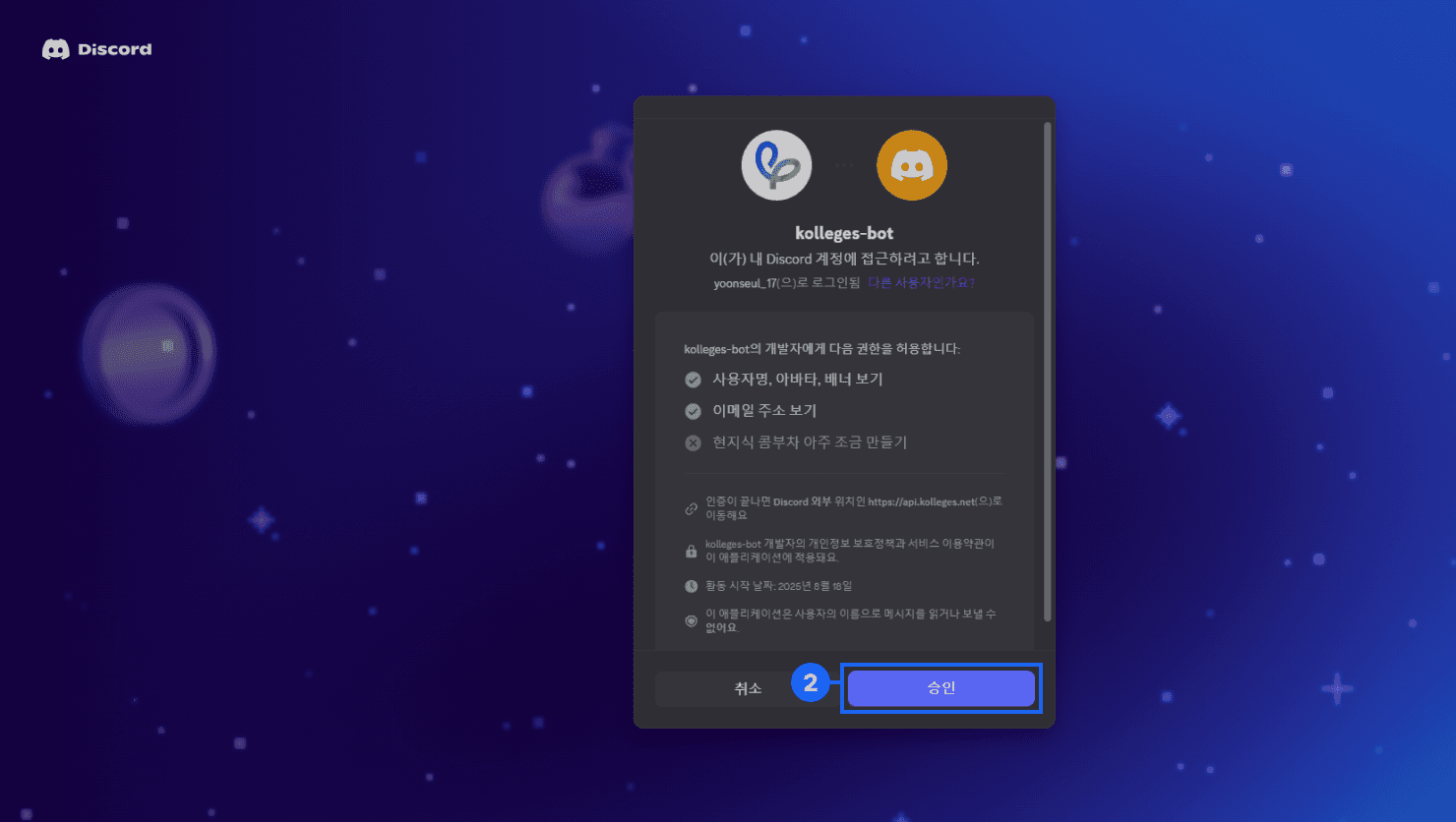
- Click the {Approve} button to complete the Discord integration.
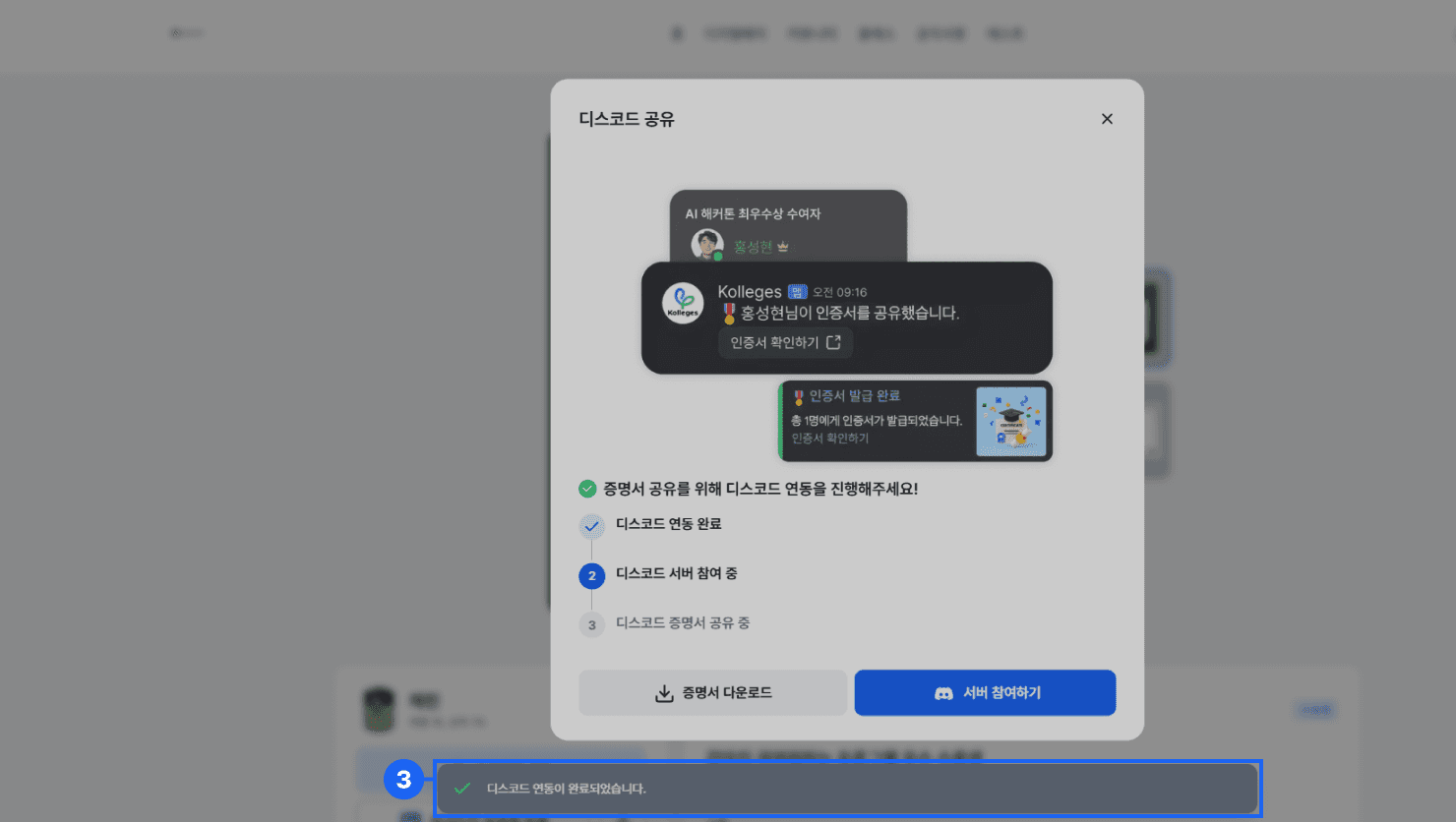
- Once the integration is complete, an integration-complete snackbar message appears at the bottom of the screen.
Joining the Discord Server
Once the Discord integration is complete, the step to join that issuer’s Discord server begins.
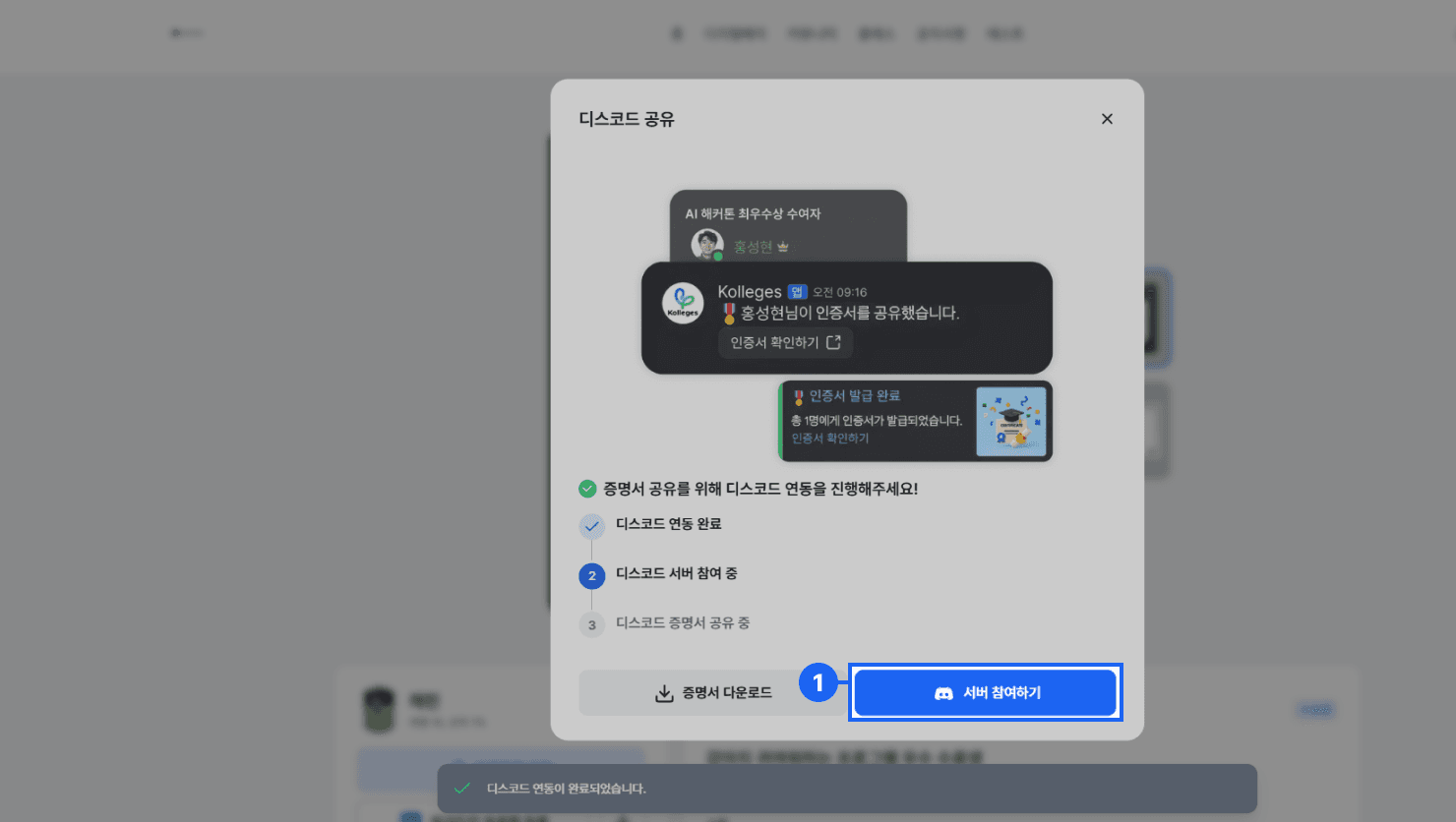
- When you click the {Join Server} button in the Discord share popup window, you are taken to the [Accept Discord Invite] screen.
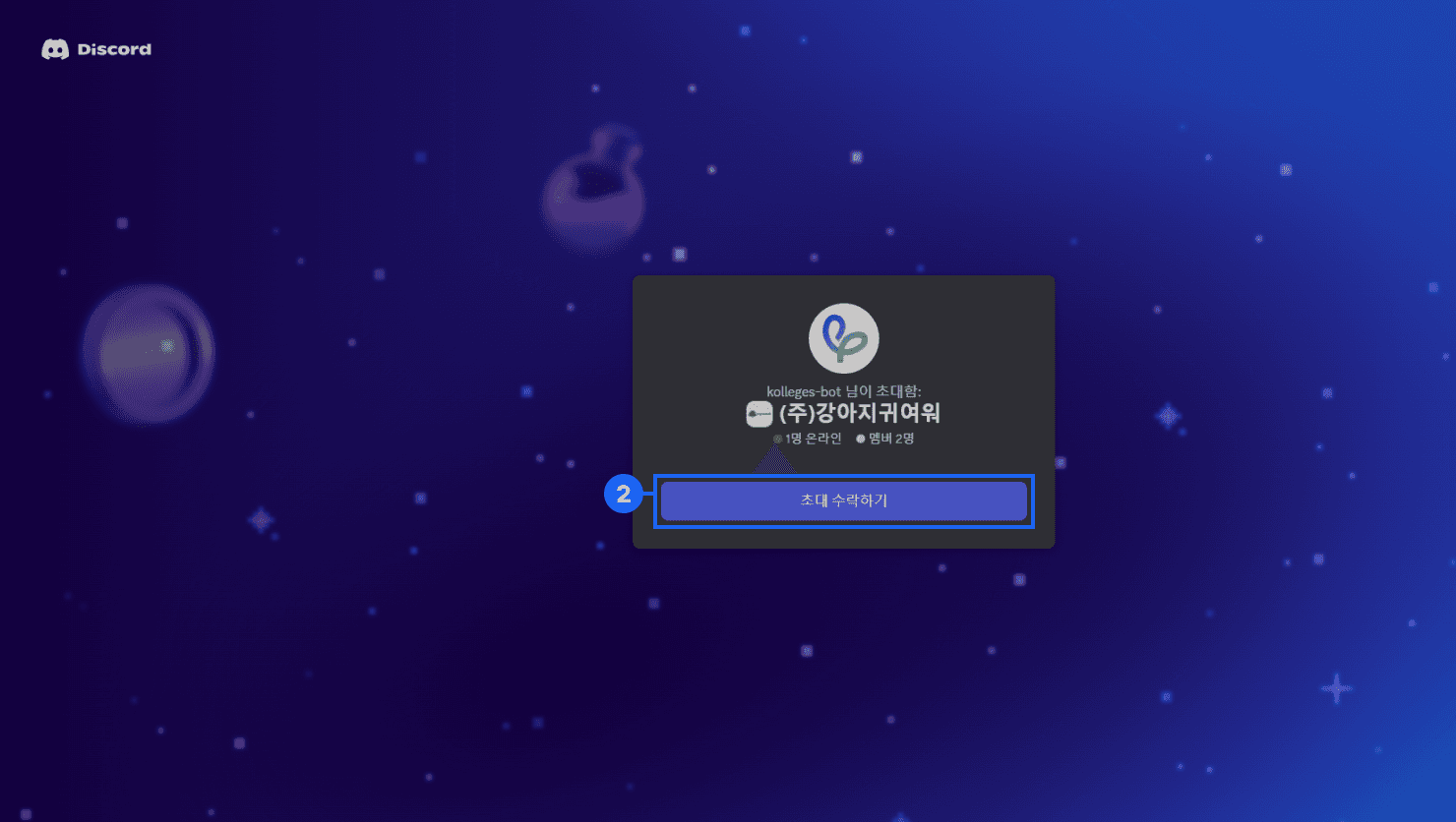
- Click the {Accept Invite} button to complete joining the Discord server.
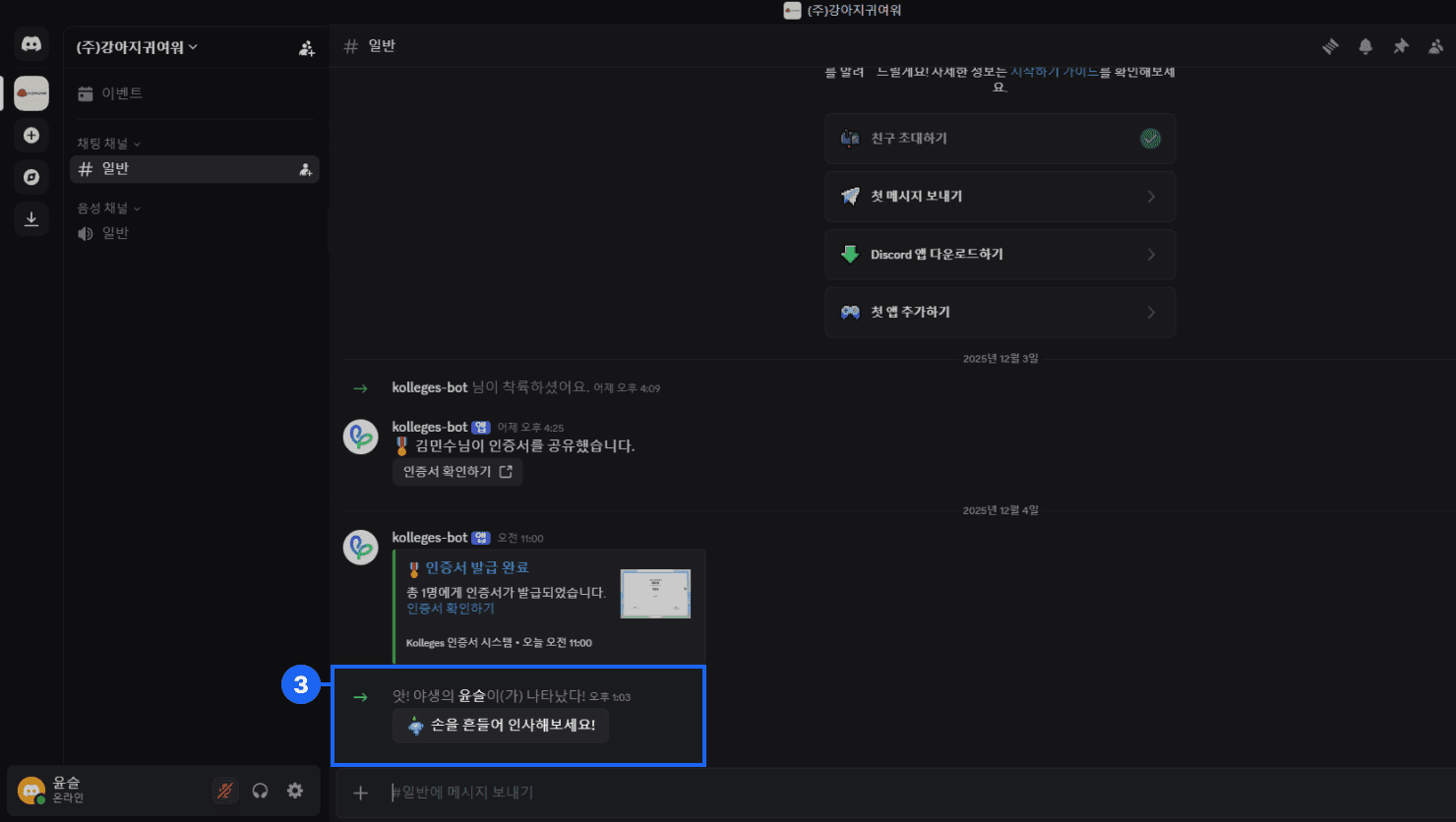
- A server-join notification is automatically sent to the Discord channel.
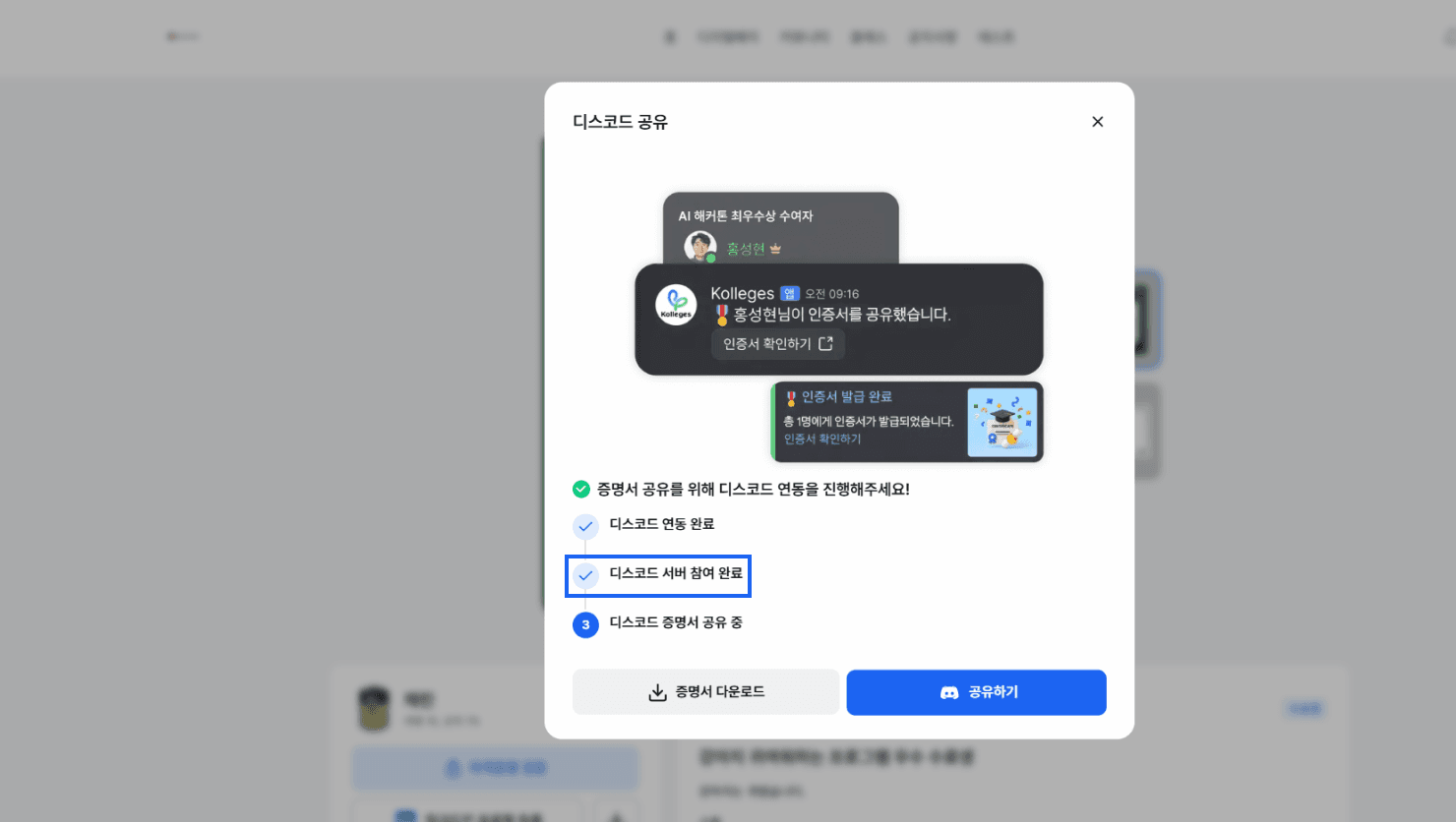
* Once you finish joining the server, the status changes to “Discord Server Join Complete.”
Sharing a Certificate via Discord
Once you have joined the server, you can share certificates to the Discord channel.
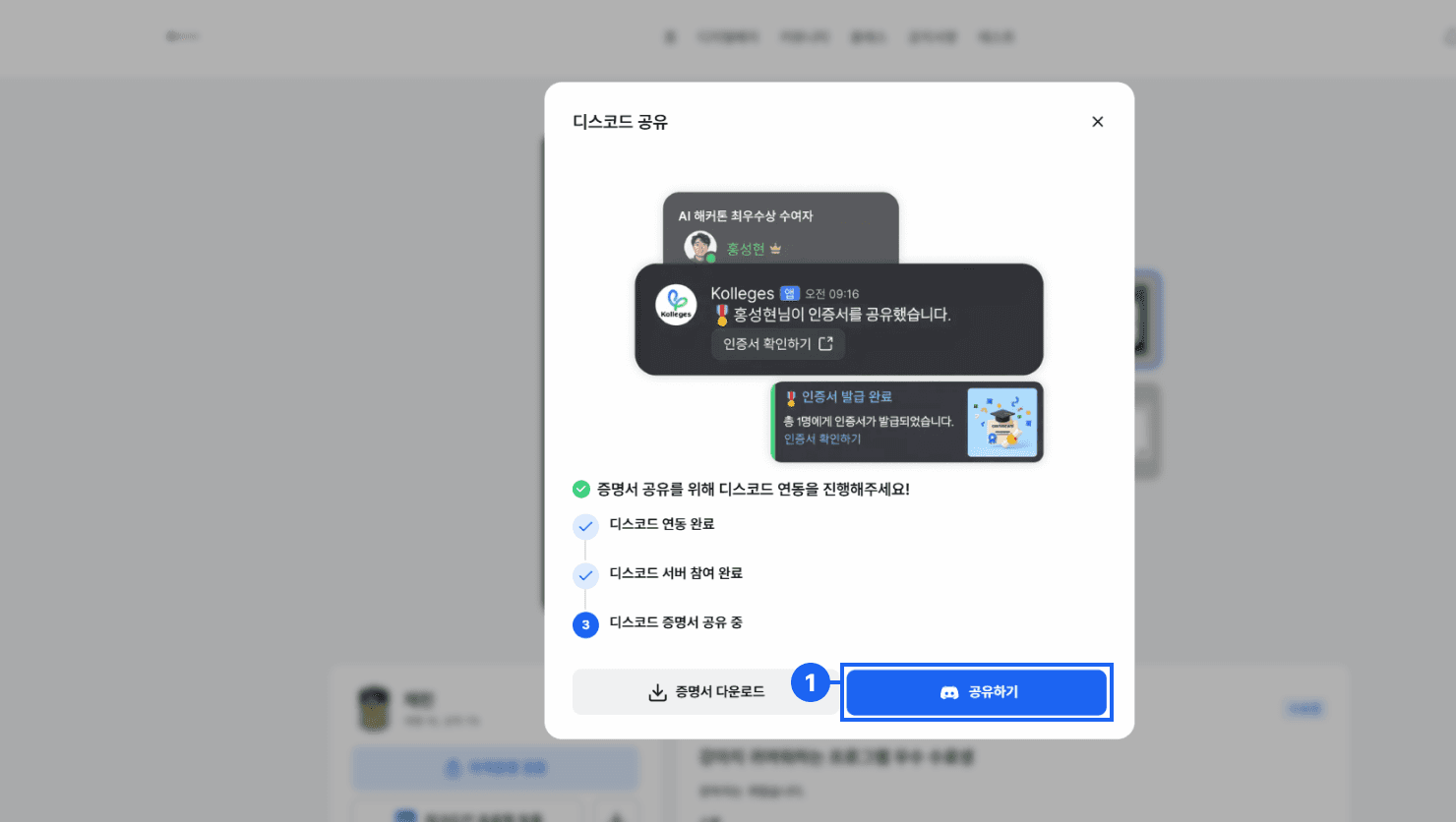
- Click the {Share} button in the Discord share popup window.
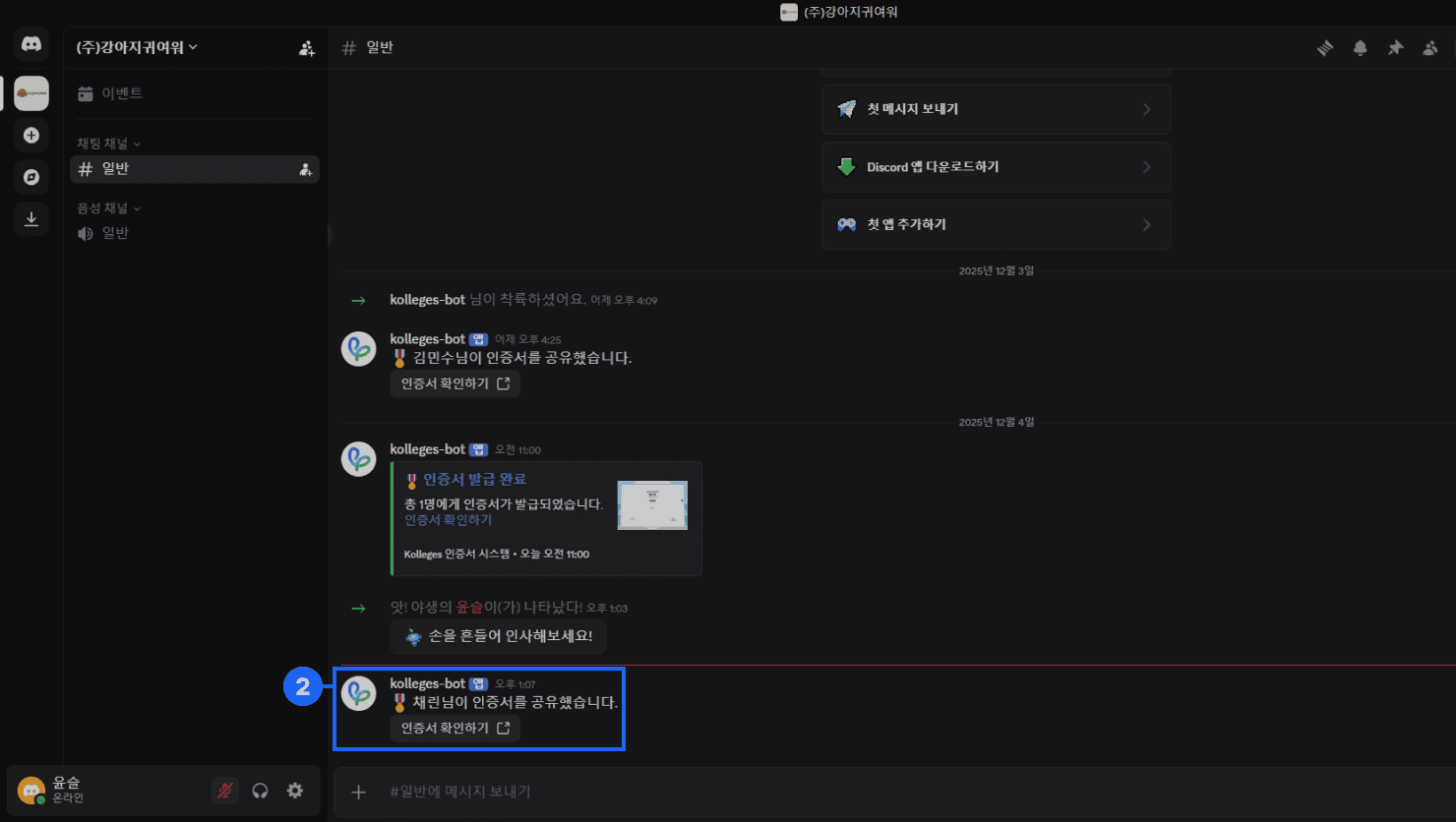
- A certificate-share notification is automatically sent to the Discord channel.
- Members participating in that channel can click the shared certificate to check its information.
Final Completion Status
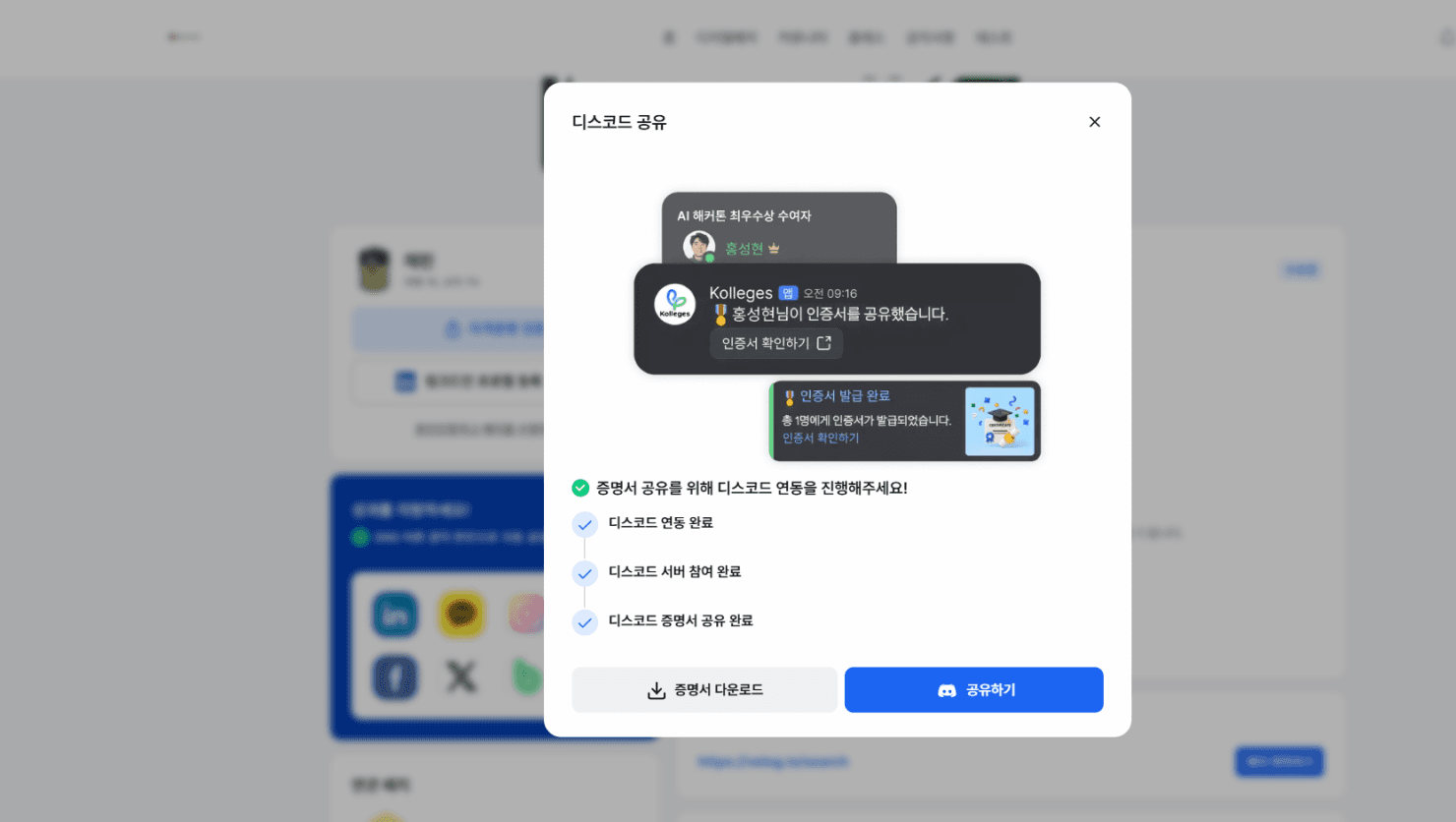
Once the certificate has been shared to the Discord channel, you can check the share result in the popup window on the certificate page.
Frequently asked questions
Want to turn learning outcomes into verifiable assets?
From issuing to verifying and amplifying, see it for yourself with Kolleges.
Request a Kolleges demo Related posts
Digital Badge Wallet
This guide explains step by step how to store issued digital badges, check unreceived badges, and share to SNS all in one place using the Kolleges badge wallet.
Tips for Using Digital Badges
A step-by-step guide to automatically linking your Kolleges digital badge to the LinkedIn Licenses section and attaching portfolio supporting materials to concretely prove your competencies on social media and your resume.

Class Usage Guide: Key Features for Running Lessons and Courses
From the Class tab, apply for the class you want, and as you complete missions using the curriculum, assignments, and leaderboard, a badge is issued once you meet the reward conditions and can be viewed in your badge wallet.