
Class Usage Guide: Key Features for Running Lessons and Courses
 Robin Yoon · Customer Success Team Published
From the Class tab, apply for the class you want, and as you complete missions using the curriculum, assignments, and leaderboard, a badge is issued once you meet the reward conditions and can be viewed in your badge wallet.
This guide explains in detail how to use classes in Kolleges, including class creation, content uploads, hands-on management, and assignment operations. It summarizes the essential features that educational institutions and instructors need to run lessons efficiently.
Selecting a Class
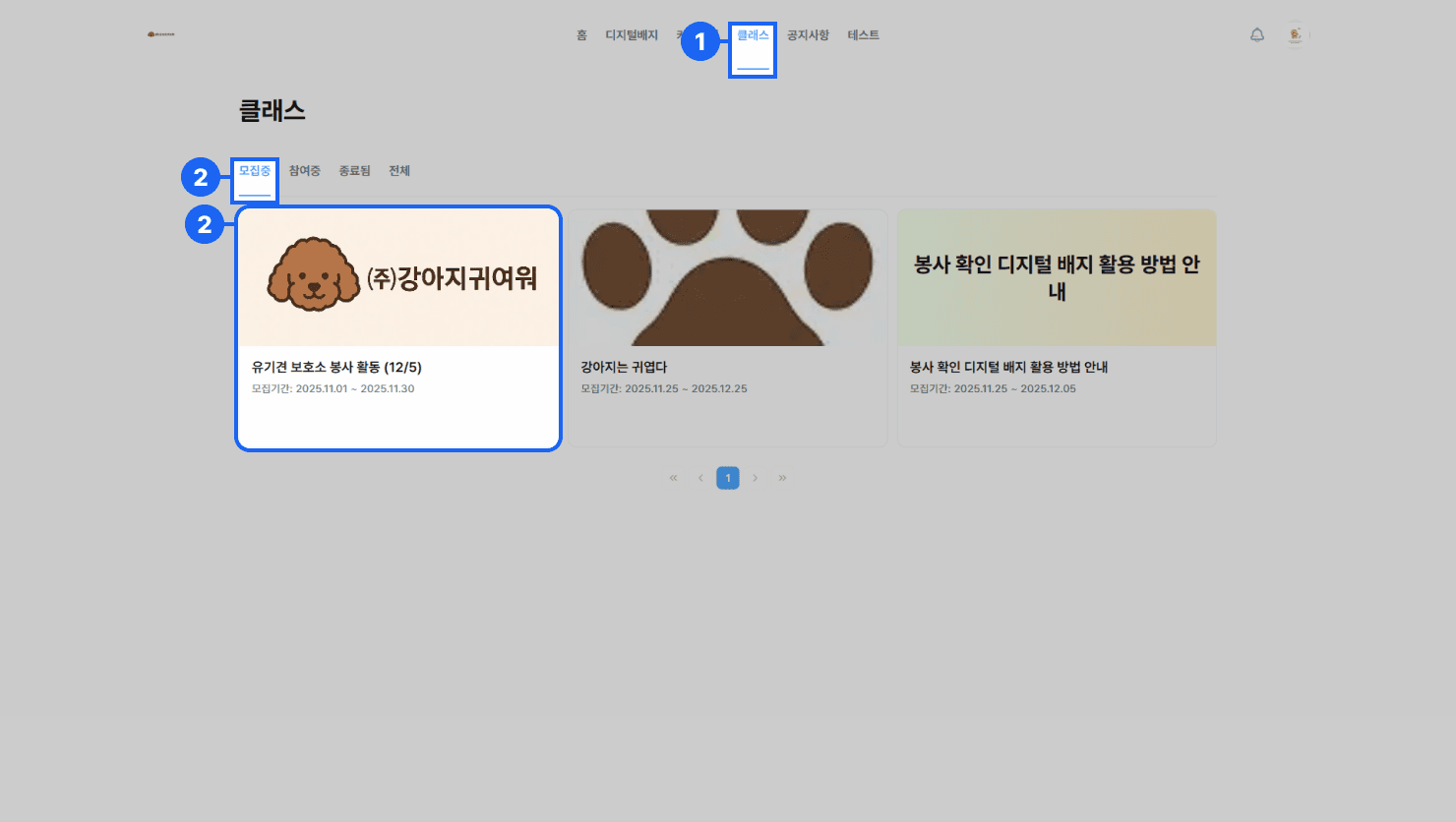
- Go to the [Class] tab in the top menu of the homepage.
- From the list of classes currently recruiting, select the {class card} you want to join to go to its detail page.
Applying for a Class
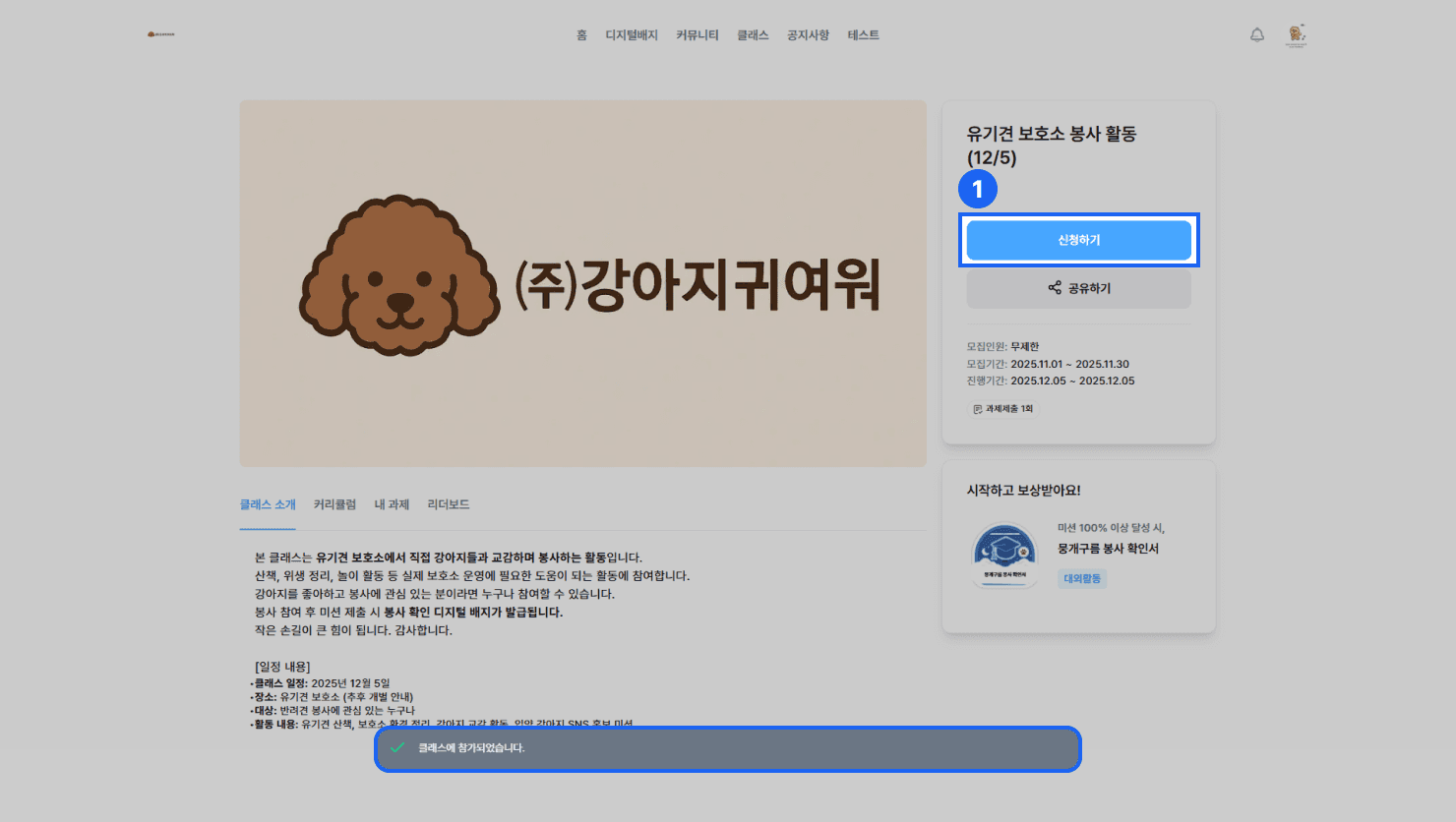
Click the {Apply} button in the top right of the detail page to join the class.
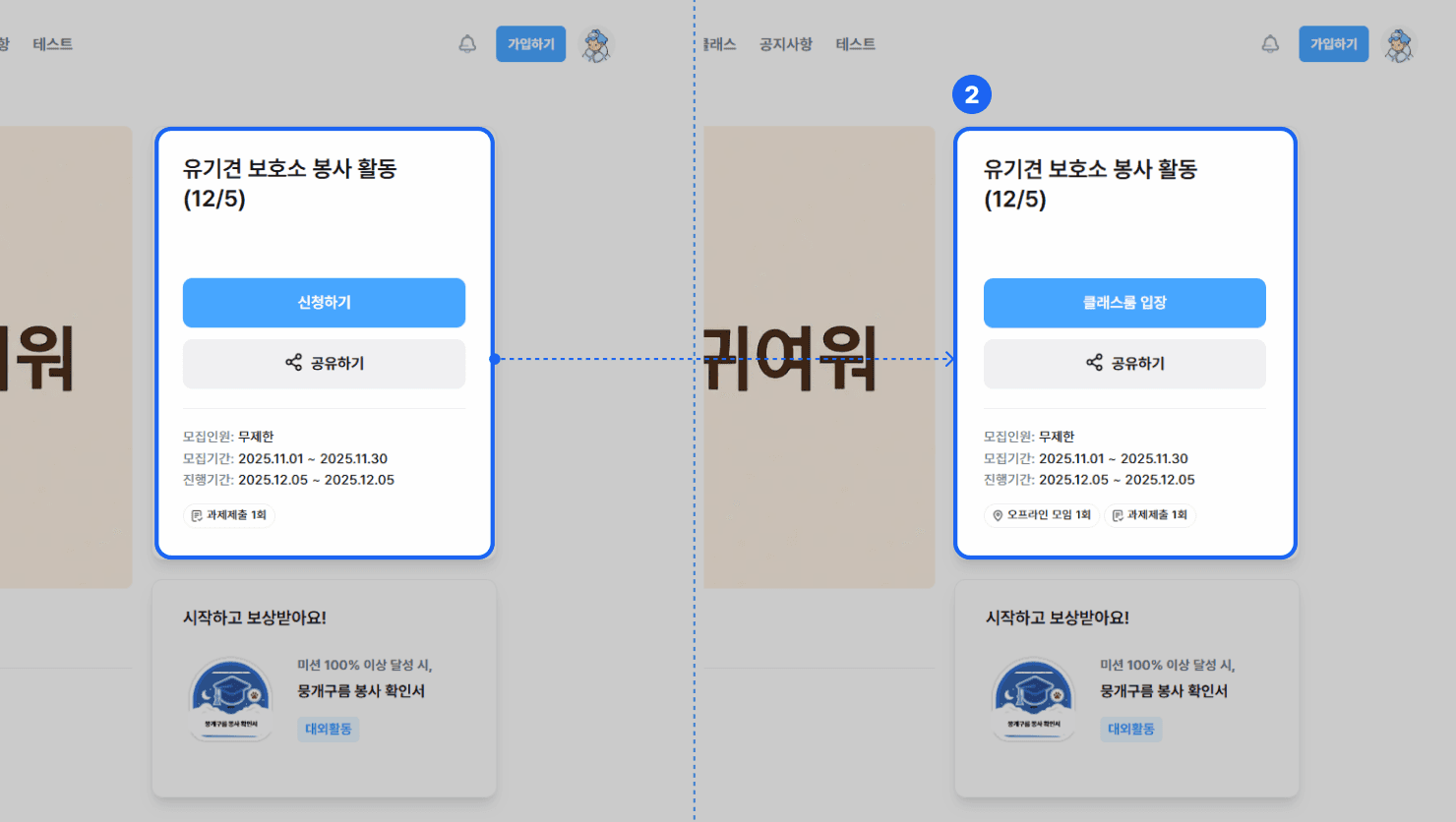
A “You have joined the class” message appears at the bottom, and the button changes to {Enter Classroom}.
Checking the Curriculum
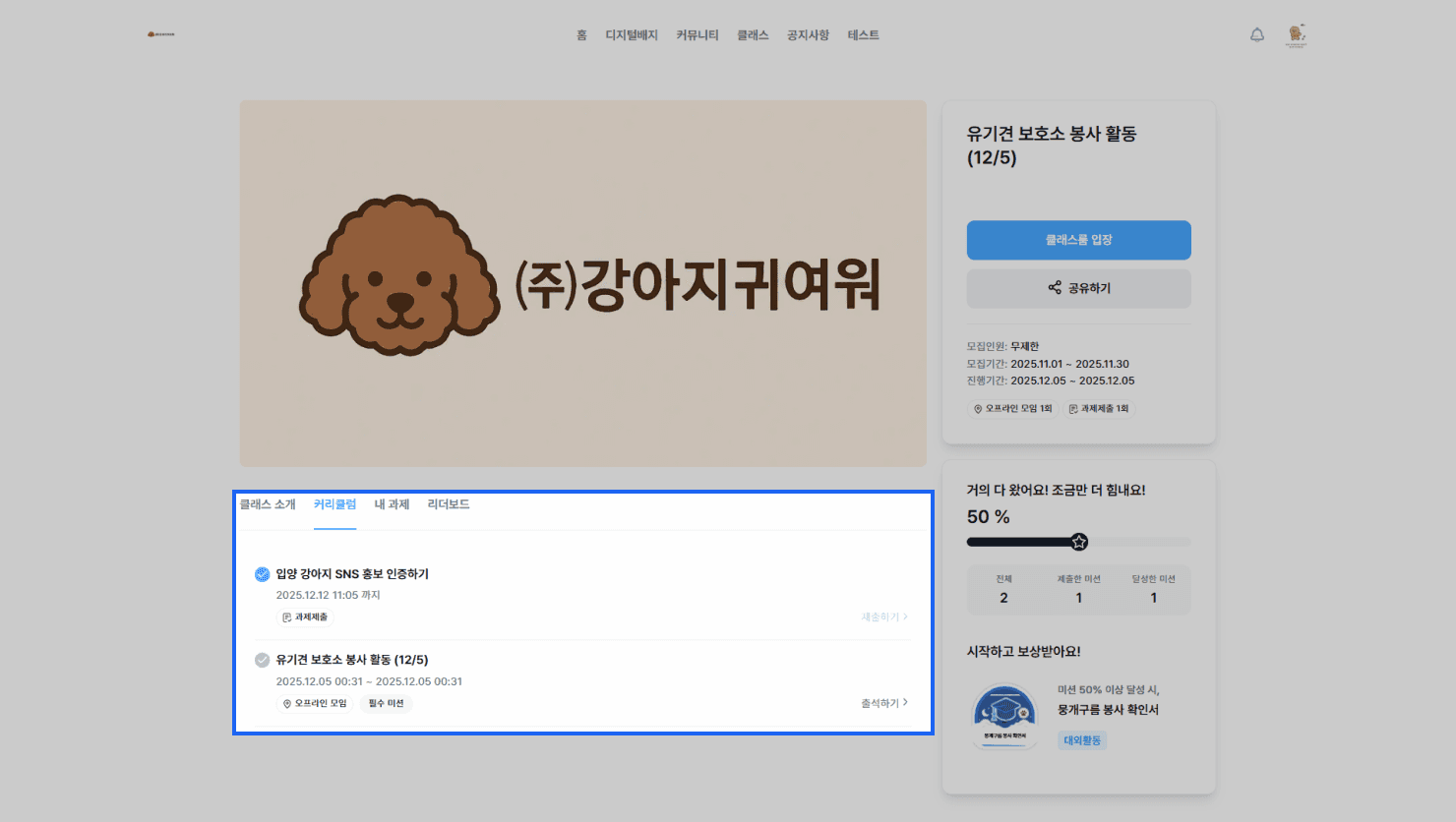
- In the top tabs of the class detail page, click the [Curriculum] tab.
- Check the list of missions registered for the class and their schedule.
- Check the completion status of each mission.
- Mission types include assignment submission, video lectures, offline meetings, and live meetings.
Checking My Assignments
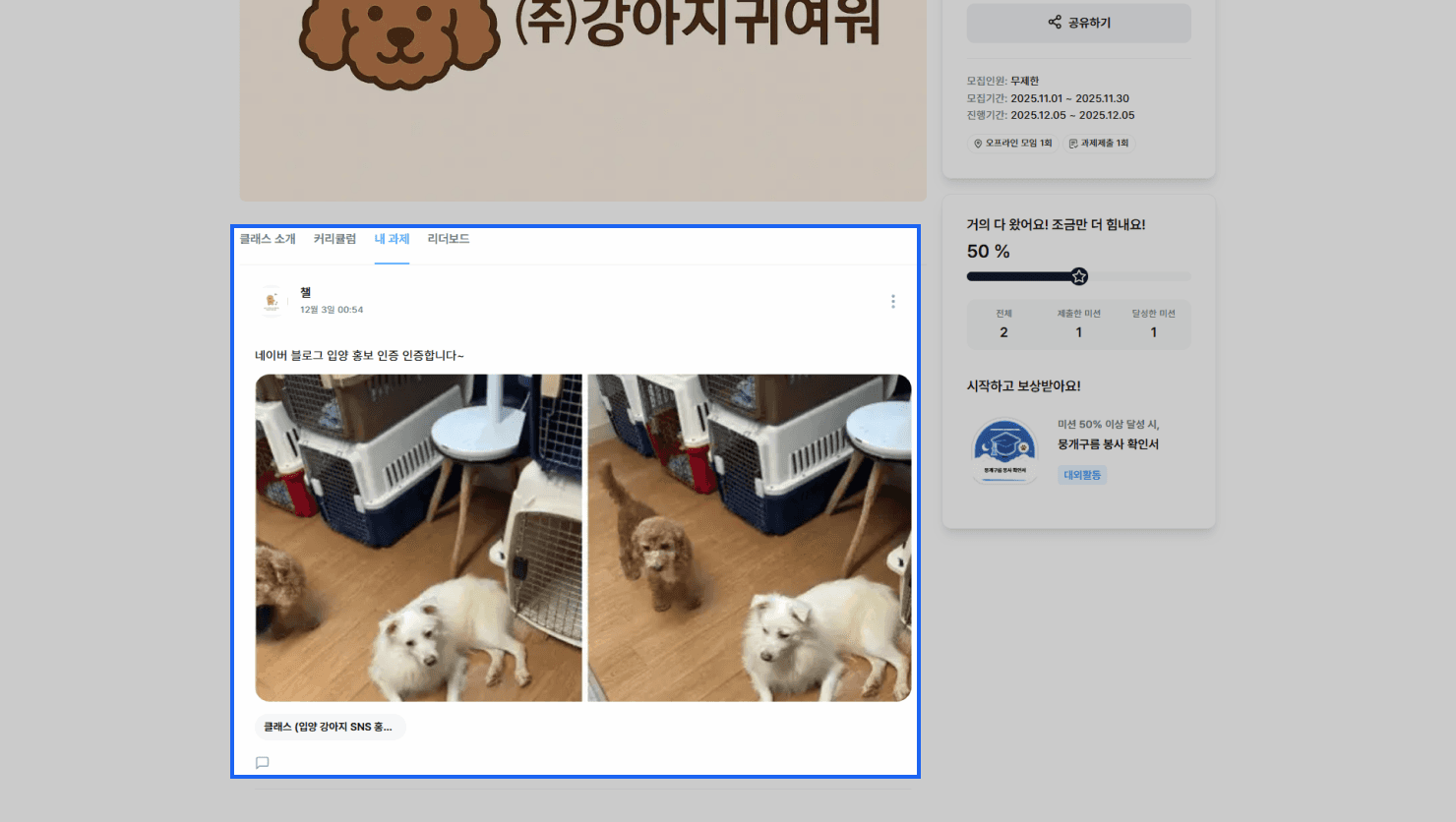
- In the top tabs of the class detail page, click the [My Assignments] tab.
- You can review your submitted assignment history.
- You can also review comments left on your submitted assignments.
Checking the Leaderboard
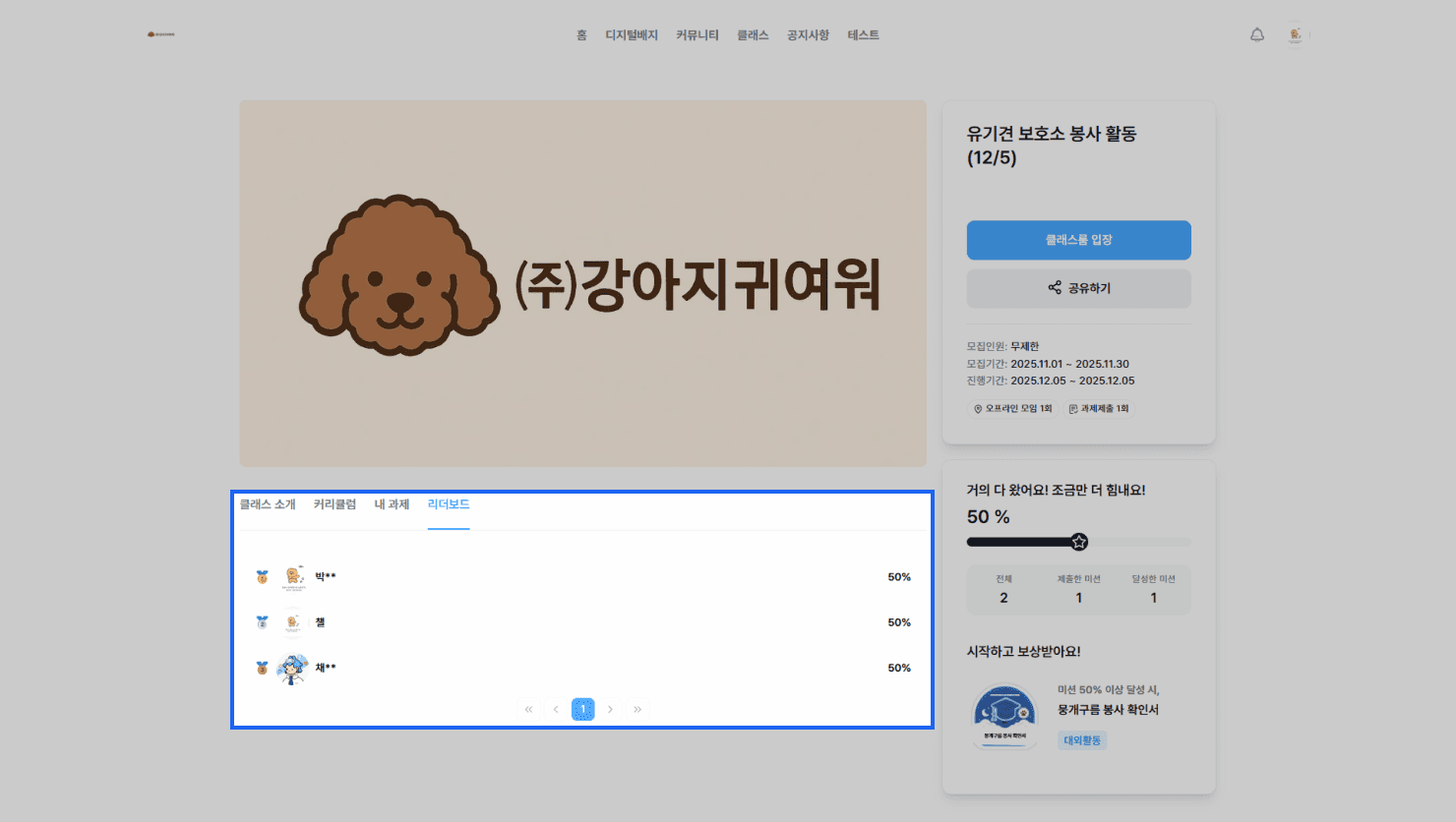
- In the top tabs of the class detail page, click the [Leaderboard] menu.
- You can check mission progress and participant rankings.
- You can check each participant’s progress rate.
Submitting an Assignment Mission
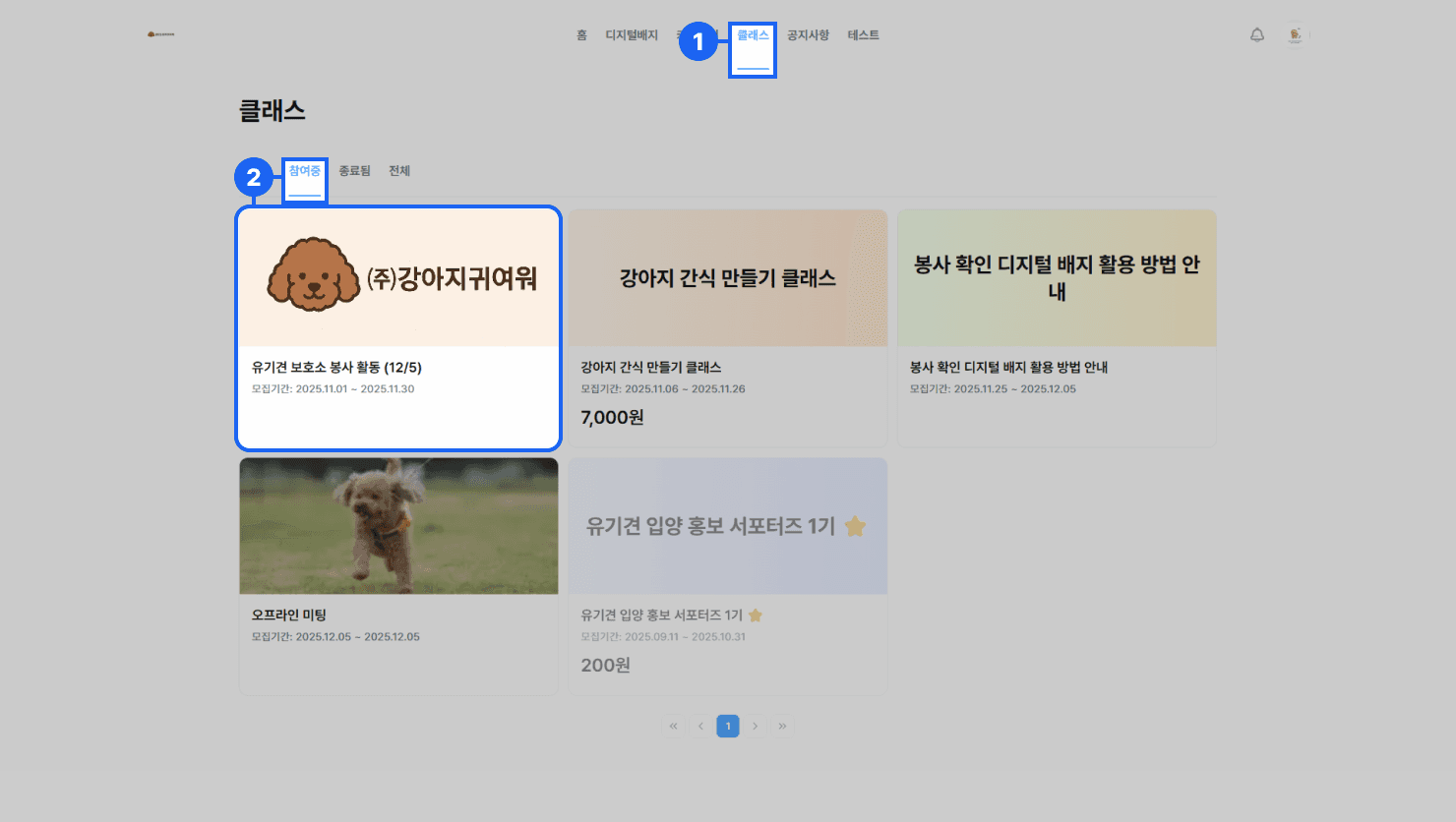
- Go to the [Class] tab in the top menu of the homepage.
- From the tab list at the bottom, select the {class card} you are participating in to go to its detail page.
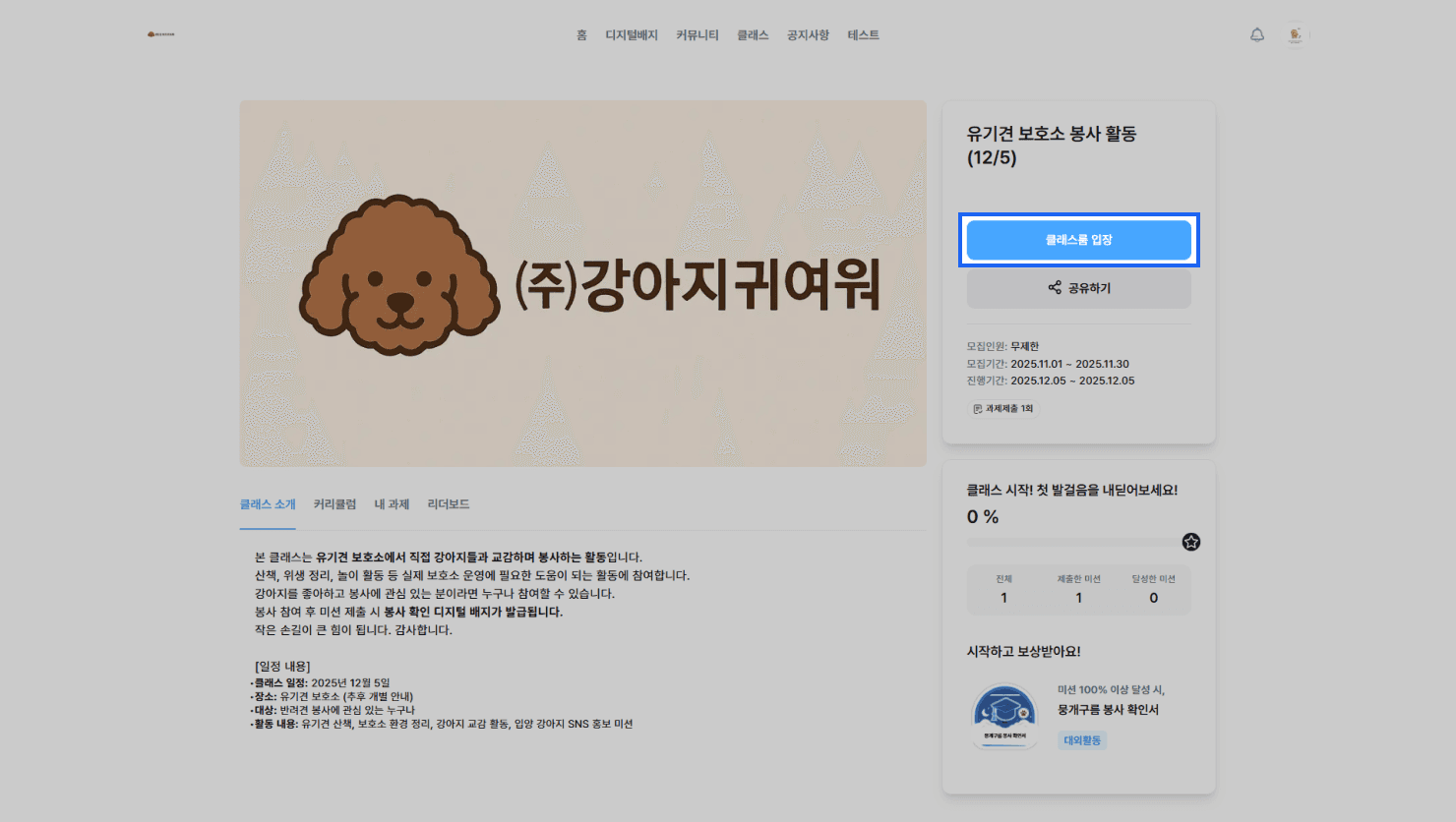
Click the {Enter Classroom} button in the top right to enter.
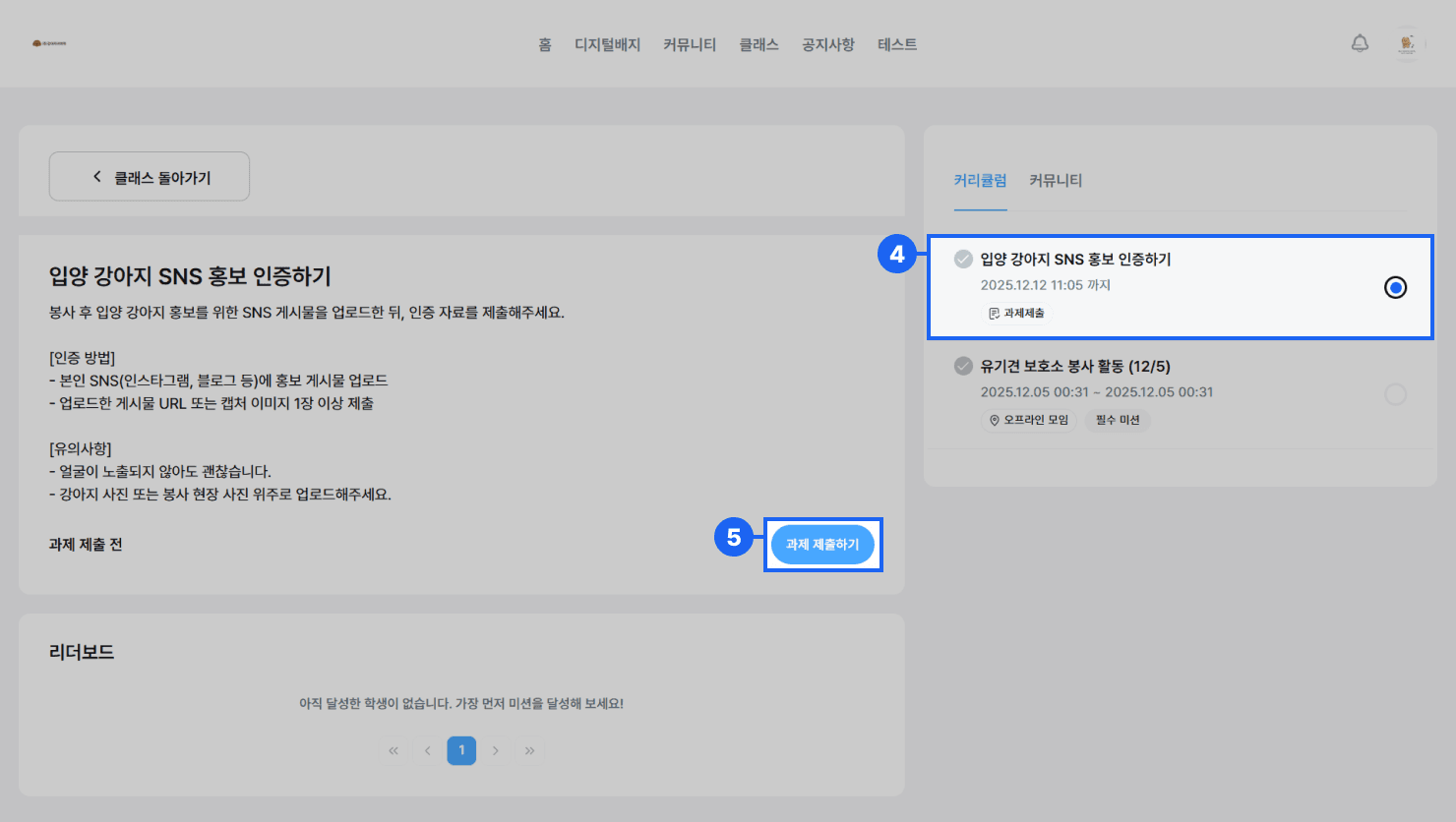
From the tab menu in the top right, select the assignment to submit under [Curriculum].
When you click the {Submit Assignment} button, the [Write Post] popup appears.
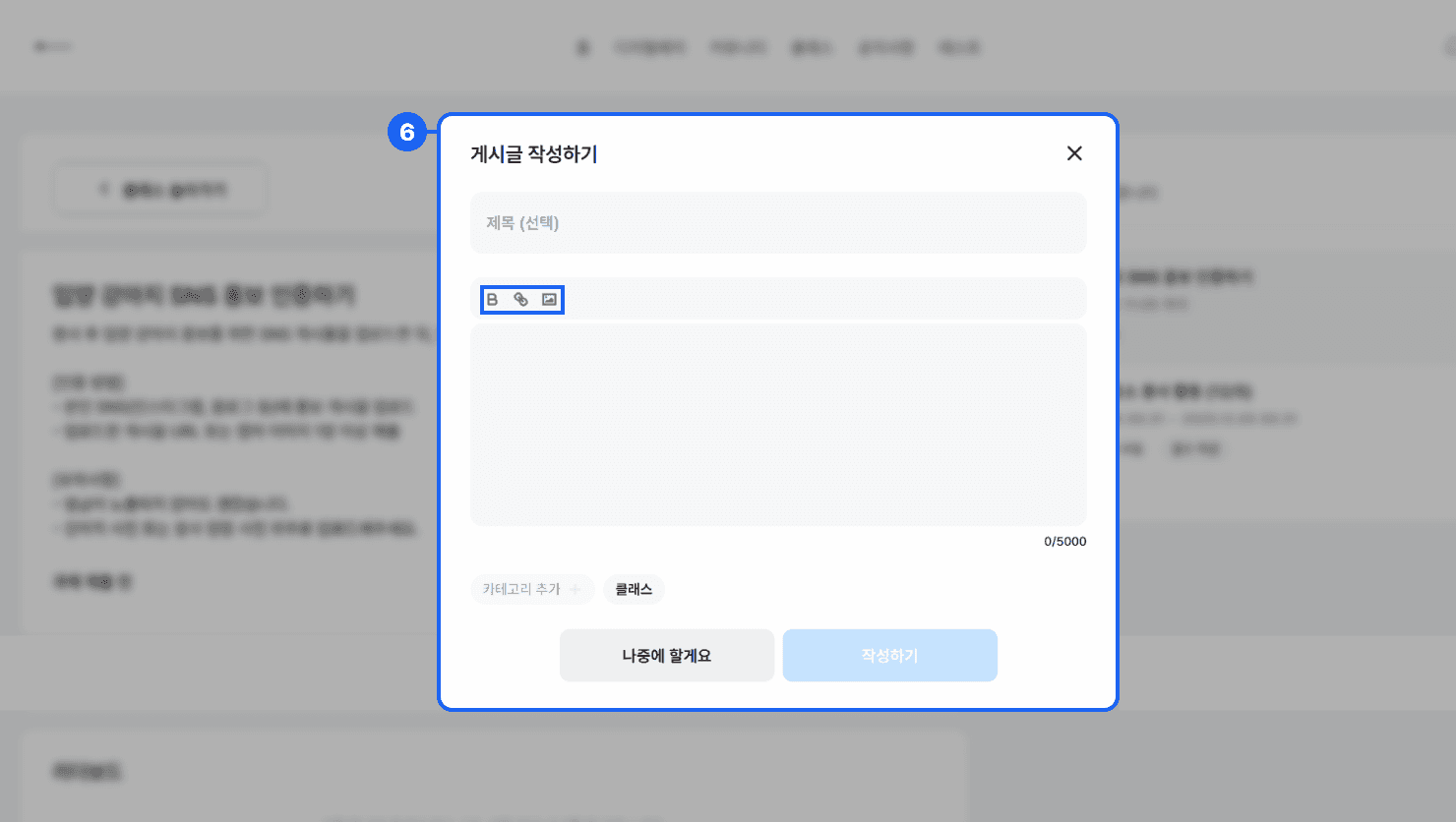
When submitting an assignment, enter the following items.
- Title (optional): Enter the title of the assignment submission post.
- Content: You can write and edit the assignment content with the text editor.
- When writing, you can also adjust font weight and attach images/links.
- After entering your content, click the {Submit} button to submit the assignment. (Note: If you leave the page without clicking the {Submit} button, your edits will not be saved.)
Receiving a Reward Badge
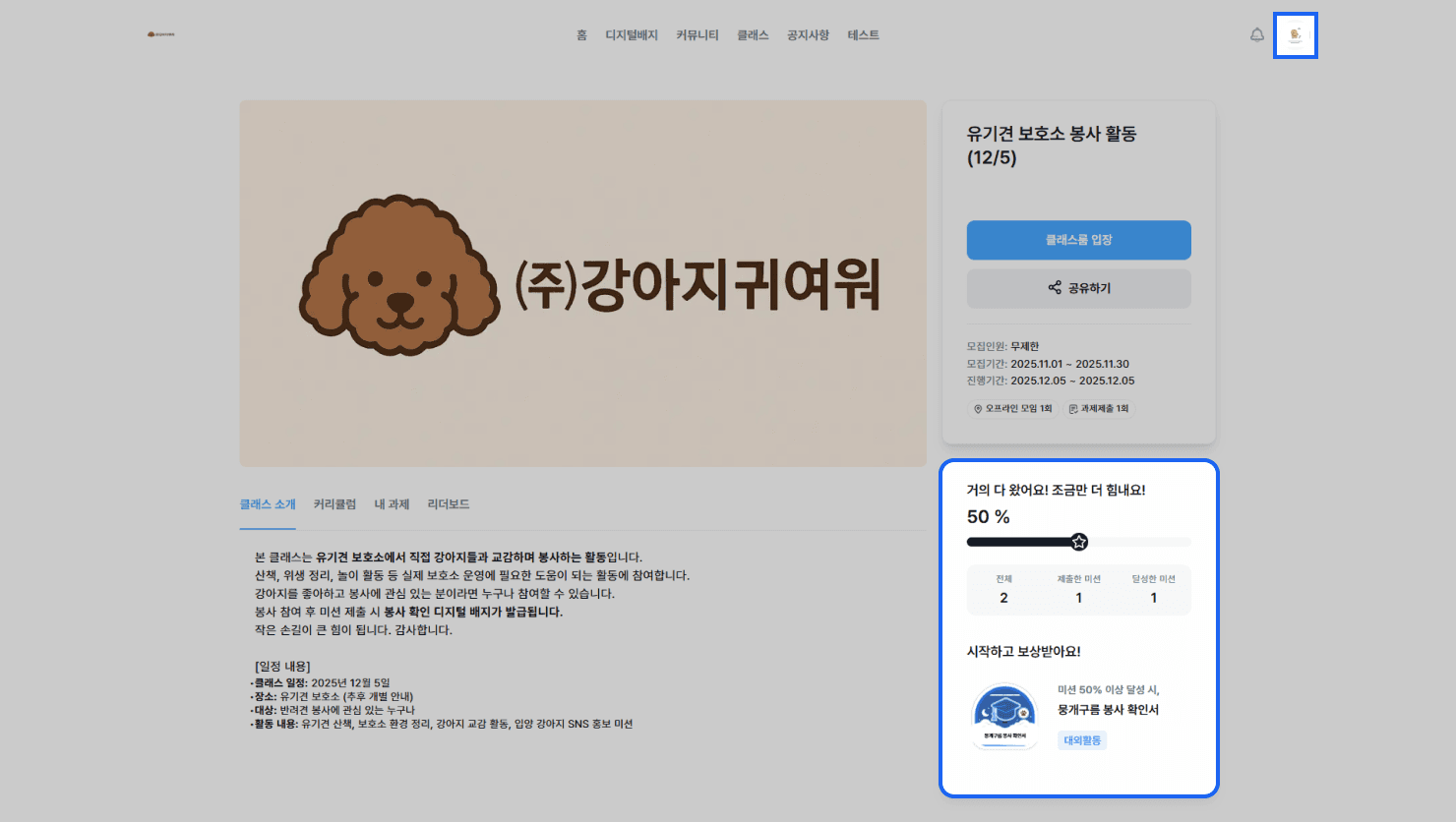
- When you meet the reward conditions of a mission registered for the class, you can receive the badge registered as the reward.
- You can view the awarded badge in the [My Page] > [My Credential (Badge) Wallet] menu.
Frequently asked questions
Want to turn learning outcomes into verifiable assets?
From issuing to verifying and amplifying, see it for yourself with Kolleges.
Request a Kolleges demo Related posts
Digital Badge Wallet
This guide explains step by step how to store issued digital badges, check unreceived badges, and share to SNS all in one place using the Kolleges badge wallet.
Receiving Your Digital Badge
After clicking the [Receive] button in the email or the [View Certificate] button in the KakaoTalk notification and completing identity verification with KakaoTalk simple authentication, your digital badge is permanently stored in your wallet.

Class Submissions
You can flexibly build your curriculum using four submission types (assignment, video, offline, live meeting) and their type-specific completion conditions.