
This guide provides step-by-step instructions on how admins can directly configure and operate the categories, posts, comments, and leaderboard of the Kolleges community.
A guide to community admin features. Use Kolleges to efficiently manage everything from badge issuance to participation.
Community Management
Community Page Structure
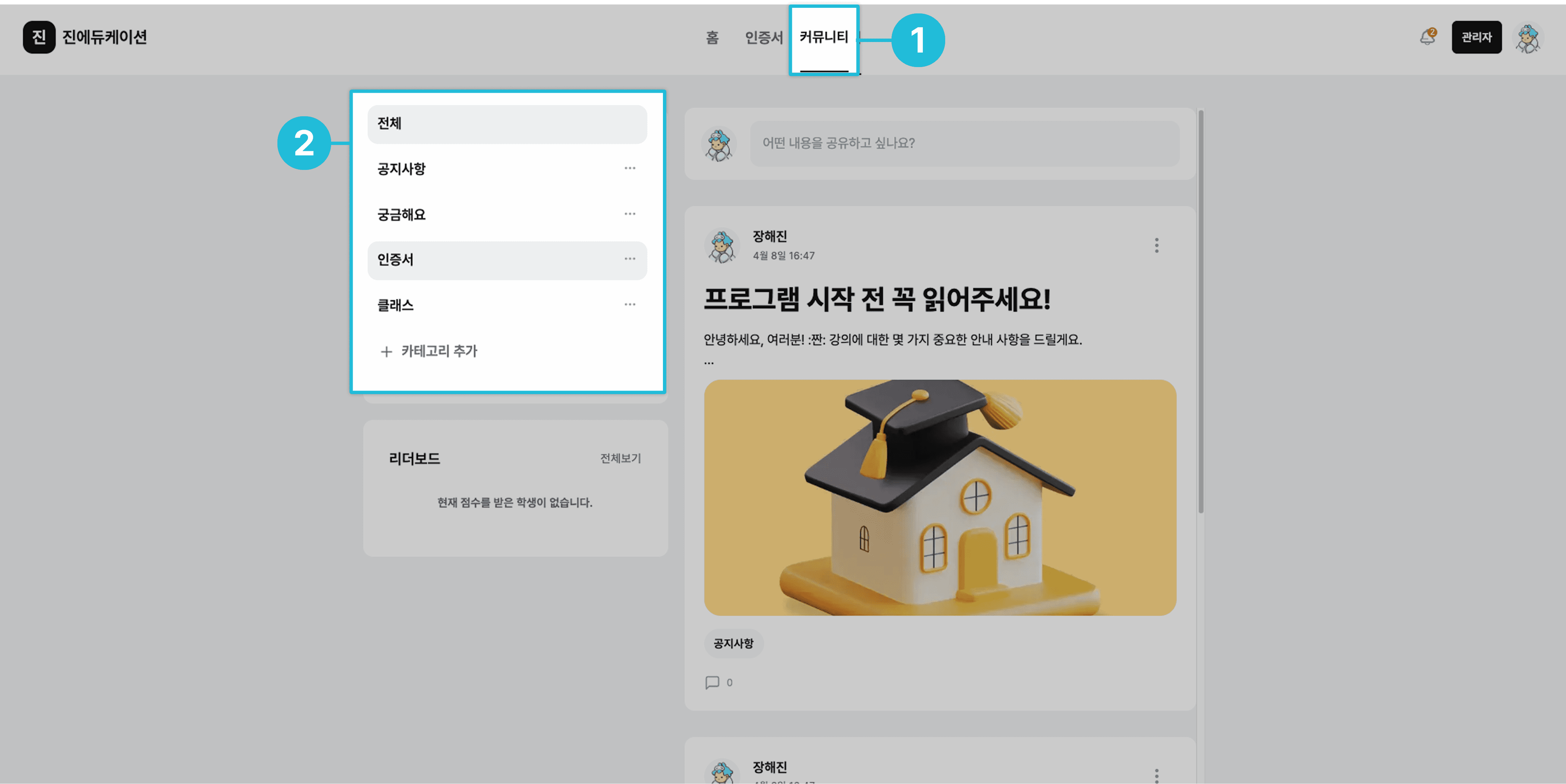
- Click [Community] in the top menu.
* If the community does not exist in your homepage menu, you need to add the community page to the homepage menu using the [Menu Settings] feature. * For detailed setup instructions, refer to the [Menu Settings] guide.
Related guide: Menu Settings
- The community is organized into the following four categories.
- Announcements: A space for announcing notices or events.
- Q&A: A space where users can freely ask questions or share opinions.
- Certificates: A space where you can view issued certificates. (Clicking a post takes you to the certificate detail screen.)
- Classes: A space where you can view created classes. (Clicking a post takes you to the class detail screen.)
* The Classes category is only displayed for groups that have completed LMS integration.
Adding a Category
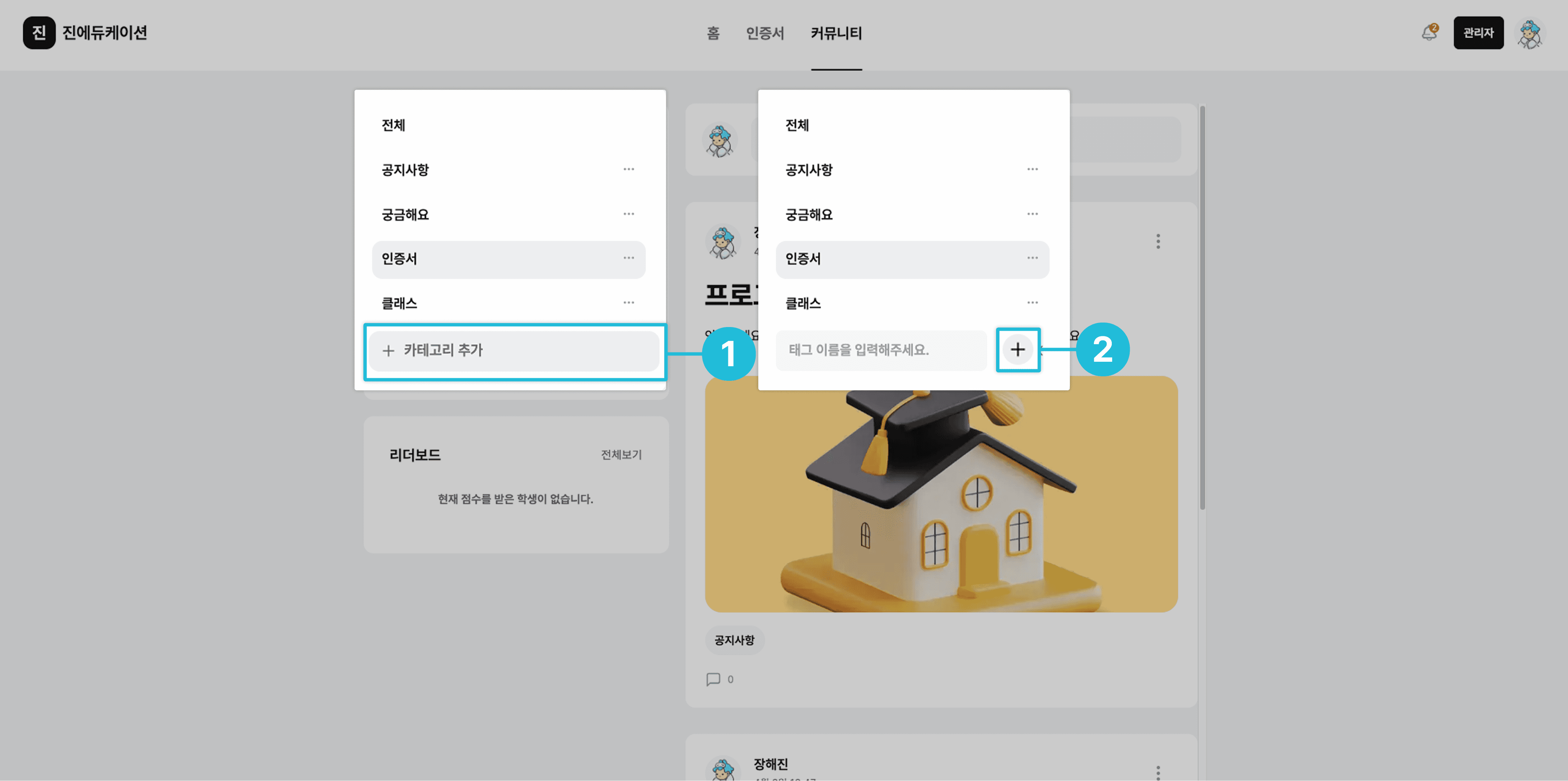
- Click the {Add Category} button.
- Enter the name of the category you want to add, then click the {+} button on the right.
Managing Categories
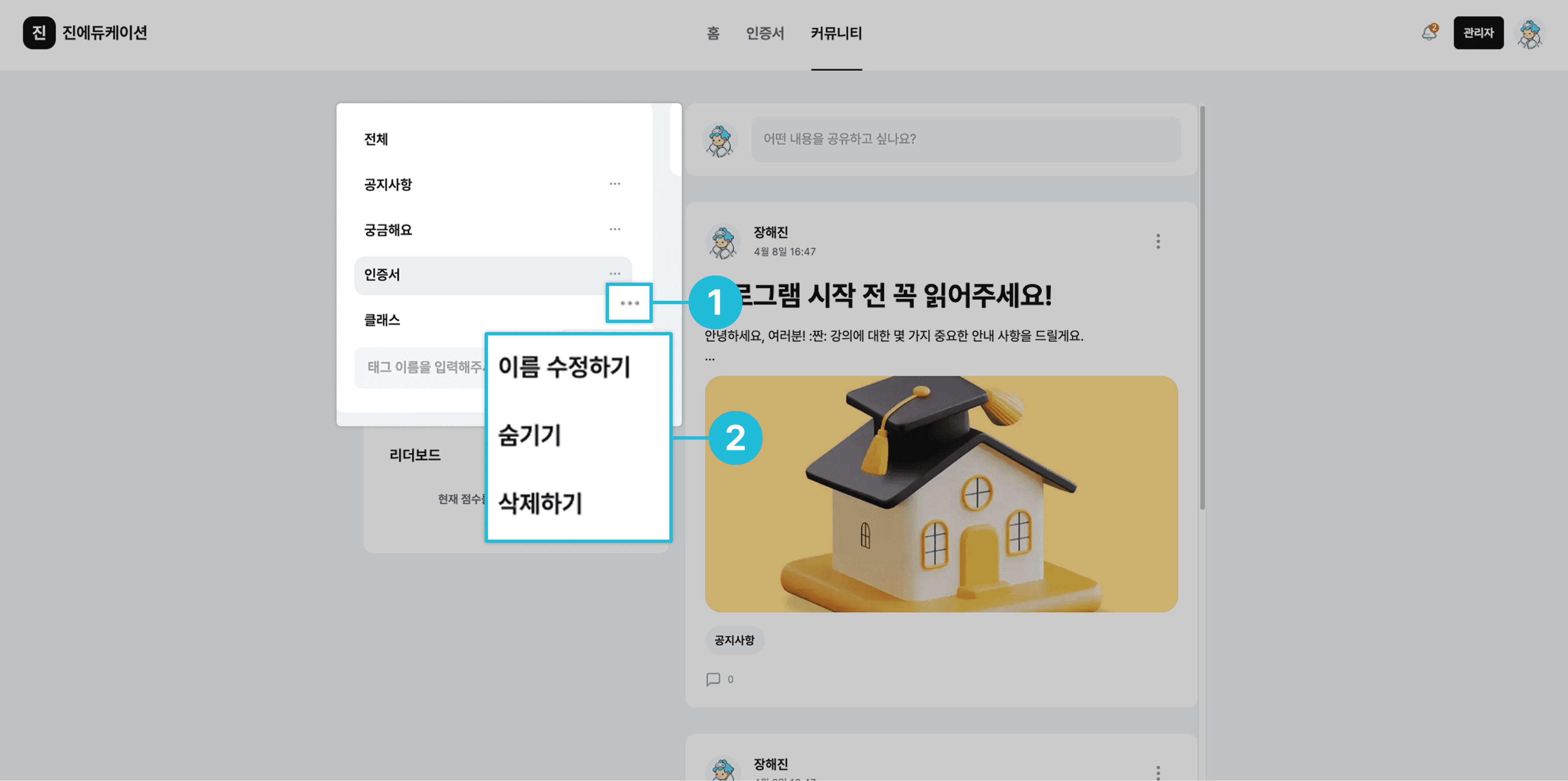
- Click the More {•••} button to the right of the category.
- You can perform the following three actions.
- Edit Name: You can change the category name.
- Hide: Sets the category so it is not visible to users. (However, posts included in a hidden category continue to appear in the ‘All’ tab.)
- Delete: You can delete the category. (However, default categories such as ‘Certificates’, ‘Classes’, and ‘Announcements’ cannot be deleted.) (Even if you delete a category, the posts included in that category are not removed.)
Writing a Post

- Click [‘What would you like to share?’].
- Enter a title (optional), content, and category, then click the {Submit} button.
- Click the pin icon in the top right to pin the post to the top.
- When writing, you can also adjust font size and attach files/photos.
Managing Posts
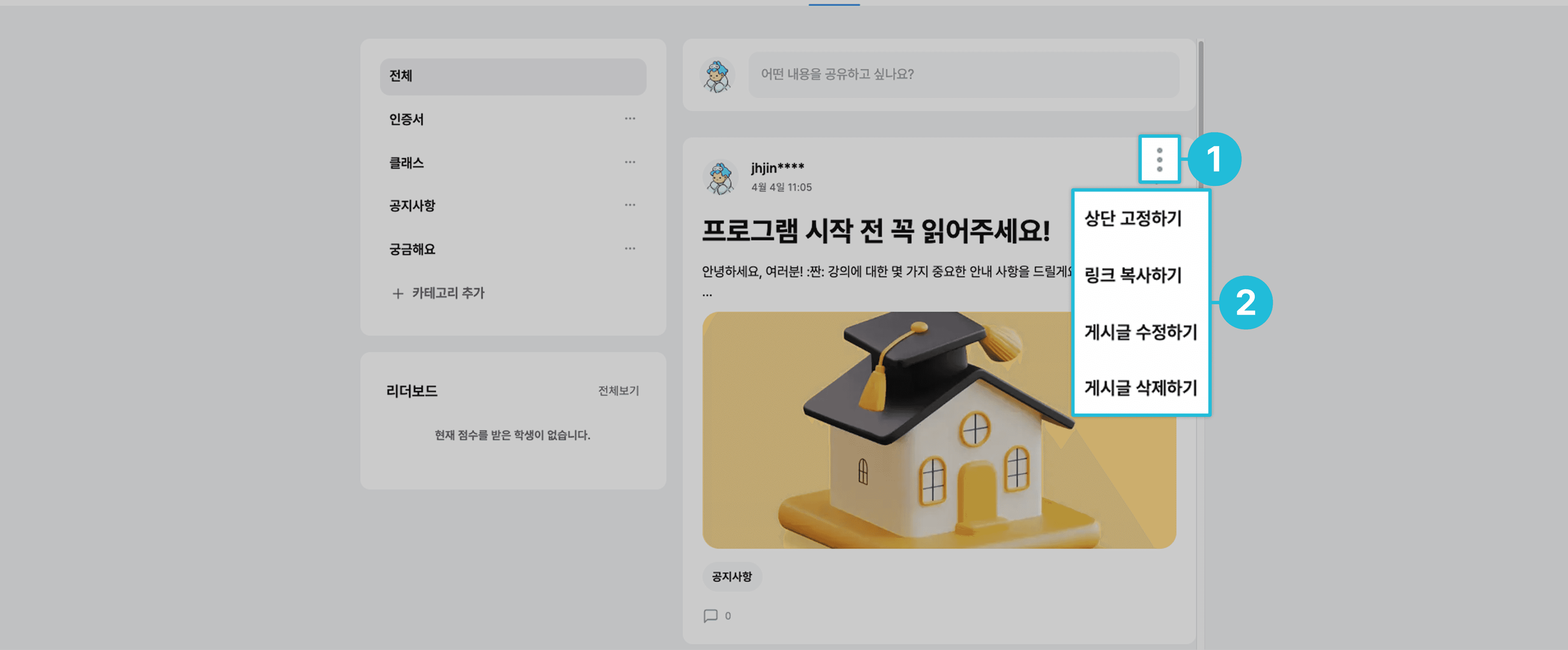
- Click the More {•••} button to the right of the category.
- You can perform the following four actions.
- Pin to Top: Pins the post to the top of its category.
- Copy Link: Copies the post’s link so you can share it externally.
- Edit: You can edit the post’s content again.
- Delete: Deletes the post.
Managing Comments

- Click [Leave a comment], enter your content, and post it.
- When you click a comment area, editing icons appear on the right.
- Through the editing icons, you can perform the following actions.
- Reply: Click the speech bubble icon to write a reply to the comment.
- Edit: Click the pencil icon to edit the comment content.
- Delete: Click the trash can icon to delete the comment.
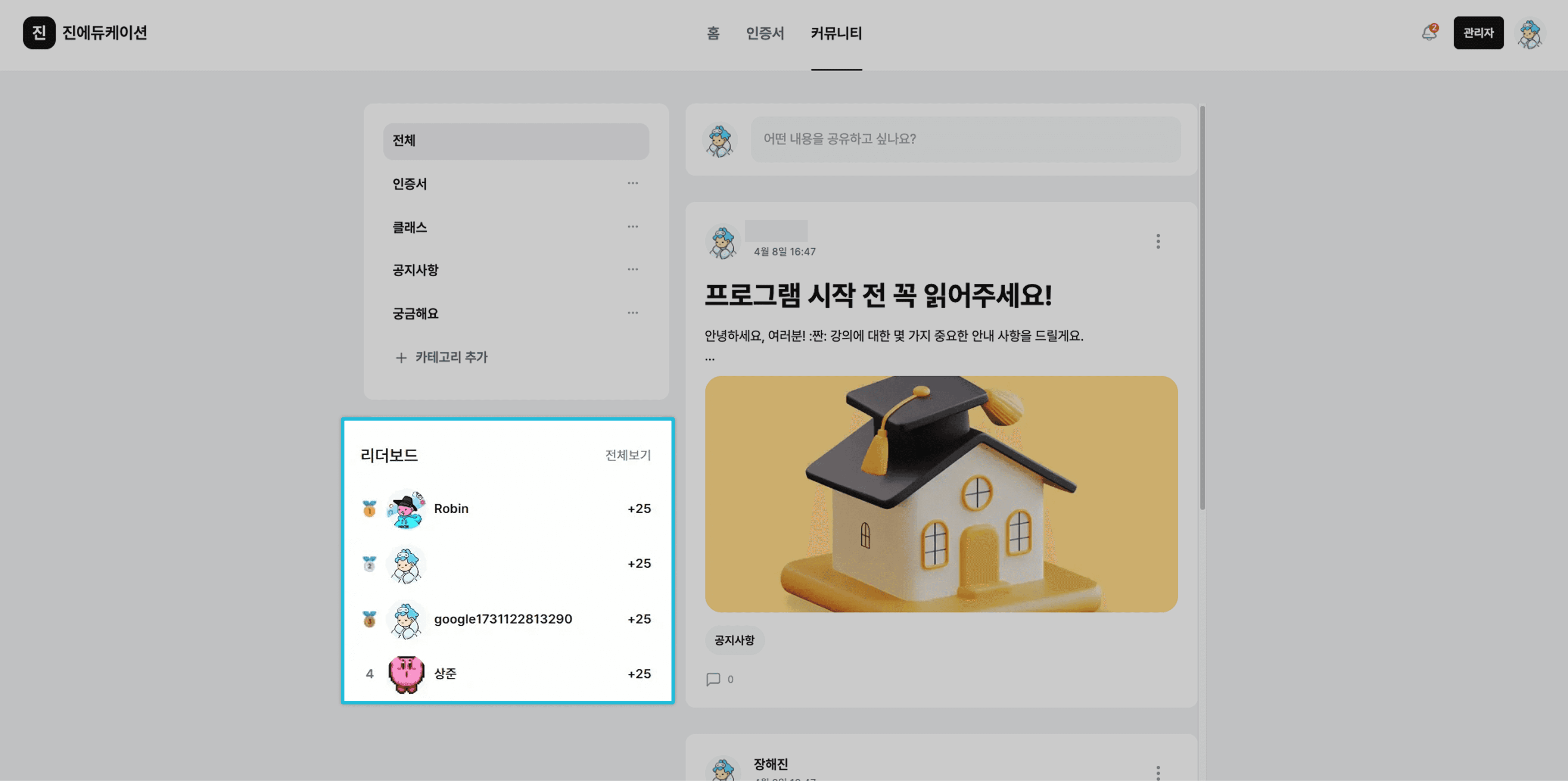
What Is the Leaderboard?
The leaderboard is a ranking list automatically generated based on learners’ class mission completion rates.
Frequently asked questions
Want to turn learning outcomes into verifiable assets?
From issuing to verifying and amplifying, see it for yourself with Kolleges.
Request a Kolleges demo
Related posts
Board Management
A step-by-step guide to the entire flow of creating a new board on the Kolleges admin page, registering posts with thumbnails, subtitles, locations, and more, and publishing them to the homepage.
Creating a Class
A step-by-step guide that walks you through configuring a class's basic information, the four curriculum mission types, and tuition, all the way to automatically issuing digital badges based on a mission completion rate threshold.
Menu Settings
In the Kolleges admin menu, create a new page, change its status to 'Connected', then add it to the menu and save to organize your homepage navigation into the structure you want.