

In the Kolleges admin menu, create a new page, change its status to 'Connected', then add it to the menu and save to organize your homepage navigation into the structure you want.
A guide on how to configure your menu. Efficiently organize badge and certificate features on the Kolleges platform.
Menu Settings
Adding a New Page
If needed, you can create additional pages.
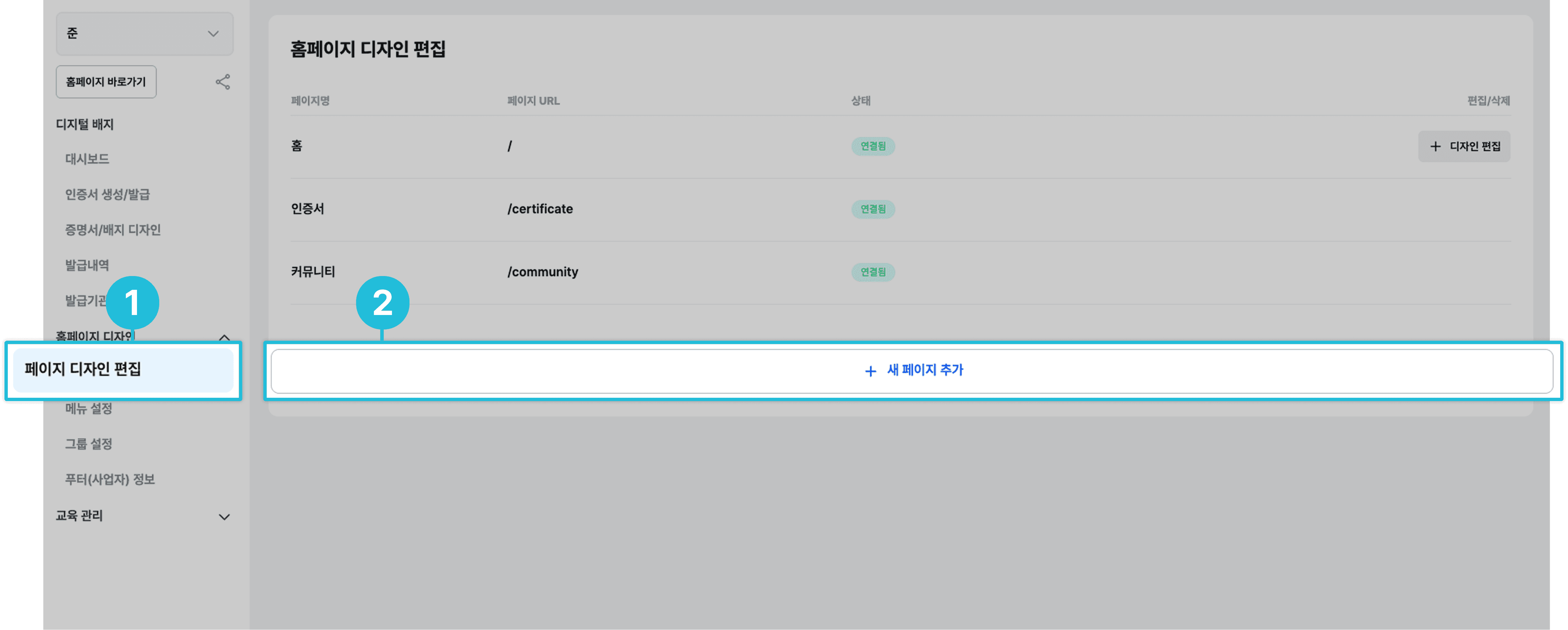
- In the left menu, click [Edit Page Design].
- In the homepage design editor, click the [+ Add New Page] button.
Menu Settings / Linking a New Page
To link the page you just created to your menu on the website, configure it as follows.
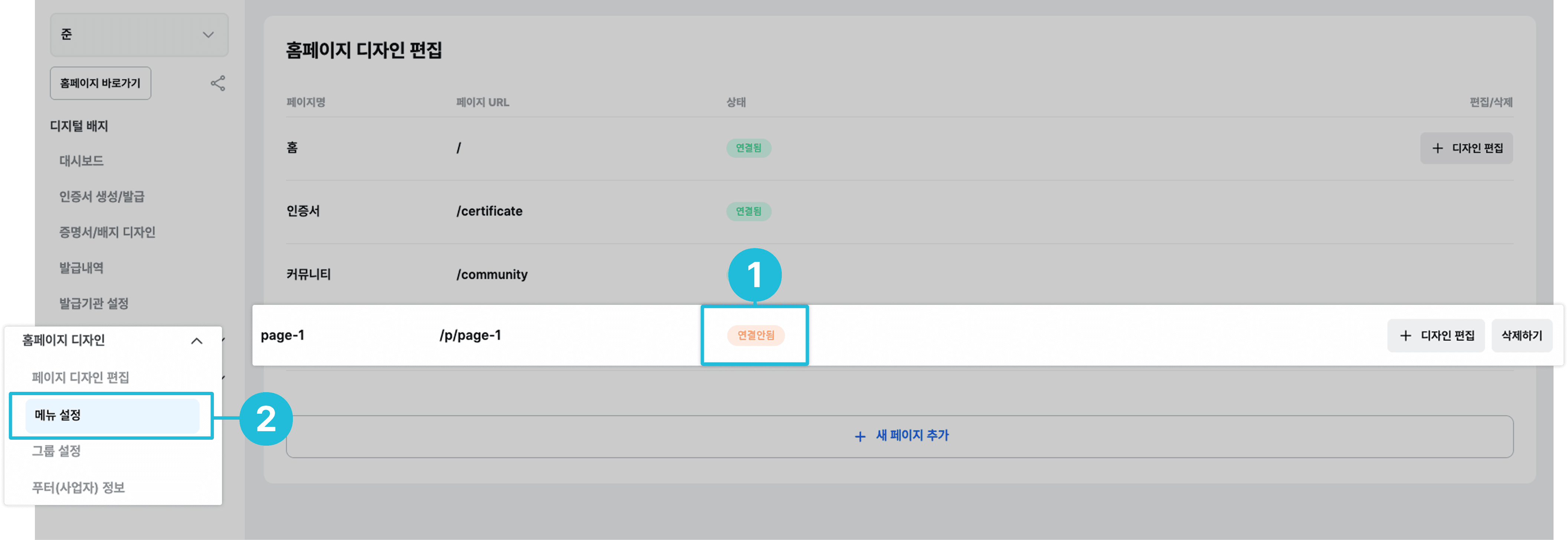
- You must change the status of the newly added page to ‘Connected’.
- In the left menu, click [Menu Settings].
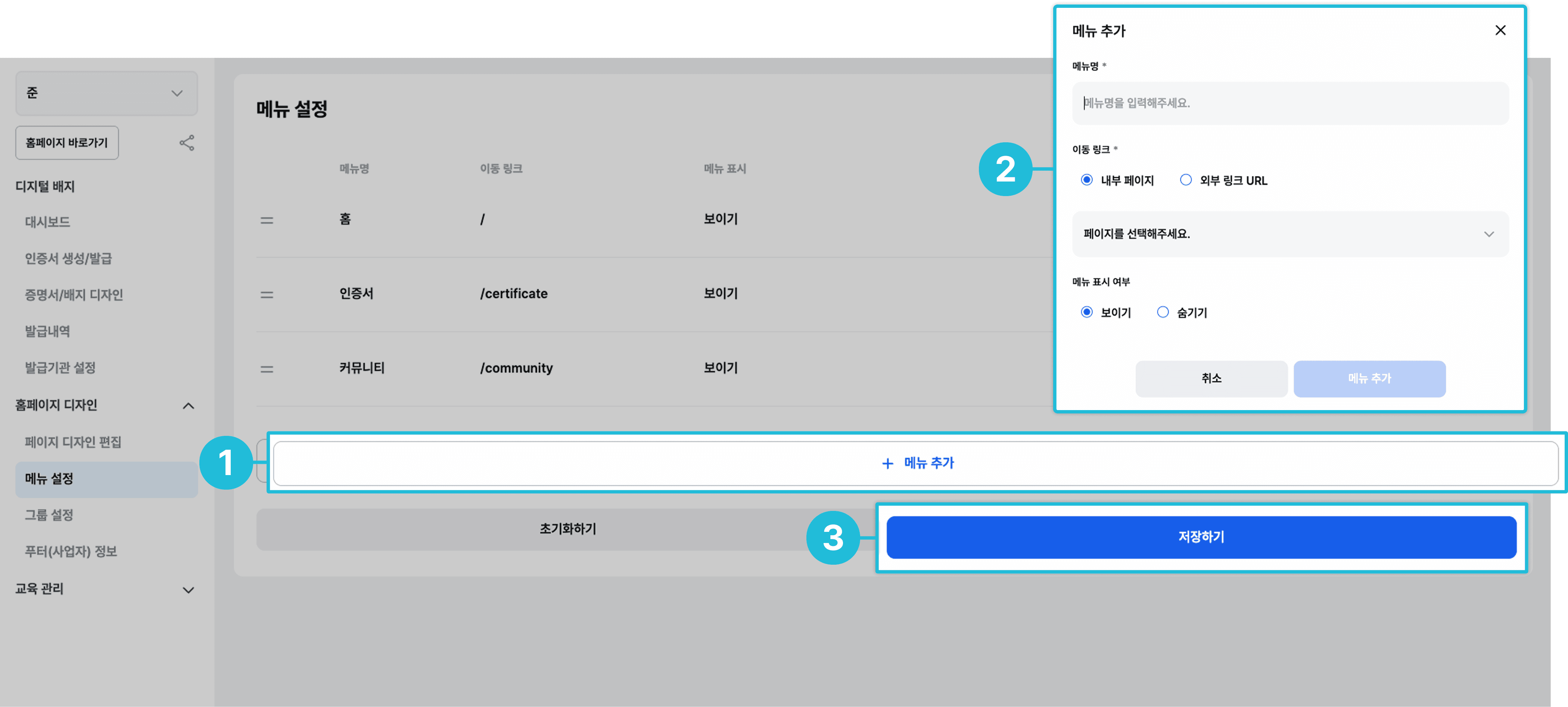
- Click the [+ Add Menu] button.
- Enter the menu name, navigation link, visibility, and so on, then click the [Add Menu] button.
- Finally, click the [Save] button.
Frequently asked questions
Want to turn learning outcomes into verifiable assets?
From issuing to verifying and amplifying, see it for yourself with Kolleges.
Request a Kolleges demo
Related posts
Homepage Design Editing Guide: Customizing Your Badge Platform Brand
A step-by-step editing guide for completing a homepage that matches your organization's brand by editing 9 components such as the logo, theme color, and banners in the Kolleges admin screen.

Board Management
A step-by-step guide to the entire flow of creating a new board on the Kolleges admin page, registering posts with thumbnails, subtitles, locations, and more, and publishing them to the homepage.

Community Management
This guide provides step-by-step instructions on how admins can directly configure and operate the categories, posts, comments, and leaderboard of the Kolleges community.