
Homepage Design Editing Guide: Customizing Your Badge Platform Brand
 Robin Yoon · Customer Success Team Published
A step-by-step editing guide for completing a homepage that matches your organization's brand by editing 9 components such as the logo, theme color, and banners in the Kolleges admin screen.
This guide explains how to edit your Kolleges homepage’s logo, theme color, banners, content layout, and more to customize it to your brand. It’s a design editing guide that anyone can easily follow.
Homepage Design Editing
You can edit your homepage’s design directly.
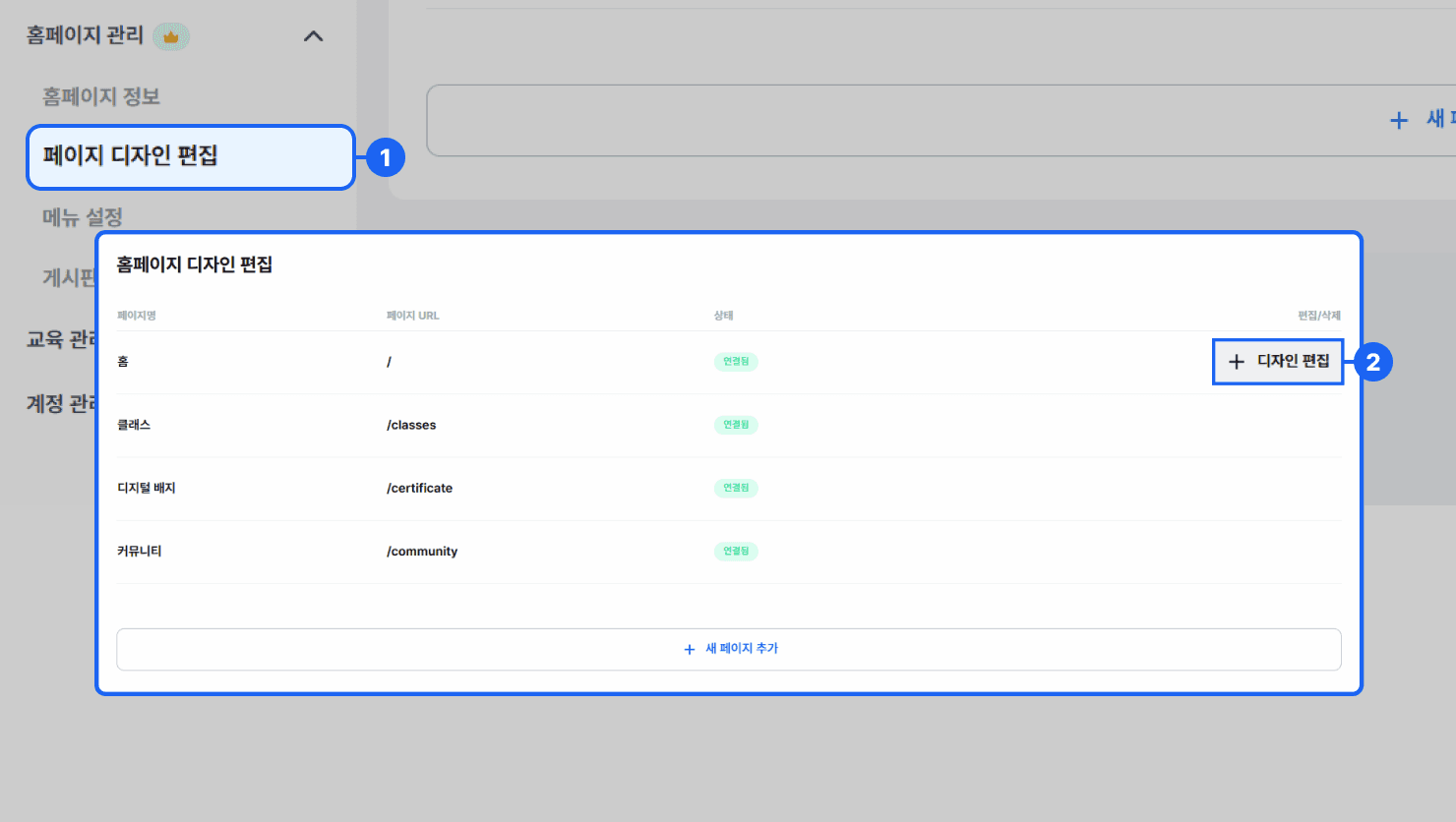
- In the left side menu, click [Homepage Management] > [Page Design Editing].
- In the [Page Design Editing] menu, clicking the {+ Edit Design} button for each page type takes you to the [Edit Page Design] page where you can modify that page’s design.
Page Component Descriptions
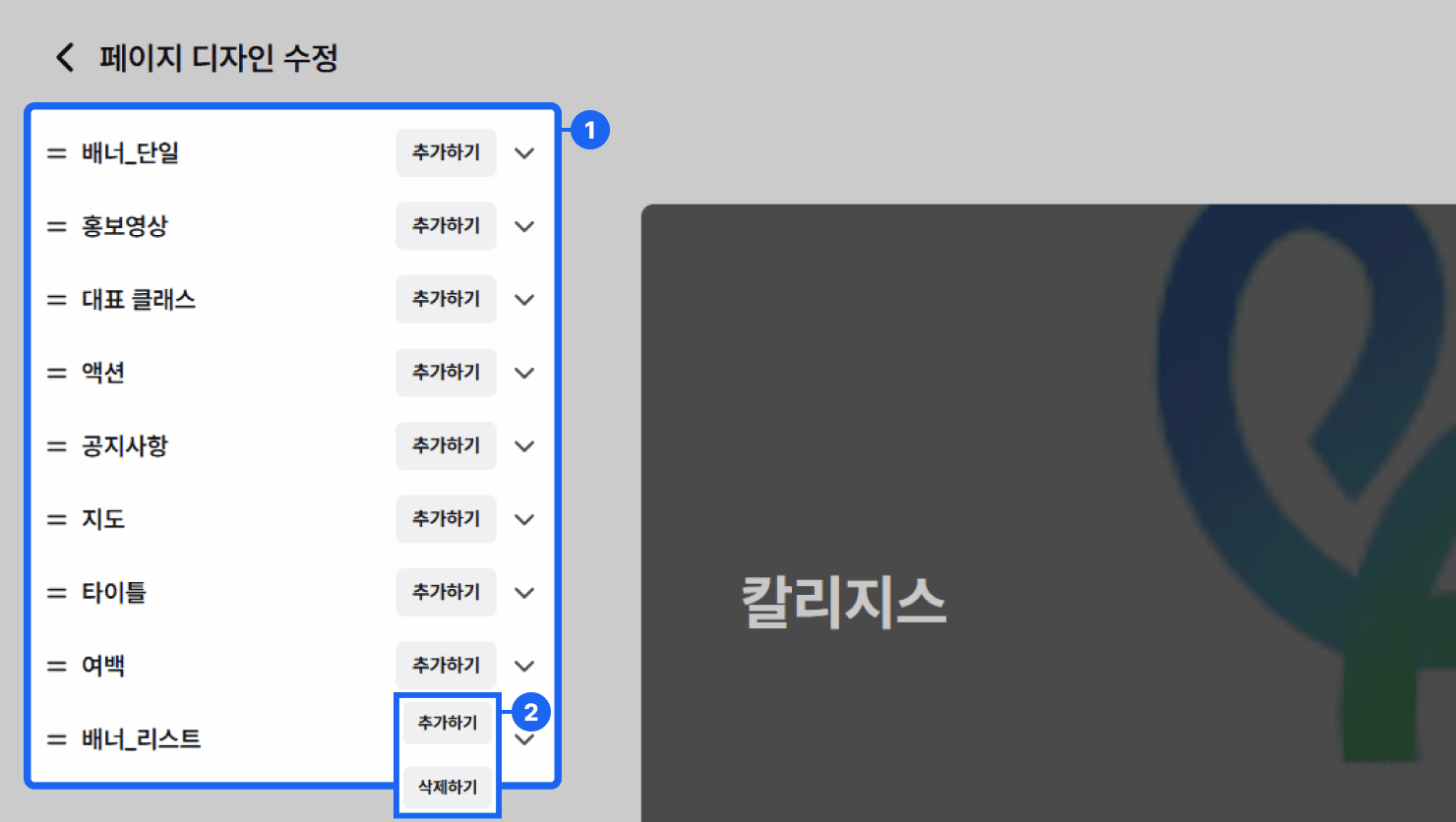
The page design elements consist of the following 9 menus.
- Banner_Single: You can set up various types of image banners, such as a single image, a slide, or PC/mobile-only (responsive) banners.
- Promo Video: You can stream a promotional video by entering a YouTube link.
- Featured Class: Select the classes to display on your homepage and set their display order.
- Action: Set a button title and link so users can navigate to the page or feature you want.
- Notice: Register notices to be shown to users.
- Map: Set the organization’s address to display on your homepage.
- Title: Set title text that can describe a design element.
- Spacing: Add spacing between design elements to adjust the gaps.
- Banner_List: Add multiple items in card form to set up the content you want to introduce.
You can add or delete design elements.
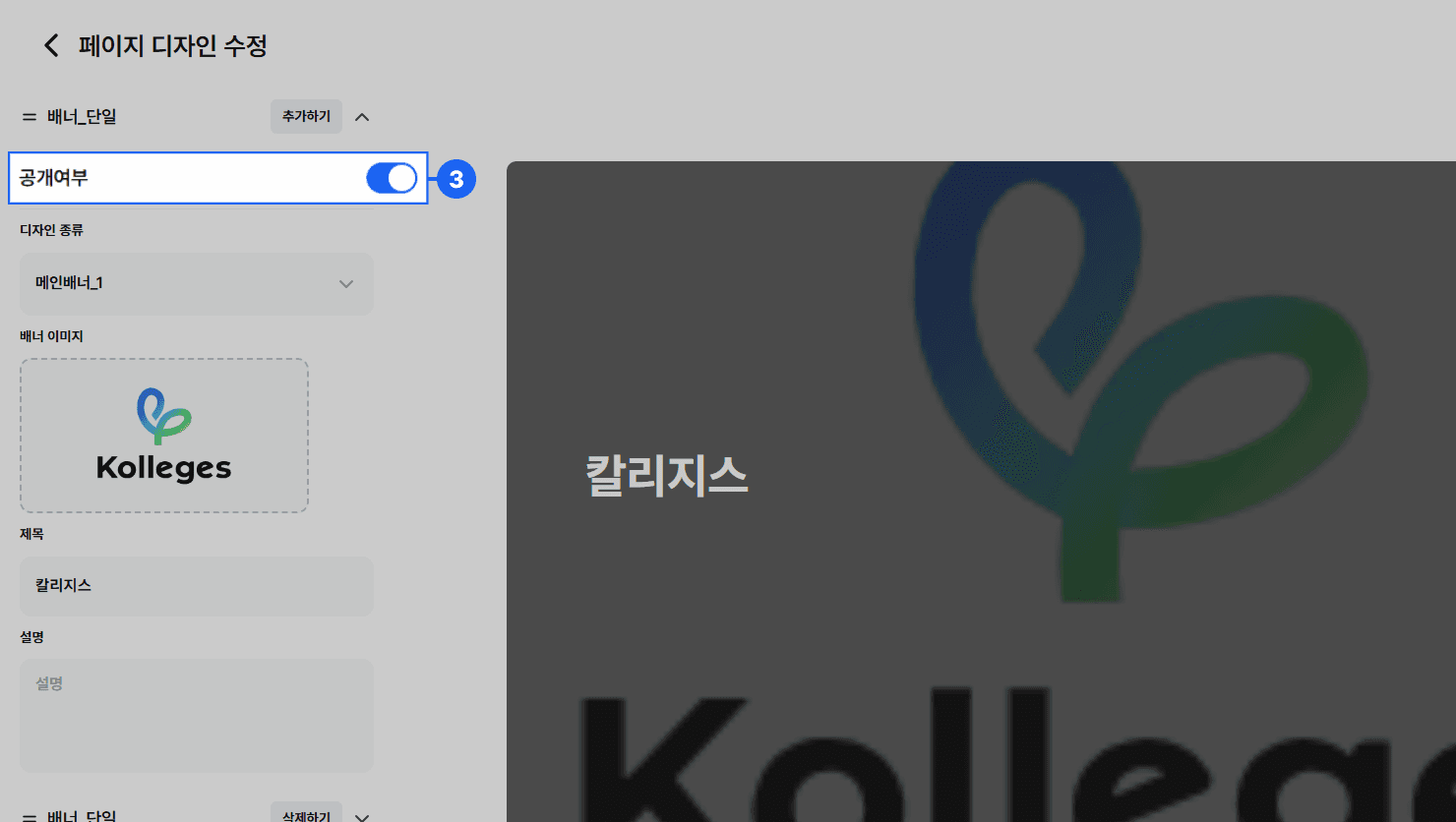
For each design element, you can click the switch button on the right to set whether it is displayed on the homepage.
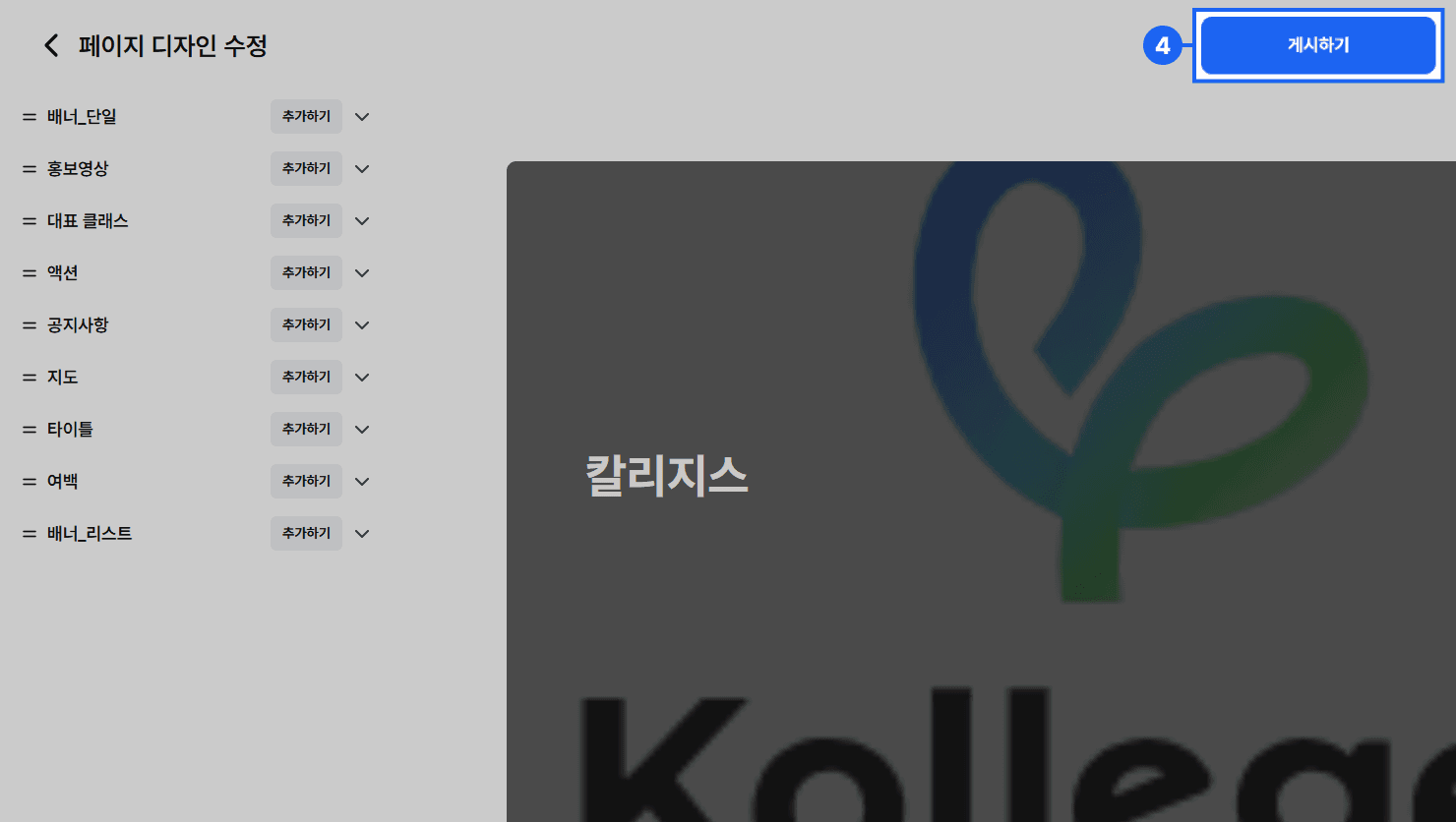
Clicking the {Publish} button in the top right applies your edited content to the homepage immediately. (Note: if you leave the page without clicking the {Publish} button, your changes will not be saved.)
Frequently asked questions
Want to turn learning outcomes into verifiable assets?
From issuing to verifying and amplifying, see it for yourself with Kolleges.
Request a Kolleges demo Related posts
Menu Settings
In the Kolleges admin menu, create a new page, change its status to 'Connected', then add it to the menu and save to organize your homepage navigation into the structure you want.
Homepage Information Settings
A step-by-step guide to setting homepage basic information (group name, brand colors, logo, membership approval method, etc.) and business (footer) information from the Kolleges homepage management menu.

Custom Domain Address
This guide covers the 9-step DNS configuration procedure (adding A and CNAME records) for connecting an organization-owned domain as your homepage address in Kolleges, as well as how to disconnect it.