

This guide covers the 9-step DNS configuration procedure (adding A and CNAME records) for connecting an organization-owned domain as your homepage address in Kolleges, as well as how to disconnect it.
Kolleges guide: You can use a domain your organization owns as your homepage address.
Connecting a Custom Domain URL
*This guide uses Gabia as an example for explaining how to register a domain. *Depending on your domain registrar, the screen layout, button positions, and other details may differ from the example images.
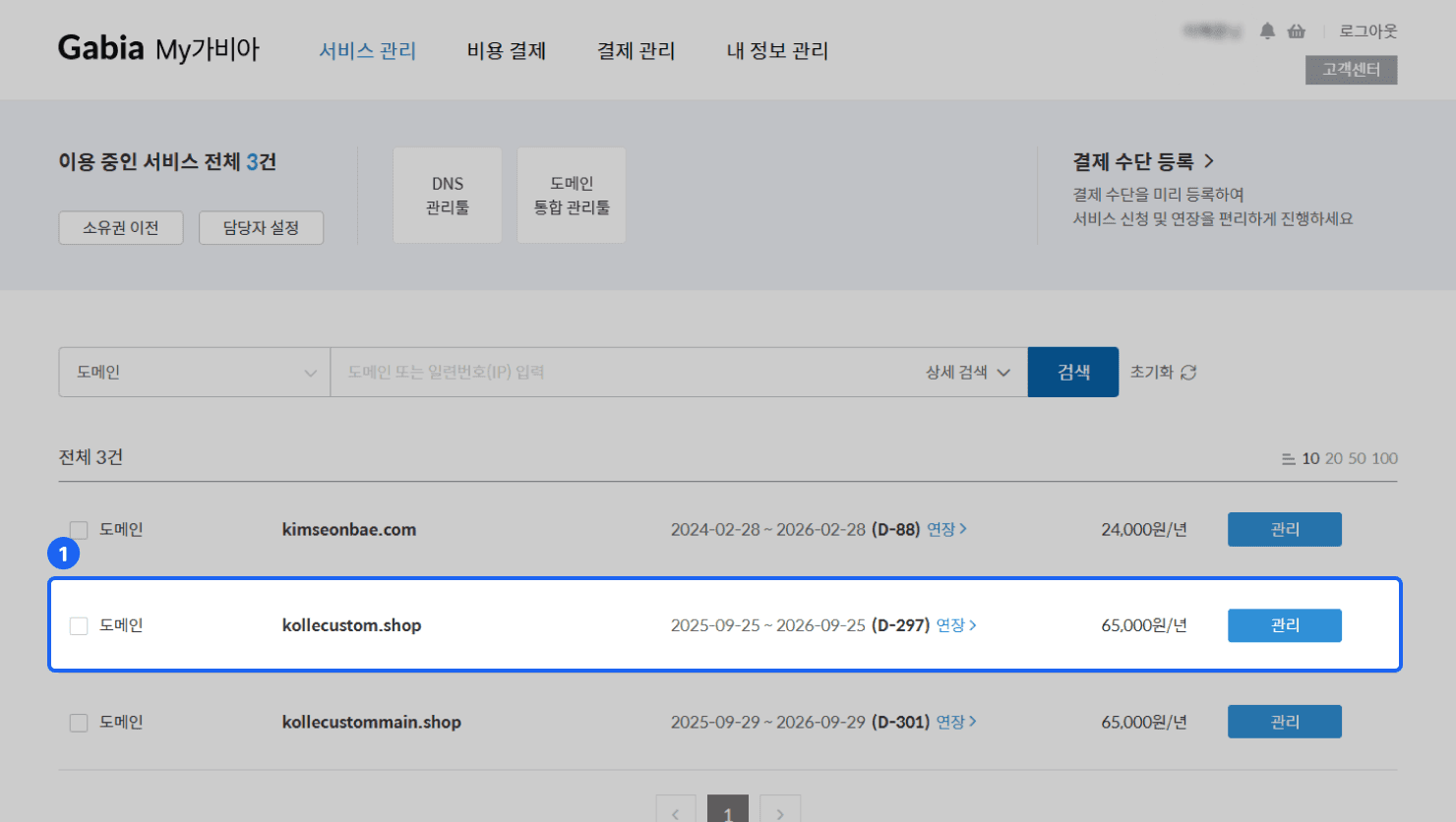
- Purchase a domain: Purchase the domain you want to use for your homepage from a domain registrar (Gabia, Cafe24, etc.).
*The domain you purchase must match the issuer domain currently used in Kolleges. e.g.) Club domain: kollecustom → Purchased domain: kollecustom.shop
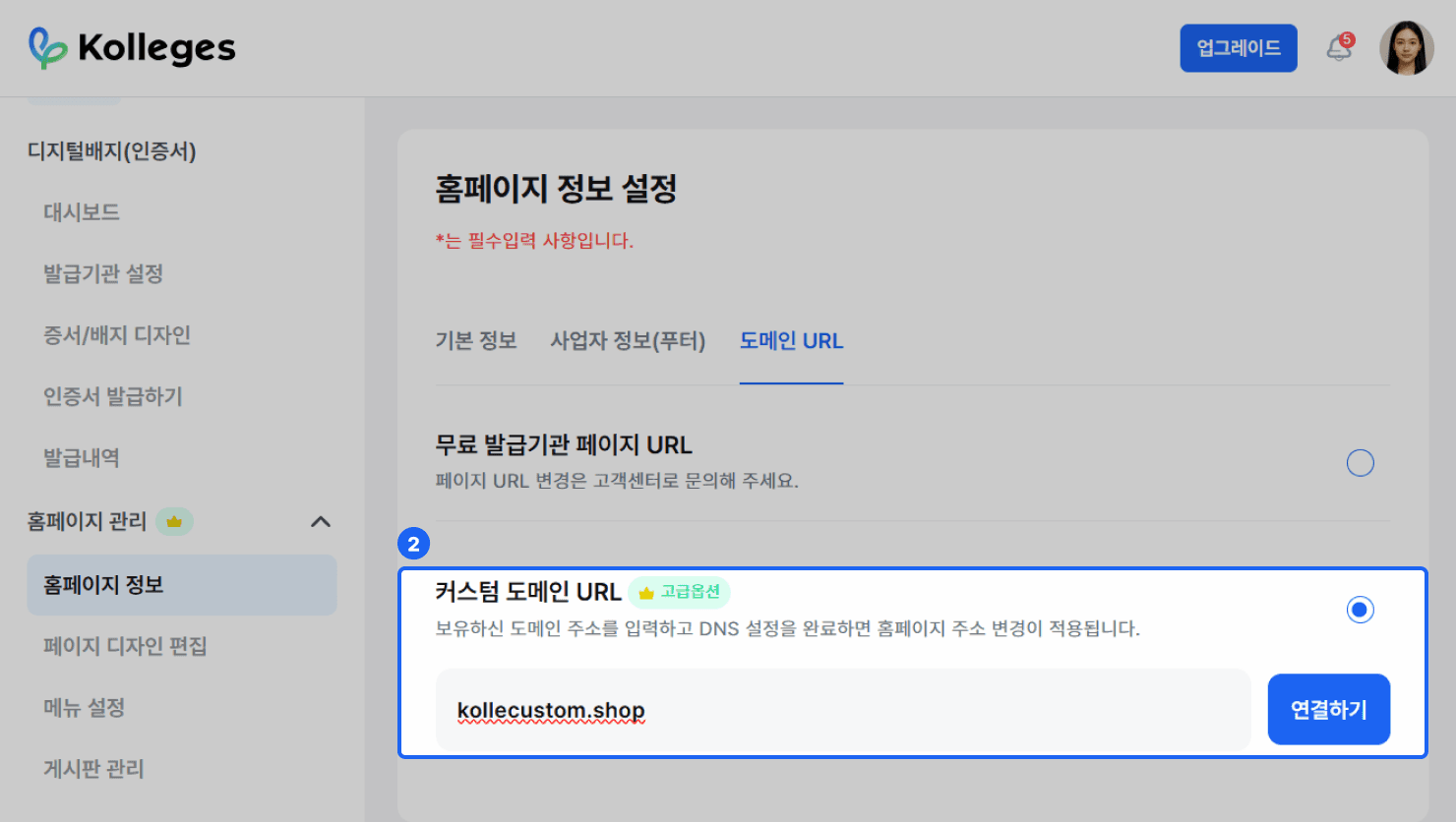
- Custom Domain URL: Enter the purchased domain under [Homepage Management] > [Homepage Information Settings] > [Domain URL] > Custom Domain URL, then click the {Connect} button.
*Enter only the domain address, excluding www/http/https.
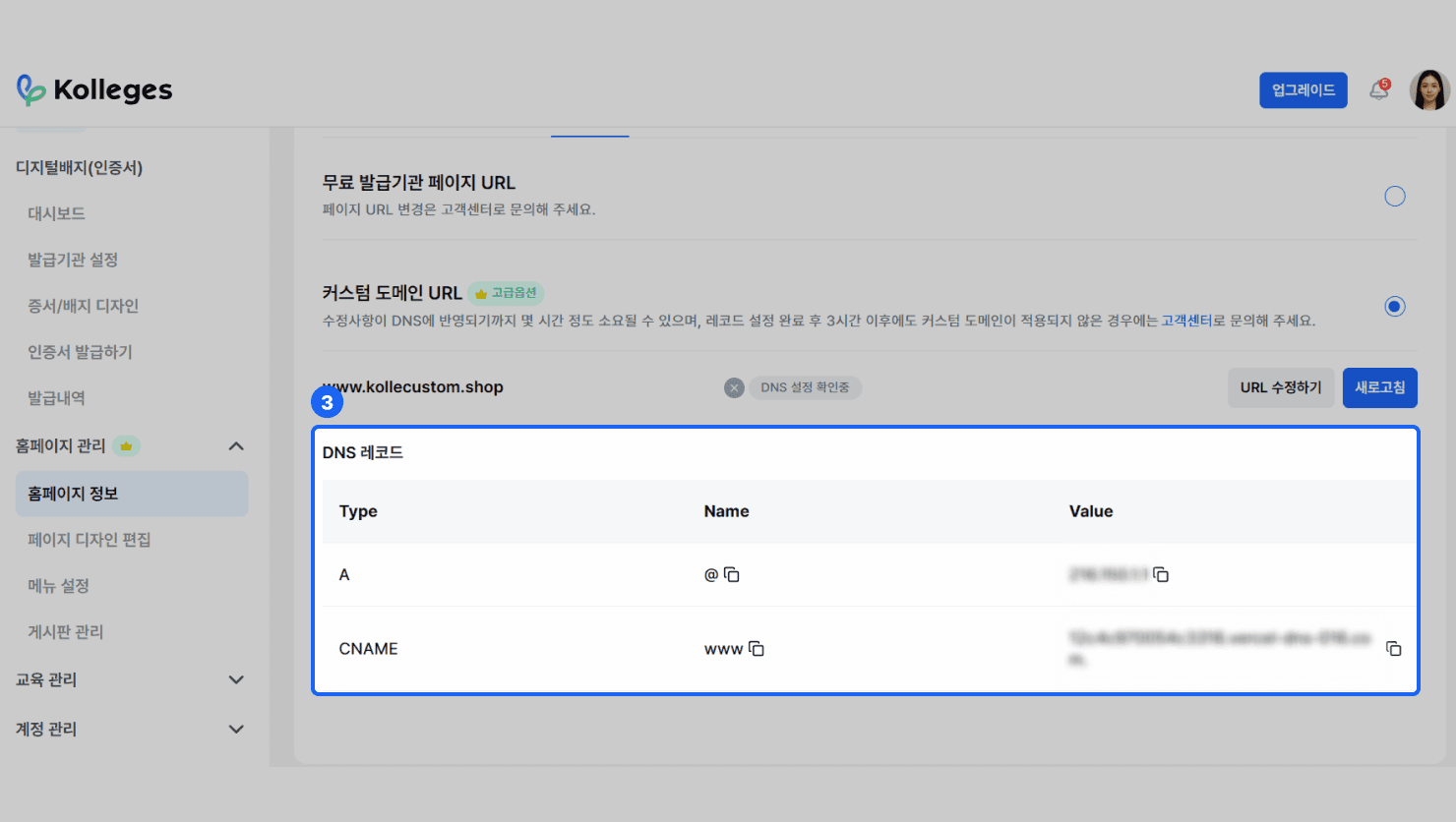
- When you enter the correct domain address, the DNS records needed to connect the custom domain are displayed.
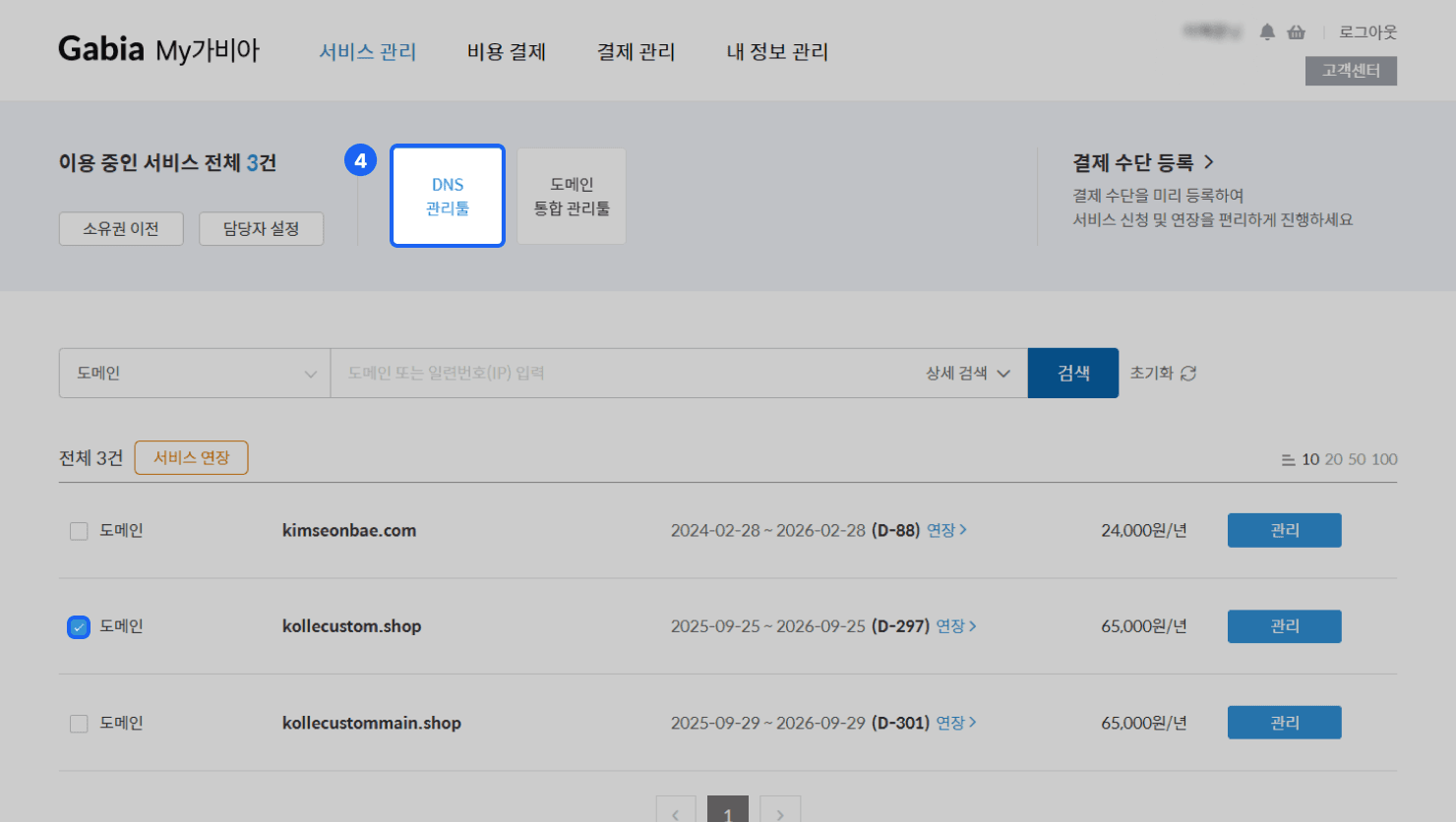
- Go to the page where you can configure DNS records at your domain registrar.
For Gabia,
- Select the connected domain and click {DNS Management Tool}
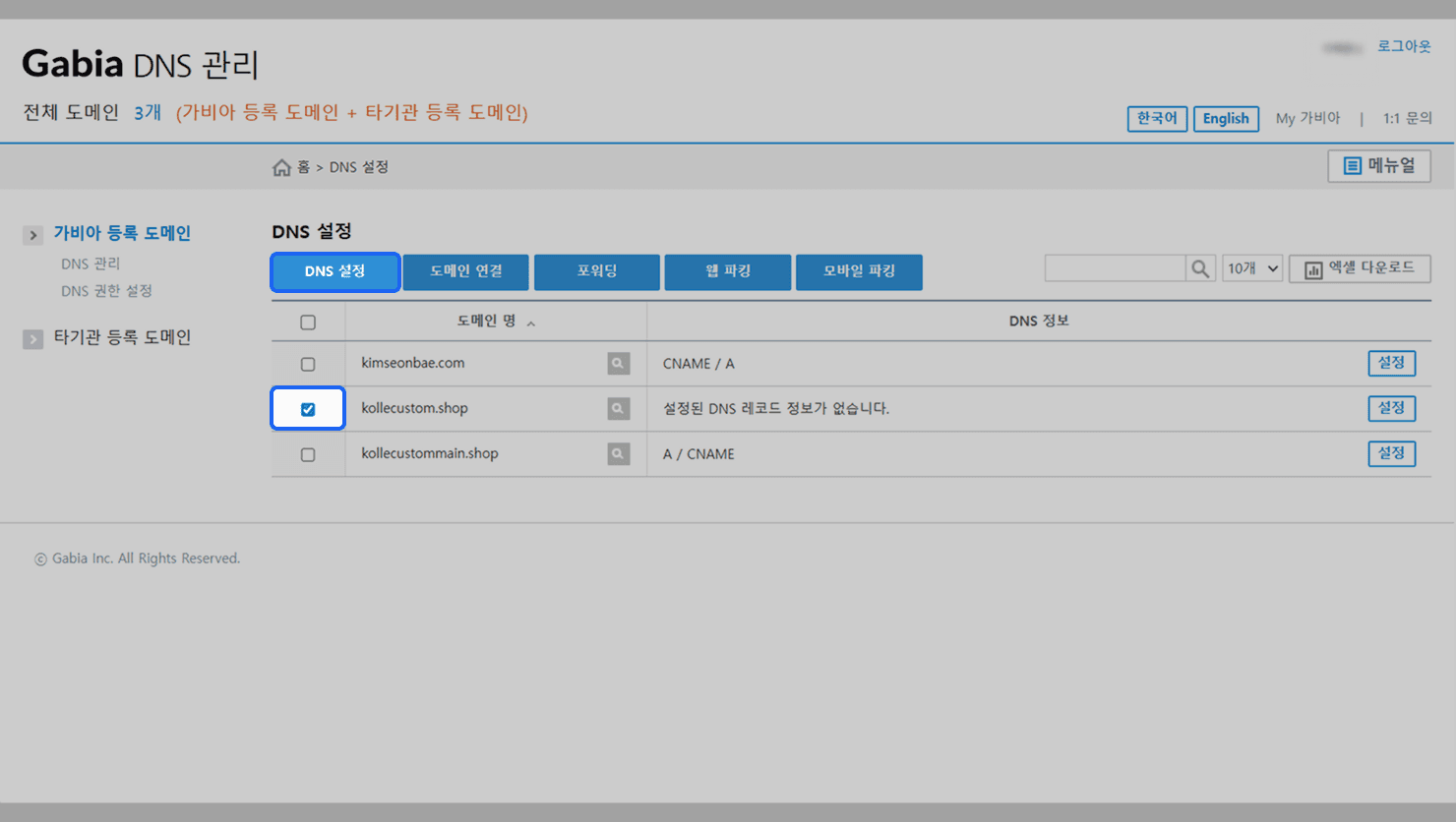
- Select the domain for which you want to configure DNS records and click {DNS Settings}.
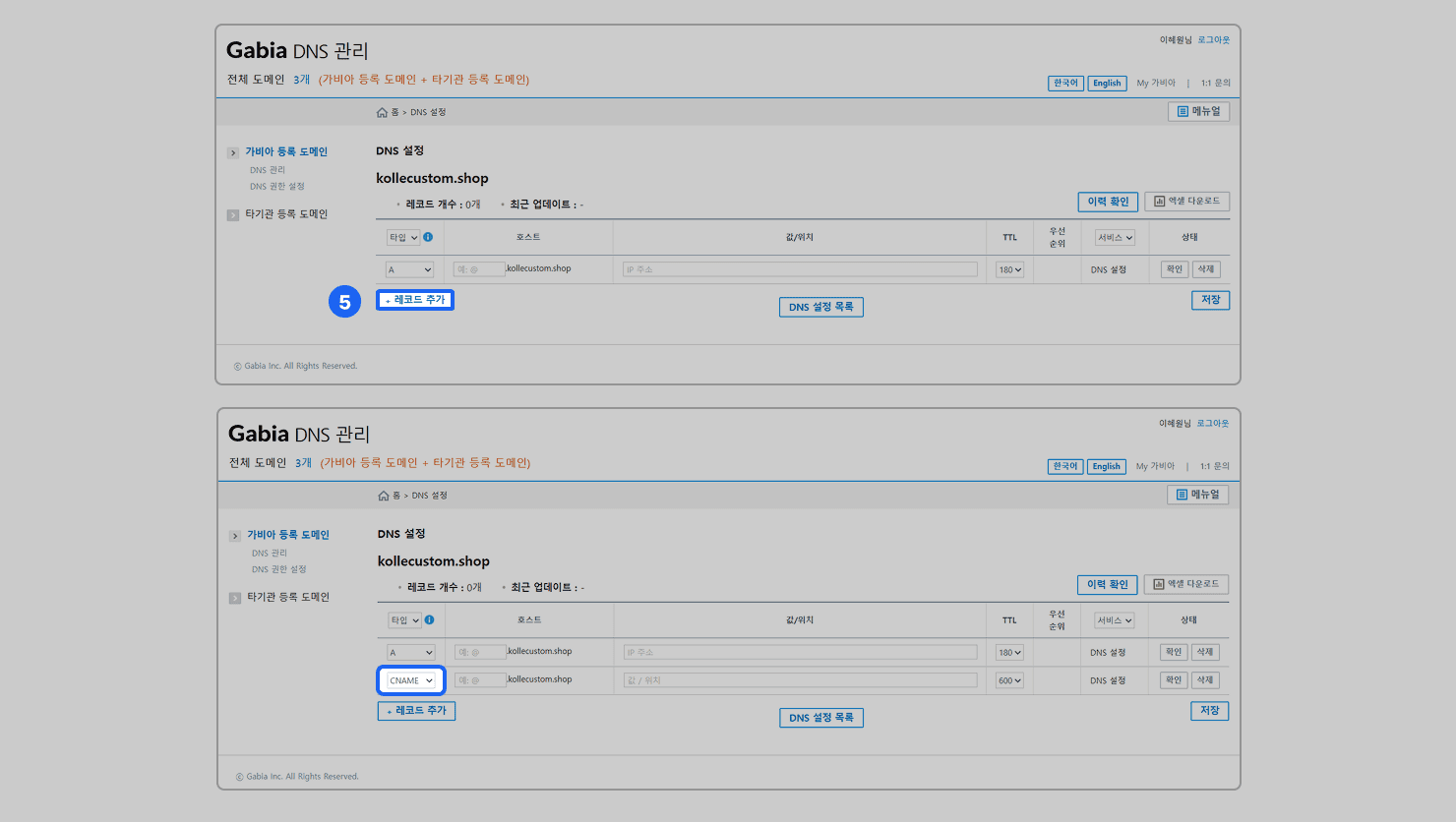
- Add an A record and a CNAME record.
For Gabia,
- Click the {+Add Record} button to add a record.
- Change the type of the added record to CNAME.
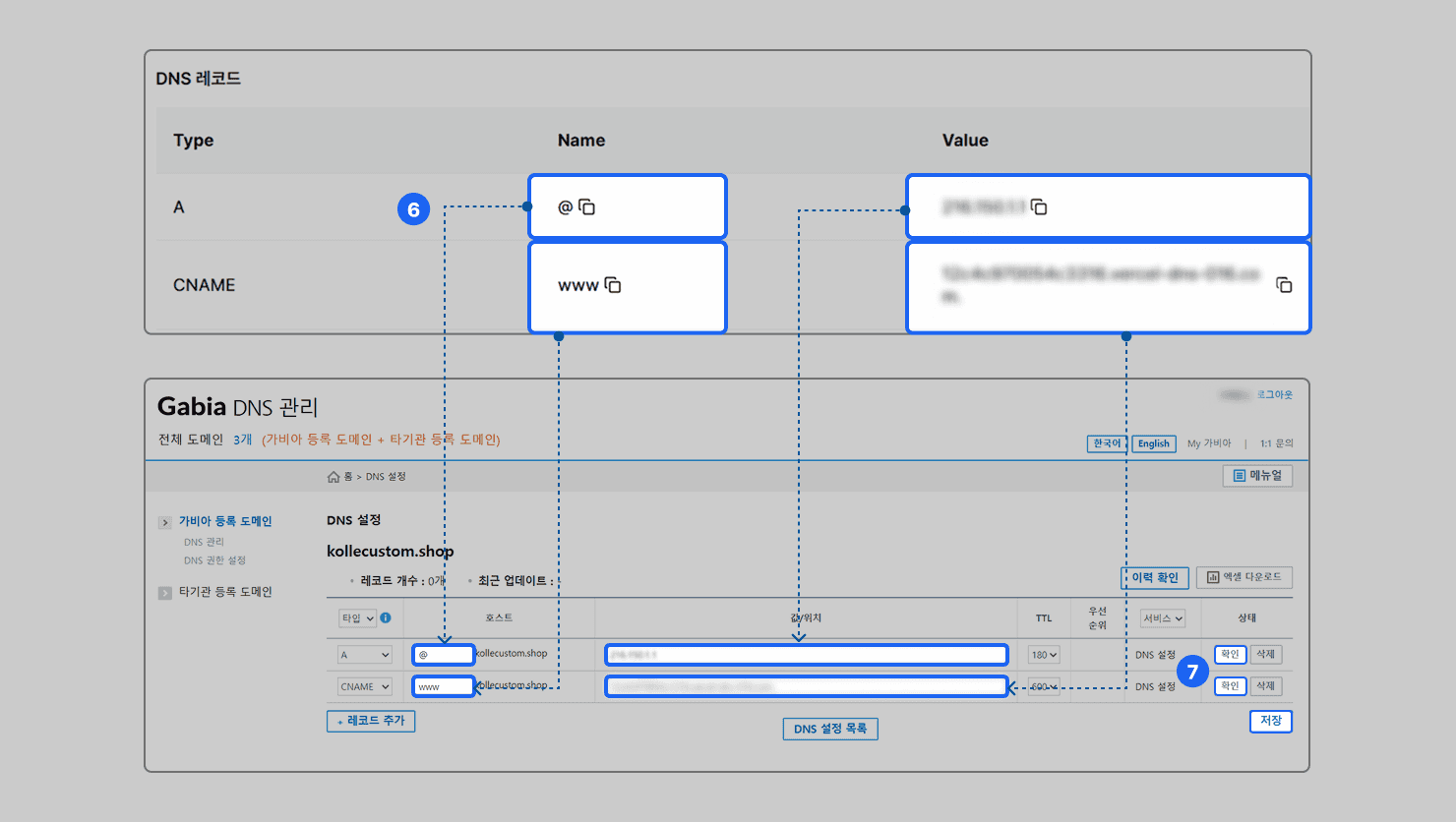
- Copy and paste the DNS record content according to the record type.
- When you finish entering the content, click the {Confirm} button and then click {Save}.
- It may take a few hours for the changes to be reflected in DNS, and if the custom domain is still not applied 3 hours after completing the record settings, please contact 1:1 customer support.
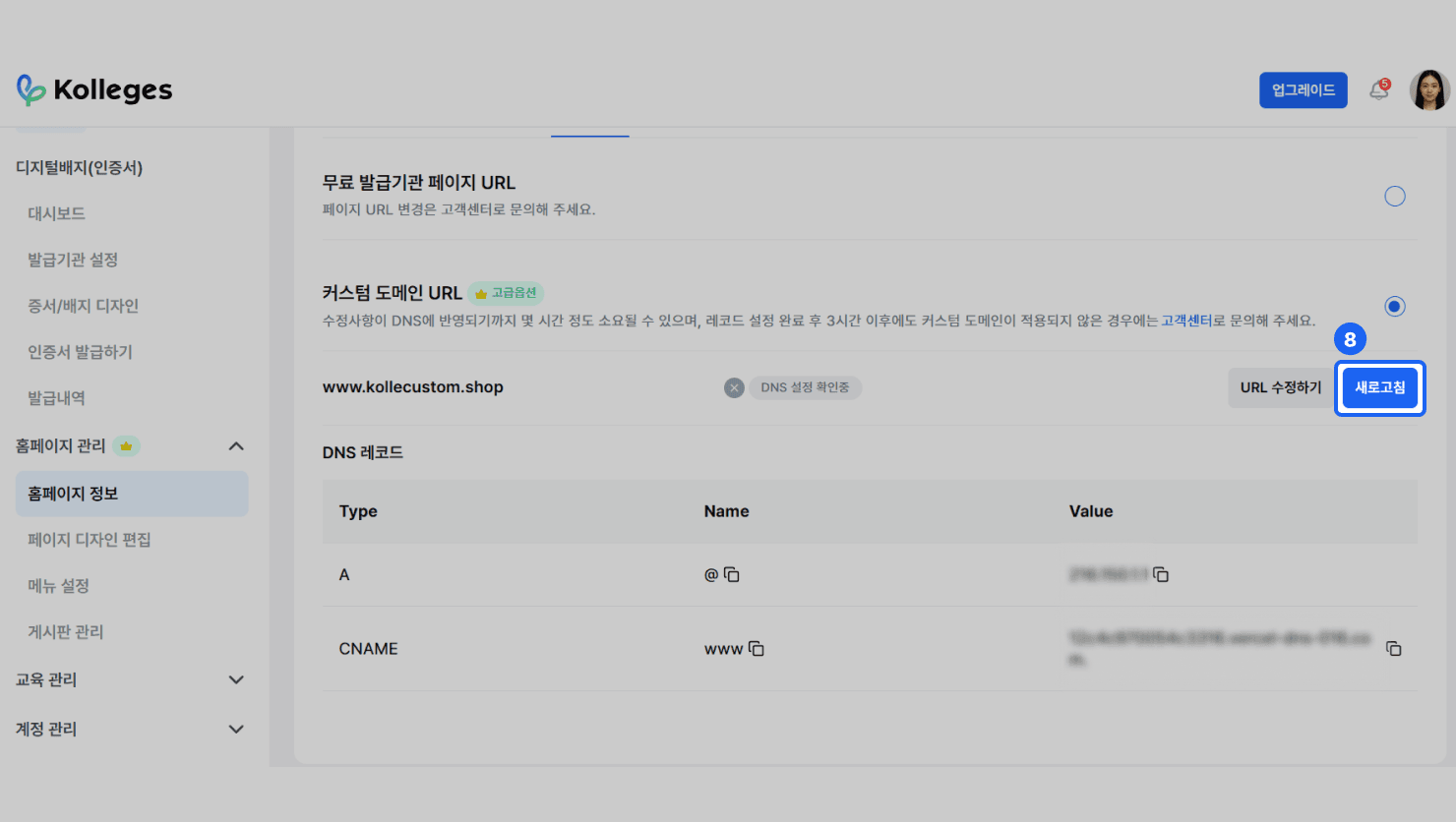
- Return to the admin page and press the {Refresh} button to connect the custom domain URL.
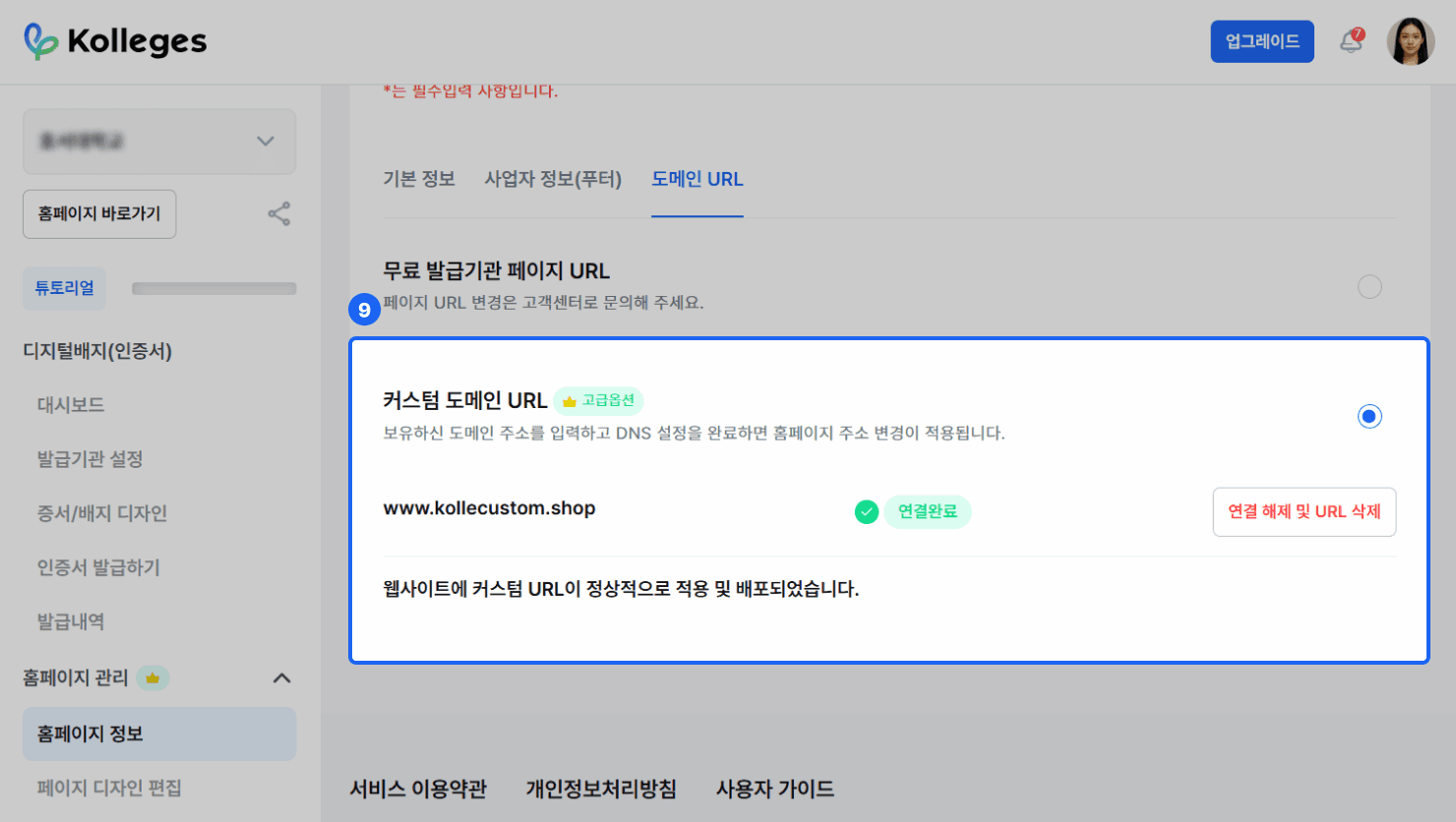
- If the record settings are configured correctly, the custom domain URL connection is complete.
*If you encounter a “DNS information not found” error, check whether the records were entered correctly at your domain registrar. *If the problem persists even though the record information was entered correctly, please contact 1:1 customer support.
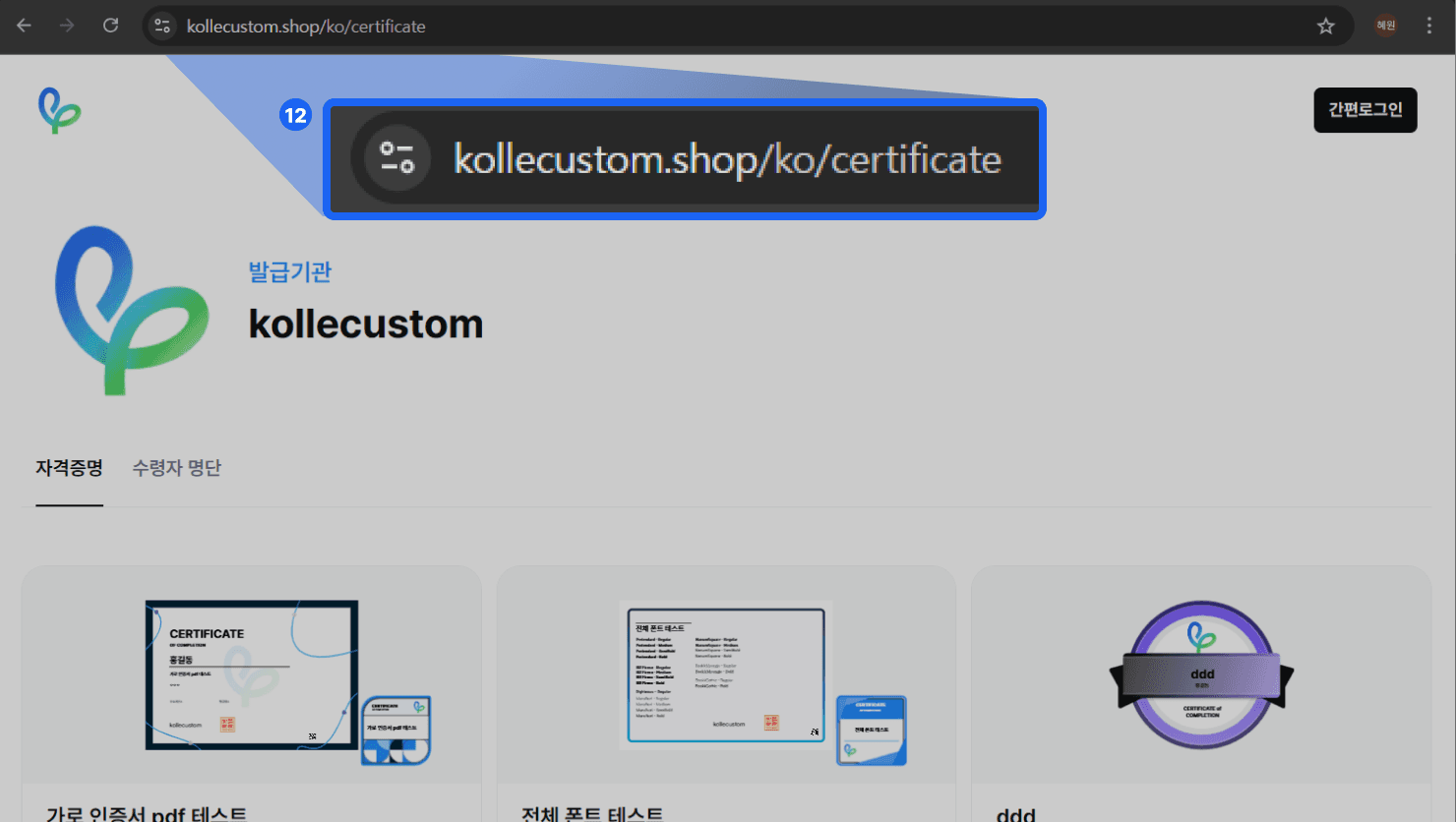
[Example Screen]
Disconnecting a Custom Domain URL
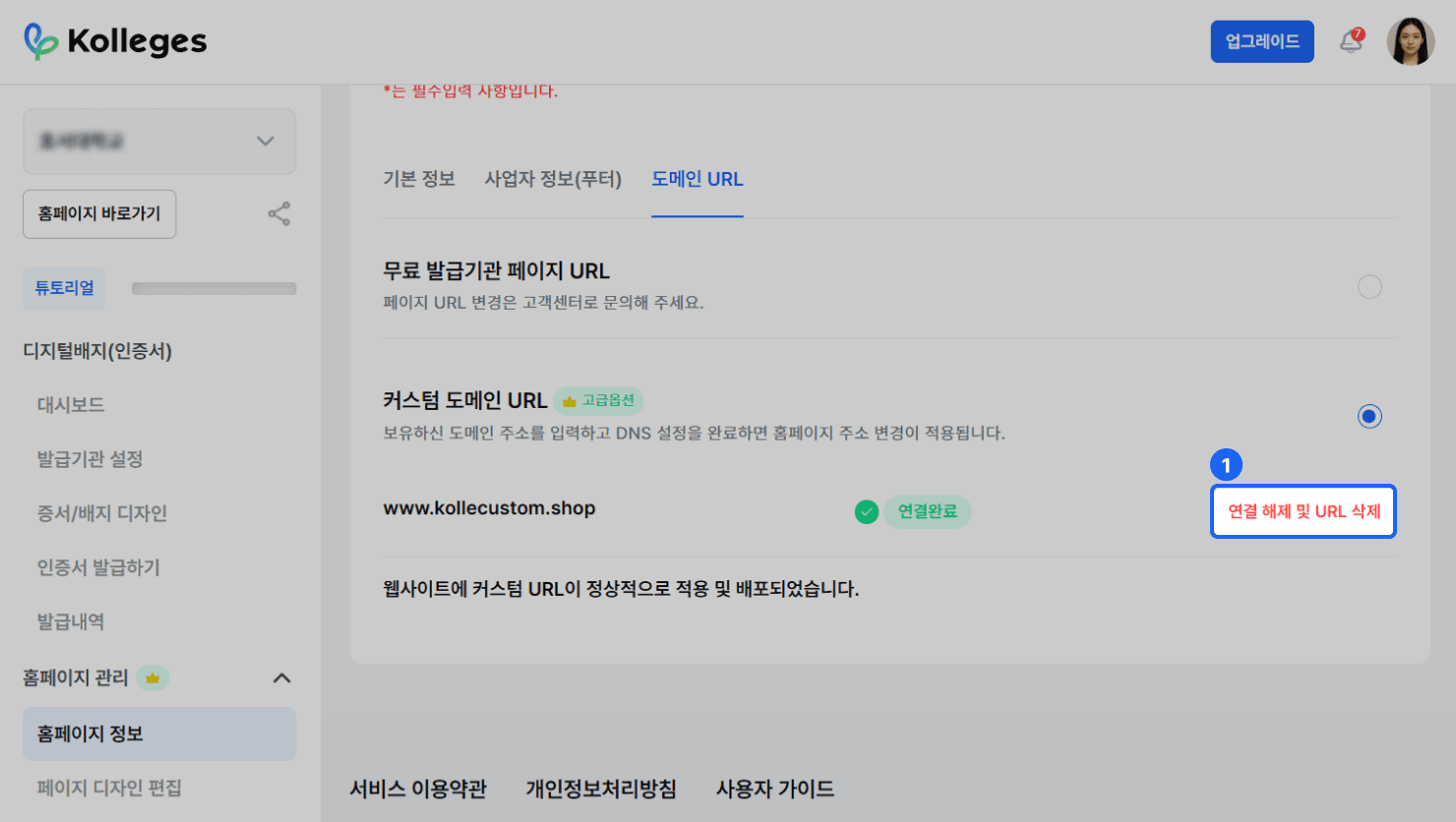
- Click [Homepage Management] > [Homepage Information] > [Domain URL] > {Disconnect and Delete URL} button.
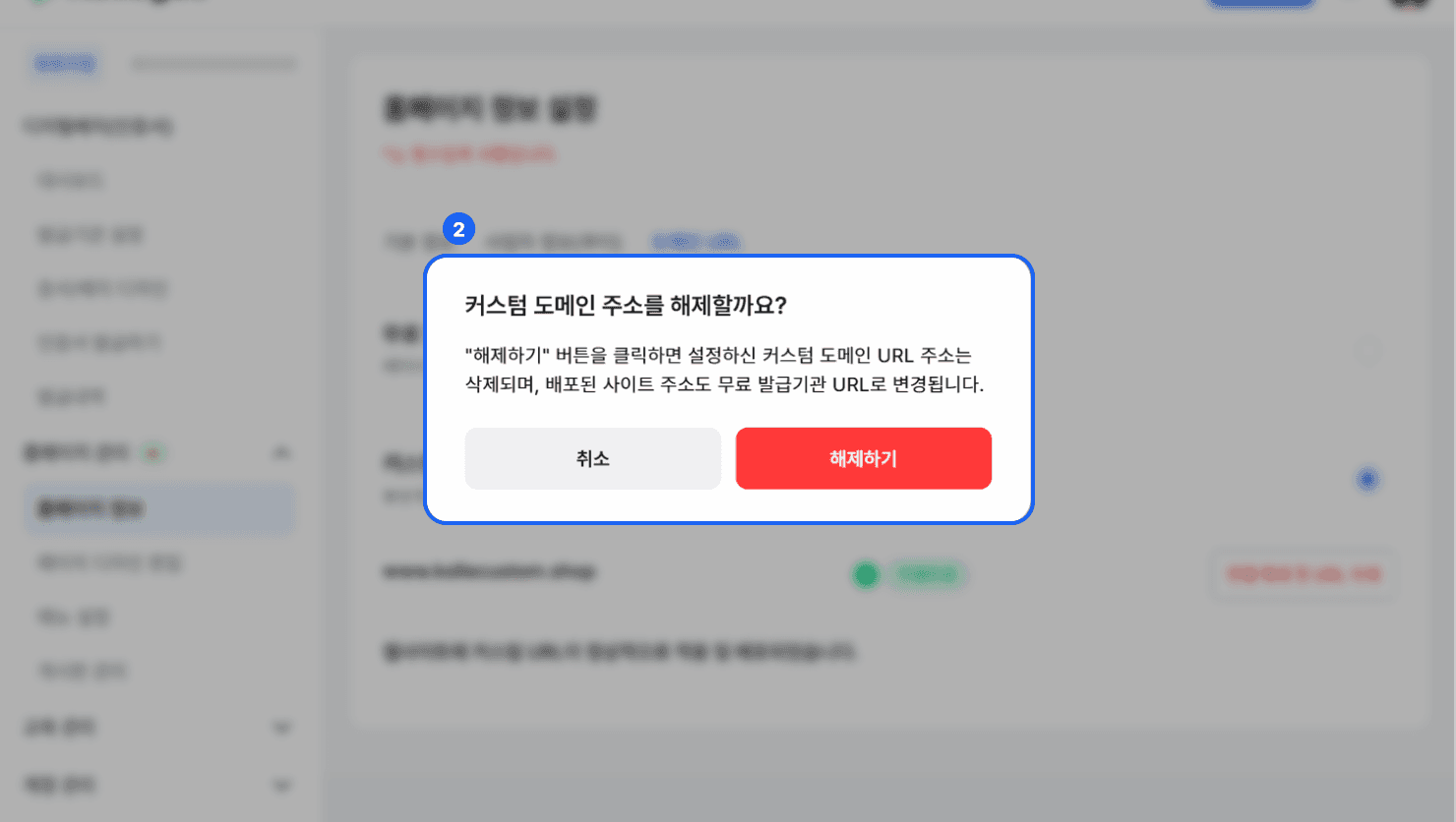
- Click the {Disconnect} button to disconnect the custom domain address.
*When you click the {Disconnect} button, the custom domain URL address you set up is deleted, and the homepage address also changes to the free issuer URL.
Frequently asked questions
Want to turn learning outcomes into verifiable assets?
From issuing to verifying and amplifying, see it for yourself with Kolleges.
Request a Kolleges demo
Related posts
Homepage Design Editing Guide: Customizing Your Badge Platform Brand
A step-by-step editing guide for completing a homepage that matches your organization's brand by editing 9 components such as the logo, theme color, and banners in the Kolleges admin screen.
Plan Upgrade Guide: How to Manage Payments and Subscriptions
A clear overview of the entire subscription management process admins need to know, from the Kolleges Starter, Pro, and Premium plan upgrade steps to reviewing payment history and changing cards.

Menu Settings
In the Kolleges admin menu, create a new page, change its status to 'Connected', then add it to the menu and save to organize your homepage navigation into the structure you want.