
A step-by-step guide to the entire flow of creating a new board on the Kolleges admin page, registering posts with thumbnails, subtitles, locations, and more, and publishing them to the homepage.
Kolleges guide: A feature that lets you easily publish and manage various posts such as announcements and news, just like a blog.
Adding a New Board
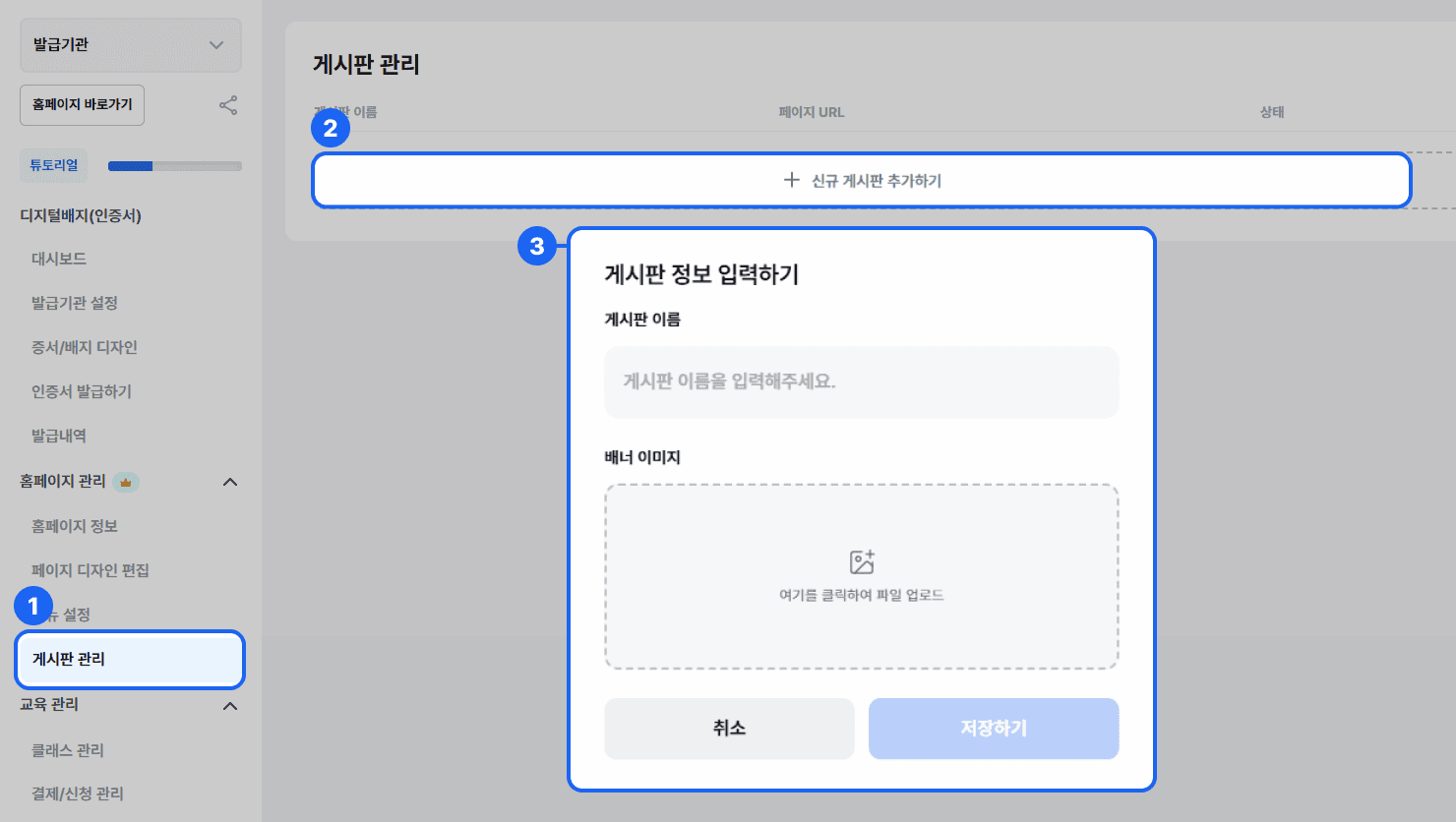
- In the left side menu, click [Homepage Management] > [Board Management].
- On the [Board Management] page, click the {+ Add New Board} button, and the [Enter Board Information] popup appears where you can enter the board details.
- Enter the board name and banner image, then click the {Save} button to create the new board.
Registering a Post
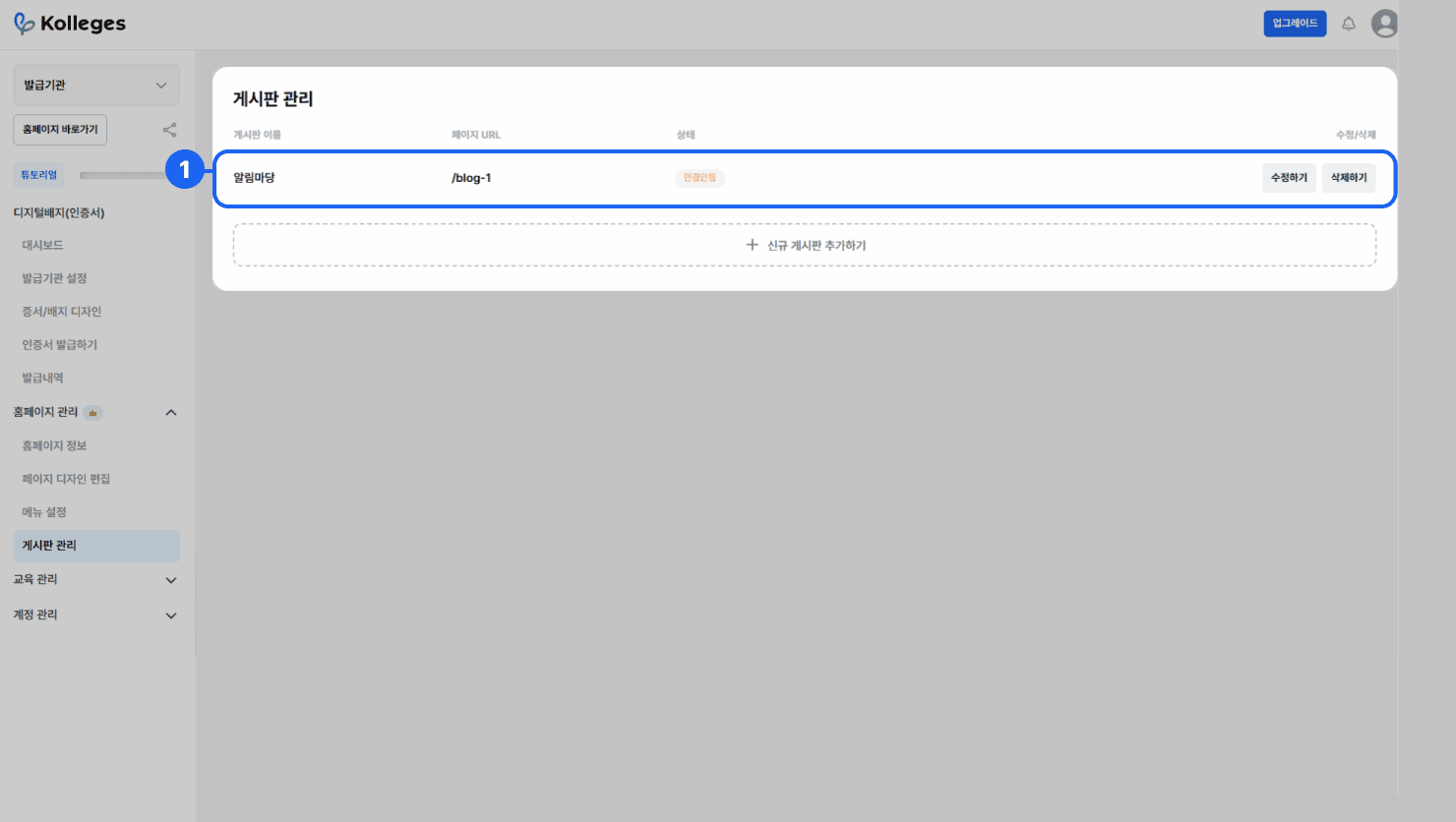
On the [Board Management] page, click the {board} you created to move to the page where you can register posts on that board.
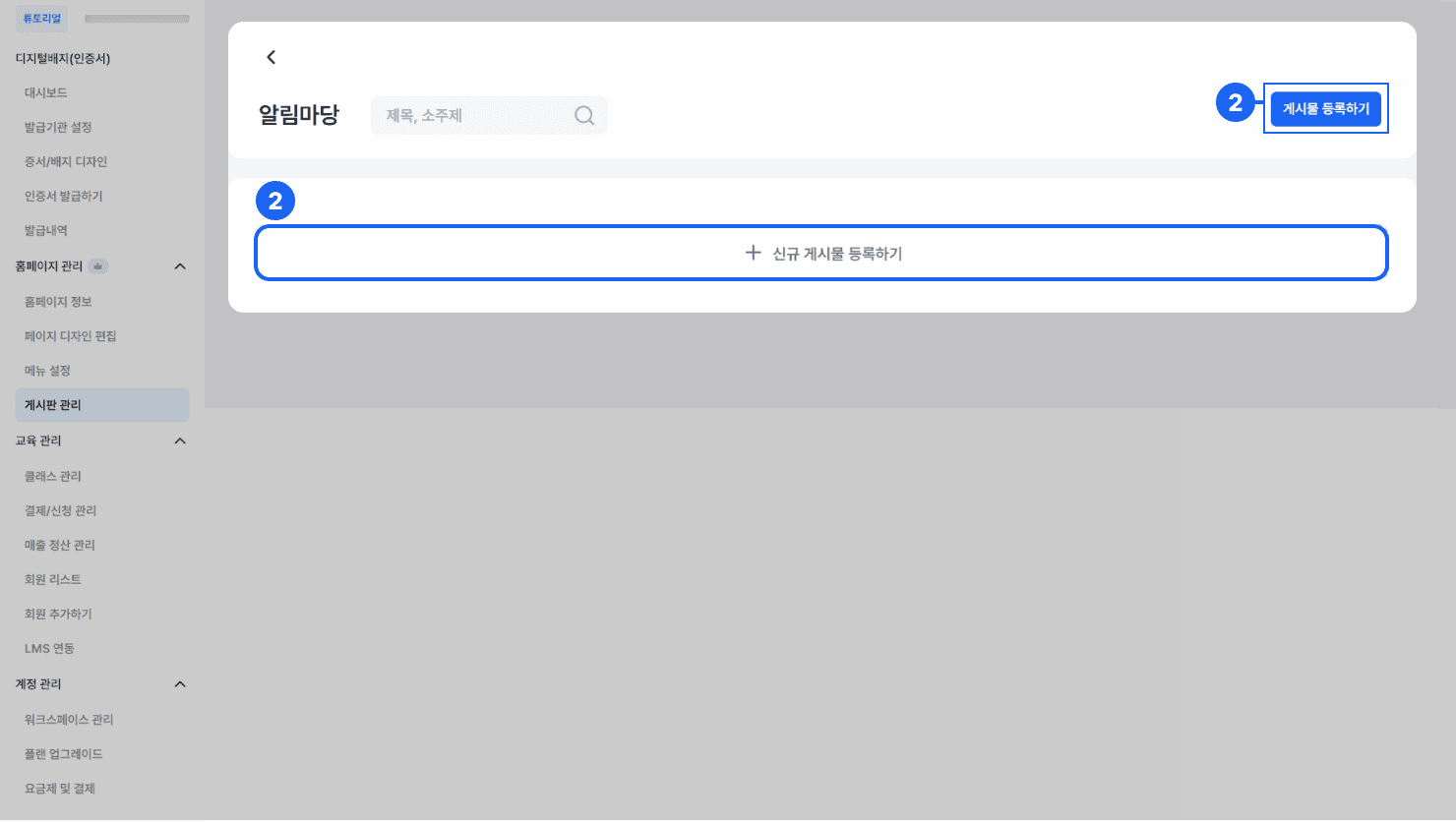
On the [Post Registration] page, click the {+ Add New Post} or {Register Post} button to move to the [Board Registration] page where you can register a new post.
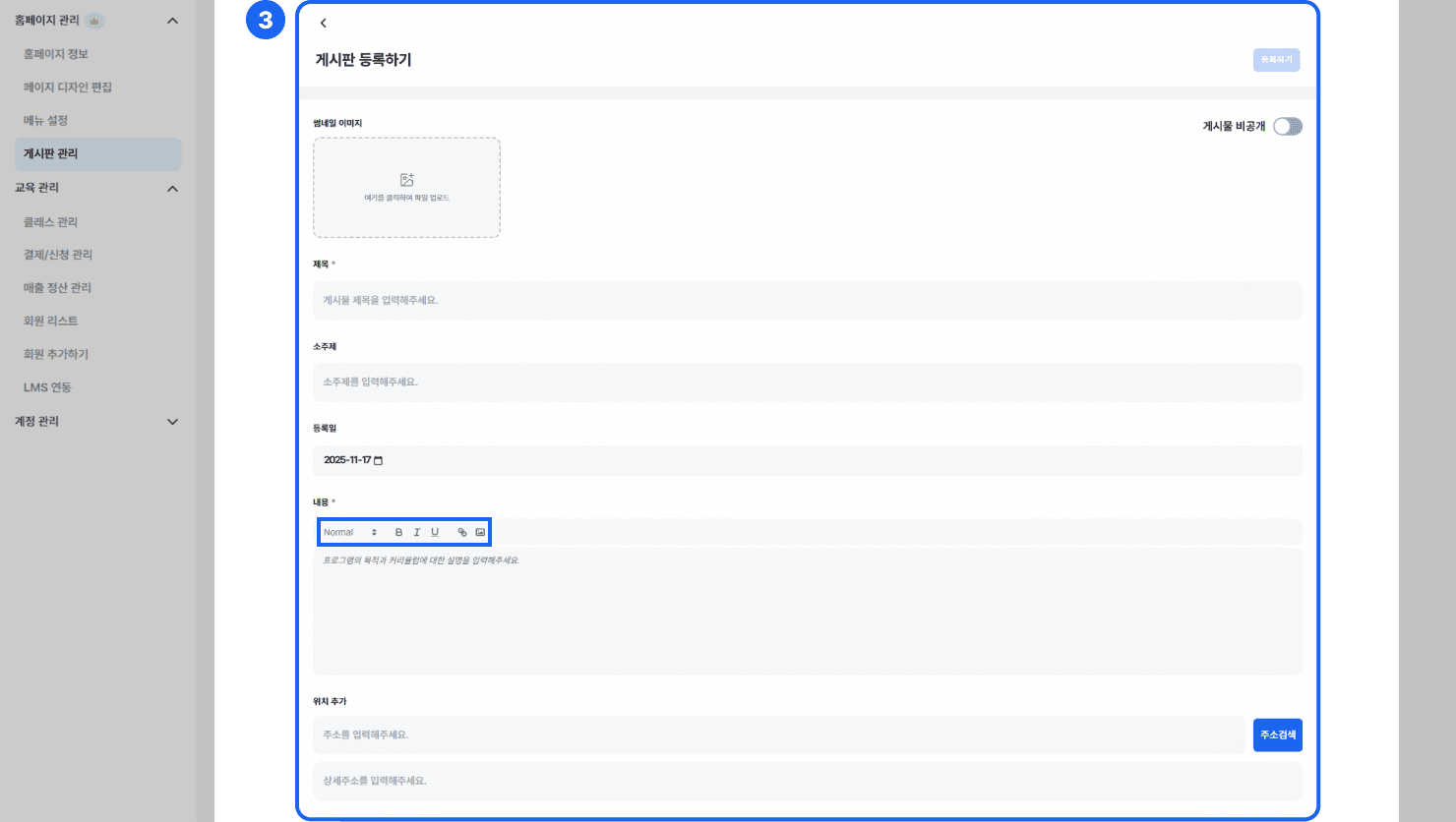
When registering a post, enter the following items.
- Thumbnail image: Upload the representative image to be shown on the post thumbnail.
- Title: Enter the post title.
- Subtitle: Enter a short supplementary phrase displayed above the post title.
- The subtitle you enter is also used in post search along with the title.
- Posting date: Select the date the post will be published.
- Content: You can write and edit your text with the text editor.
- You can compose content in various formats, including adjusting font size, bold/underline, inserting links, and attaching images.
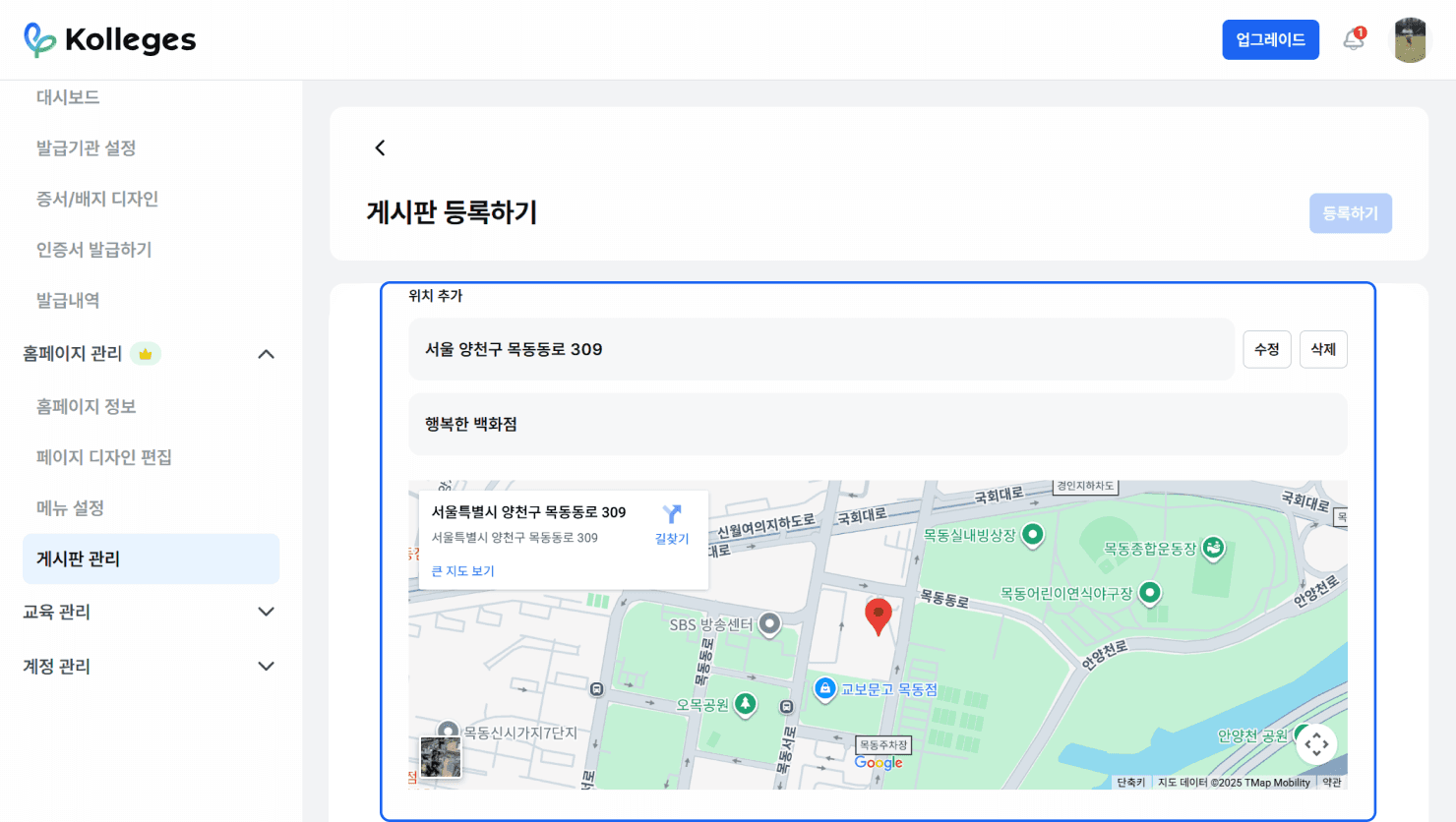
- Add Location (optional): You can attach a map to the post.
- When you enter an address, the location information is displayed at the bottom of the post.
After entering the required items, click the {Register} button in the top right to register the post.
(Note: If you leave the page without clicking the {Register} button, your entered content will not be saved.)
Board Visibility Settings
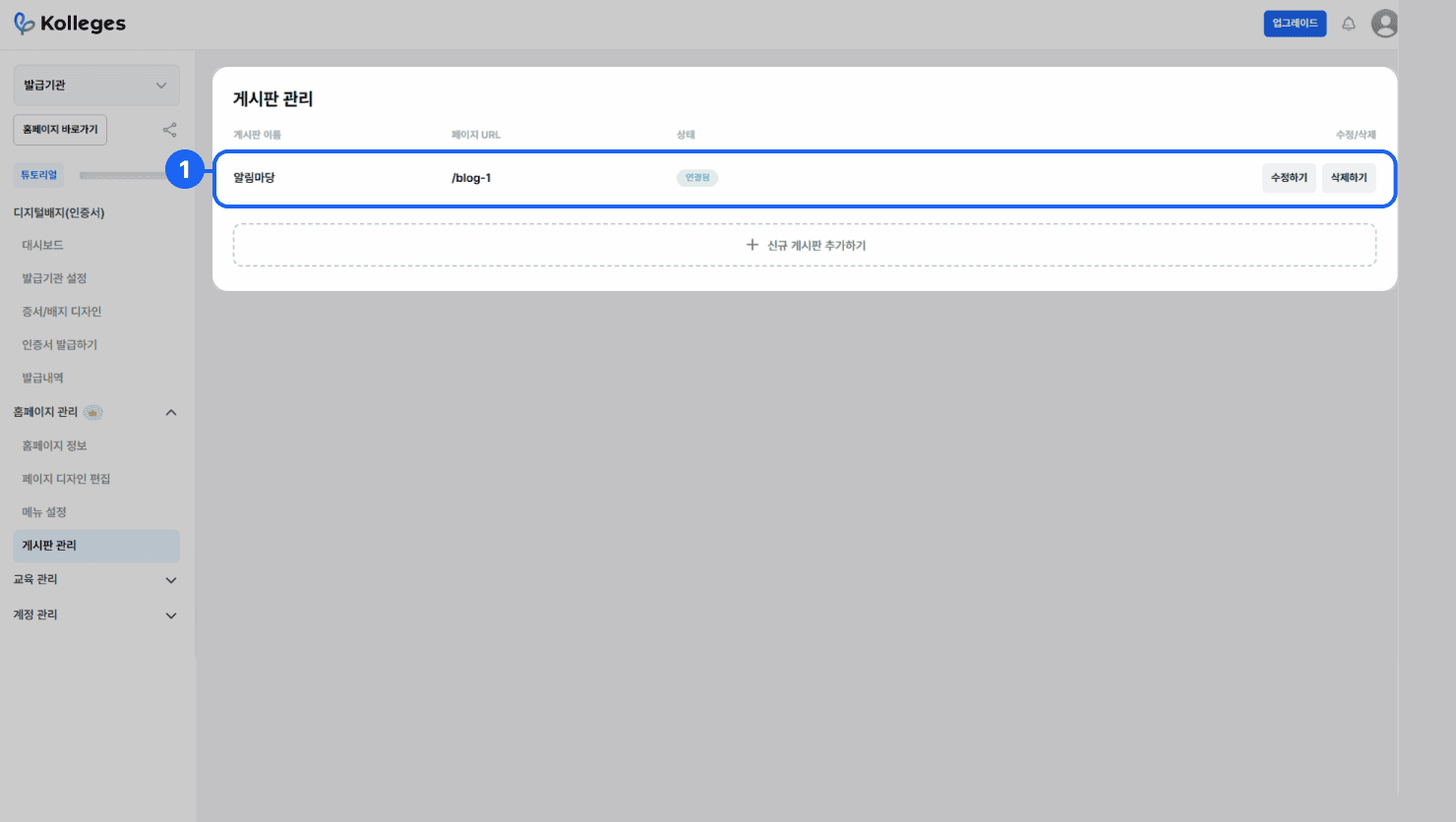
The board you created can be connected to the homepage on the [Menu Settings] page.
Frequently asked questions
Want to turn learning outcomes into verifiable assets?
From issuing to verifying and amplifying, see it for yourself with Kolleges.
Request a Kolleges demo
Related posts
Community Management
This guide provides step-by-step instructions on how admins can directly configure and operate the categories, posts, comments, and leaderboard of the Kolleges community.
Menu Settings
In the Kolleges admin menu, create a new page, change its status to 'Connected', then add it to the menu and save to organize your homepage navigation into the structure you want.
Homepage Design Editing Guide: Customizing Your Badge Platform Brand
A step-by-step editing guide for completing a homepage that matches your organization's brand by editing 9 components such as the logo, theme color, and banners in the Kolleges admin screen.