
Payment & Application Management Guide: How to Manage Enrollment Applications and Payment History
 Robin Yoon · Customer Success Team Published
A clear overview of the practical workflow every Kolleges operator should know, covering payment and application history lookups, partial and full refund processing, and Excel settlement exports.
This guide walks you through, step by step, how to efficiently use the payment and application management features in Kolleges, including managing enrollment applications, checking payment history, and processing refunds. It is a practical guide that operators at educational institutions must know.

Payment/Application Management
Go to [Education Management] > [Payment/Application Management].
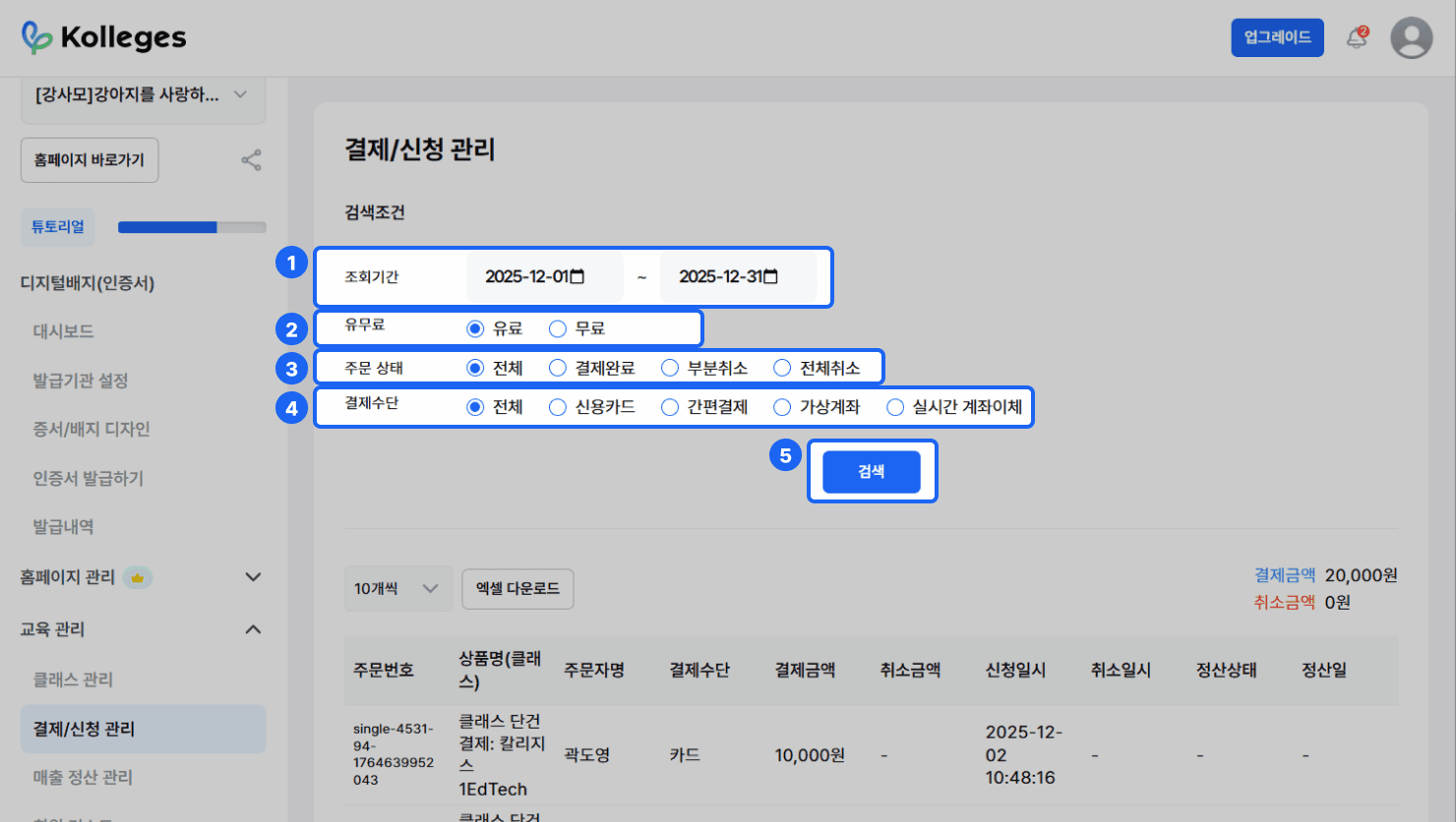
Search Conditions: Set the search conditions for the class payment/application list you want to search.
- ① Lookup Period: Set the period to look up based on the class payment/application date.
- ② Paid/Free: Select whether the class is paid or free.
- ③ Order Status: Select the order status.
- All/Payment Completed/Partially Cancelled/Fully Cancelled
- ④ Payment Method: Select the payment method for the class payment/application list you want to search.
- All/Credit Card/Easy Pay/Virtual Account/Real-time Account Transfer
- ⑤ {Search}: When you click the button, the class payment/application list is looked up according to the selected search conditions.
* If you change the search conditions, click the {Search} button again to refresh the list.
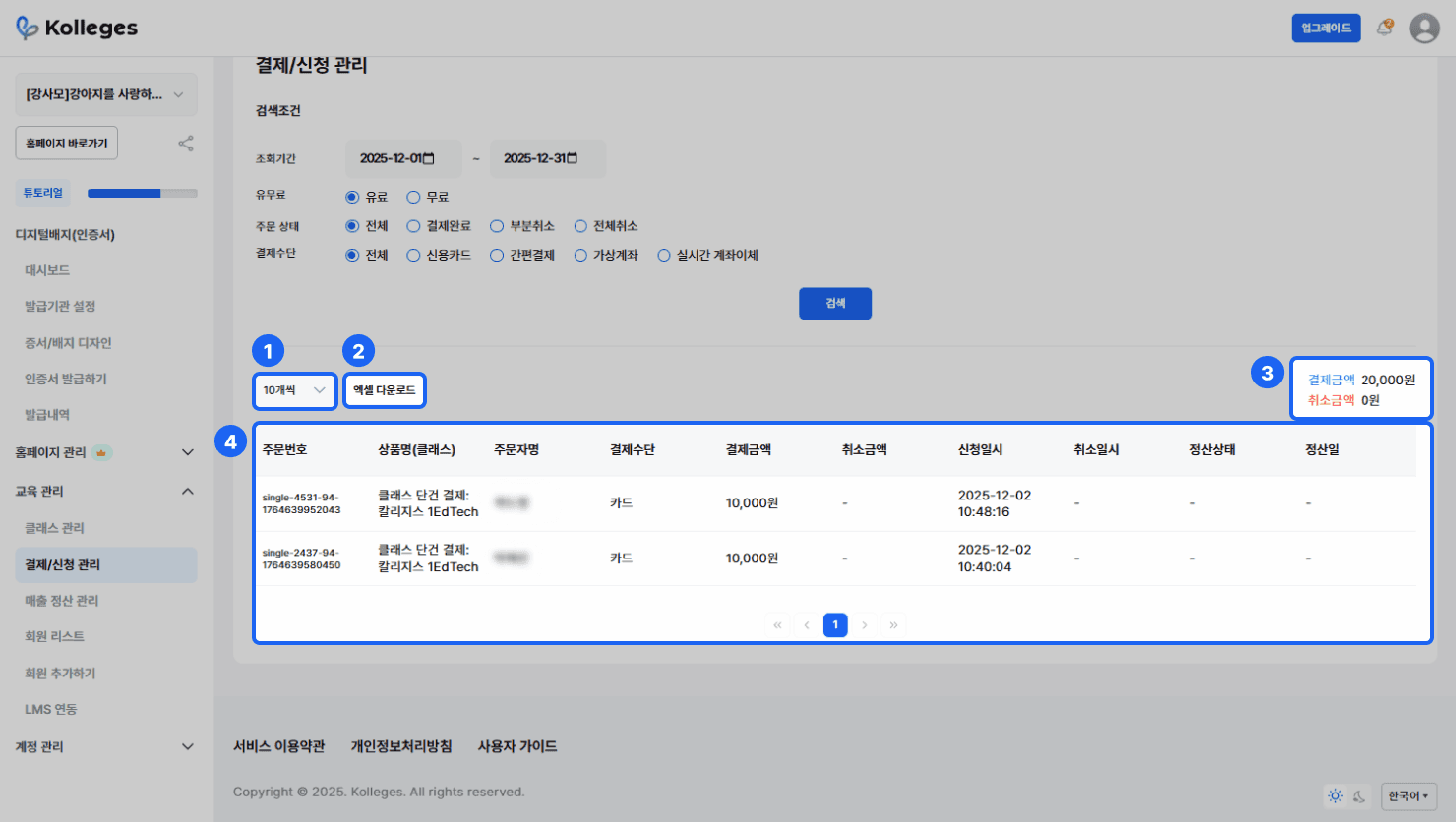
Check the payment and application history matching the search conditions.
- ① List Quantity Setting: Select the number of items to show per page (10-100).
- ② Excel Download: Download the search result list as an Excel file.
- ③ Search Result Amount: Check the total amount on the search result list.
- Payment Amount: The sum of the payment amounts in the search result list.
- Cancellation Amount: The sum of the cancellation amounts in the search result list.
- ④ Search Results: Check the search result list.
- Order Number: The order number for that list item.
- Product Name (Class): The paid/free status, payment quantity, and product name (class) of the class the applicant paid for/applied to.
- Orderer Name: The name of the class applicant.
- Payment Method: The payment method the class applicant used when paying.
- Payment Amount: The amount the class applicant paid.
- Cancellation Amount: The amount the class operator cancelled.
- Application Date and Time: The date and time the class applicant applied.
- Cancellation Date and Time: The date and time the class operator cancelled the payment.
- Settlement Status: The settlement status of the payment amount.
- Settlement Date: The date the payment amount was settled.
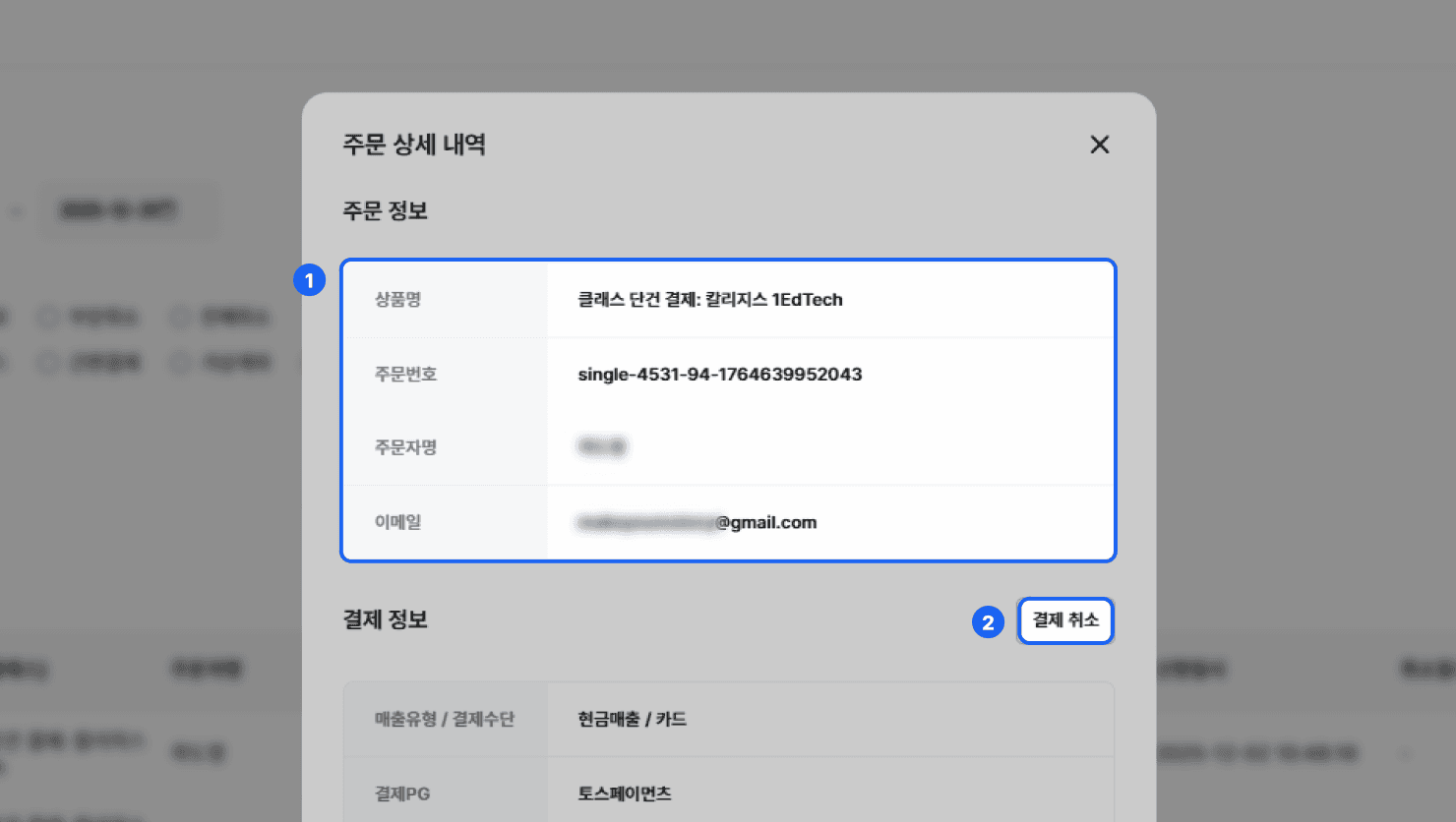
Click the item you want to see in detail to check the order details.
- ① Order Information: Check the product name/order number/orderer name/orderer email of the selected item.
- ② {Cancel Payment}: When clicked, cancels the payment for that order.
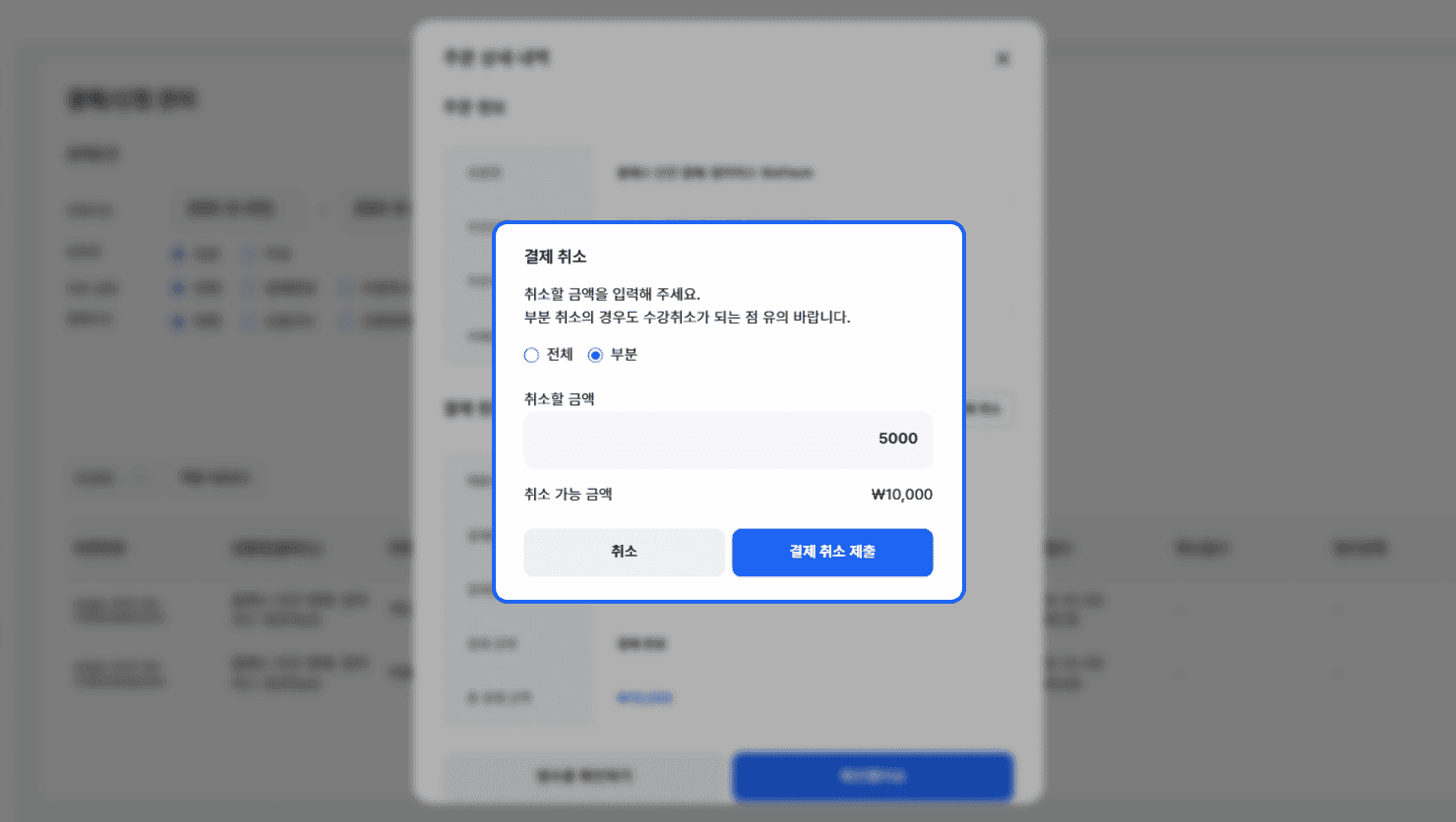
You can cancel a payment by full or partial amount. For a partial amount cancellation, enter the amount to cancel and then click the {Submit Payment Cancellation} button to cancel the payment.
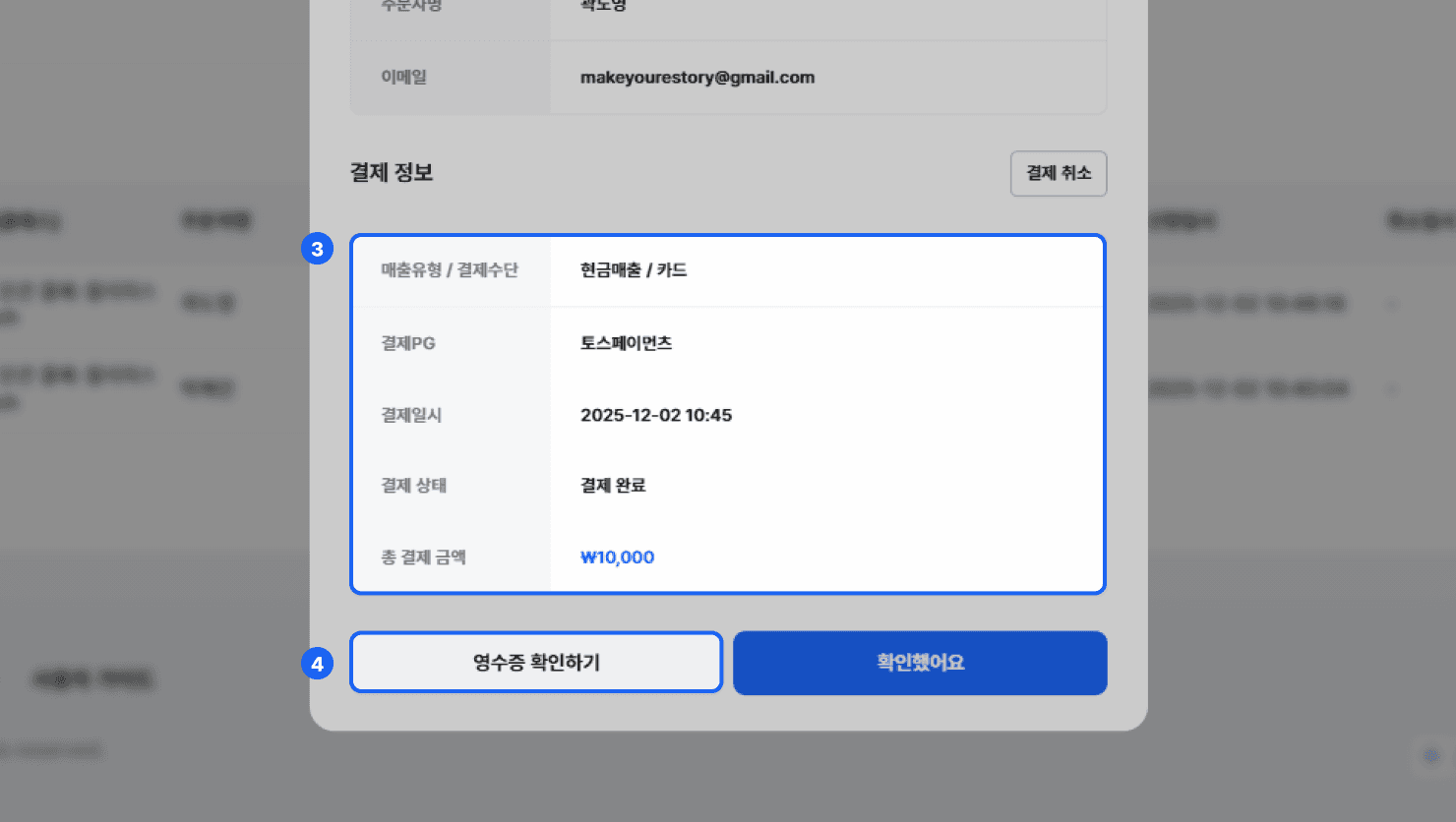
- ③ Payment Information: Check the sales type, payment method/payment (PG)/payment date and time/payment status/total payment amount of the selected item.
- ④ View Receipt: View the receipt for the selected item.
Frequently asked questions
Want to turn learning outcomes into verifiable assets?
From issuing to verifying and amplifying, see it for yourself with Kolleges.
Request a Kolleges demo Related posts

Member List Management Guide: How to Add Members, Check Information, and Set Permissions
This guide walks Kolleges education admins step by step through the full flow of adding members via individual invitation or bulk Excel upload, viewing and deleting member information by status (full member, joining, invited), and approving or rejecting members awaiting admin approval.
Creating a Class
A step-by-step guide that walks you through configuring a class's basic information, the four curriculum mission types, and tuition, all the way to automatically issuing digital badges based on a mission completion rate threshold.

Plan Upgrade Guide: How to Manage Payments and Subscriptions
A clear overview of the entire subscription management process admins need to know, from the Kolleges Starter, Pro, and Premium plan upgrade steps to reviewing payment history and changing cards.