
You can flexibly build your curriculum using four submission types (assignment, video, offline, live meeting) and their type-specific completion conditions.
This guide explains how to manage class submissions. Handle everything in Kolleges, all the way through to linking digital badge issuance, with ease.
Class Submissions
The curriculum within a class can be composed of various submissions (learning activities), and each submission is processed as mission-complete based on whether the student has completed the activity.
Below are descriptions of the supported submission types:
Assignment Submission

Input fields
- Assignment name: The title of the assignment shown to the student.
- Assignment description: Explains how to do the assignment, the submission format, precautions, and so on.
- Submission deadline: The date and time by which the assignment must be submitted.
How to use: When a learner submits the assignment within the set deadline, you can evaluate it.
Completion condition: When the admin marks the evaluation as complete, that mission is recognized as completed.
Video Lecture
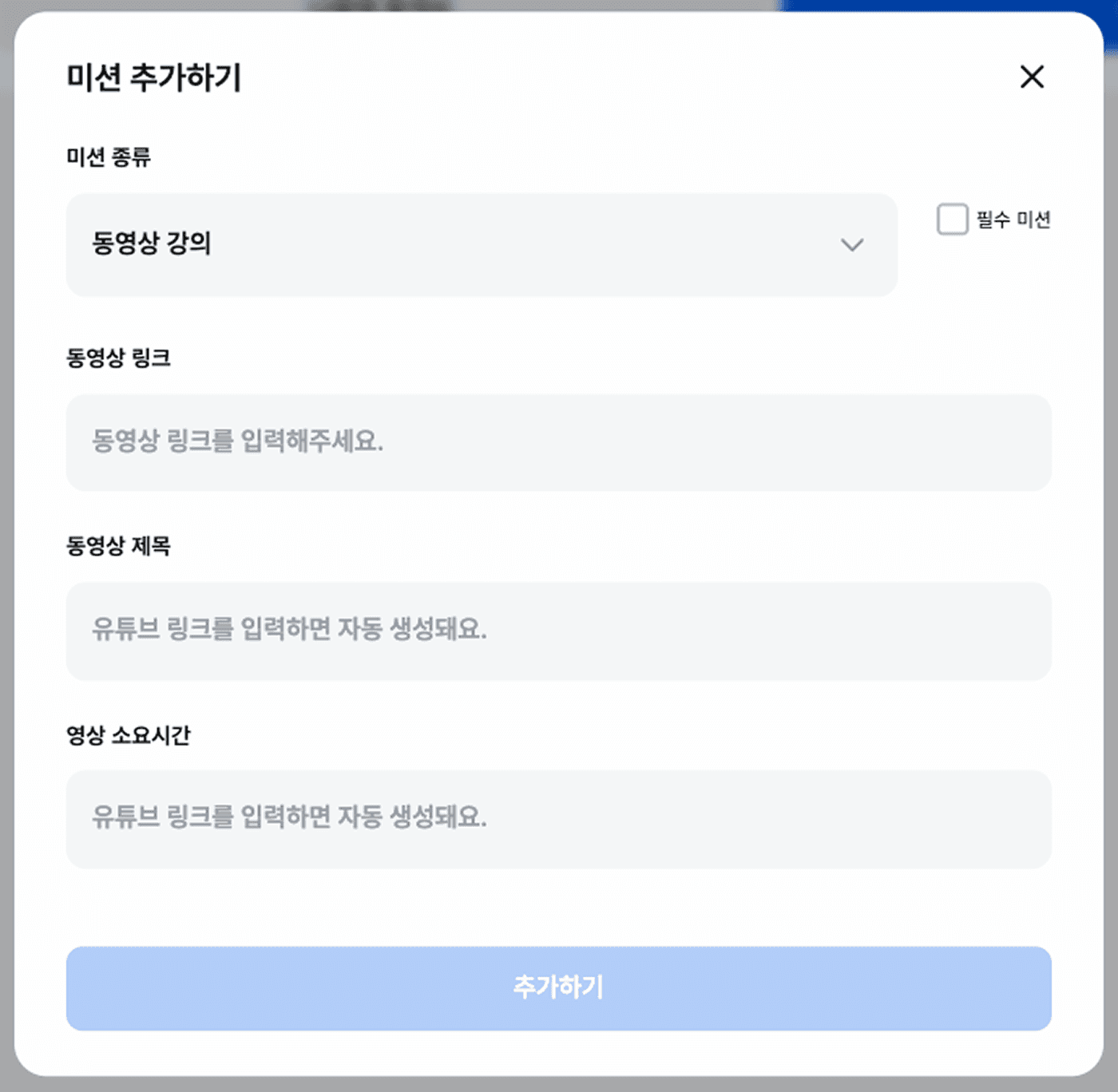
Input fields
- YouTube link: Enter the YouTube URL of the video lecture to provide to the student.
- Video title: Automatically loaded via the YouTube link.
- Duration: Automatically loaded via the YouTube link.
Completion condition: When the student watches at least a certain amount of the video, the mission is automatically processed as complete.
Offline Meeting

Input fields
- Meeting name: The title of the offline meeting.
- Location: The place where the meeting actually takes place. It is good to enter details such as the building name, floor, and meeting room in the detailed address.
- Start date/time: The date and time the offline meeting starts.
- End date/time: The date and time the meeting ends.
QR code generation: A dedicated QR code is automatically generated when the submission is registered. This QR can be used for attendance checks and the like.
Completion condition: When a student scans that QR code, the mission is immediately processed as complete.
Live Meeting

Input fields
- Google Meet link: The Google Meet link for accessing the live meeting.
- Meeting title: The name of the online real-time meeting.
- Start date/time: The date and time the live meeting starts.
- End date/time: The scheduled end time of the live meeting.
QR code generation: A dedicated QR code is automatically generated when the submission is registered. This QR can be used for attendance checks and the like.
Completion condition: When a student scans that QR code, the mission is immediately processed as complete.
Each submission can be registered multiple times in any order you want when opening a class, and even after creation it can be edited / duplicated / deleted / reordered.
Frequently asked questions
Want to turn learning outcomes into verifiable assets?
From issuing to verifying and amplifying, see it for yourself with Kolleges.
Request a Kolleges demo
Related posts
Creating a Class
A step-by-step guide that walks you through configuring a class's basic information, the four curriculum mission types, and tuition, all the way to automatically issuing digital badges based on a mission completion rate threshold.
Class Usage Guide: Key Features for Running Lessons and Courses
From the Class tab, apply for the class you want, and as you complete missions using the curriculum, assignments, and leaderboard, a badge is issued once you meet the reward conditions and can be viewed in your badge wallet.
Payment & Application Management Guide: How to Manage Enrollment Applications and Payment History
A clear overview of the practical workflow every Kolleges operator should know, covering payment and application history lookups, partial and full refund processing, and Excel settlement exports.