
Certificate Advertising Settings Guide: Adding Promotional Content to Verification Pages
 Robin Yoon · Customer Success Team Published
From the Targeted Advertising tab on the certificate creation page, you can set up badge acquisition programs, related badges, and ad banners to drive re-enrollment and re-application conversions from verification page visitors.
This guide explains how to add advertisements, recommended badges, and course promotion content to your digital badge and certificate verification pages. It details usage strategies and setup procedures for increasing re-enrollment and re-application conversion rates.
Where to Find Targeted Advertising Settings
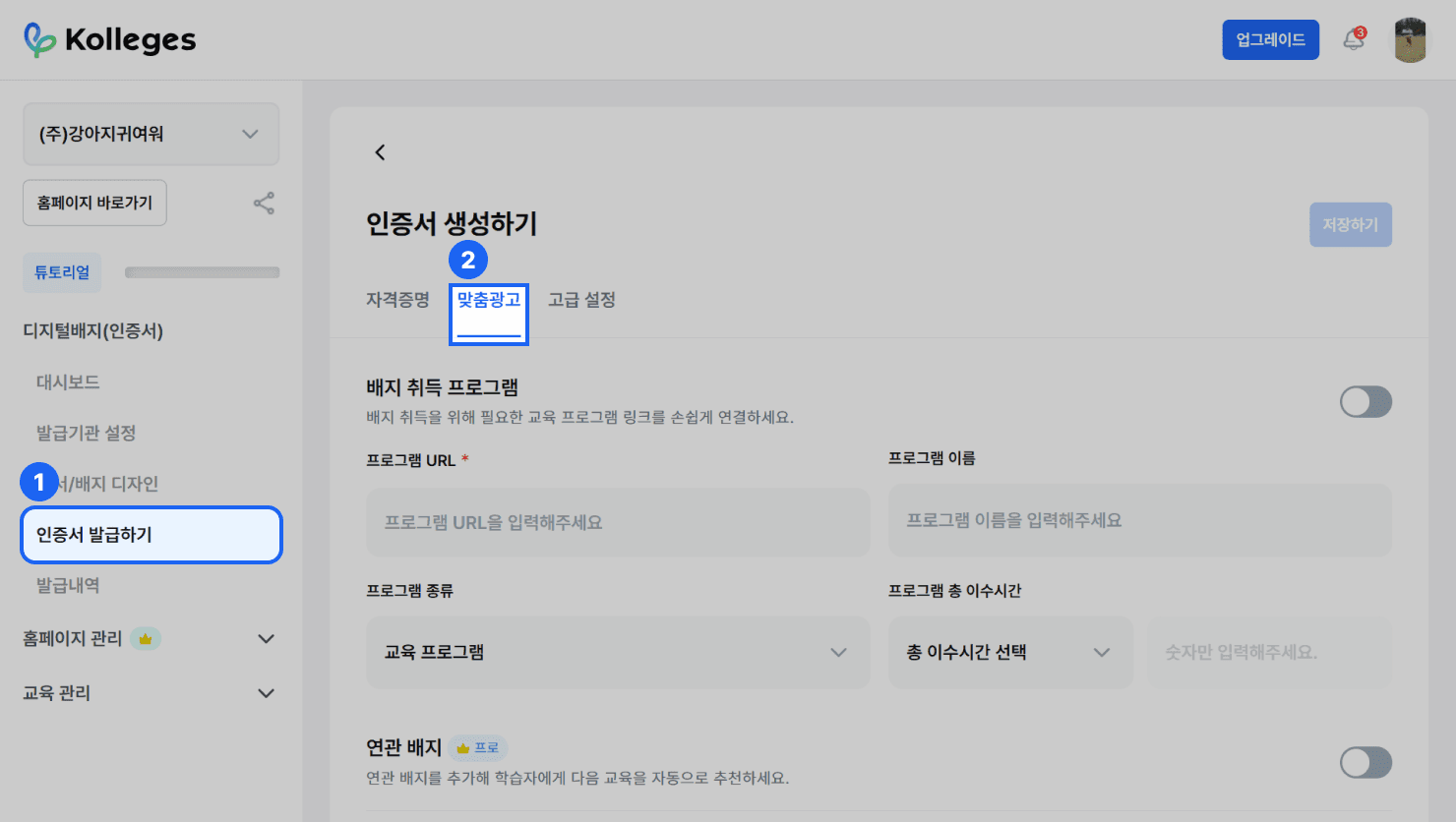
- In the left side menu, click [Digital Badge (Certificate)] > [Issue Certificate].
- On the [Create Certificate] page, click the {Targeted Advertising} tab to display an input form where you can configure badge acquisition programs, related badges, and ad banners.
What Is a Badge Acquisition Program?
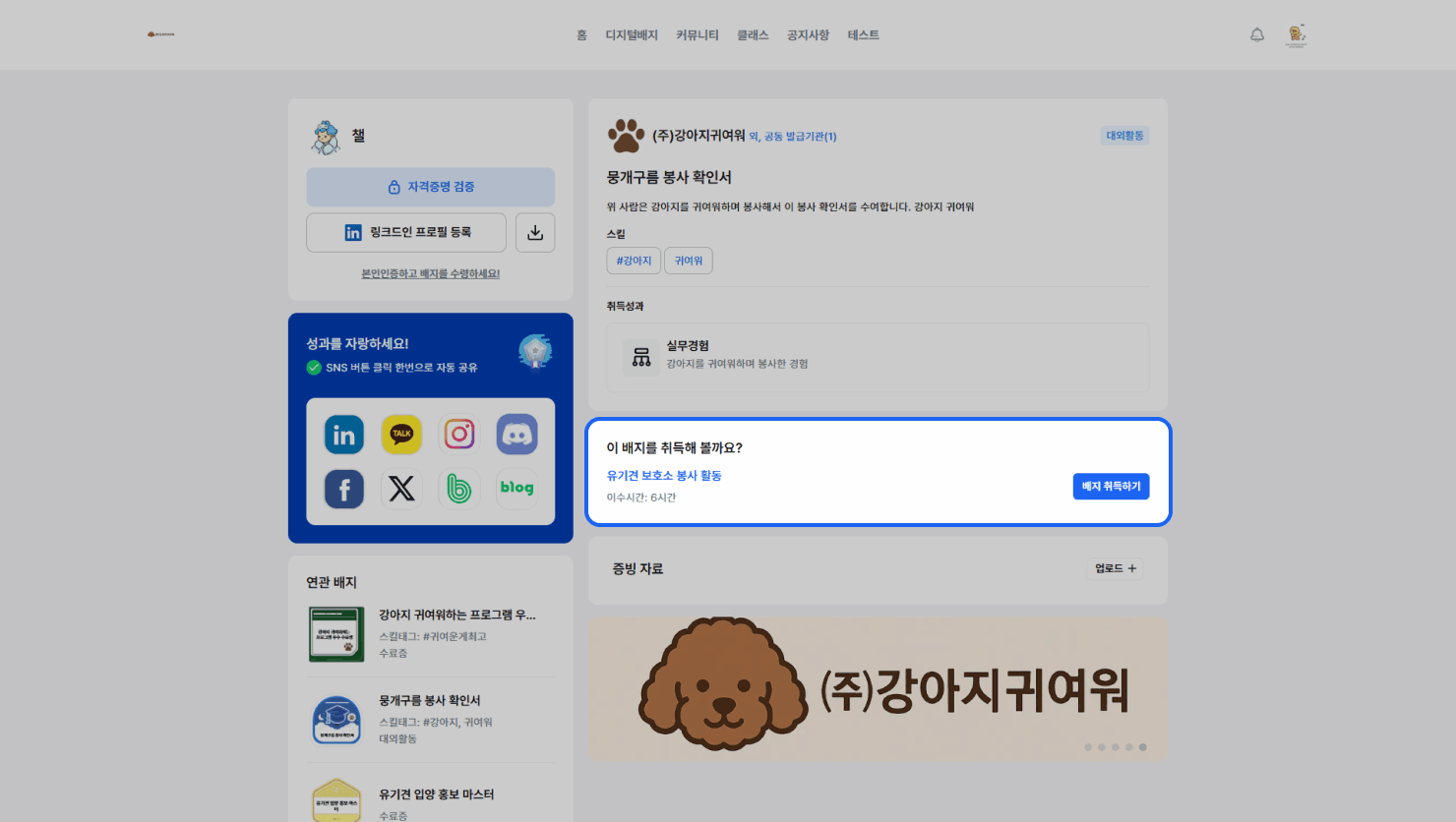
A badge acquisition program is an area that displays information about the program associated with a given digital badge.
- This information is only displayed to other users, not to the certificate owner themselves.
Setting Up a Badge Acquisition Program
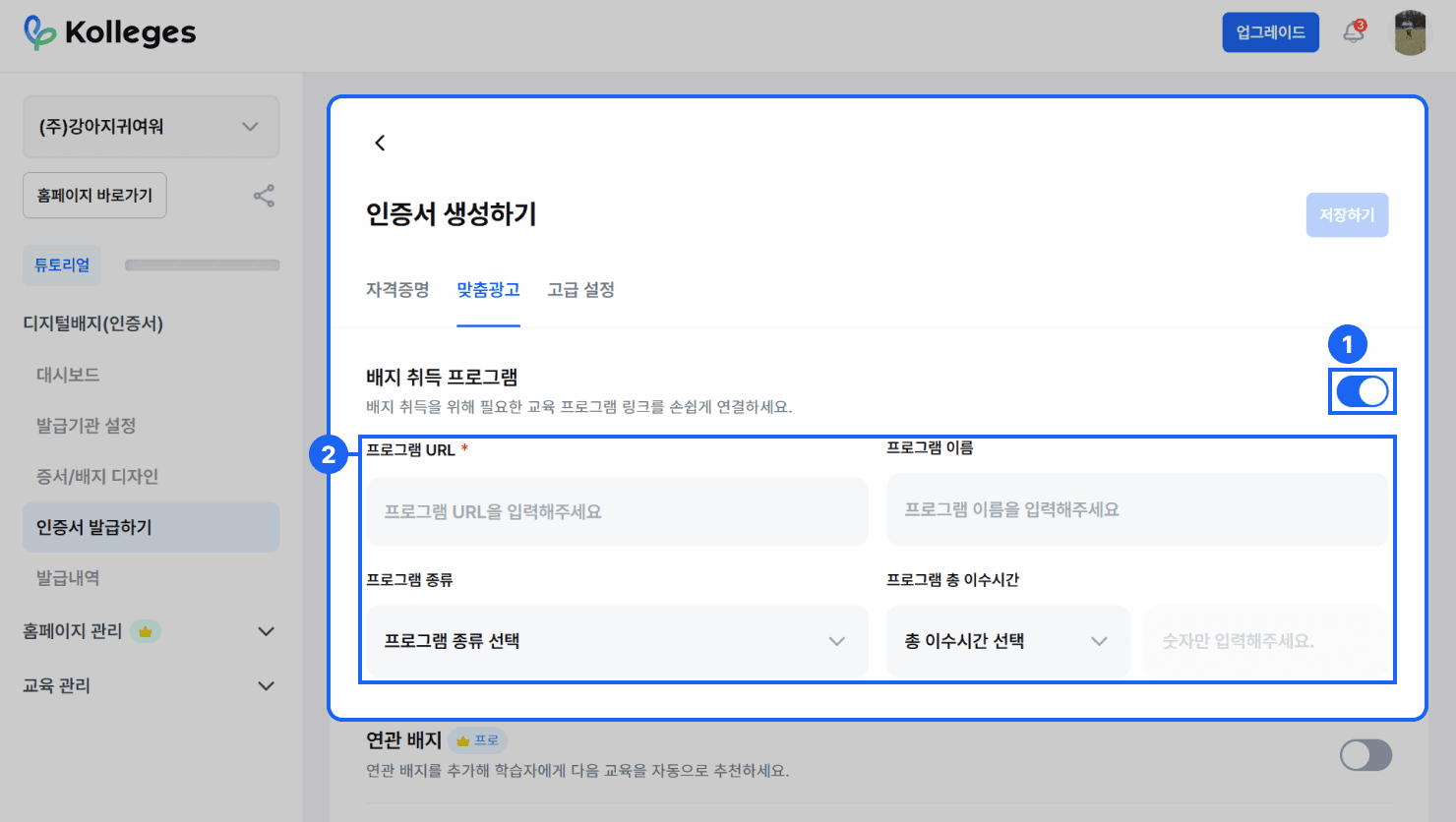
- Switch the [Badge Acquisition Program] toggle button to {ON}.
- The badge acquisition program input fields consist of the following four items:
- Program URL: Enter the URL of the program to link with badge acquisition.
- Program Name: Enter the name of the badge acquisition program.
- Program Type: Select the type of program.
- Education Program, Degree Program, Internship, Conference/Seminar, Competition/Hackathon, Community, Certification Training/Exam
- Program Completion Hours: Select the total completion hours, or choose direct entry to enter a number.
- 12 hours, 30 hours, 60 hours, 120 hours, 240 hours, 360 hours, or enter hours directly
- Click the {Save} button to immediately apply the entered content to the certificate. (Note: If you leave the page without clicking the {Save} button, your entries will not be saved.)
What Are Related Badges?
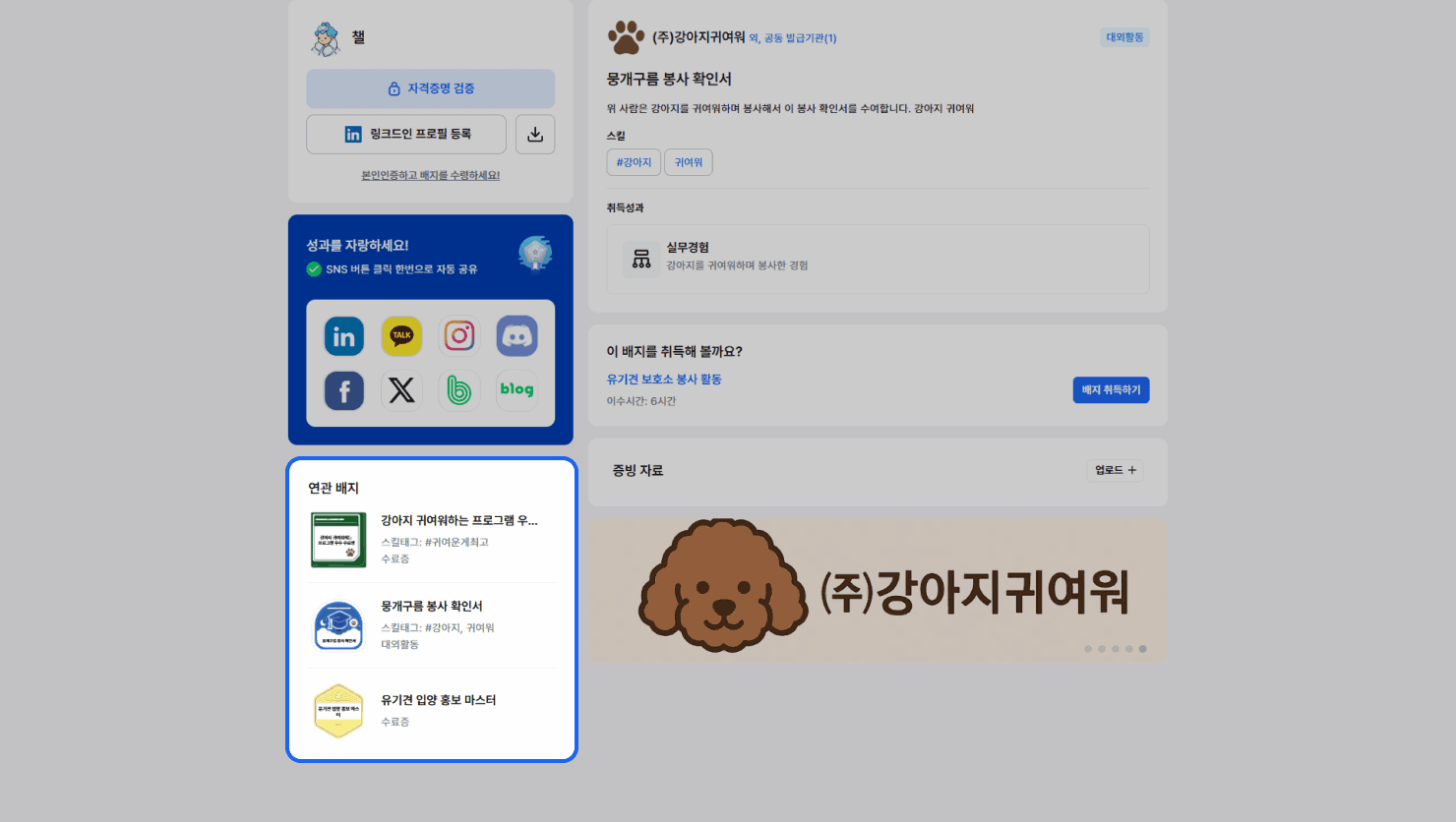
Related badges is a feature that recommends other badges related to a specific badge.
- This feature guides recipients to view and acquire other badges in their field of interest, and is available on the Pro plan and above.
Adding Related Badges
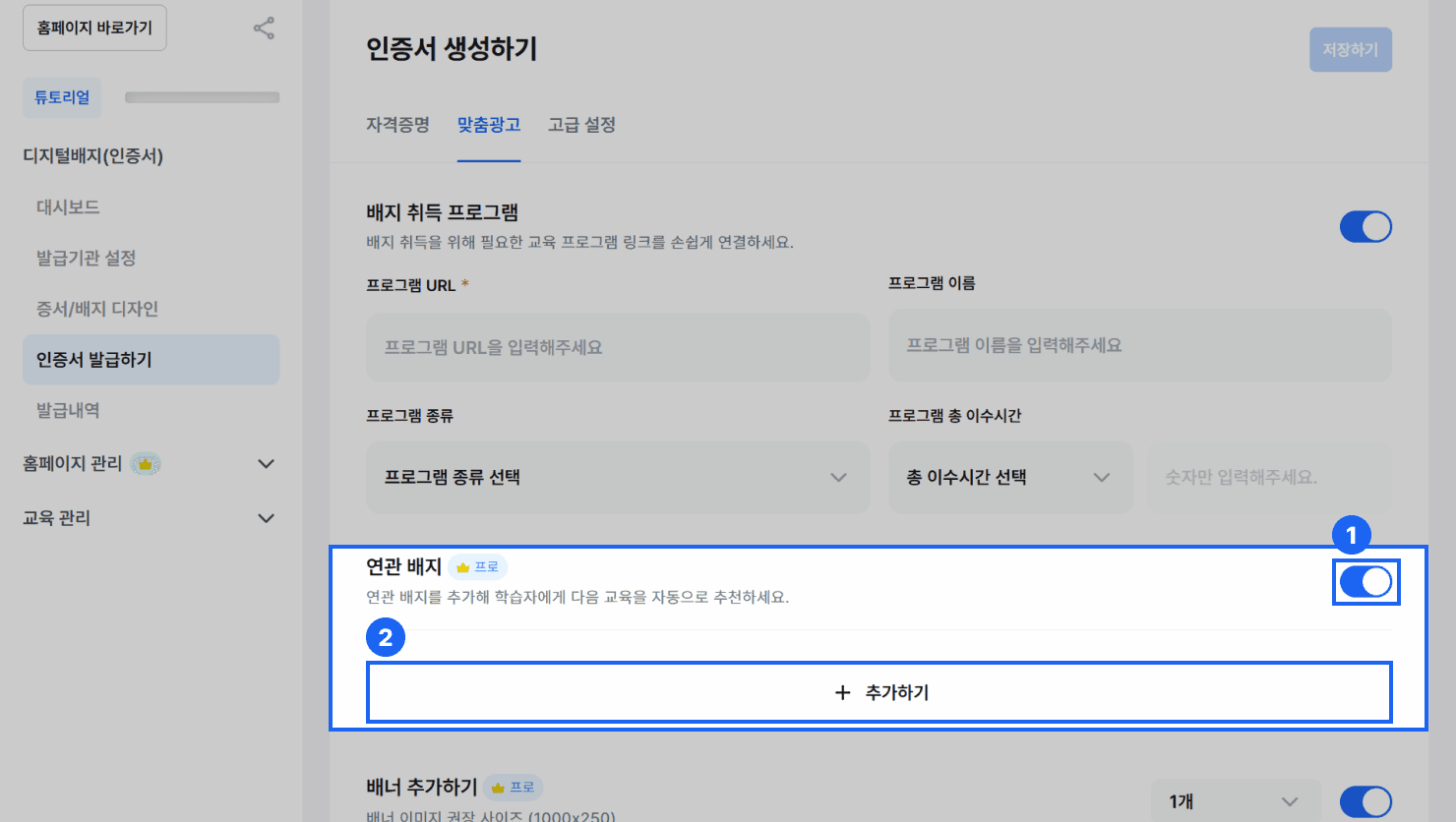
- Switch the [Related Badges] toggle button to {ON}.
- Click the {+ Add} button to open a popup where you can select related badges.
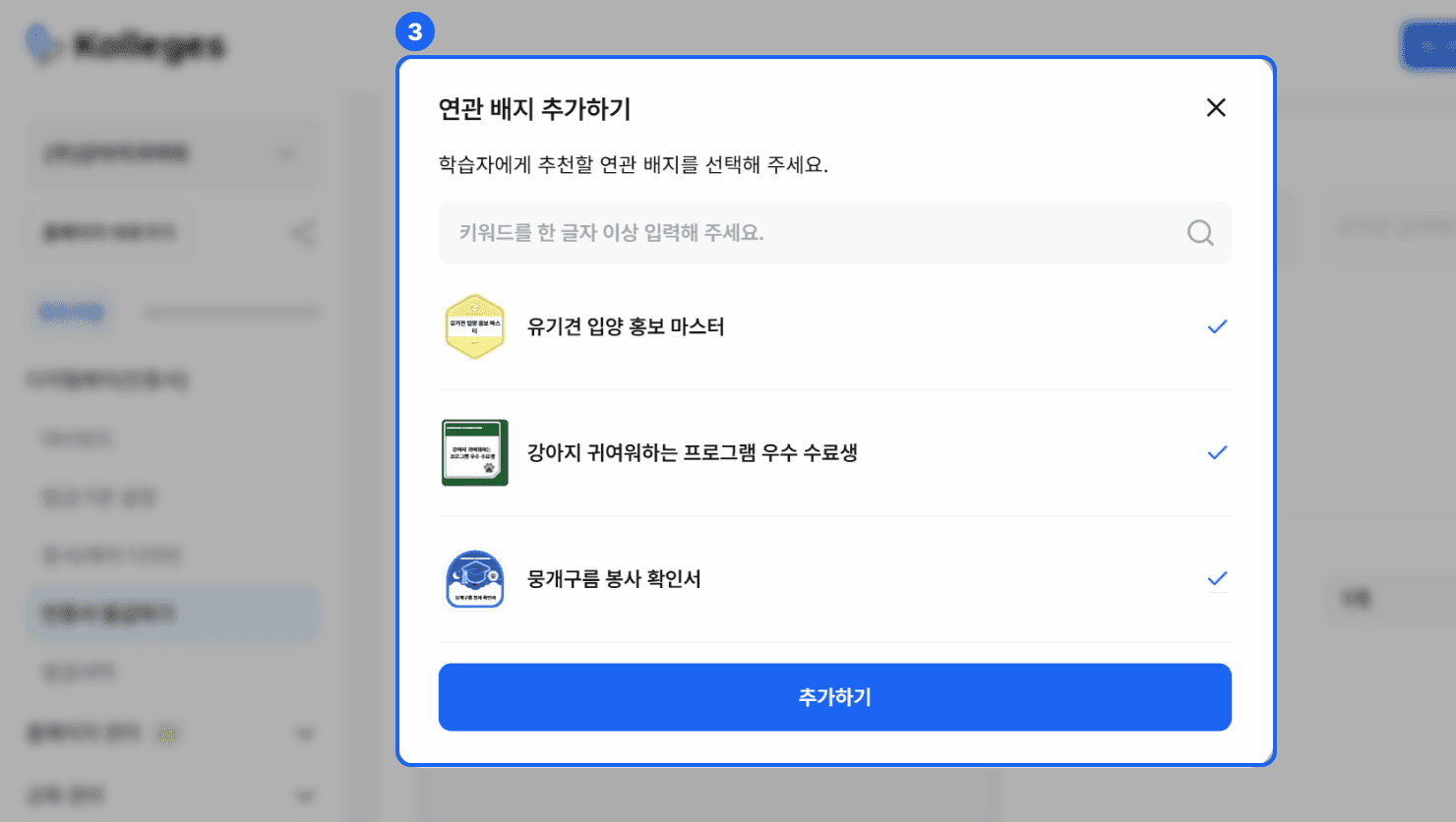
- In the selection window, choose the related badges you want to recommend, then click the {Add} button.
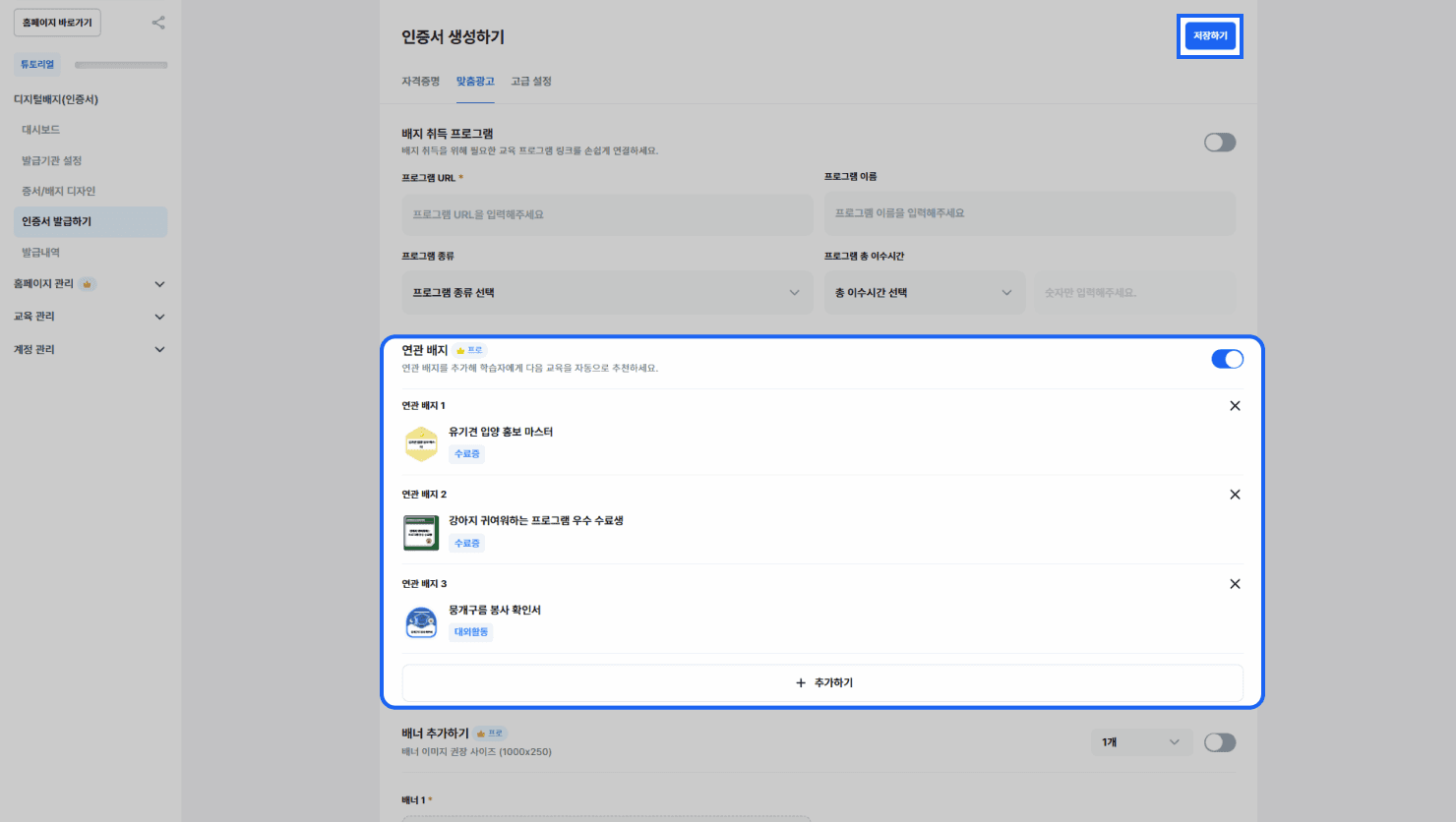
- Click the {Save} button to immediately apply the entered content to the certificate. (Note: If you leave the page without clicking the {Save} button, your entries will not be saved.)
- You can add up to 3 related badges.
About Related Badge Notification Messages
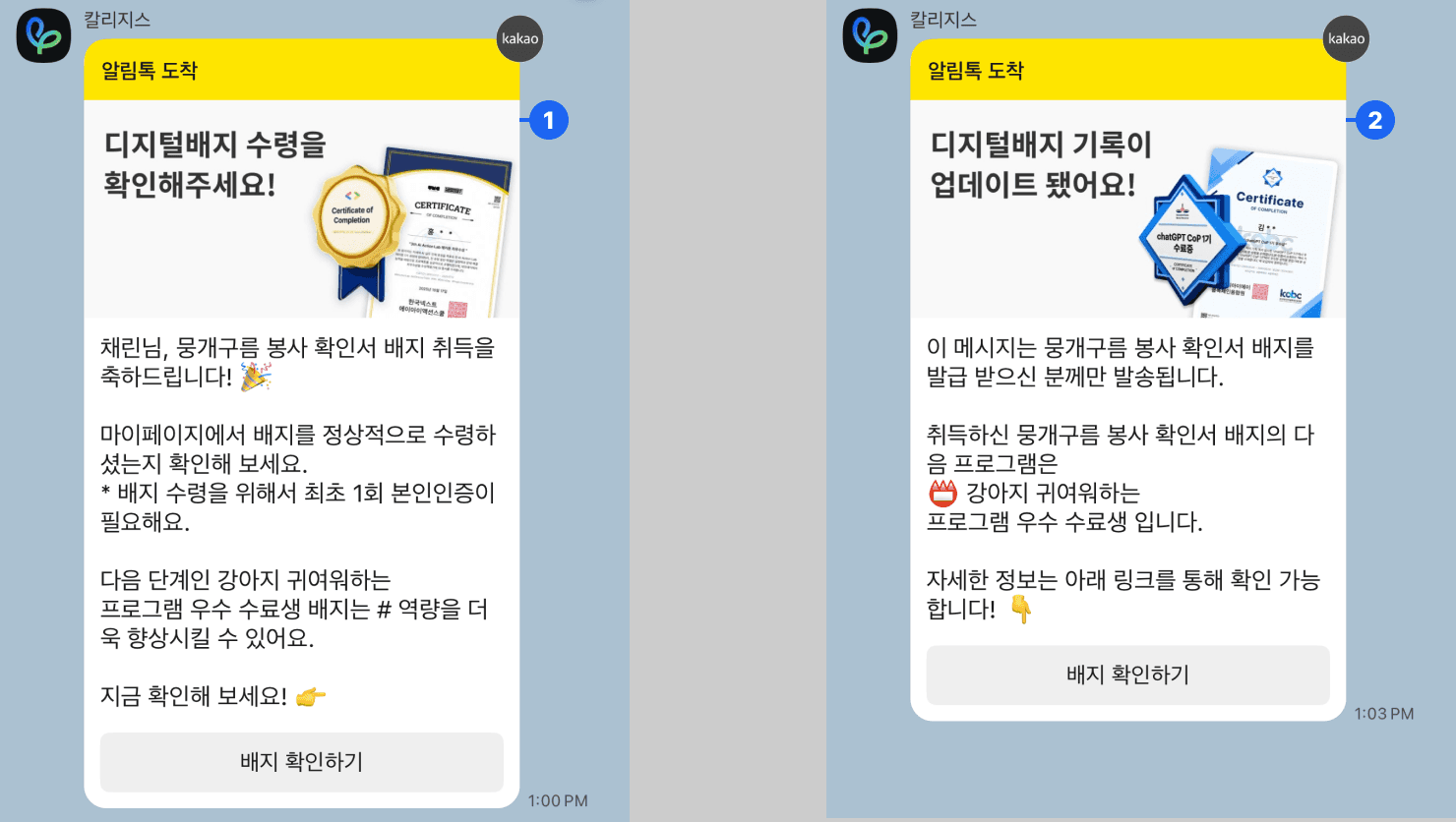
When you set up related badges, notification messages introducing the related badges are sent to the certificate recipient 3 days and 7 days after the certificate is issued.
- When the recipient clicks the {View Badge} button in the notification message, they are taken to the [Related Badges] page where they can view the recommended badges.
What Is an Ad Banner?
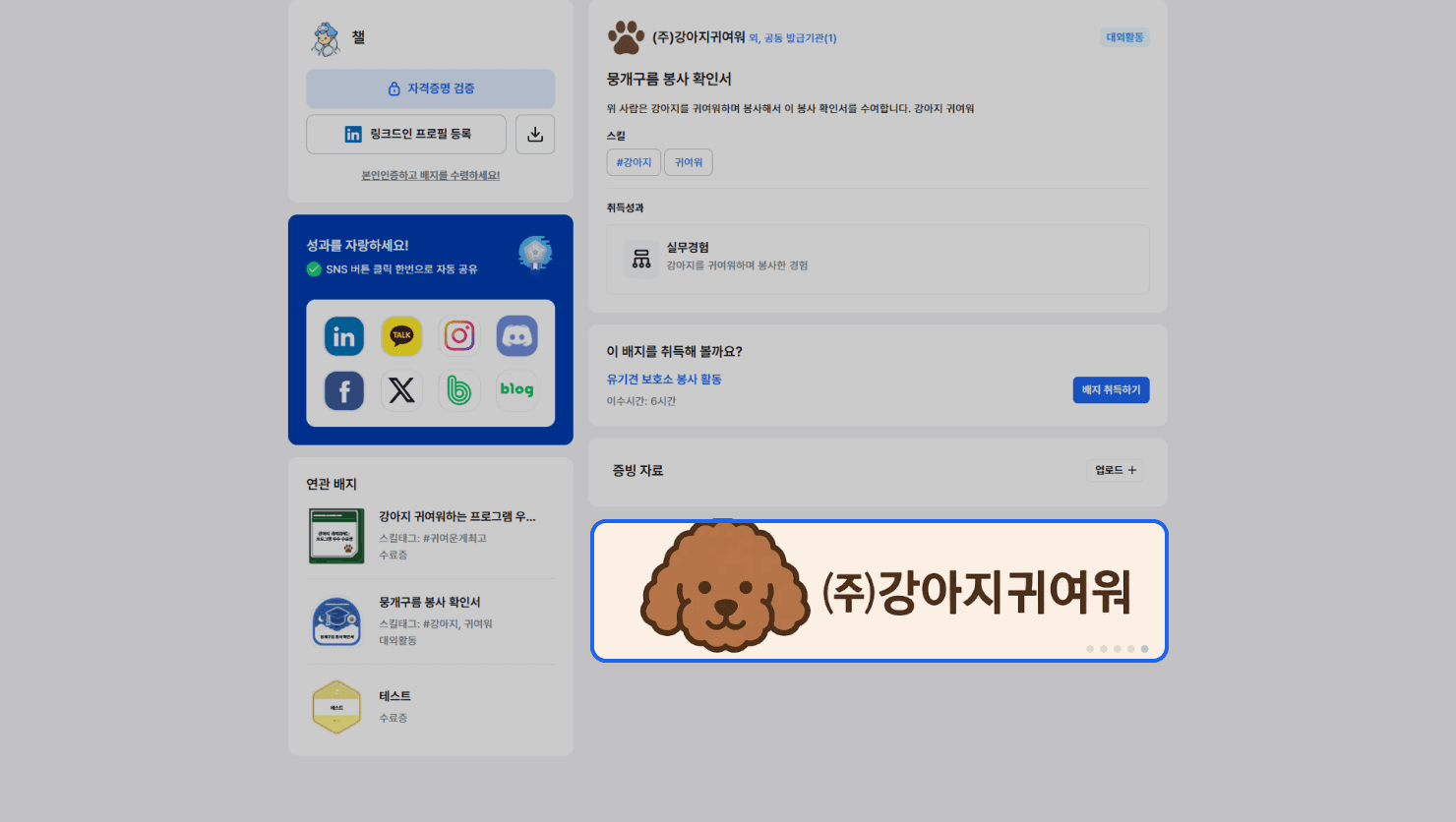
An ad banner is a promotional area displayed as an image on the badge detail screen.
- You can link external URLs such as your homepage or social media channels for promotion, and this is available on the Pro plan and above.
Adding an Ad Banner
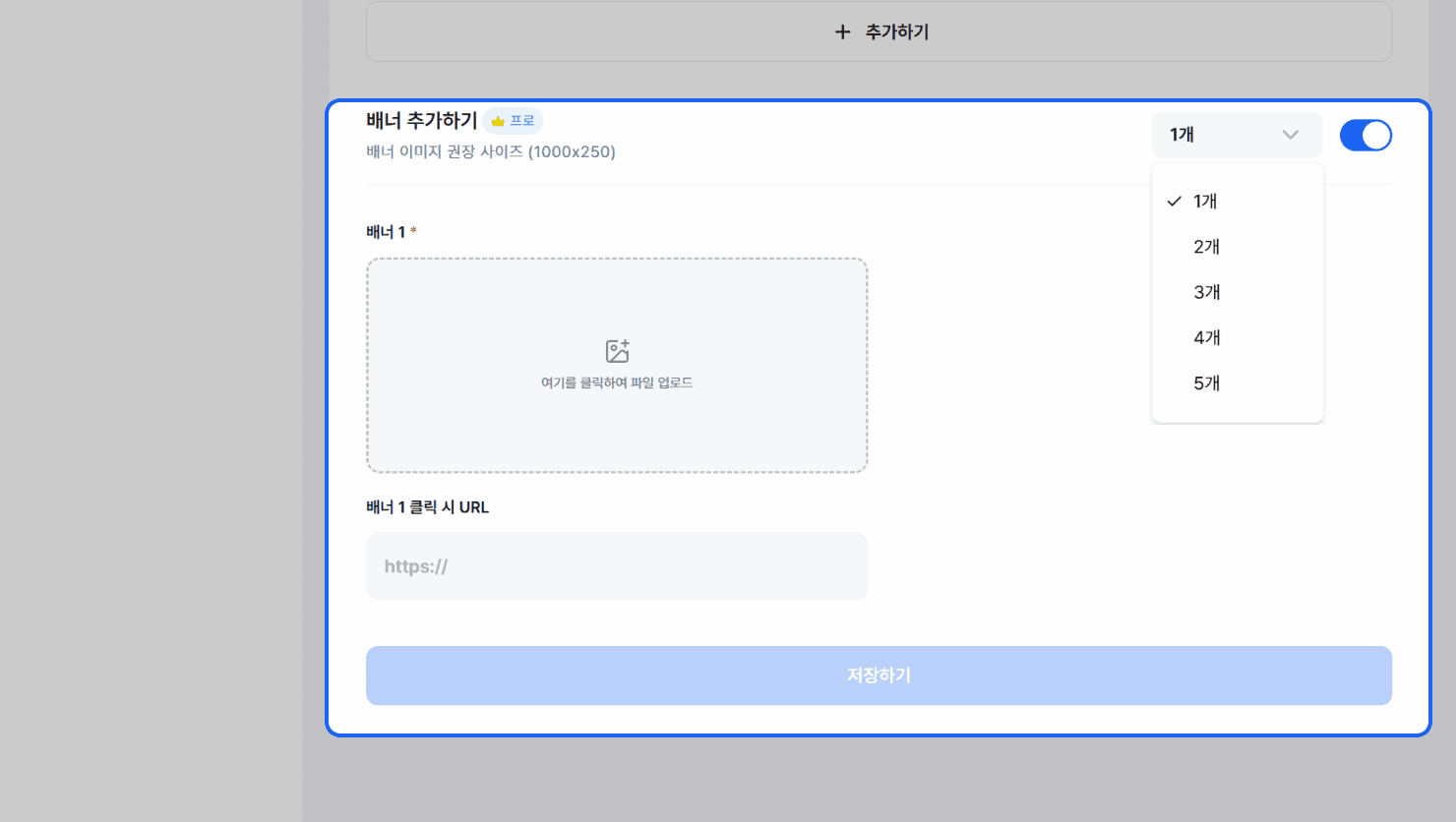
- Switch the [Ad Banner] toggle button to {ON}.
- Select the number of banners to register. (Up to 5)
- Upload an image for each banner.
- If needed, enter a banner URL to set the page to link to.
- Click the {Save} button.
- You can register up to 5 ad banners.
Frequently asked questions
Want to turn learning outcomes into verifiable assets?
From issuing to verifying and amplifying, see it for yourself with Kolleges.
Request a Kolleges demo Related posts
How to Issue a Digital Badge
This guide walks you step by step through the full flow of Kolleges certificate issuance, from individual entry and bulk Excel upload to scheduled issuance.
Discord Integration Guide: How to Set Up Automatic Kolleges Badge Notifications
When you integrate a Discord server with your Kolleges group, a real-time notification is sent to the designated channel as soon as a certificate is issued, and recipients can also share to Discord from the receiving page. To set up the integration, send your server and channel ID to customer support to apply.
LinkedIn Page Management
When you register your LinkedIn page code in your Kolleges issuer settings, the issuer's name and logo are displayed when a recipient adds the badge to their profile.