
Getting 200% Out of Your Startup School Digital Badge
 Robin Yoon · Customer Success Team Published
A practical 5-step guide to using the Startup School enrollment digital badge, from downloading the PNG to applying it as a certification mark in your website footer and careers page.
This guide explains how to use the Startup School enrolled-company digital badge as a certification mark on your website. It walks you step by step through the entire process, from receiving the badge via a KakaoTalk notification message to downloading the badge, applying the detail page link, and reflecting it on your website. Use the enrollment confirmation as an official certification mark to boost your company’s credibility.
1. Receiving the Badge from the KakaoTalk Notification Message
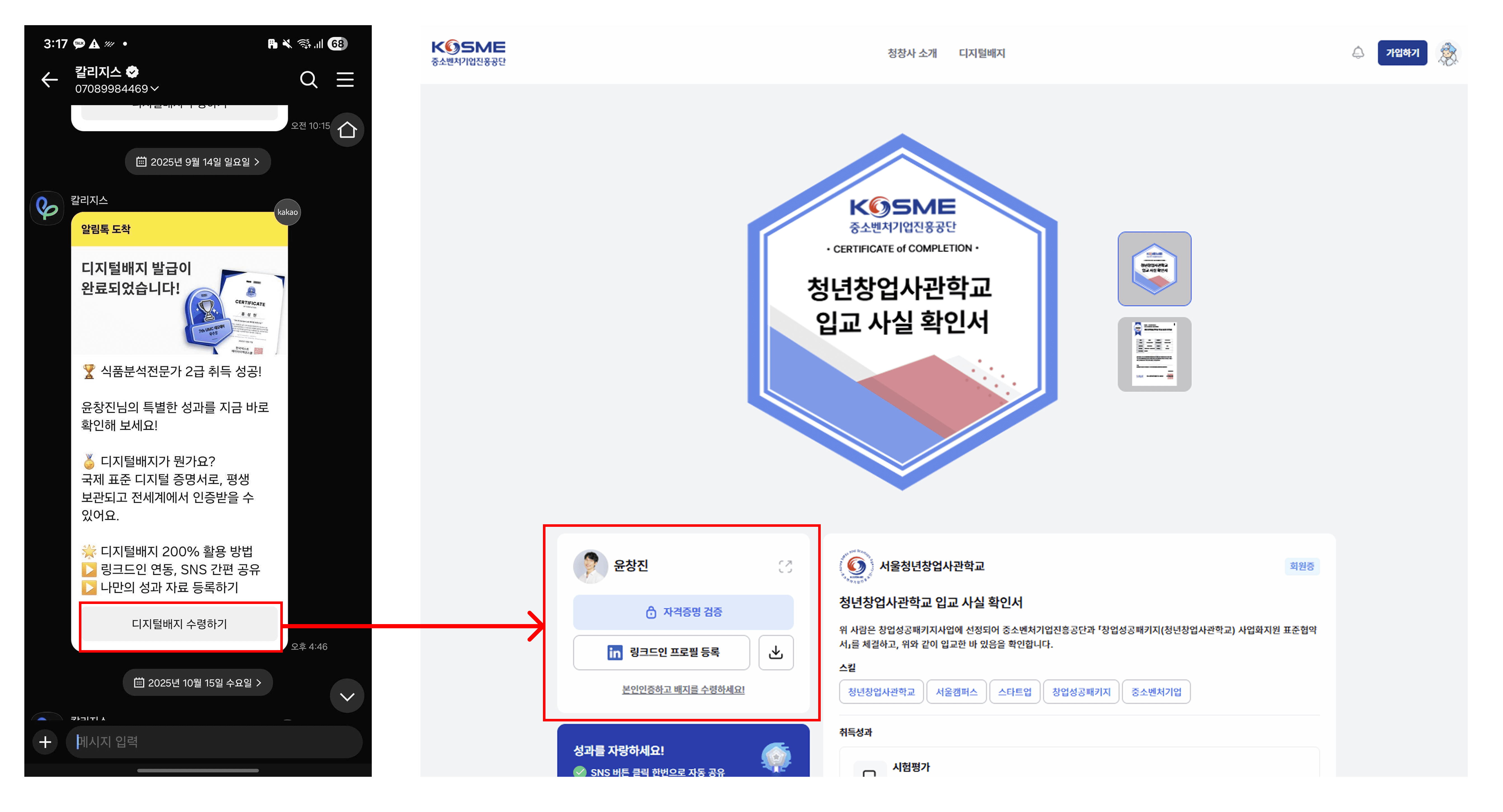
The KakaoTalk notification message sent after your enrollment is confirmed includes a link to receive the ‘Enrollment Confirmation Digital Badge’.
- Open the KakaoTalk notification message
- Click the [Receive Digital Badge] button
- Go to the badge verification page
2. Accessing the Digital Badge Verification Detail Page
When you click the button, a badge detail page opens displaying the following information.
- Badge name (Enrollment Confirmation)
- Issuer (Seoul Startup School)
- Representative and company name
- Issuance date and verification history
- Detailed achievements
Since anyone can verify the authenticity of this page simply by clicking the link, it becomes a very powerful trust factor when used as a certification mark on your website.
3. Downloading the Badge PNG Image & Copying the Detail Page Link
Prepare the following two items from the detail page.
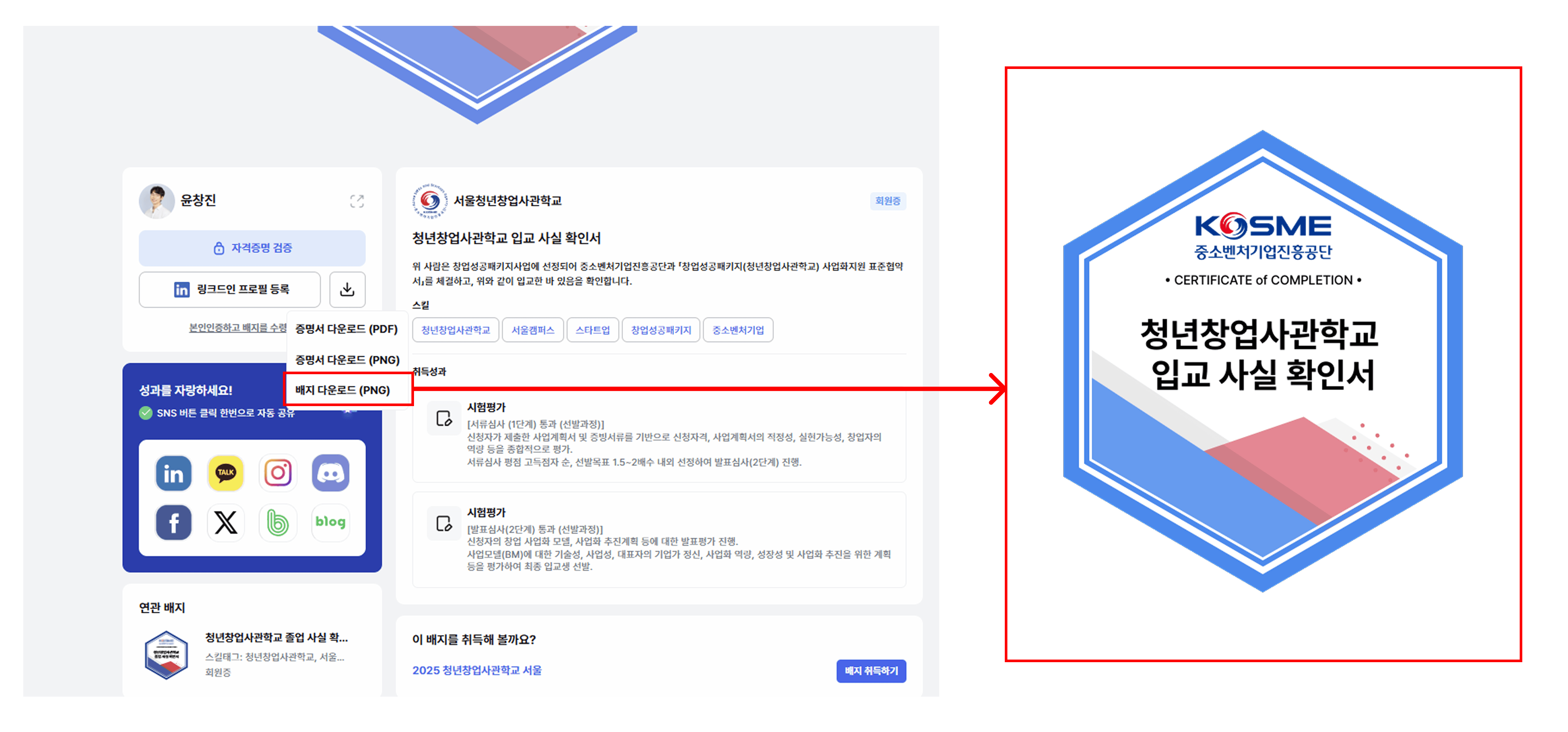
① Download the Badge PNG Image
- Click the download arrow icon button below the [Verify Credential] button
- Click the ‘Download Badge Image’ button
- The PNG file is saved
- It is provided as a transparent-background PNG, so it can be inserted naturally anywhere on your website
※ If you download the certificate/badge image without signing up, personal information is pseudonymized before being saved. If you would like personal information to be displayed as well, please sign up before downloading.
② Copy the Badge Detail Page URL
- Copy the address bar (URL) as is, or
- This link is the key element that lets a visitor go directly to the badge detail page when they click it, so they can immediately verify its authenticity.
4. Applying the Badge to Your Company Website or Service Website
You can apply it as a certification mark using one of the methods below.
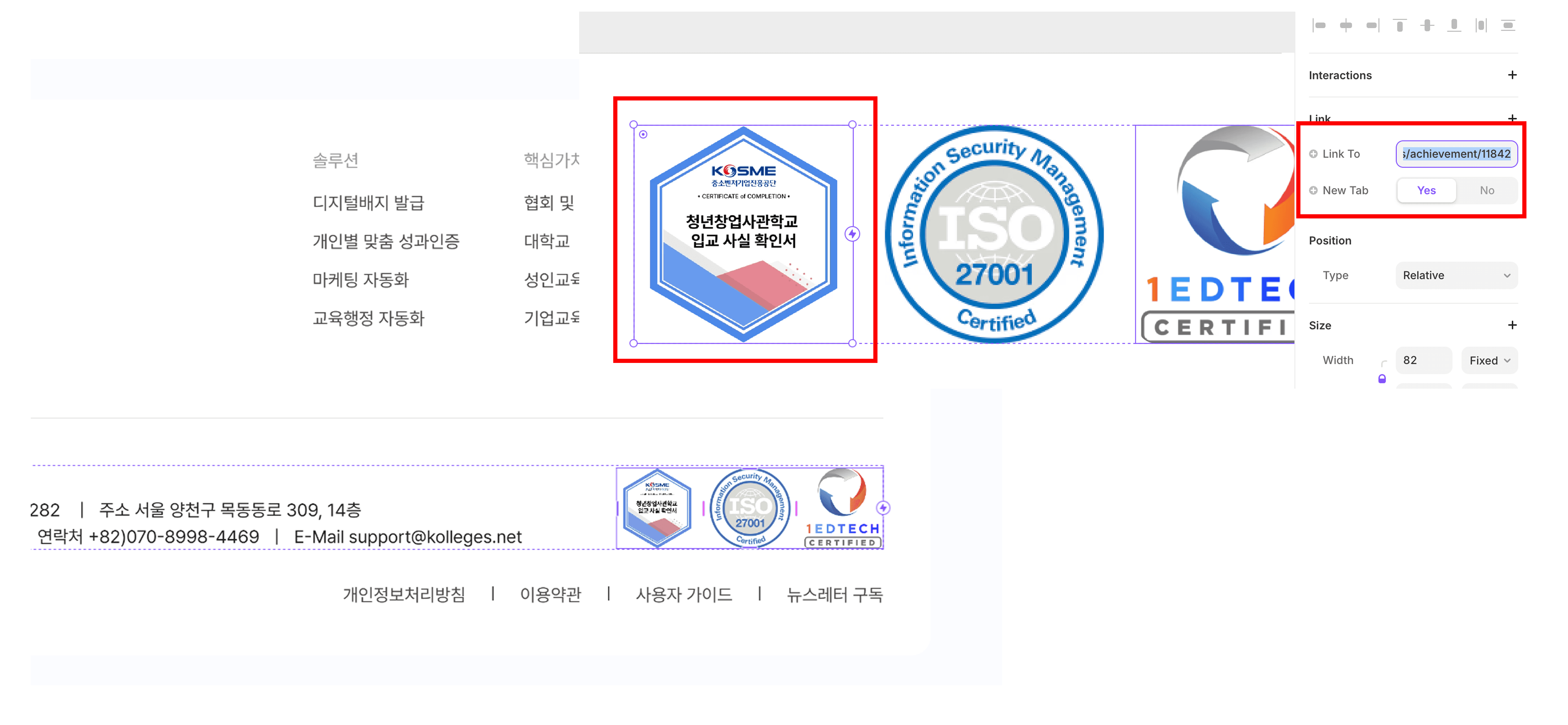
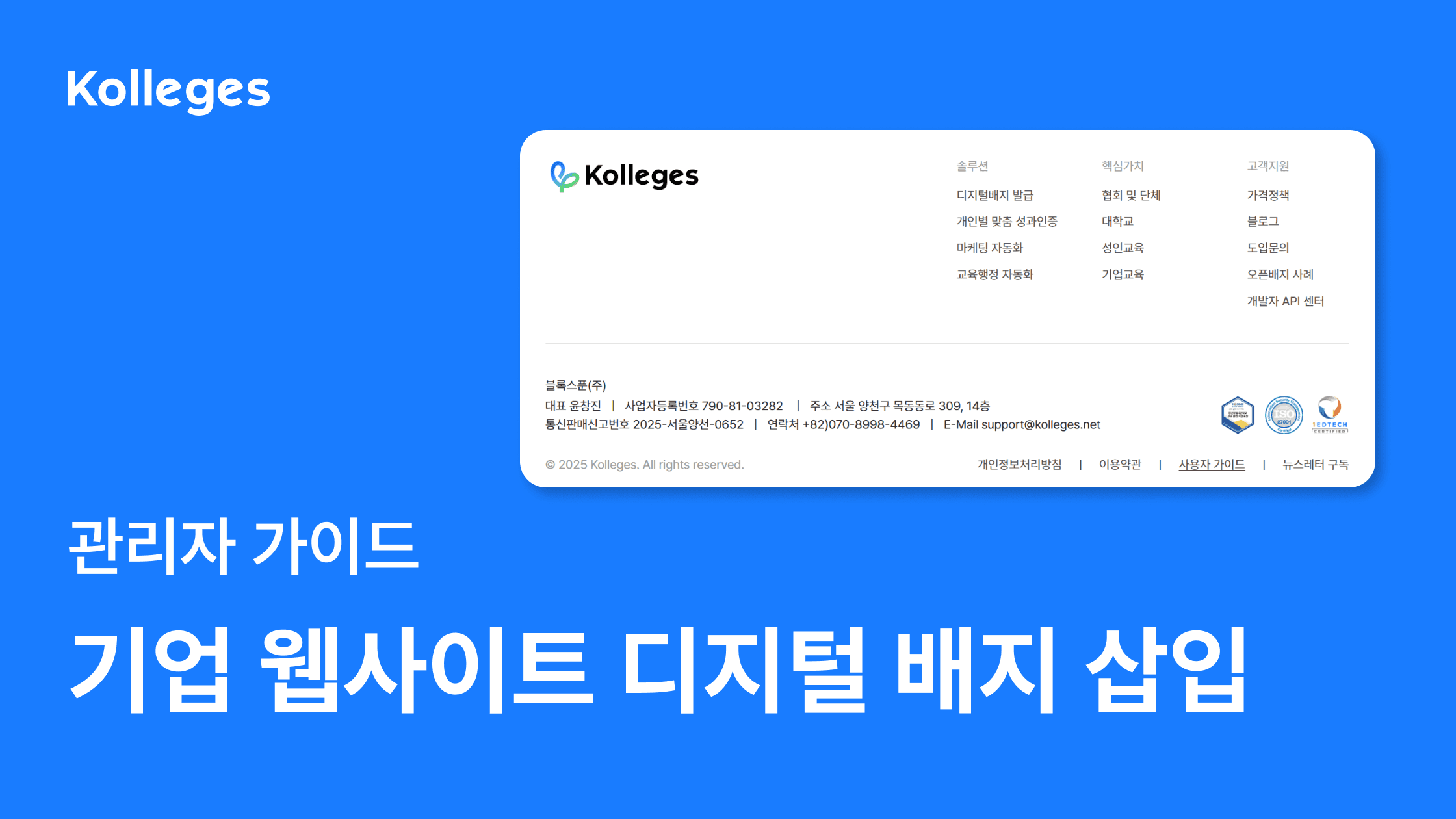
(A) Insert the Badge in the Footer Area at the Bottom of Your Website
- Insert the image in a ‘Company Certifications’ or ‘Partners/Certifications’ section
- Upload the PNG image, and
- Set the badge detail page URL as the link to navigate to when the image is clicked
(B) Use It on Your Careers Page or Company Introduction Page
- Add the badge to an “Officially Certified Enrolled Company” section
- Place it as a trust factor in your business and achievement introductions
(C) You Can Also Use It on Service Websites and Landing Pages
- Use it as a quality certification mark that shows users your organization’s credibility
- For B2B service companies, it has the effect of increasing trust through partner verification and institutional certification
(D) Use It on Social Media, Notion, and Portfolios Too
- Post the PNG image together with the detail link
- It can also be inserted into IR and promotional materials to strengthen your startup branding
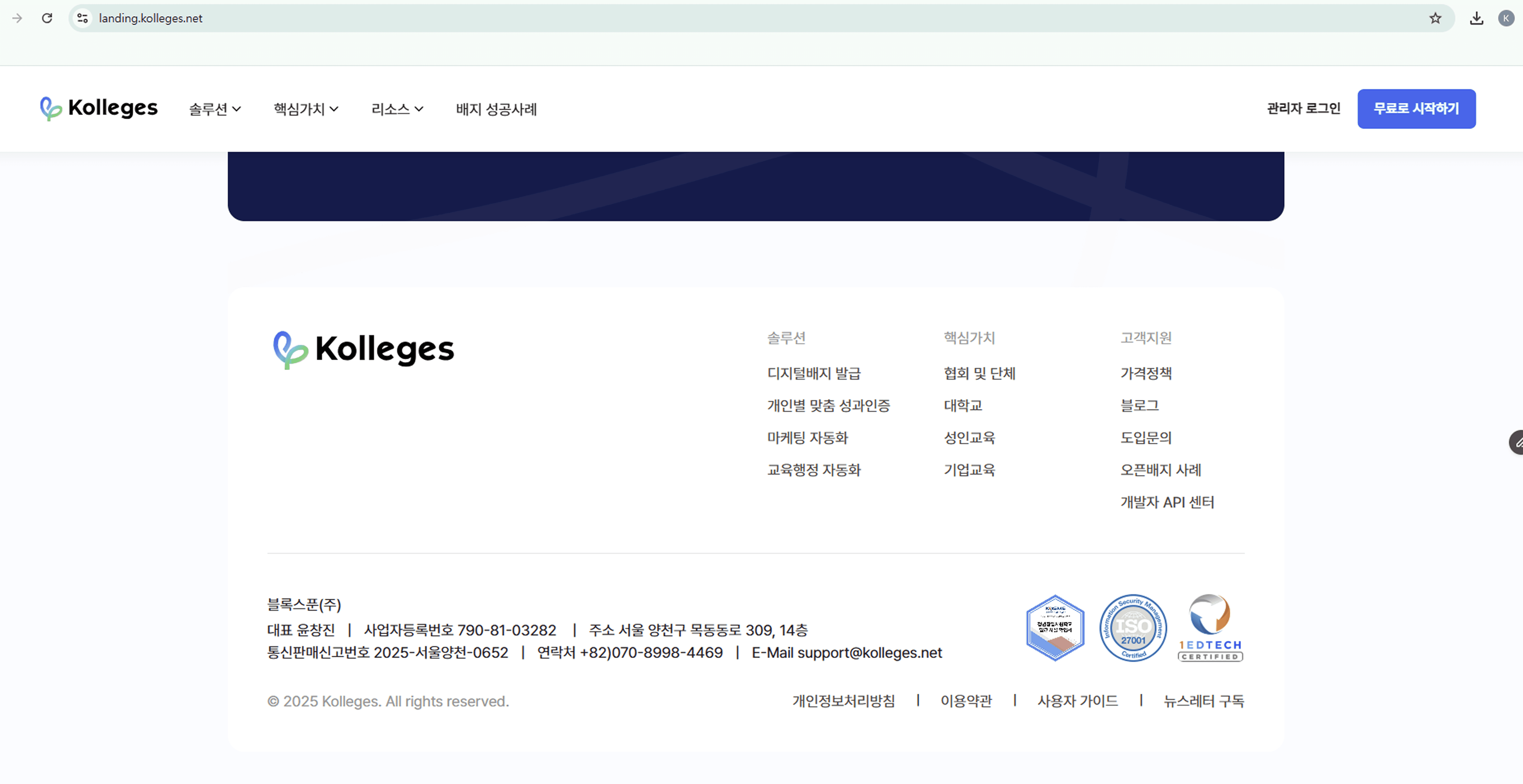
5. Updating Your Website and Confirming It Is Reflected
Once you have uploaded the image and applied the link, refresh your website and confirm the following.
- Whether the PNG image appears at the correct resolution
- Whether clicking it navigates to the digital badge detail page
- Whether it displays correctly on mobile and tablet as well
Once it is reflected on your website, your company can credibly prove to visitors that it is officially an ‘Officially Certified Startup School Enrolled Company’.
Additional Information
- If needed, you are free to customize the badge design (adjusting color and size)
- If the link changes or an additional badge is issued, simply apply it again
- Templates can also be requested so you can use them in your company branding, investment IR, and promotional materials
Frequently asked questions
Want to turn learning outcomes into verifiable assets?
From issuing to verifying and amplifying, see it for yourself with Kolleges.
Request a Kolleges demo Related posts
Tips for Using Digital Badges
A step-by-step guide to automatically linking your Kolleges digital badge to the LinkedIn Licenses section and attaching portfolio supporting materials to concretely prove your competencies on social media and your resume.

LinkedIn Page Management
When you register your LinkedIn page code in your Kolleges issuer settings, the issuer's name and logo are displayed when a recipient adds the badge to their profile.
Certificate Advertising Settings Guide: Adding Promotional Content to Verification Pages
From the Targeted Advertising tab on the certificate creation page, you can set up badge acquisition programs, related badges, and ad banners to drive re-enrollment and re-application conversions from verification page visitors.