

When you register your LinkedIn page code in your Kolleges issuer settings, the issuer's name and logo are displayed when a recipient adds the badge to their profile.
A guide to LinkedIn integration. Connect your Kolleges digital badge to your profile to verify your experience.

Why should you register your LinkedIn page?
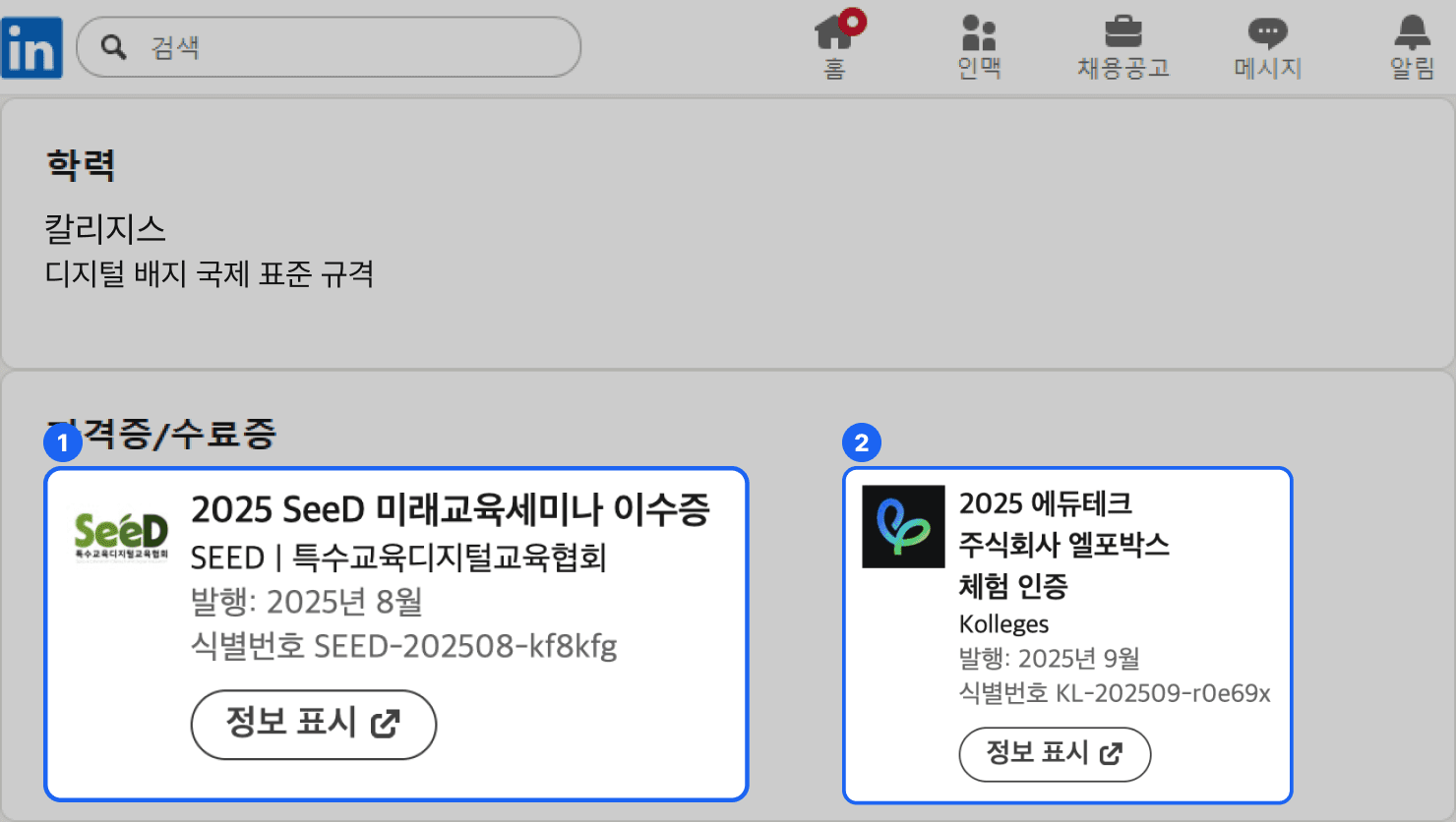
- When the LinkedIn page code is registered
- If you register your LinkedIn page code, the issuer’s name and logo are displayed when a digital badge recipient adds that badge to their LinkedIn profile.
- When the LinkedIn page code is not registered
- If you do not register your LinkedIn page code, the Kolleges name and logo are displayed when the badge is added to a profile.
Creating a LinkedIn Page
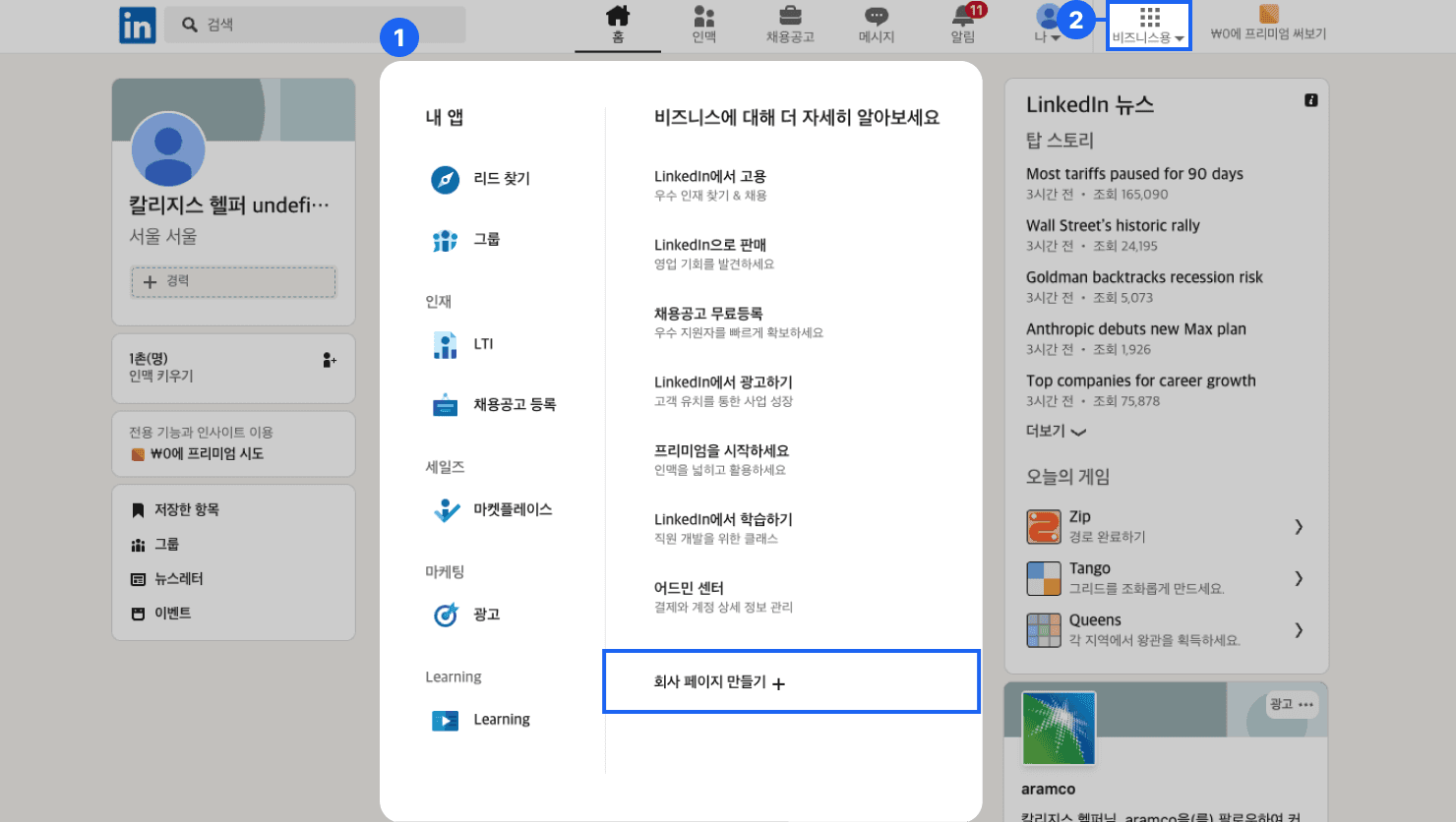
- From the menu in the top right of the LinkedIn home screen, click the [For Business] menu.
- Click the {Create a company page} button.
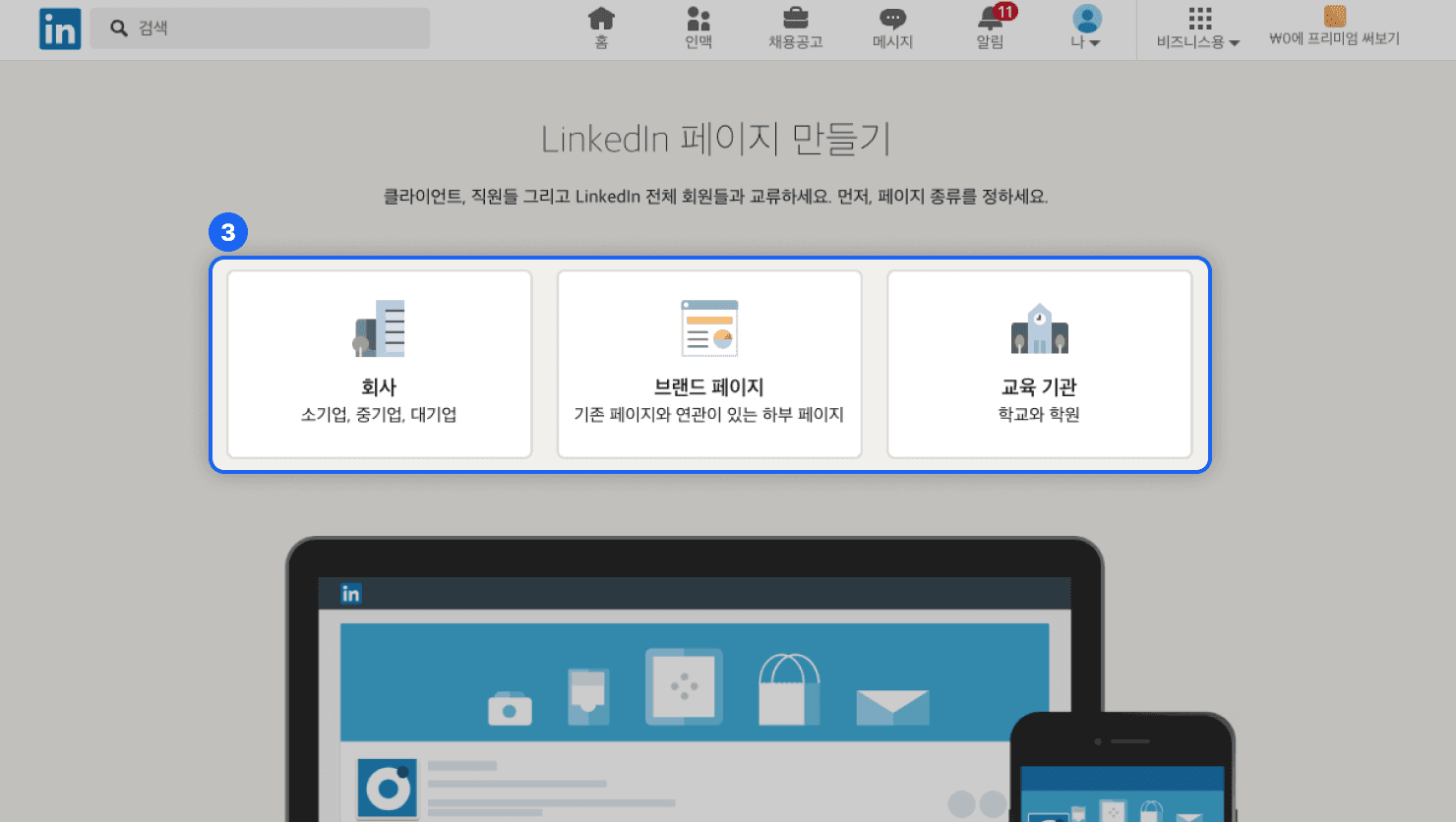
- Select the page type you want.
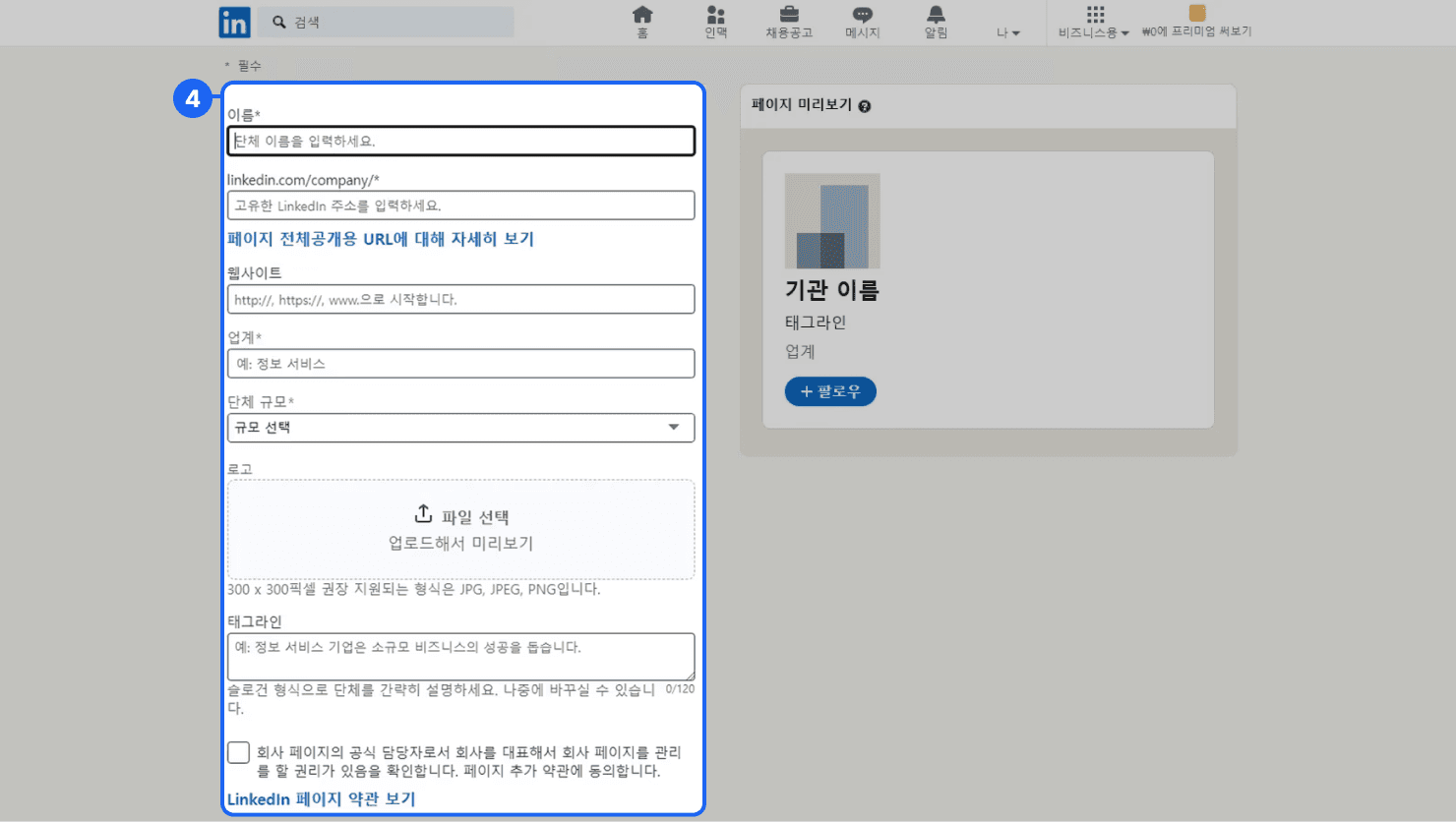
- Enter the details for the group.
Connecting Your LinkedIn Page
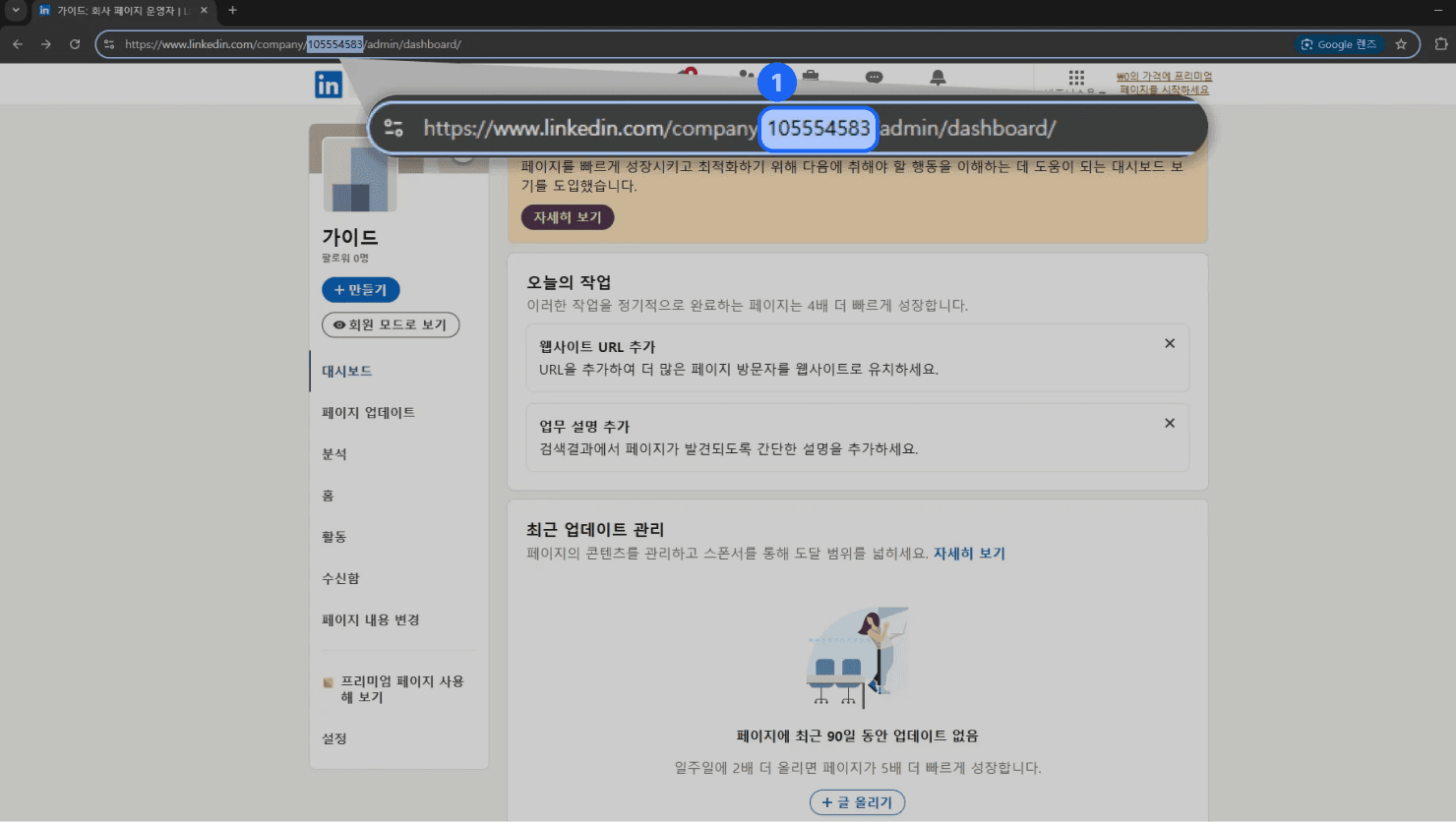
- After creating the page, copy the numeric code (ID) from the LinkedIn URL address.
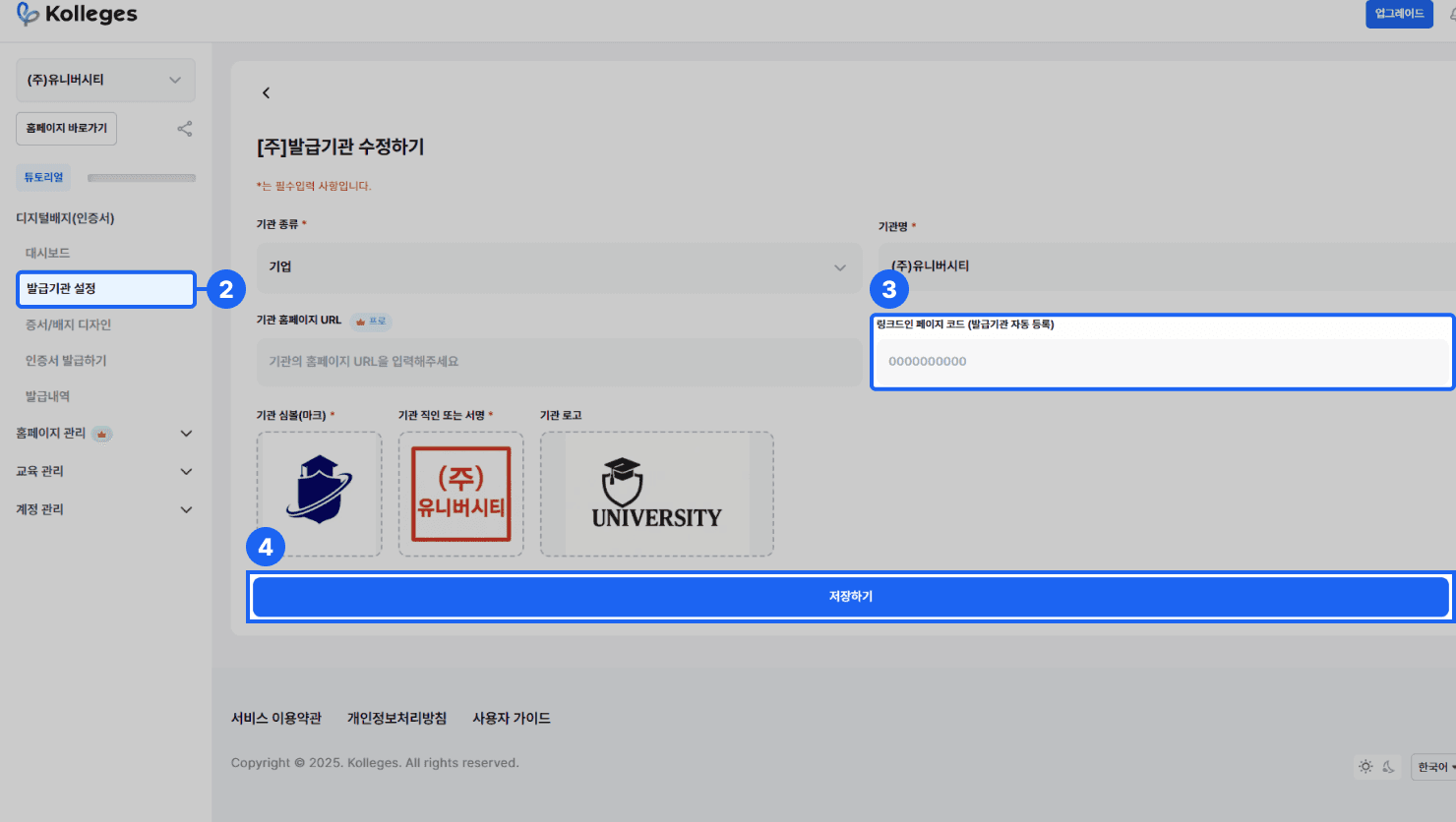
- In the left side menu, click [Issuer Settings].
- Paste the copied numeric code (ID) into {LinkedIn Page Code}.
- Click the {Save} button to apply the change.
Frequently asked questions
Want to turn learning outcomes into verifiable assets?
From issuing to verifying and amplifying, see it for yourself with Kolleges.
Request a Kolleges demo
Related posts
Certificate Advertising Settings Guide: Adding Promotional Content to Verification Pages
From the Targeted Advertising tab on the certificate creation page, you can set up badge acquisition programs, related badges, and ad banners to drive re-enrollment and re-application conversions from verification page visitors.

Discord Integration Guide: How to Set Up Automatic Kolleges Badge Notifications
When you integrate a Discord server with your Kolleges group, a real-time notification is sent to the designated channel as soon as a certificate is issued, and recipients can also share to Discord from the receiving page. To set up the integration, send your server and channel ID to customer support to apply.
Getting 200% Out of Your Startup School Digital Badge
A practical 5-step guide to using the Startup School enrollment digital badge, from downloading the PNG to applying it as a certification mark in your website footer and careers page.