
Automated Outcome Sharing, Built with Digital Badges | When Completion Leads to the Next Course

Digital badges automate outcome sharing by turning every graduate share into an ongoing discovery loop - complete with custom ad banners, recommended next courses, and one-click sharing to 8 social networks.
Education outcome sharing automation, starting at the moment of completion
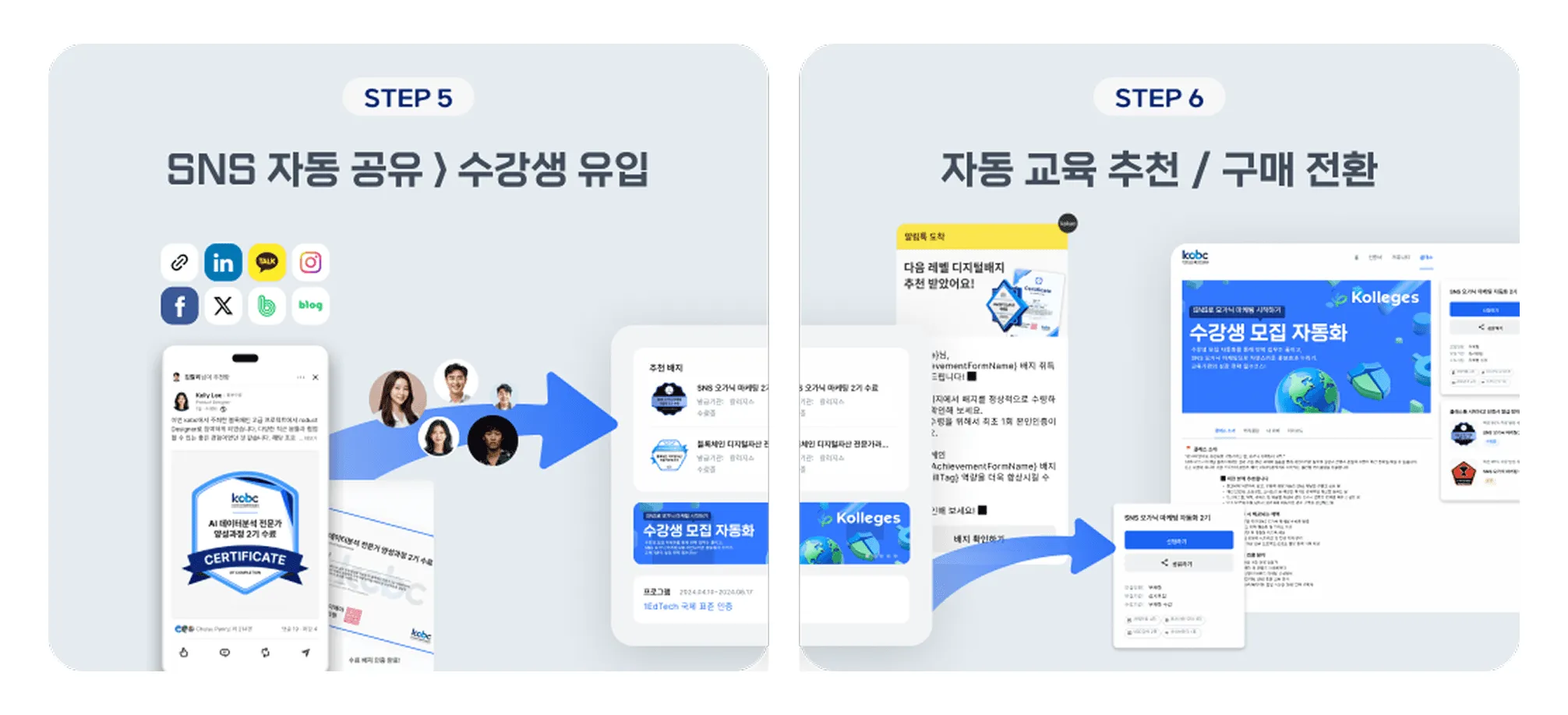
One problem many educational institutions share is this: “We’ve built great programs, but the next enrollment doesn’t follow.”
Social ads and search ads work in the short term, but when the budget stops, the inflow stops too.
A digital badge that graduates share themselves works differently.
What an individual does to prove their achievement becomes the institution’s outcome sharing.
The Kolleges digital badge automatically creates a virtuous loop of “complete → earn badge → share on social → new inflow.”
A single issuance gives the institution ongoing exposure.
Custom ad banners on the digital badge verification page
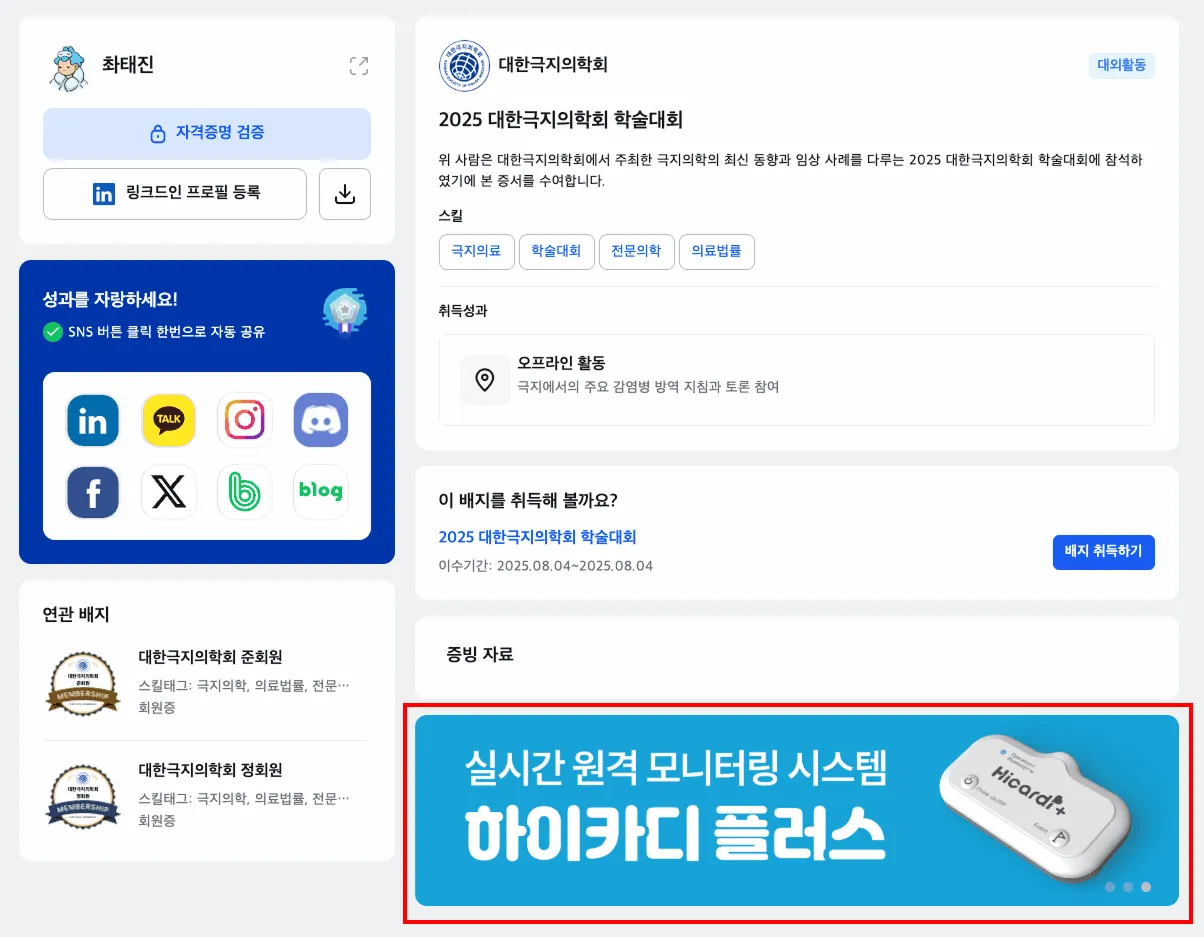
When a graduate shares their digital badge, anyone who clicks lands on the badge verification page.
At the bottom of this page is an ad banner area the institution configures directly.
This area isn’t just an image - it works as a window that introduces the institution’s main courses, next-semester programs, or partner programs.
-
For an academic conference → “View the next conference schedule”
-
For a vocational training institution → “Enrollment now open for the next cohort”
-
For corporate training → “Inquire about an internal program”
These banners are displayed as a slide-rotating carousel, naturally showing multiple pieces of content to visitors.
In other words, a single share by a graduate becomes a continuous outcome-sharing loop for the institution.
Recommended badge configuration and exposure / notification recommendations

The strength of digital badges lies in data-driven recommendations.
On the Kolleges platform, institutions can connect their issued badges and configure recommended-badge exposure.
For example, a learner who completed an “AI Fundamentals” course can be recommended an “AI Project Practice” badge,
or “1st cohort completers” can be shown a “2nd cohort advanced course” badge.
This recommendation feature goes beyond screen exposure - it is also linked to automated notification recommendations.
In other words, the learner can see the next badge (the next course) right next to the badge they just earned, and apply immediately.
The result is:
-
For the institution, a higher re-enrollment conversion rate
-
For the learner, a natural learning pathway
This is more immediate than traditional “email re-engagement,”
and because it leverages the engagement immediately after completion, conversion efficiency is high.
Course application links on the badge claim page

Not the end of the program, but a path to the next step.
Kolleges provides a structure where institutions can also display “Next course application links” inside the badge claim page.
This is not a separate pop-up or ad window;
it’s a CTA naturally embedded inside the badge issuance flow.
In other words, the moment a graduate confirms their achievement,
a path is opened where they can immediately choose “whether to move to the next step.”
This structure produces a much higher voluntary conversion rate than typical ad clicks,
because it surfaces at the exact moment a “desire to learn one more step” forms within a brand the learner already trusts.
Automatic social sharing completes the outcome-sharing structure

Kolleges digital badges are designed so that the moment a graduate earns the badge, it can be automatically shared to 8 major social networks.
Image and link formats tailored to each platform - LinkedIn, Instagram, KakaoTalk, Naver Blog, and more - are generated automatically, so with one click both personal outcome sharing and institutional exposure happen at once.
The shared link routes back to the digital badge verification page,
and that page includes all the elements mentioned above: custom banners, recommended badges, and course application links.
A single share by a graduate operates as an ongoing new-inflow channel for the institution.
Why this structure works
| Item | Traditional approach | Digital-badge outcome sharing |
|---|---|---|
| Exposure path | Ad-spend driven | Graduate-share driven |
| Trust | External ad creative | Actual learner experience |
| Reach | Generic public | Similar interest cohorts (targeted inflow) |
| Persistence | Stops when the budget stops | Long-lasting, driven by graduate activity |
Social media algorithms in particular classify “verification content shared by a friend” as high-trust content.
So exposure through digital badges shows higher click-through and longer dwell time than generic ads.
Guide to creating and issuing certificates
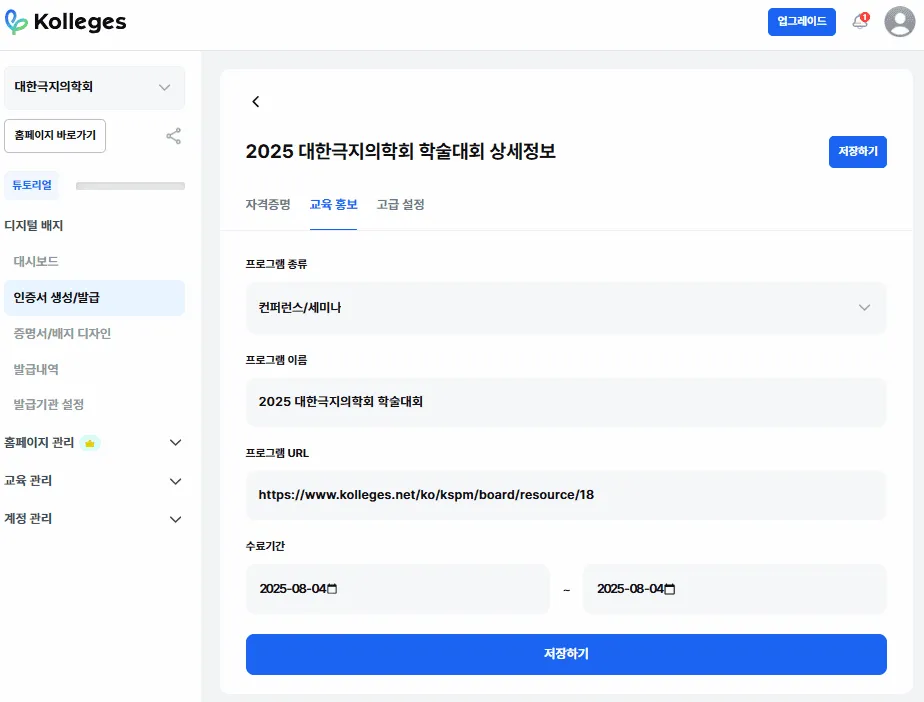
- 1 Select the program type - First, choose the nature of the program for which the badge will be issued. Specify the program type - for example, Conference or Seminar.
- 2 Enter the program name (required) - Enter the official program name exactly as it should appear to participants. This field is shown identically on both the certificate and the badge, so use the official designation including the institution name and year (e.g., 2025 Korean Society of Polar Medicine Conference).
- 3 Register the program URL (required) - Enter the external page address that hosts the program announcement or recruitment notice. This link is shown alongside the badge detail page, so graduates can revisit the information any time.
- 4 Set the completion period and save - Enter the training or conference operating schedule. Even for a single-day program, enter the same start and end date, fill in all fields, and press the [Save] button.
Once this is set up, program information is automatically linked when certificates and badges are issued later,
so issuance and display happen without any additional input.
In other words, the admin only needs the simple flow of program registration → automatic linking → issuance.
Ad banner guide
The banner-add feature lets the institution upload its own images and display them in the slide-style ad banner area at the bottom of the badge detail page.
Each banner can be linked to an external URL for a course, event, or partner program you want to feature.
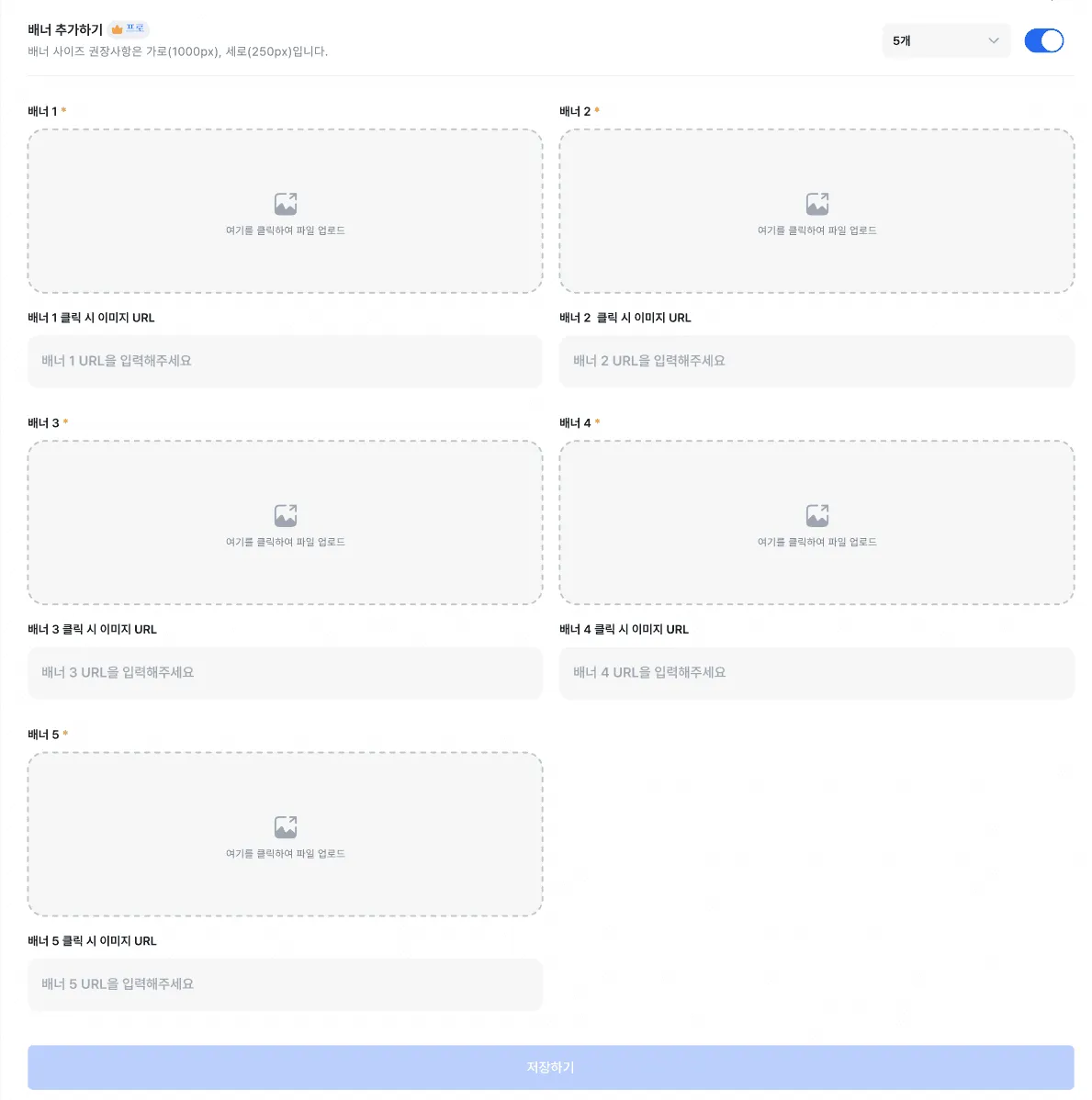
- 1 Choose the number of banners - Choose the number of banners to display in the top right. Up to 5 can be registered, and you can adjust how many are shown as needed.
- 2 Upload banner images - Upload an image for each slot (banners 1-5). The recommended size is 1000px wide by 250px tall. The images rotate in order automatically as a slide.
- 3 Enter the click-through link - In the input field below each banner, enter the URL (external page address) you want to link to. For example, the institution homepage, a page recruiting for a new course, or a partner link - configure it to your purpose.
- 4 Save - After entering all banner images and links, click the [Save] button at the bottom. After saving, the registered banners are displayed in sequence at the bottom of the badge verification page.
Usage tips
-
Since each banner auto-rotates, putting a clear message inside the image is effective.
-
Mixing different kinds of content - event schedules, new programs, brand stories - works well.
-
You can use only some banners as needed, or swap specific banner images for the timing of a campaign.
With this feature, the badge page a graduate shares becomes an ongoing outcome-sharing channel for the institution.
With a small configuration, the learner experience naturally leads into the next moment of engagement.
When the end of education becomes the start of the next one
A digital badge is no longer just a certificate.
While certifying the outcome of the program, it is an automated bridge that leads into the next education.
Through Kolleges’ digital badge outcome-sharing automation, institutions create natural outcome sharing starting from the fingertips of their graduates, and learners see their achievement and the next goal connected at a glance.
A structure where the moment of completion is not the end but the next learning and a new engagement - the digital badge.
Frequently asked questions
Want to turn learning outcomes into verifiable assets?
From issuing to verifying and amplifying, see it for yourself with Kolleges.
Request a Kolleges demo
Related posts

How to Grow Job Training Enrollment: Building a Structure Where Students Share Their Own Outcomes
Digital badges turn course completions into a self-sustaining referral loop - learners share achievements across 8 platforms with one click, cutting paid-ad dependency while driving 40% of new enrollments through word-of-mouth.
Connecting Alumni to Their Next Course: A Recommendation-Based Digital Badge System
Kolleges' admin-configured related-badge feature plus a built-in 1/3/7-day notification cadence turns badge earners into repeat enrollees - no external CRM required.

Automating Institutional Outcome Sharing with Digital Badges and LinkedIn Integration
Connecting your LinkedIn company page to Kolleges makes every learner badge share automatic, zero-cost exposure for your institution's brand.