
Automating Institutional Outcome Sharing with Digital Badges and LinkedIn Integration
Connecting your LinkedIn company page to Kolleges makes every learner badge share automatic, zero-cost exposure for your institution's brand.
“We issued the certificate. Now how does it actually spread?” Many institutions adopt digital badges and still run into the same problem: the credentials of their graduates and learners do not spread outward. Kolleges automates this process.
The key is LinkedIn page integration. When a learner adds their digital badge to their profile, the institution’s name and logo are registered automatically, and awareness of the institution spreads organically.
This article walks through everything from creating a LinkedIn page to connecting it to Kolleges.
Why LinkedIn page integration matters
Once a learner receives a digital badge, Kolleges enables them to add that badge to their LinkedIn profile with a single click.
But if the institution’s LinkedIn page is not connected, the learner’s profile will show “Kolleges” as the issuing entity, and the institutional branding effect is lost. Registering the institution’s official LinkedIn page is therefore essential.
How to create a LinkedIn page
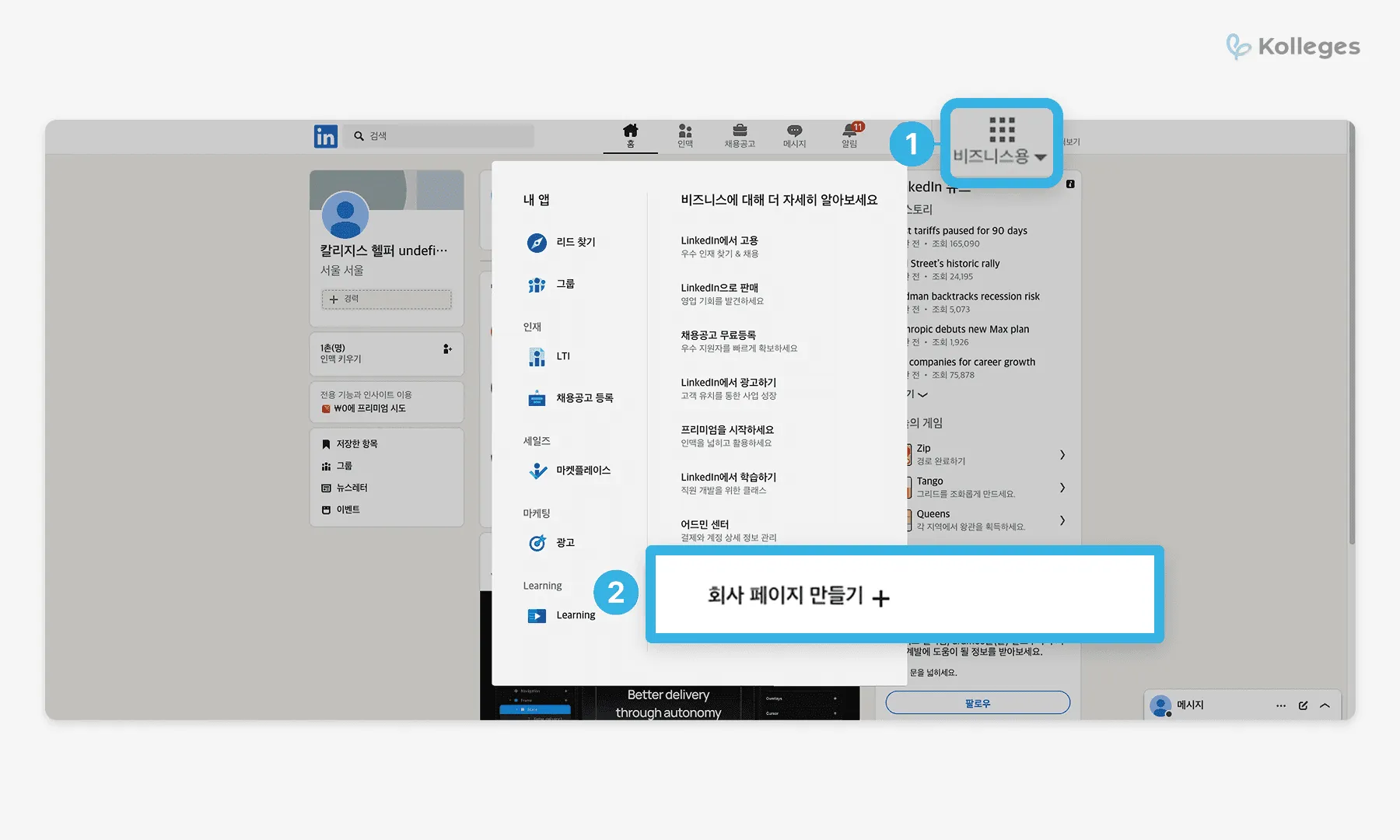
Don’t have a LinkedIn page yet? Follow the steps below to create one.
- Log in to LinkedIn and open the top menu
- Click [For Business] in the top right → select [Create a company page]
- Choose your preferred page type
- Educational institutions can use a standard company page (Note: you need at least one first-degree connection to create a page.)
- Enter page details
-
Institution name
-
Website URL
-
Logo image
-
Public-facing description, etc.
Once the page is created, you can see the numeric unique ID in the LinkedIn URL.
Connecting your digital badges to your LinkedIn page
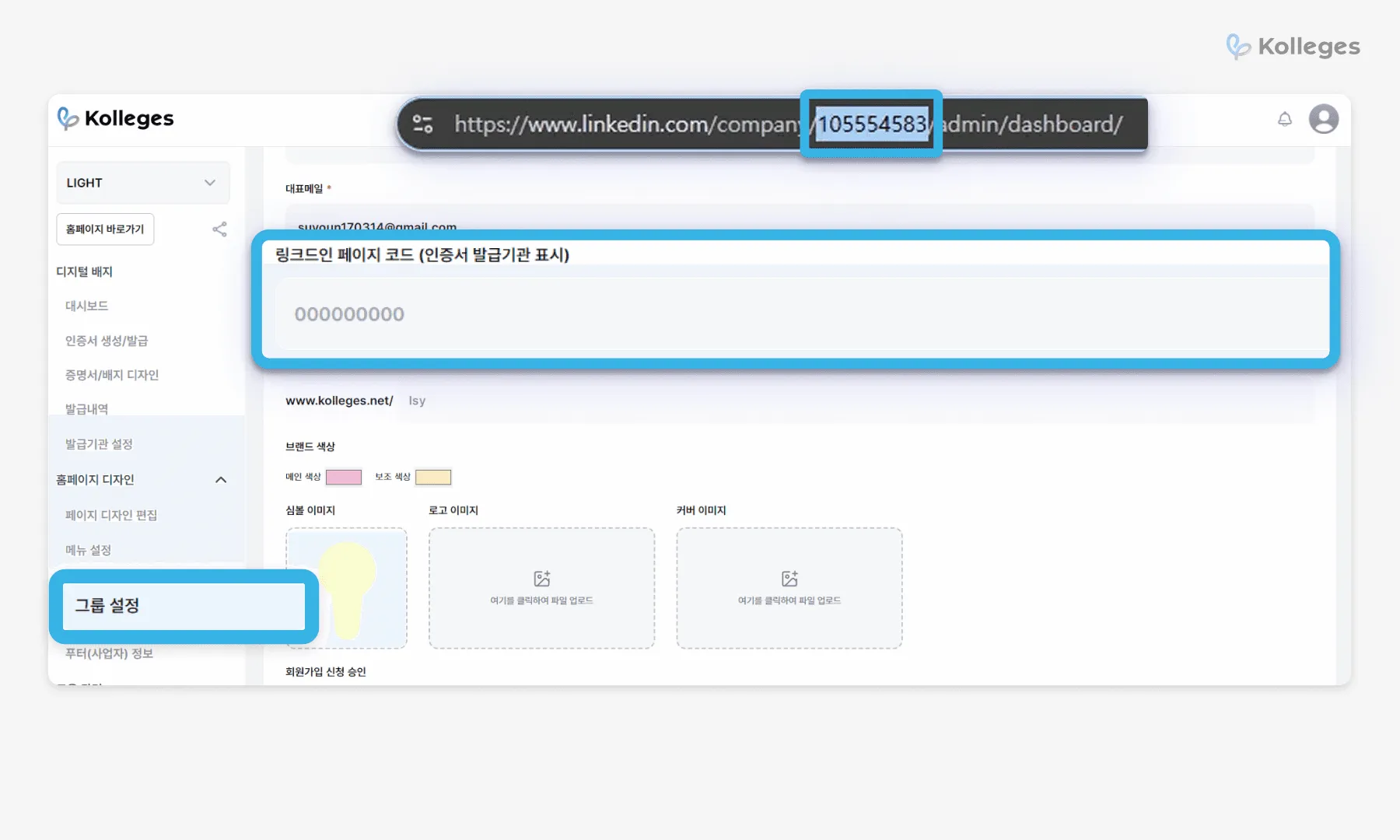
- Copy your LinkedIn ID
- From the URL of the page you created, copy the numeric code (ID). e.g., https://www.linkedin.com/company/1234567890/ → 1234567890
- Open the Kolleges admin page
- Go to [Group Settings] → in the “LinkedIn page code” field, paste the numeric ID you copied
- Save and apply
- Click [Save] → once integration is complete, the institution’s name, logo, and description appear automatically whenever a learner uses the LinkedIn auto-share feature
Putting outcome sharing automation to work
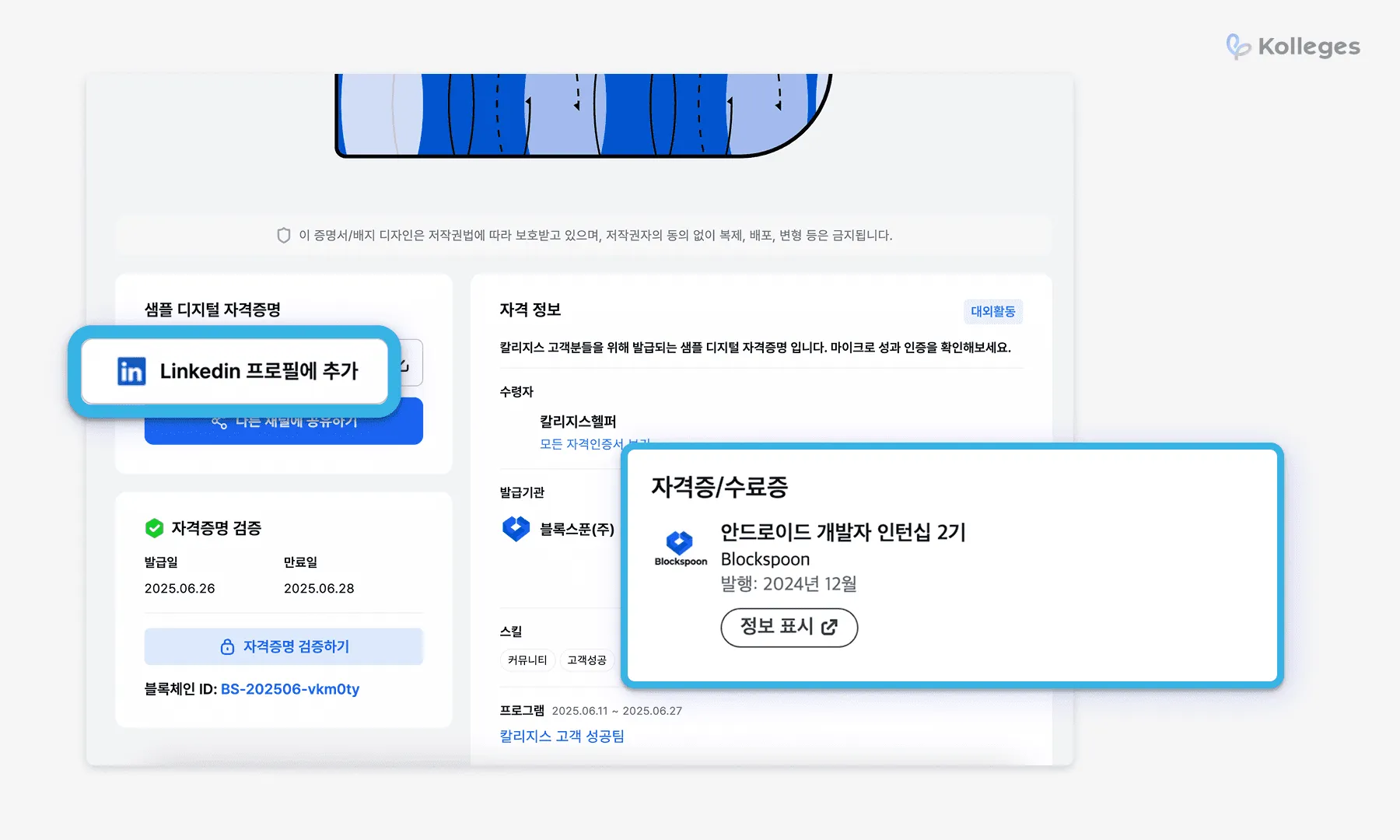
Actively encourage your learners to use the LinkedIn share feature.
-
When a digital badge is issued, include a prompt such as “Add this credential to your profile” to make sharing feel natural
-
Shared profiles also show up in search engine results, which is excellent for boosting institutional awareness
For B2B programs or job-skills certification programs in particular, exposure on LinkedIn delivers institutional visibility that goes well beyond a credential.
Don’t stop at issuing badges - automate word-of-mouth sharing
Where and how learners display their credentials directly reflects the expertise and impact of your institution. Kolleges ensures that issued digital badges are shared automatically on LinkedIn profiles with the institution’s name displayed correctly.
You can now build a structure in which learners make your institution known themselves, with no separate budget.
Frequently asked questions
Want to turn learning outcomes into verifiable assets?
From issuing to verifying and amplifying, see it for yourself with Kolleges.
Request a Kolleges demo
Related posts
Automated Outcome Sharing, Built with Digital Badges | When Completion Leads to the Next Course
Digital badges automate outcome sharing by turning every graduate share into an ongoing discovery loop - complete with custom ad banners, recommended next courses, and one-click sharing to 8 social networks.
How to Use Digital Badges in Resumes and Portfolios
Digital badges embedded in resumes, portfolios, and LinkedIn profiles function as verifiable, metadata-rich credentials that strengthen your case in skills-based hiring.
How to Grow Job Training Enrollment: Building a Structure Where Students Share Their Own Outcomes
Digital badges turn course completions into a self-sustaining referral loop - learners share achievements across 8 platforms with one click, cutting paid-ad dependency while driving 40% of new enrollments through word-of-mouth.