
The badge wallet is the space that stores every digital badge you have received. Enter it by pressing [My Wallet] in the profile menu at the top right of the screen, then press a badge card to see its details or share and download it right away.
Key points The badge wallet is the space that stores every digital badge you have received. Enter it by pressing [My Wallet] in the profile menu at the top right of the screen, then press a badge card to see its details or share and download it right away.
The badge wallet is a personal storage space that gathers every badge you have received in one place, regardless of the issuer. Downloading a certificate to put on your resume and sharing an achievement on social media both start in the wallet. This document walks through the wallet’s layout and what is worth doing on your first visit.
Going to the wallet
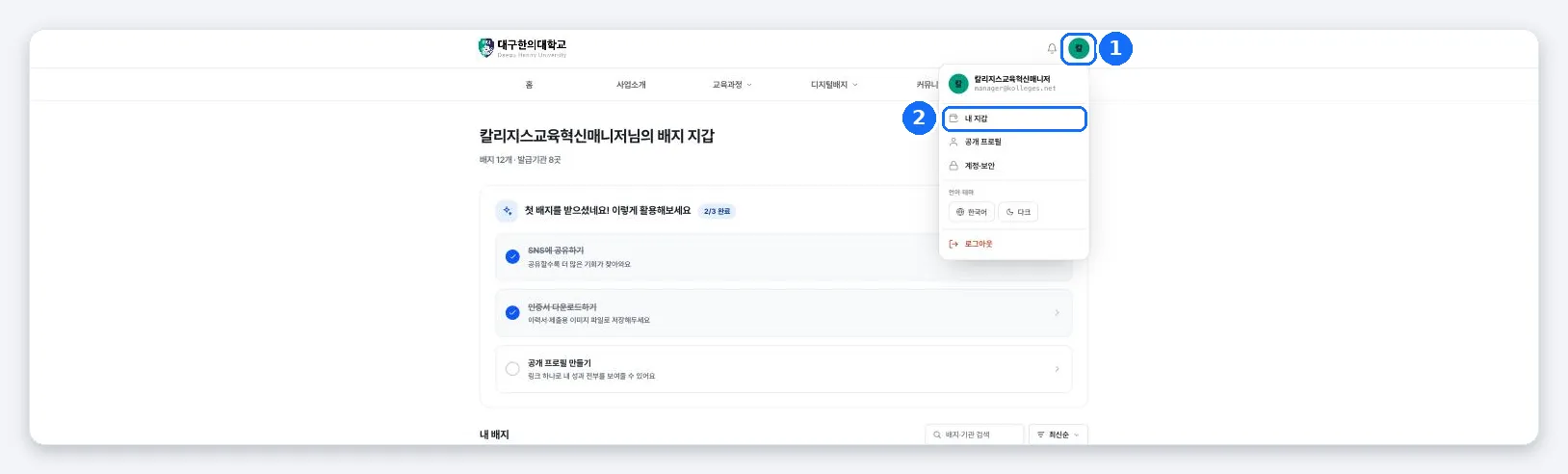
You open the badge wallet from [My Wallet] in the profile menu at the top right of the screen.
-
Press the profile icon at the top right of the screen. A menu opens.
-
Press [My Wallet] in the menu. The badge wallet screen opens.
The screen at a glance
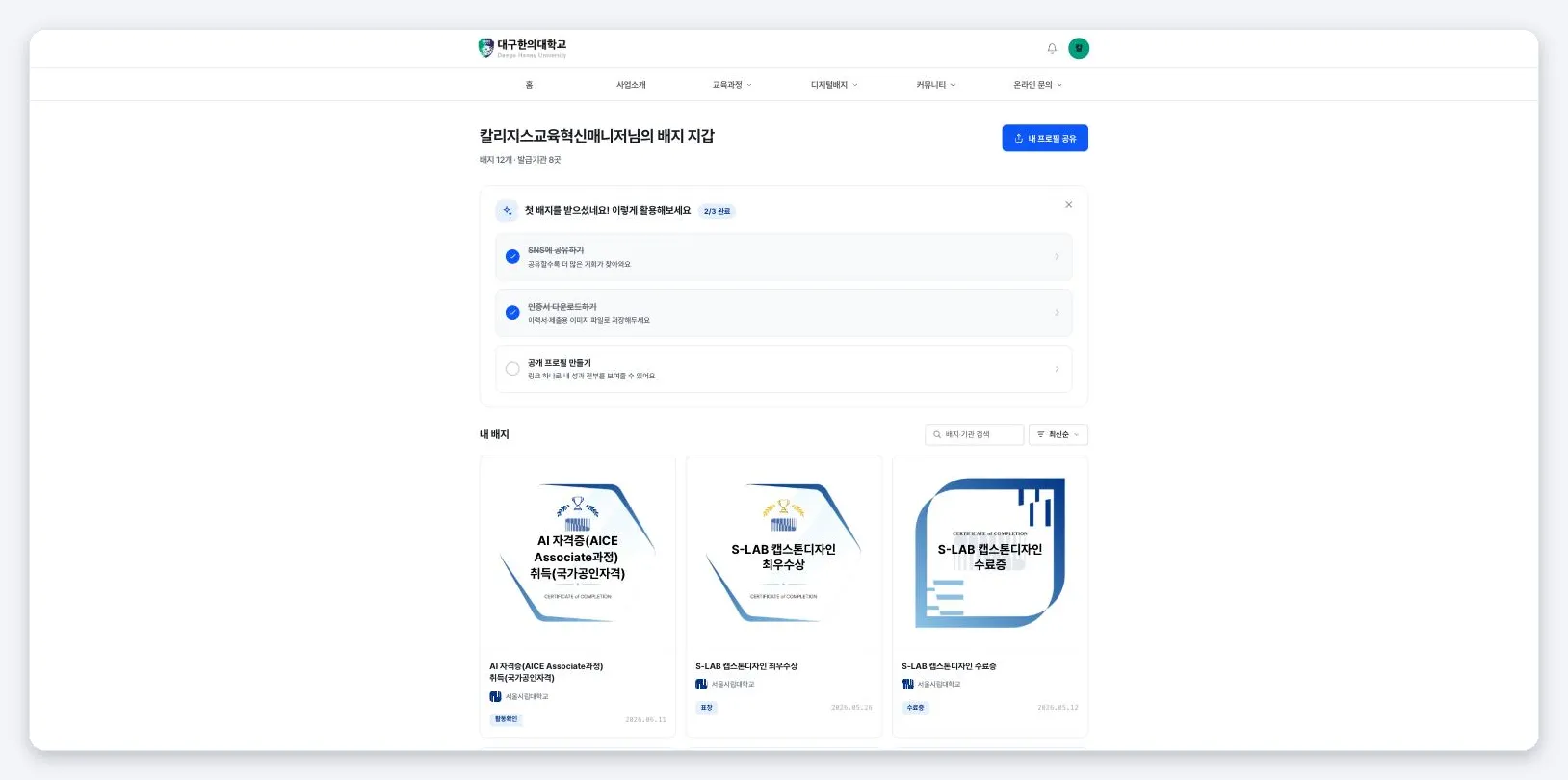
| Area | What it does |
|---|---|
| Top title | Shows your name along with the number of badges you hold and the number of issuers |
| [Share my profile] | Shares a profile that gathers several badges into one public link |
| Usage checklist | Guides you through what to do on your first visit, such as sharing, downloading, and creating a public profile |
| Badge and issuer search / Sort | Once you have many badges, find them by name or issuer, or sort by newest first |
| Badge card | Shows each individual badge as a card |
| [Import other badges] | Brings badges received at another email address or on another platform into your wallet |
Acting directly from a badge card
When you hover over a badge card (or tap the card on mobile), the [Share] and [Details] buttons appear. Press [Details] to see the details, or [Share] to share right away.

Confirming it worked
If your name and “N badges · N issuers” appear at the top of the wallet, with the badge cards you have received listed below, everything is working.
Troubleshooting
A badge I know I received isn’t in my wallet The issuer may have issued it to a different email address or mobile number. Verify that contact under [Import other badges] at the very bottom of the wallet and it will come in automatically.
I have too many badges to find things Enter the badge name or the issuer name in the badge and issuer search at the top right, or change the sort order to find the badge you want quickly.
Related guides
- Receiving Your Digital Badge - Put a new badge in your wallet
- Import Other Badges - Bring in badges you can’t see and badges from other platforms
- Creating a public profile - Gather your badges behind a single link
Frequently asked questions
Want to turn learning outcomes into verifiable assets?
From issuing to verifying and amplifying, see it for yourself with Kolleges.
Request a Kolleges demo
Related posts
Receiving Your Digital Badge
Press [Receive] in the email or [View certificate] in the KakaoTalk notification message, then complete identity verification, and your digital badge is stored permanently in your wallet. It takes about a minute.
Import Other Badges
From [Import other badges] at the bottom of your wallet, you can import a badge you received at another email by verifying that email, and a badge from another platform (Credly, Badgr, and the like) as an Open Badge file or URL.

Creating a Public Profile and Setting Its Visibility
A public profile is a page that gathers multiple badges into a single link. In the settings you can choose the visibility (Public, Anyone with the link, Private), the profile address, per-badge visibility, and your display name.