
From [Import other badges] at the bottom of your wallet, you can import a badge you received at another email by verifying that email, and a badge from another platform (Credly, Badgr, and the like) as an Open Badge file or URL.
Key points From [Import other badges] at the bottom of your wallet, you can import a badge you received at another email by verifying that email, and a badge from another platform (Credly, Badgr, and the like) as an Open Badge file or URL.
The email you received a badge at may differ from the account you are signed in to now, or you may have a certificate you received on another badge platform. Kolleges provides an import feature so that these badges can be gathered in one wallet too. This document covers the two ways to import.
Opening the import screen
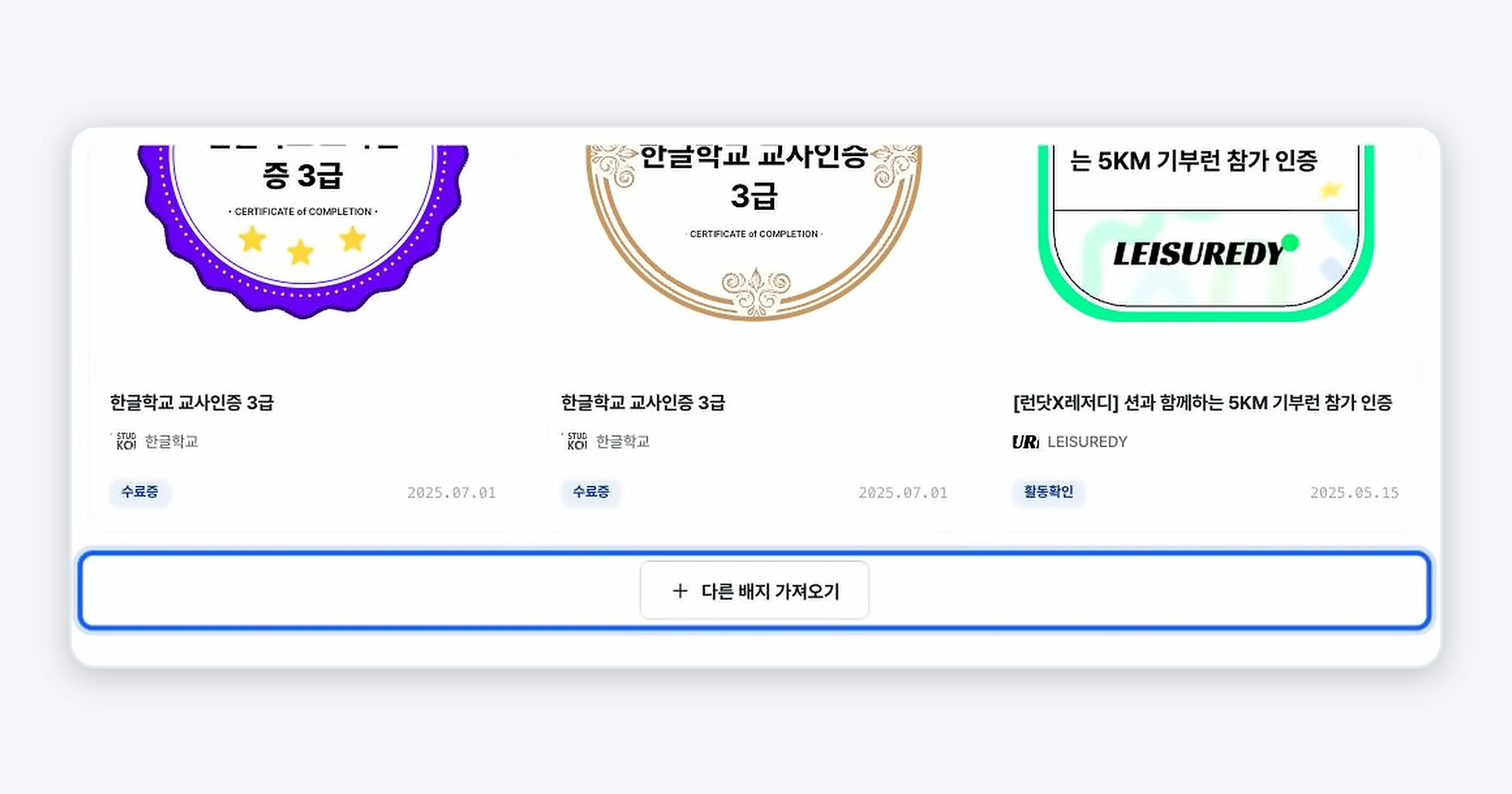
Press the [Import other badges] button at the bottom of your wallet. The import screen opens.
Method 1. Import a badge you received at another email
Import a badge that was issued by Kolleges but does not appear because you received it at a different email or phone number.
-
Select the [Badges you received but can’t see] tab.
-
In I received it at another email, enter that email address and press [Add email]. Once you finish verification, the issued badge comes into your wallet automatically.
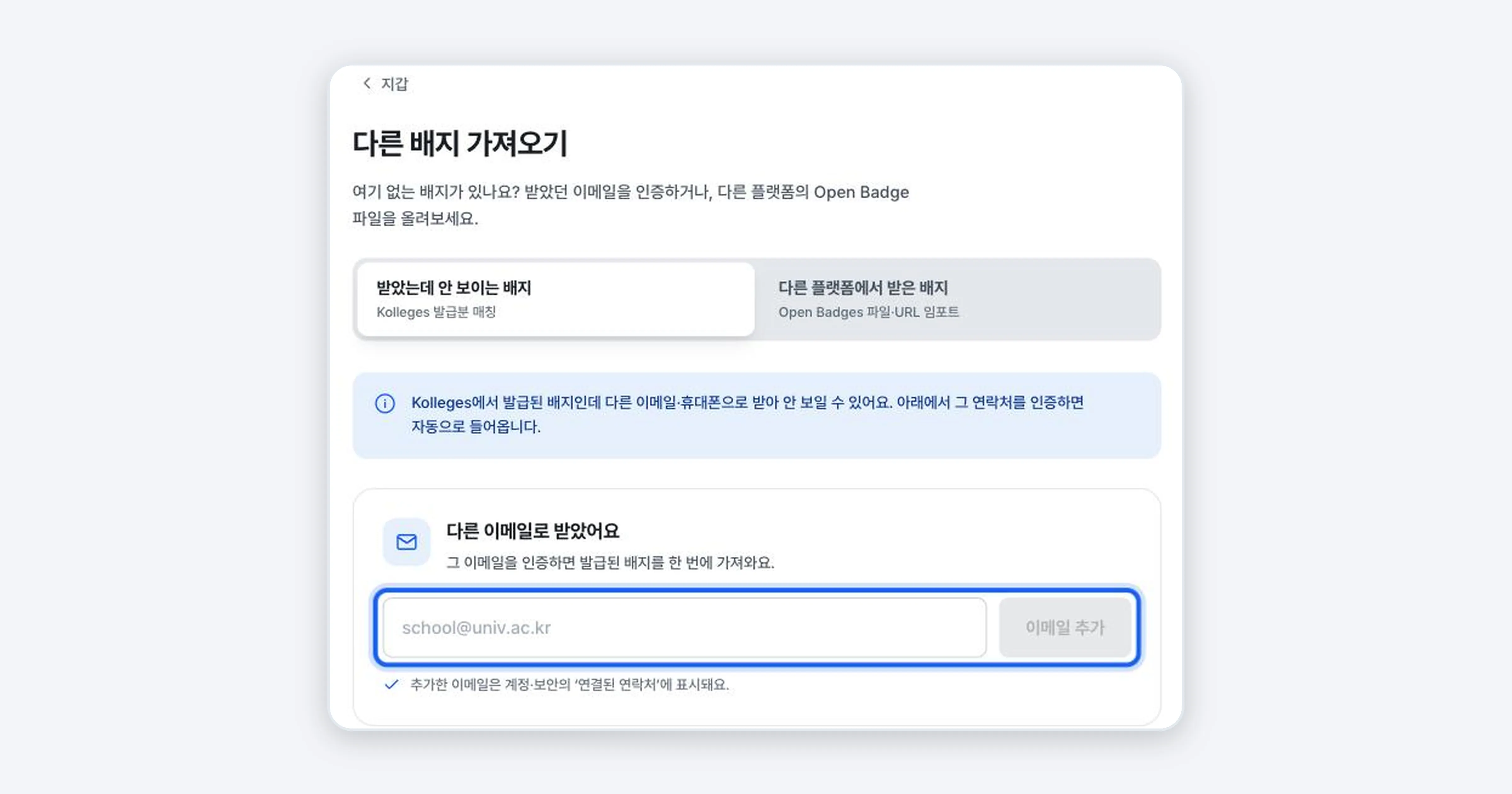
Tip: The email you added appears under ‘linked contacts’ in Account & security.
Method 2. Import a badge from another platform (Open Badges)
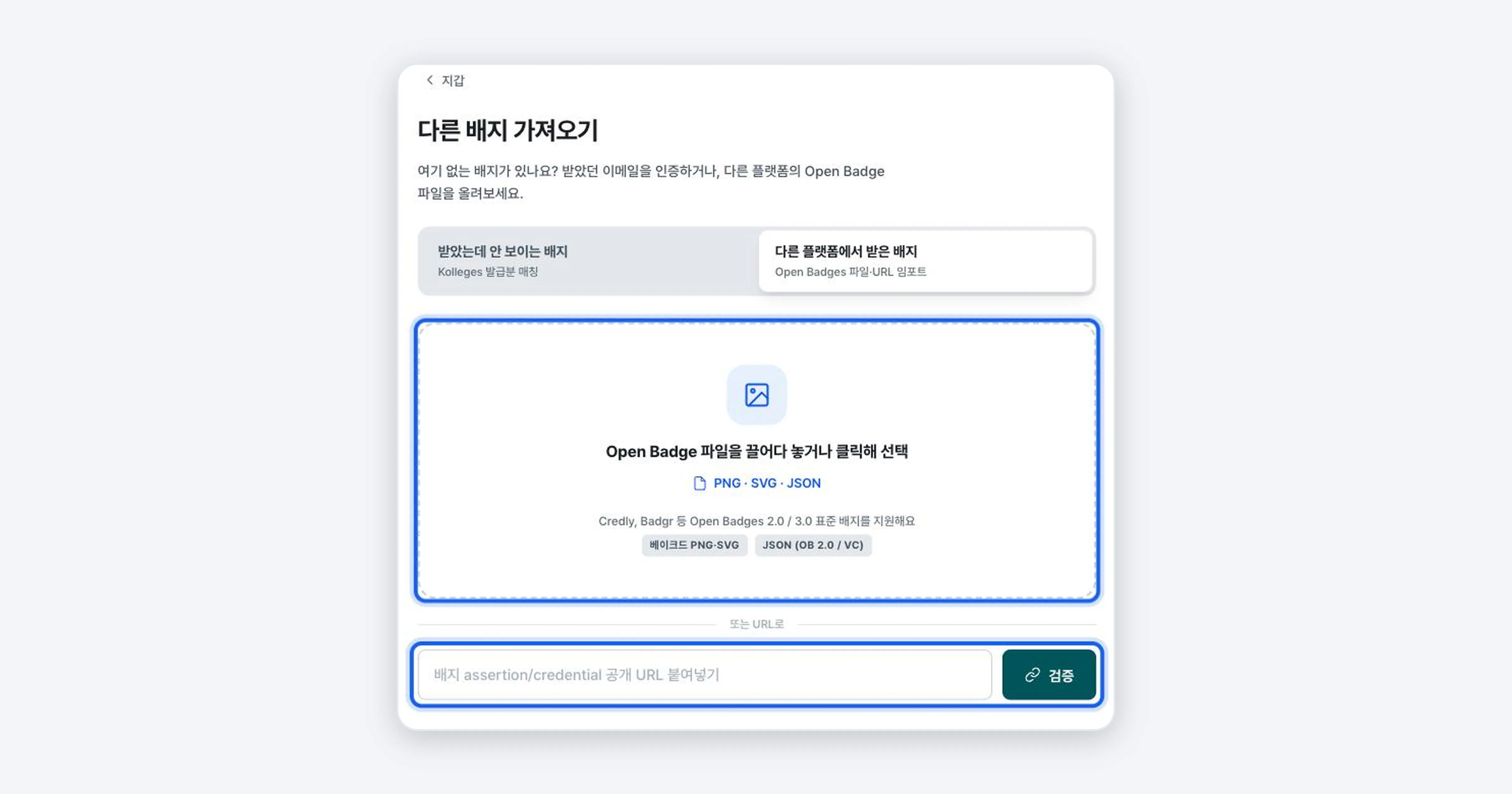
Import a standard badge received from Credly, Badgr, and the like as a file or a URL.
-
Select the [Badges from other platforms] tab.
-
Drag and drop an Open Badge file (PNG, SVG, or JSON), or press to select one. Or paste the badge’s public URL into the URL field below and press [Verify].
Confirming it worked
Once the import finishes, that badge’s card newly appears in your wallet list.
Troubleshooting
The verification email is not arriving Check the spam folder of the address you entered. If you entered the address incorrectly, you can add it again.
I uploaded a file but it is not recognized The file must conform to the Open Badges 2.0/3.0 standard (a PNG or SVG containing verification information, or a JSON file). Badges that do not follow the standard cannot be imported, so get a public URL from the original platform and try importing by URL.
Related guides
- Exploring Your Badge Wallet - Managing imported badges
- Receiving Your Digital Badge - Receiving a newly issued badge
- Recipient FAQ - Questions about accounts and contacts
Frequently asked questions
Want to turn learning outcomes into verifiable assets?
From issuing to verifying and amplifying, see it for yourself with Kolleges.
Request a Kolleges demo
Related posts
Exploring Your Badge Wallet
The badge wallet is the space that stores every digital badge you have received. Enter it by pressing [My Wallet] in the profile menu at the top right of the screen, then press a badge card to see its details or share and download it right away.
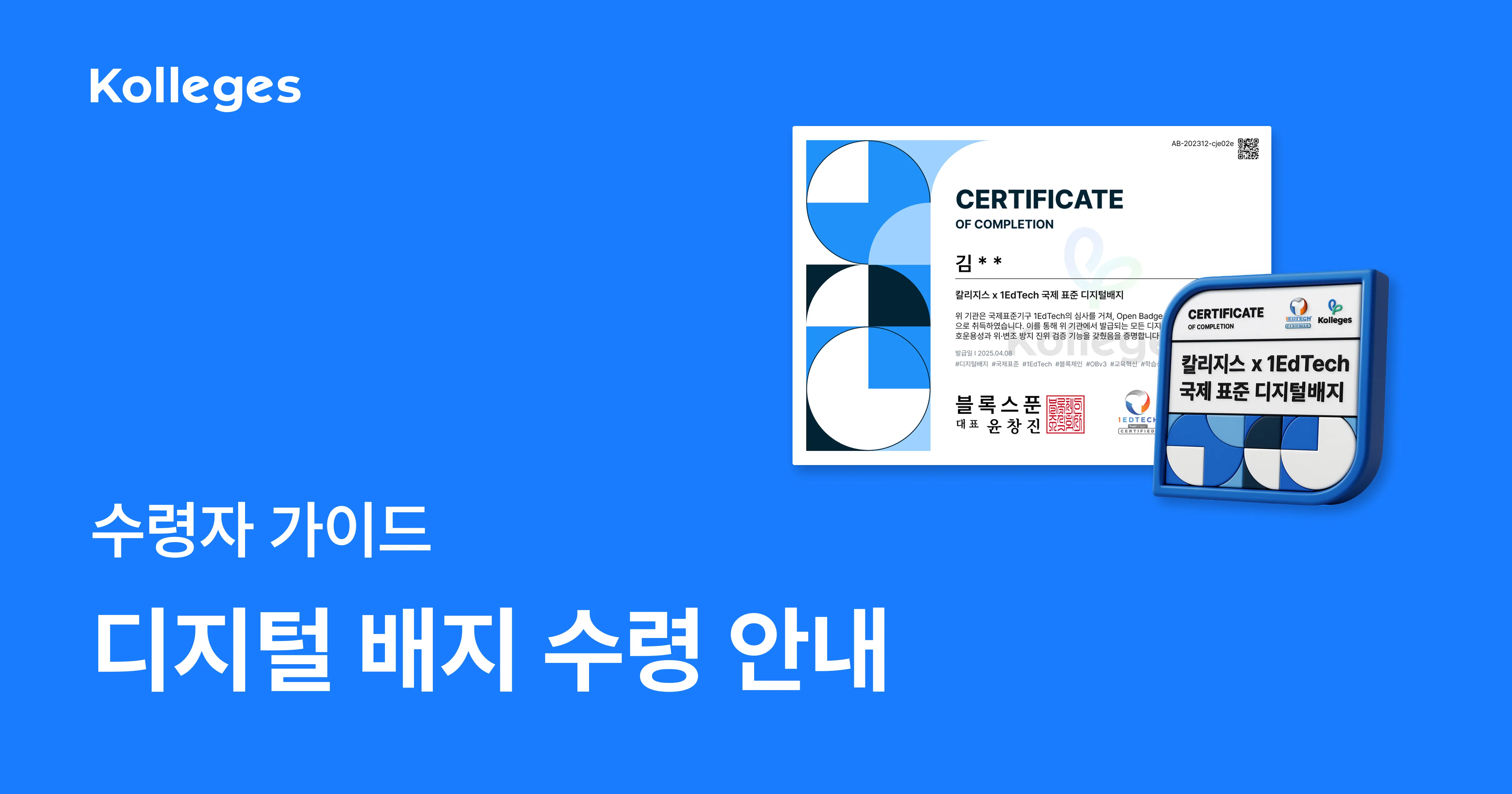
Receiving Your Digital Badge
Press [Receive] in the email or [View certificate] in the KakaoTalk notification message, then complete identity verification, and your digital badge is stored permanently in your wallet. It takes about a minute.

Recipient FAQ
The questions recipients ask most often, gathered in one place: what a digital badge is, whether it is secure, whether it expires. For the detailed steps, see the guide linked from each answer.