
Tap the [Share this achievement] button on the badge detail page to share directly to LinkedIn, Facebook, or KakaoTalk, or copy the link and save the QR image to show your badge anywhere.
Key points Tap the [Share this achievement] button on the badge detail page to share directly to LinkedIn, Facebook, or KakaoTalk, or copy the link and save the QR image to show your badge anywhere.
A badge you have received grows more valuable the more you share it. You can attach your achievement in a verifiable form anywhere: a resume, a LinkedIn profile, social media, a presentation deck. This document explains the channels and visibility settings in the share window.
Opening the share window
-
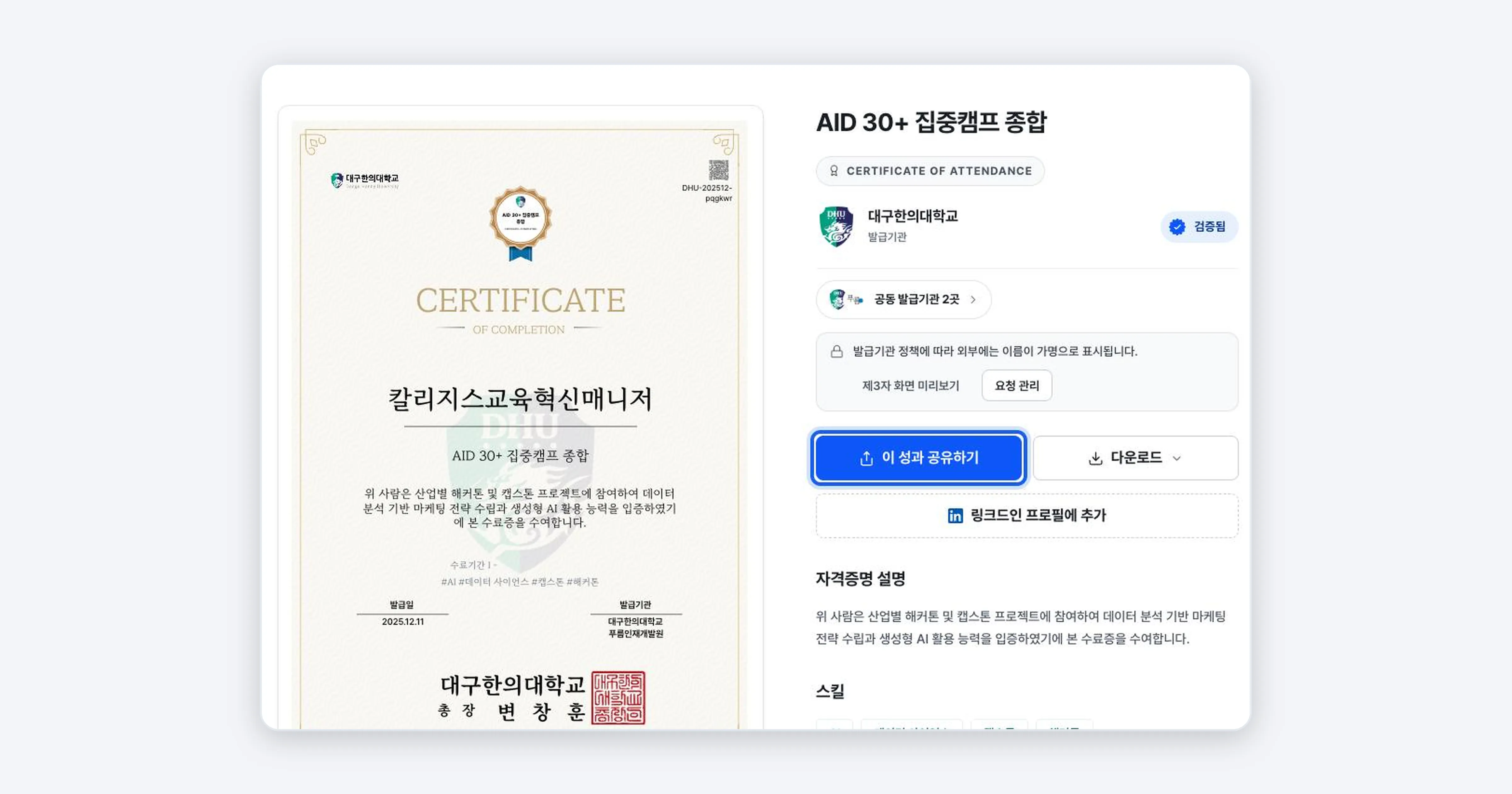
On the badge detail page, tap the [Share this achievement] button. The share window opens.
-
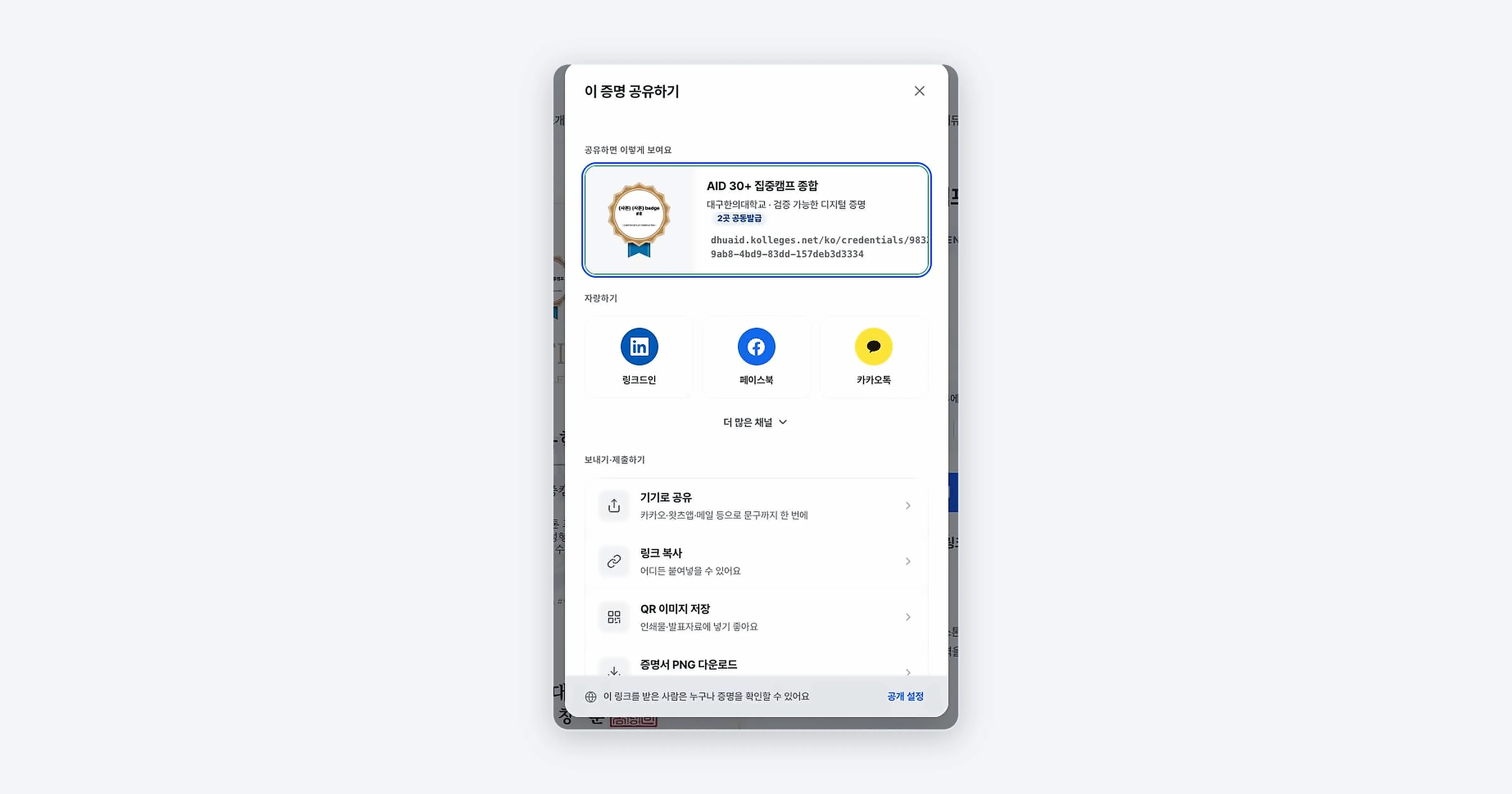
In the preview card at the top of the window, first check how it will look to others when shared.
Choosing a channel
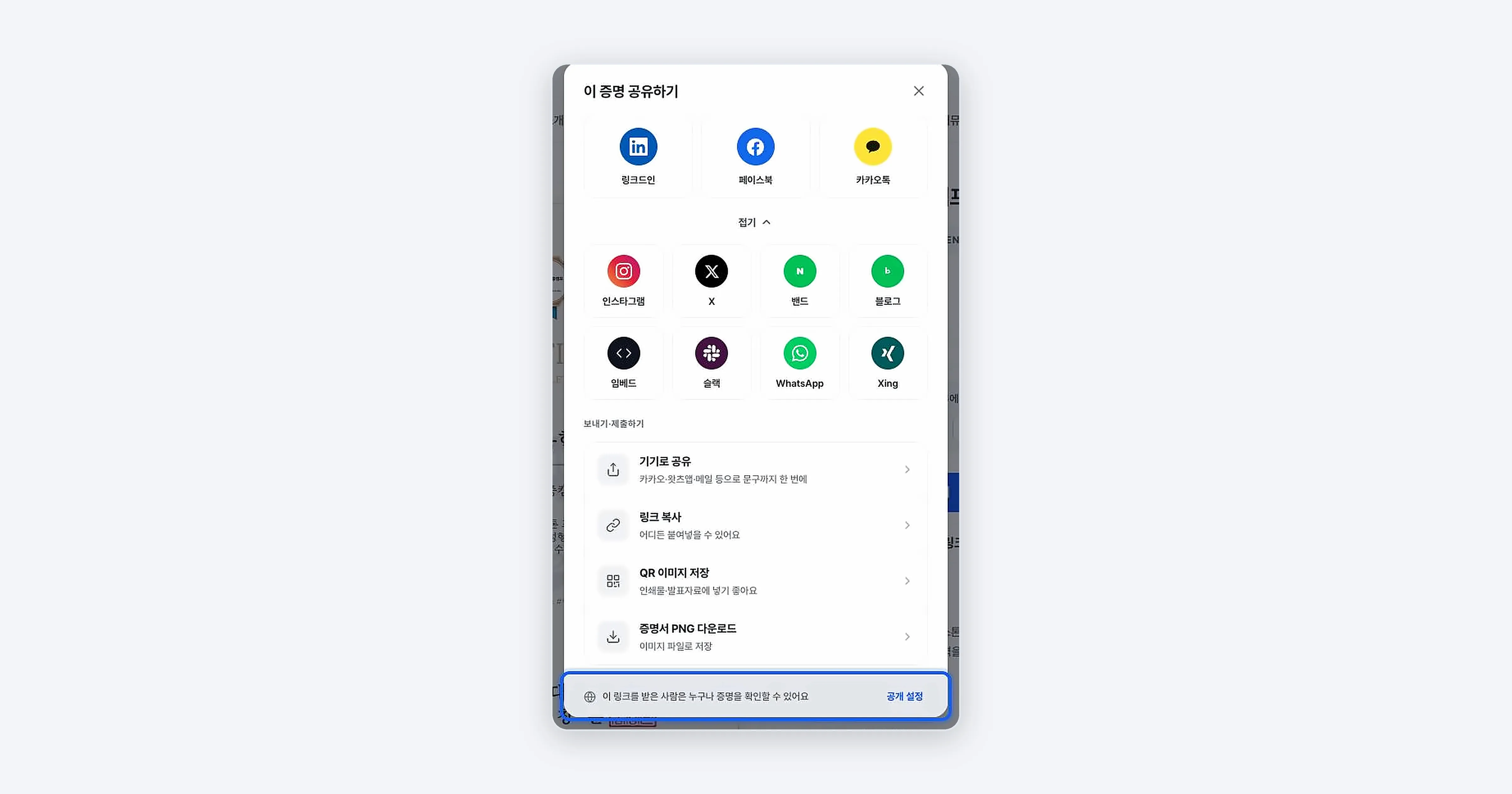
In the Show it off area, you can tap LinkedIn, Facebook, or KakaoTalk directly. Tap [More channels] to open additional channels such as Instagram, X, Band, and blogs. In the Send / Submit area, you can copy the link, save the QR image, and download the certificate image.
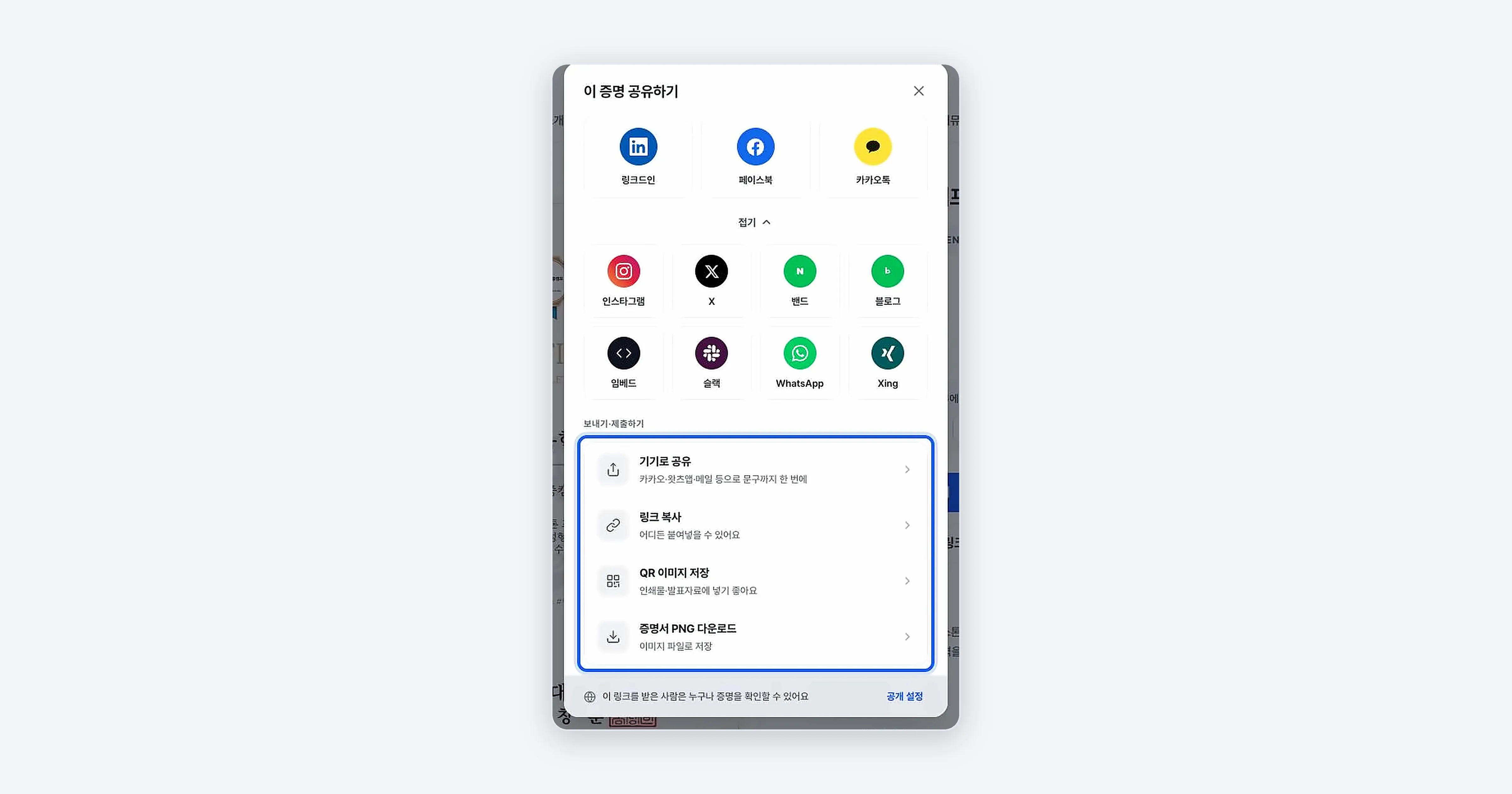
| Method | Use |
|---|---|
| LinkedIn / Facebook / KakaoTalk | Share directly to that social network |
| Share via device | Send the text along with it in one step through your device’s share menu, such as KakaoTalk or email |
| Copy link | Paste anywhere: a resume, an email |
| Save QR image | Insert into printed materials or presentation decks |
| Download certificate PNG | Save as an image file |
Checking visibility
At the very bottom of the share window, you can see the notice “Anyone who receives this link can check the credential” along with [Visibility settings]. To change the visibility, tap [Visibility settings].
Confirming it worked
If the share page opens when you tap the channel you want, or the “Copied” notice appears after [Copy link], you are ready to share.
Troubleshooting
I opened the link but it says “Private” If the badge’s visibility is set to private, even people who receive the link cannot see it. Change it to ‘anyone with the link’ or ‘public’ under [Visibility settings].
The name on the share card appears hidden Depending on the issuer’s policy, your name may appear as a pseudonym when shared externally. On your own logged-in screen, your real name is shown.
Related guides
- Adding a Badge to Your LinkedIn Profile - Register it automatically under your LinkedIn certifications
- Creating a public profile - Gather multiple badges into one link to share
- Downloading and Printing a Certificate - Save it as a file to attach
Frequently asked questions
Want to turn learning outcomes into verifiable assets?
From issuing to verifying and amplifying, see it for yourself with Kolleges.
Request a Kolleges demo
Related posts
Adding a Badge to Your LinkedIn Profile
Press the [Add to LinkedIn profile] button on the badge detail page and the LinkedIn certifications screen opens with the name, issuer, issue month and year, and certificate URL filled in automatically. Check the details, save, and you're done.
Creating a Public Profile and Setting Its Visibility
A public profile is a page that gathers multiple badges into a single link. In the settings you can choose the visibility (Public, Anyone with the link, Private), the profile address, per-badge visibility, and your display name.
Downloading and Printing a Certificate
Press the [Download] button on the badge detail page and you can choose between Save as PNG image and Save as PDF document. The PDF carries a verification QR and URL, which makes it suitable for printing and submission.