
Creating a Public Profile and Setting Its Visibility
 Robin Yoon · Customer Success Team Published
A public profile is a page that gathers multiple badges into a single link. In the settings you can choose the visibility (Public, Anyone with the link, Private), the profile address, per-badge visibility, and your display name.
Key points A public profile is a page that gathers multiple badges into a single link. In the settings you can choose the visibility (Public, Anyone with the link, Private), the profile address, per-badge visibility, and your display name.
If you have several badges, you can show them all with a single public profile link instead of sharing them one by one. Put the link in your resume, business card, or social media bio, and recipients can see your achievements at a glance. This document explains how to create a public profile and set its visibility.
Opening the public profile settings
Press [Public profile] in the profile menu to open the public profile settings screen. (You can also get there via [Create public profile] in the checklist at the top of your wallet.)
Choosing the visibility
-
Choose one of three options under visibility.
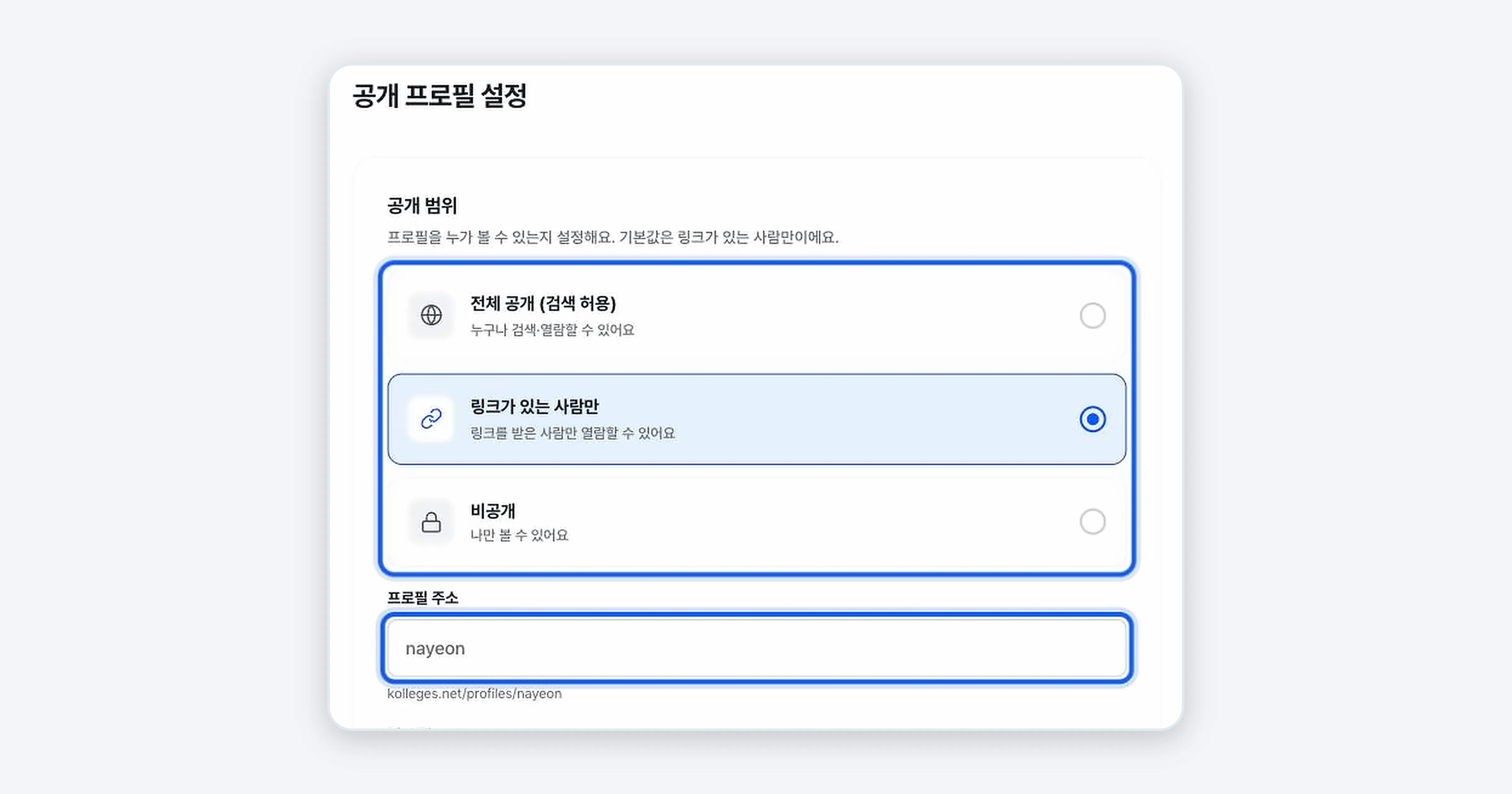
Scope Who can see it Public (searchable) Anyone can search and view Anyone with the link (default) Only people who receive the link can view Private Only you can view -
Enter the address you want under profile address. It will be created in the form
kolleges.net/profiles/your-address. -
If you like, fill in About me and press [Save].
Choosing which badges to show
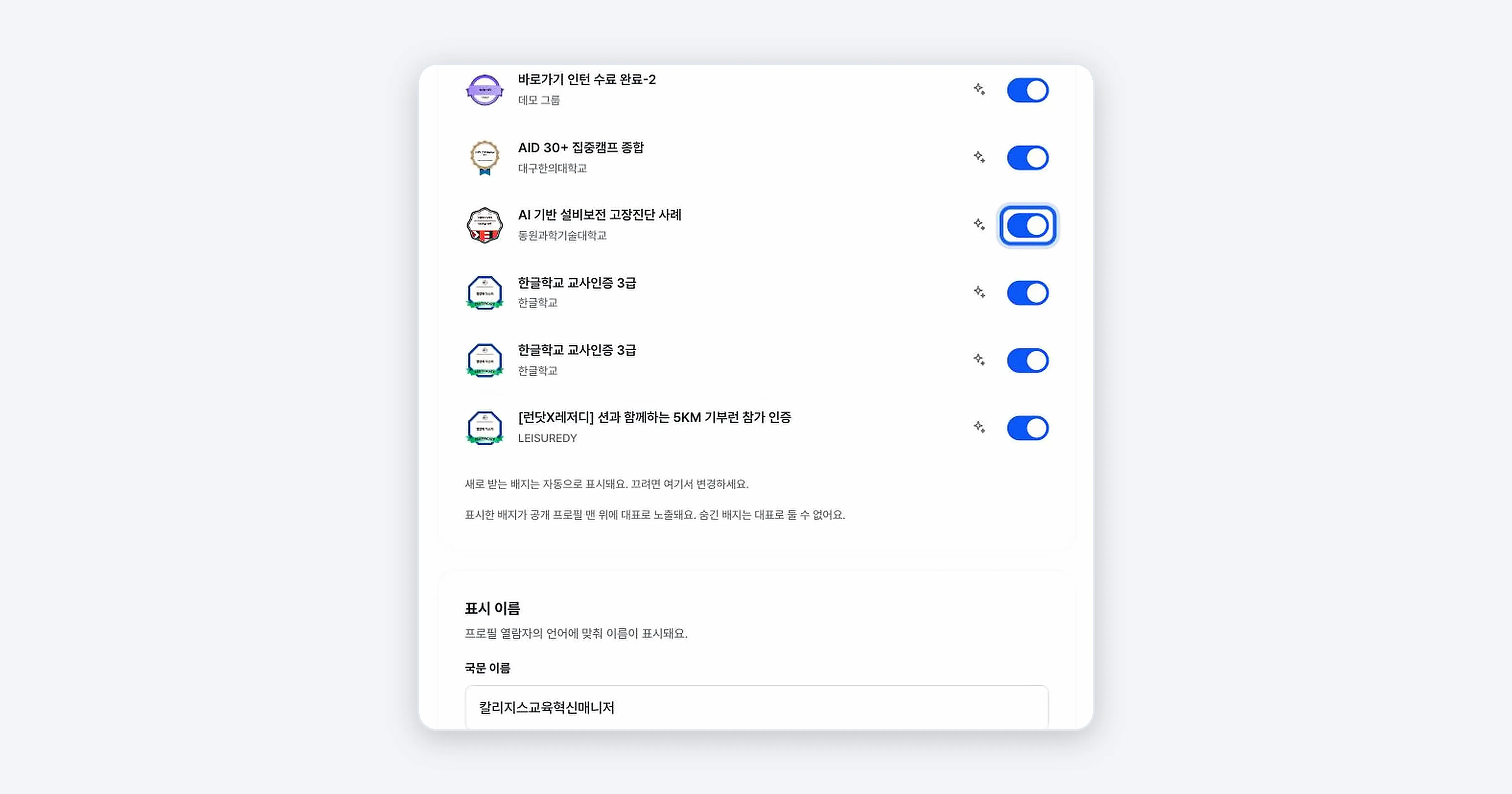
Scroll down and you will find per-badge visibility. Turn the toggle on for badges you want visible on your profile, and off for badges you want hidden. Under display name, you can set the Korean and English names shown on your profile.
Confirming it worked
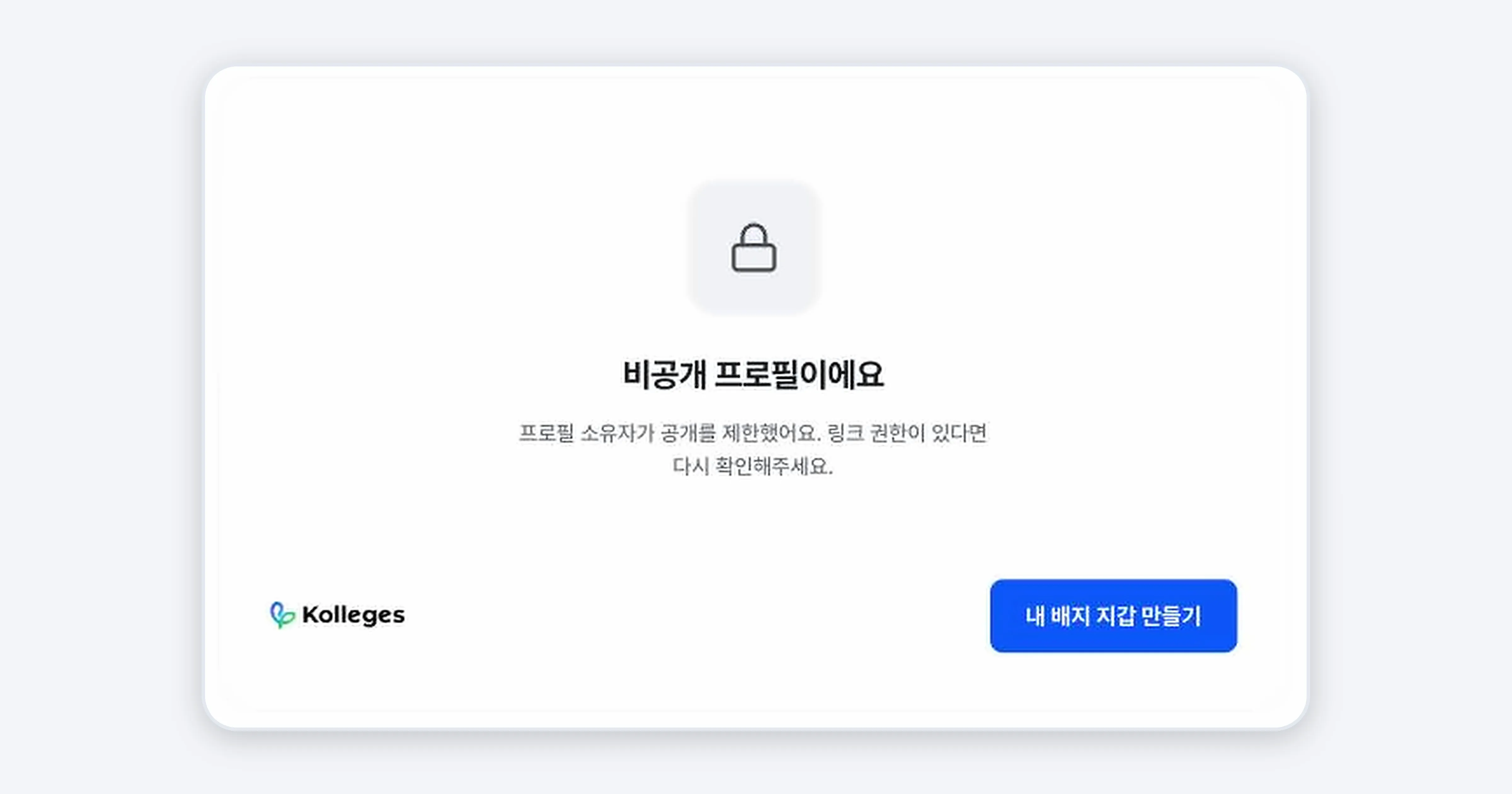
If the badges you selected appear when you visit your profile address, everything is working. If you set it to private, visiting the link shows the message “This profile is private”.
Troubleshooting
It says my profile address is already in use Another user is using that address. Add a number or a word to change it to a different address, then save.
I want to feature a hidden badge Hidden badges cannot be set as the featured badge (at the top). First turn on the per-badge visibility toggle to switch it to shown, then set it as featured.
Related guides
- Exploring Your Badge Wallet - Managing the badges to put on your profile
- Sharing Your Digital Badge - Sharing just one badge
- Recipient FAQ - Questions about visibility and personal data
Frequently asked questions
Want to turn learning outcomes into verifiable assets?
From issuing to verifying and amplifying, see it for yourself with Kolleges.
Request a Kolleges demo Related posts
Exploring Your Badge Wallet
The badge wallet is the space that stores every digital badge you have received. Enter it by pressing [My Wallet] in the profile menu at the top right of the screen, then press a badge card to see its details or share and download it right away.

Sharing Your Digital Badge
Tap the [Share this achievement] button on the badge detail page to share directly to LinkedIn, Facebook, or KakaoTalk, or copy the link and save the QR image to show your badge anywhere.
Recipient FAQ
The questions recipients ask most often, gathered in one place: what a digital badge is, whether it is secure, whether it expires. For the detailed steps, see the guide linked from each answer.