
Press the [Add to LinkedIn profile] button on the badge detail page and the LinkedIn certifications screen opens with the name, issuer, issue month and year, and certificate URL filled in automatically. Check the details, save, and you're done.
Key points Press the [Add to LinkedIn profile] button on the badge detail page and the LinkedIn certifications screen opens with the name, issuer, issue month and year, and certificate URL filled in automatically. Check the details, save, and you’re done.
Putting a badge in the ‘Licenses & Certifications’ section of your LinkedIn profile lets recruiters and colleagues review your achievements in a verifiable form. Kolleges supports this process with automatic filling. This document explains how to add a badge to LinkedIn.
Before you start
- You must be logged in to your own LinkedIn account.
Adding it to LinkedIn
-
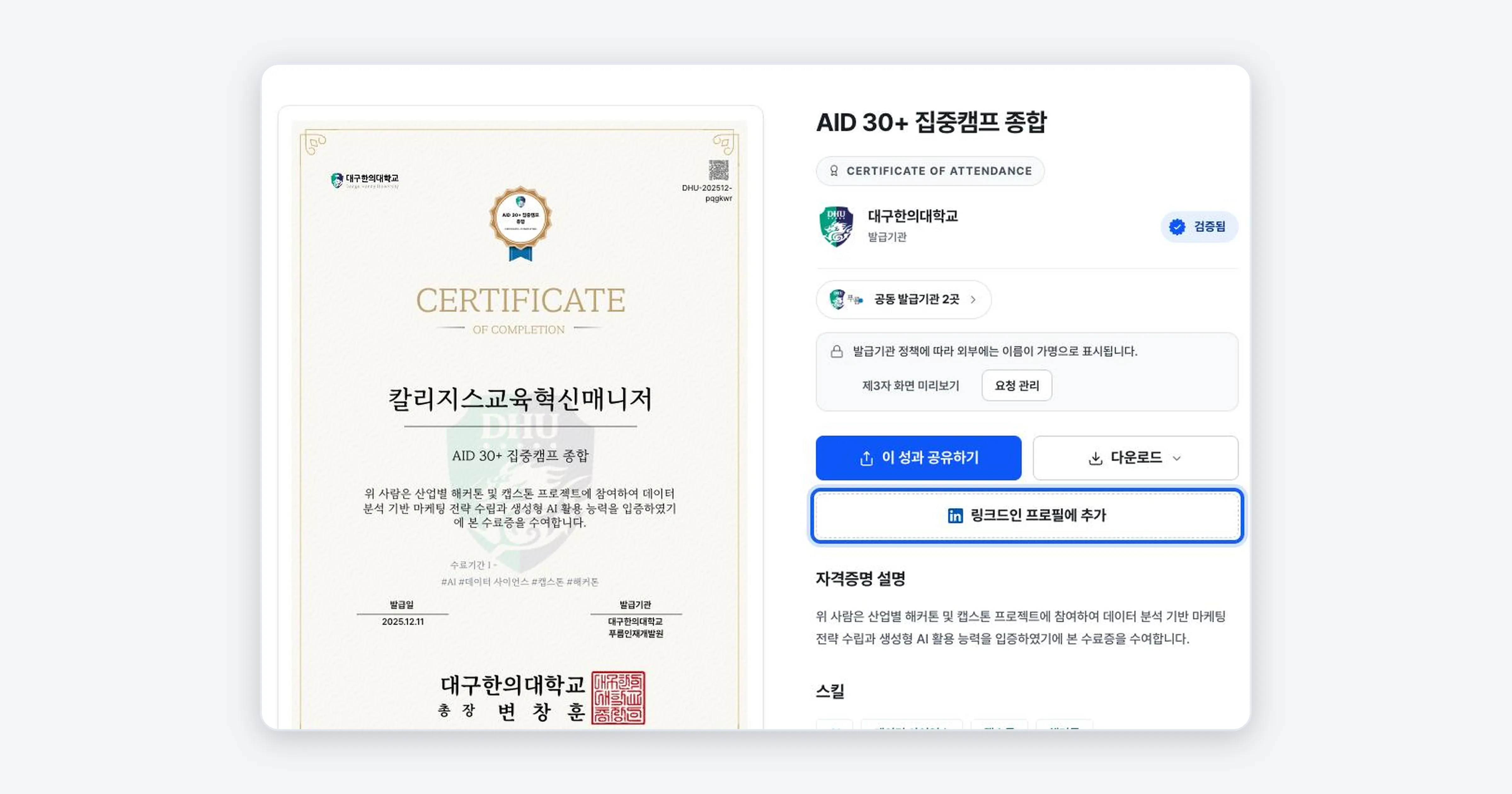
On the badge detail page, press the [Add to LinkedIn profile] button.
-
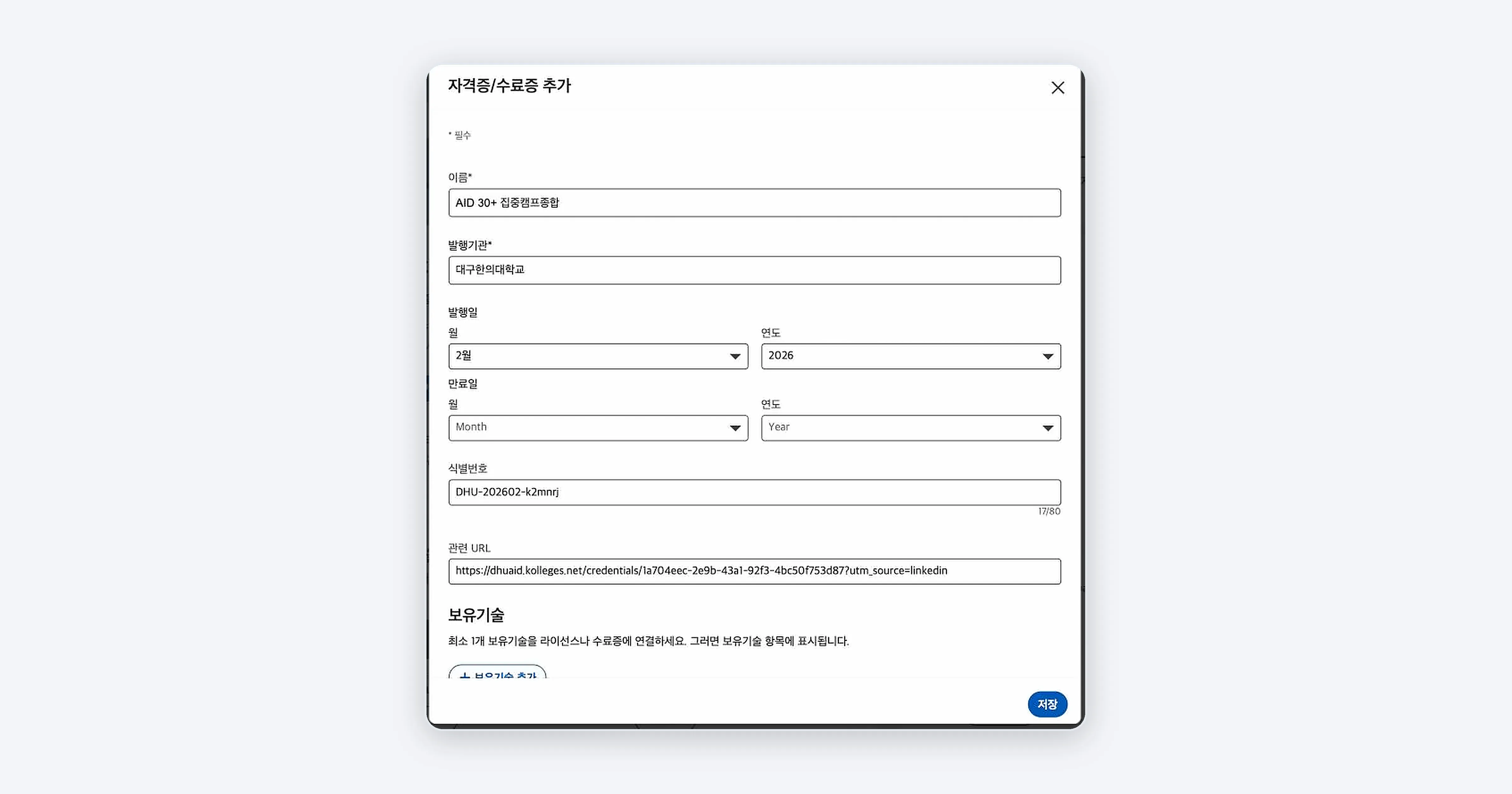
LinkedIn’s Add licenses & certifications screen opens in a new window. The name, issuing organization, issue month and year, credential ID, and credential URL are filled in automatically.
-
Check the automatically filled details and press [Save].
Note: The name field carries the certificate’s full title. If you want to trim it to fit LinkedIn’s conventions, edit it before saving.
Confirming it worked
If the certificate you just added appears under the Licenses & Certifications section of your LinkedIn profile, and clicking the certificate URL takes you to the Kolleges verification page, it has been registered correctly.
Troubleshooting
I press the button but only get the login screen You are not logged in to LinkedIn. Log in to LinkedIn first, then press [Add to LinkedIn profile] again.
The automatically filled information looks wrong You can edit the values directly on the save screen. However, we recommend leaving the certificate URL and credential ID as they are, since they are used for verification.
Related guides
- Sharing Your Digital Badge - Share via social media, link, or QR
- Downloading and Printing a Certificate - Save it as a file to attach to your resume
- Creating a public profile - Gather several badges behind a single link
Frequently asked questions
Want to turn learning outcomes into verifiable assets?
From issuing to verifying and amplifying, see it for yourself with Kolleges.
Request a Kolleges demo
Related posts
Sharing Your Digital Badge
Tap the [Share this achievement] button on the badge detail page to share directly to LinkedIn, Facebook, or KakaoTalk, or copy the link and save the QR image to show your badge anywhere.
Downloading and Printing a Certificate
Press the [Download] button on the badge detail page and you can choose between Save as PNG image and Save as PDF document. The PDF carries a verification QR and URL, which makes it suitable for printing and submission.
Creating a Public Profile and Setting Its Visibility
A public profile is a page that gathers multiple badges into a single link. In the settings you can choose the visibility (Public, Anyone with the link, Private), the profile address, per-badge visibility, and your display name.