
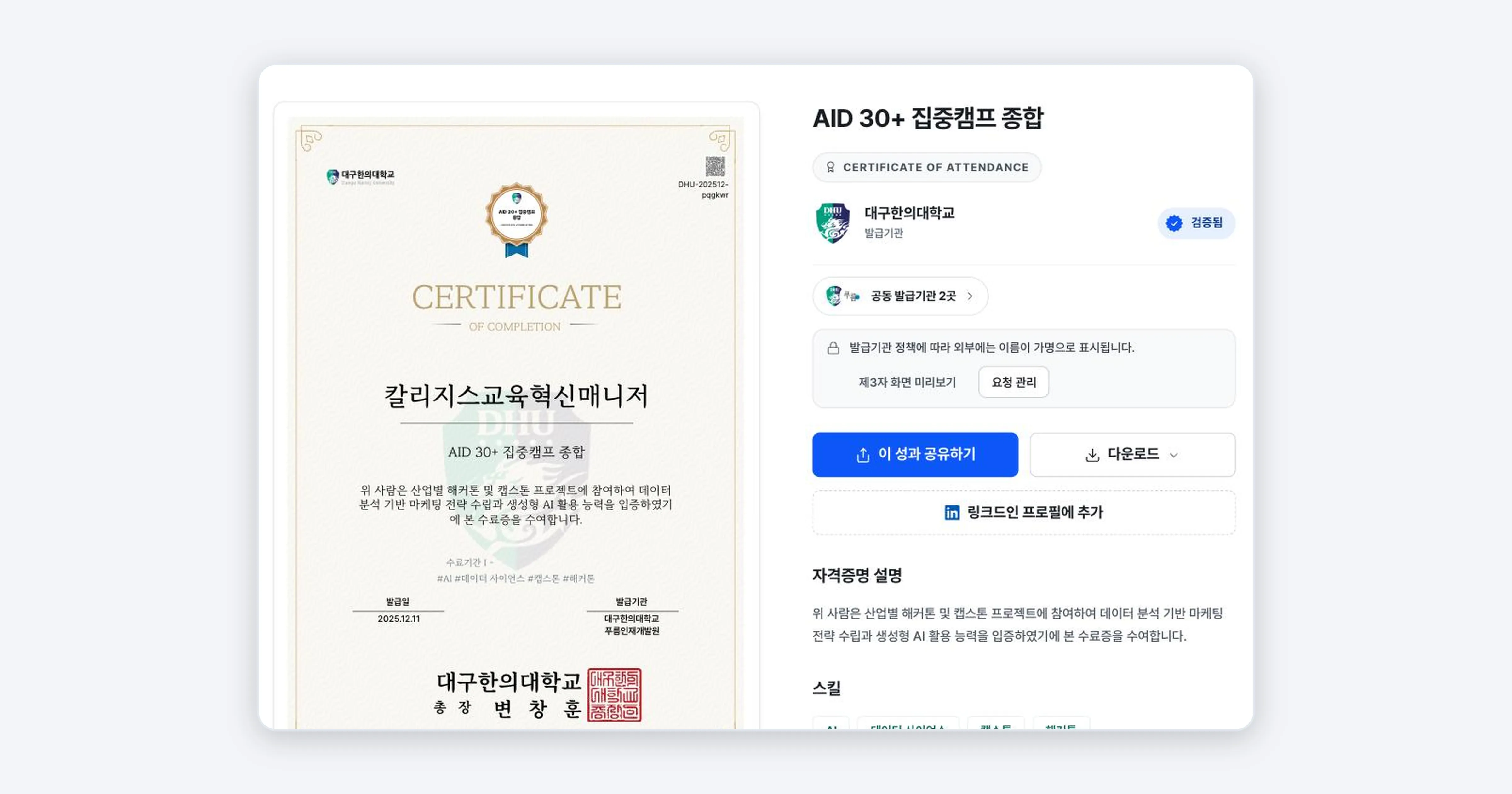
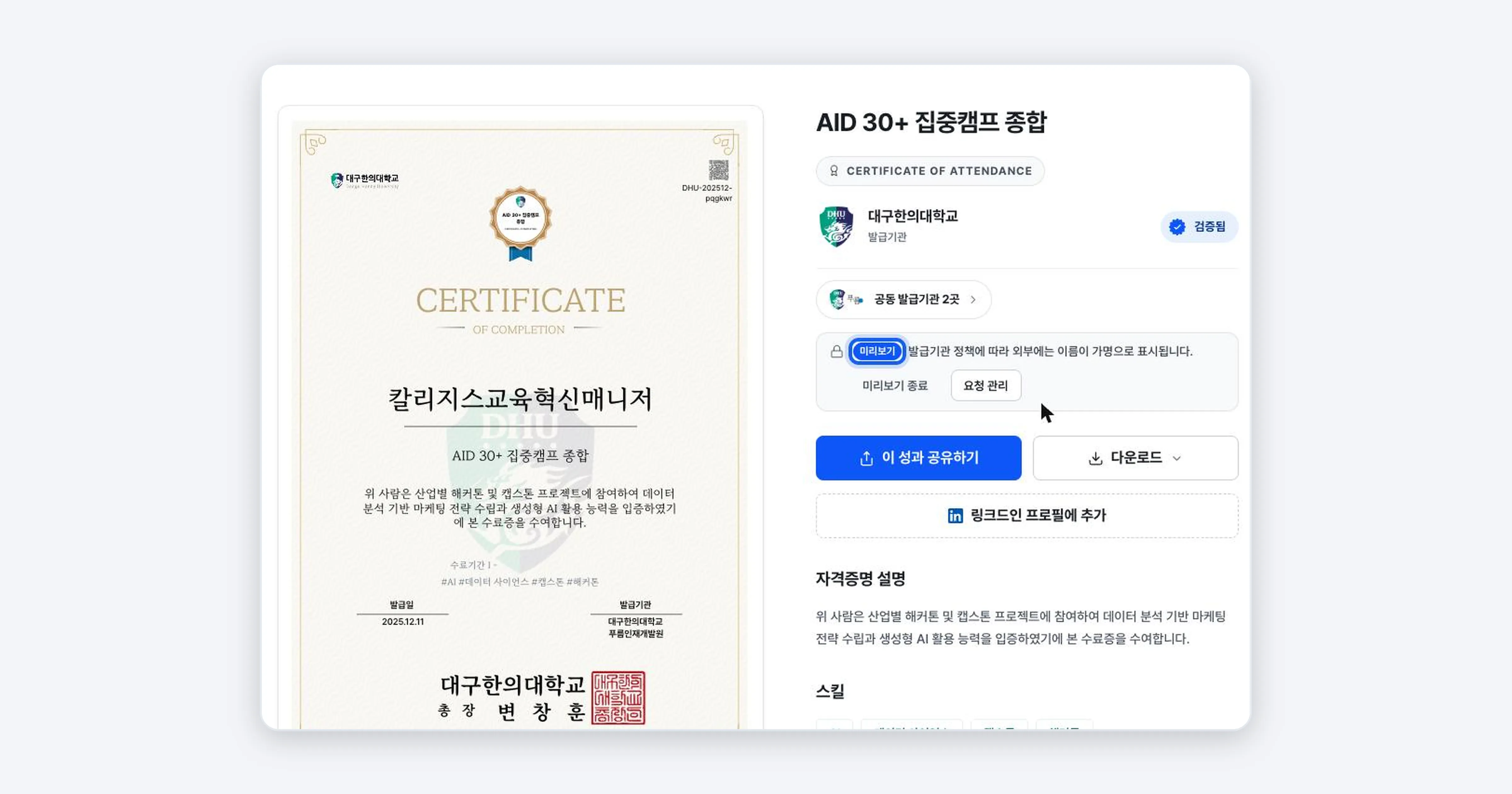
The badge detail page shows every piece of information about a certificate: issuer, issue date, issuing criteria (earning criteria), skills, and co-issuers. Use the [Certificate] / [Badge] tabs on the left to switch between the two images.
Key points The badge detail page shows every piece of information about a certificate: issuer, issue date, issuing criteria (earning criteria), skills, and co-issuers. Use the [Certificate] / [Badge] tabs on the left to switch between the two images.
The badge detail page holds what this certificate is, on what criteria it was granted, and who issued it. You look at this screen to check the issue information before adding it to your resume, or to review the earning criteria again. This document explains how to read each area of the detail page.
Opening the detail page
Tap a badge card in your wallet, or tap the [Details] button on the card, and the detail page opens.
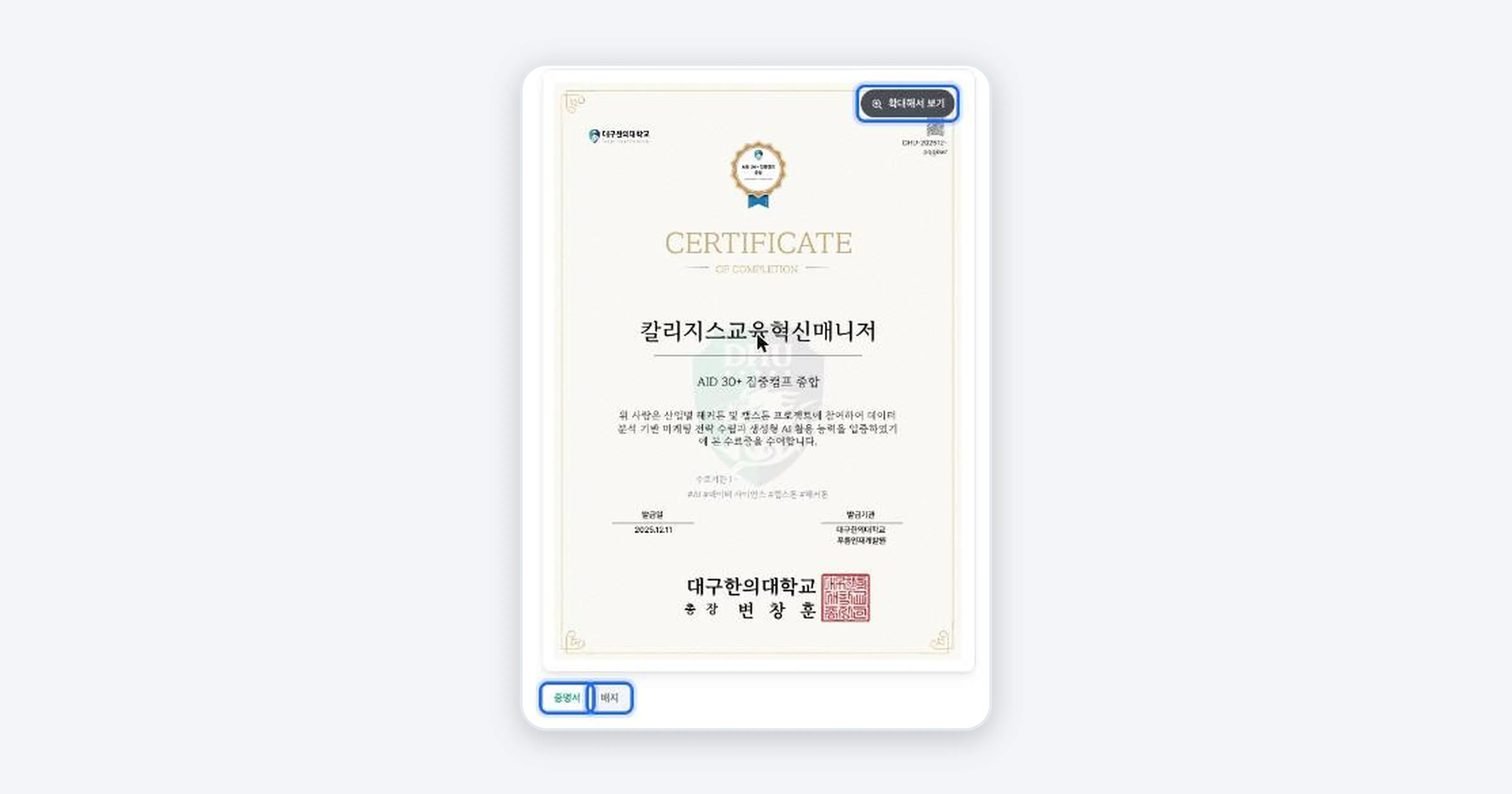
Viewing the credential image (Certificate / Badge)
Use the [Certificate] and [Badge] tabs at the bottom left of the certificate image to switch between the two formats. Tap [View larger] above the image to see it at full size.
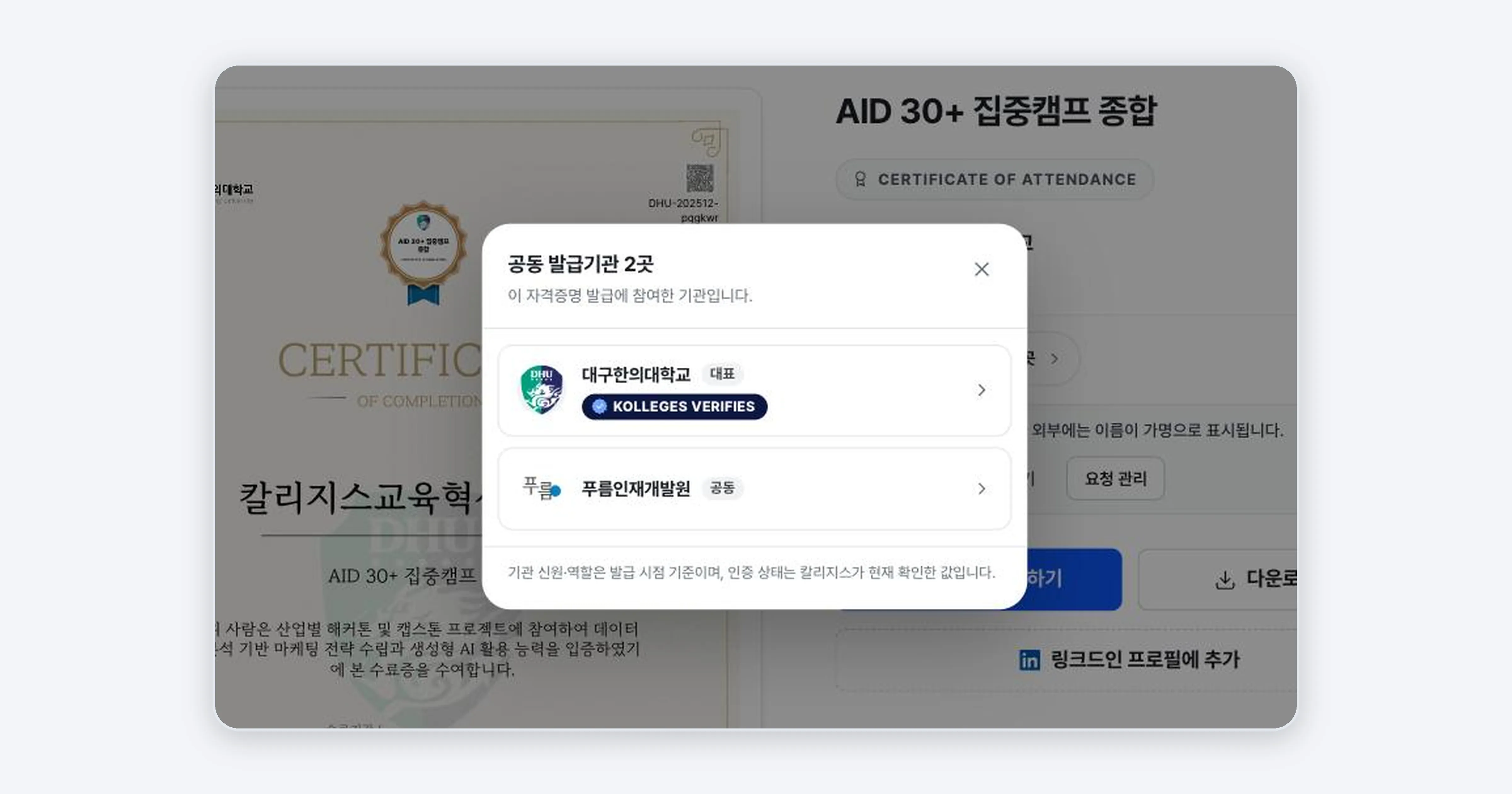
Checking co-issuers
Tap [N co-issuers] below the issuer to see the organizations that took part in issuing this achievement. The lead issuer and co-issuers are shown separately.
Reading the issue information
Scroll down and you will find the issue information table. It contains the following items.
| Item | Content |
|---|---|
| Recipient | The person who received the badge |
| Issuer | The organization that issued the certificate |
| Issue date | The date the certificate was issued |
| Validity period | How long it stays in effect (e.g. permanent certification) |
| Issue code | A unique number assigned to each certificate |
| Standard | The international standard the certificate follows (W3C VC 2.0 / OpenBadge 3.0) |
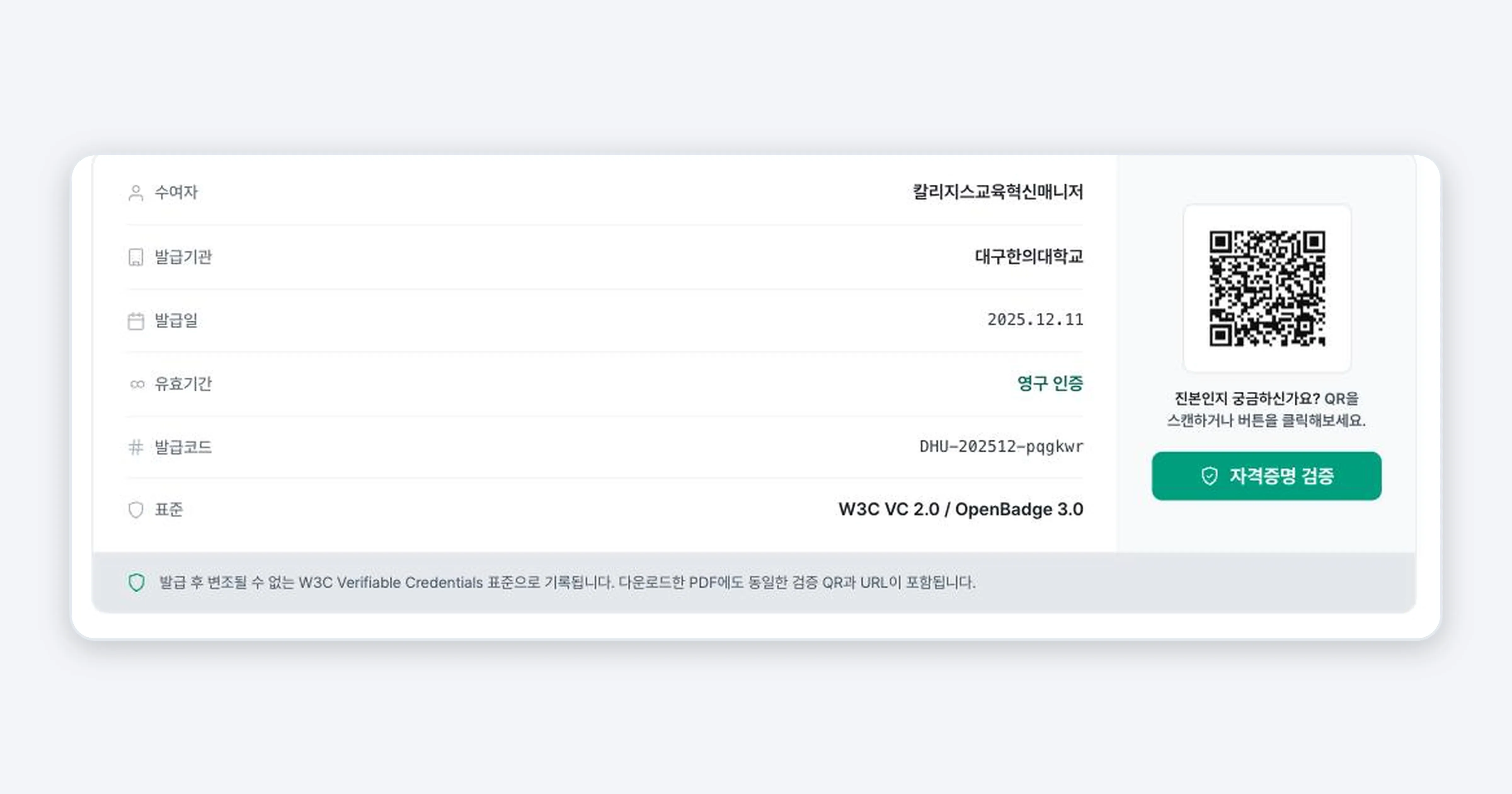
The earning criteria section shows the conditions you met to receive this badge, such as projects, hands-on experience, and offline activities.
Confirming it worked
If the detail page shows the issuer, issue date, issue code, and earning criteria, everything is fine. The “Verified” mark at the top right means this is a valid certificate with a confirmed issuer.
Troubleshooting
My name appears hidden (as a pseudonym) Depending on the issuer’s policy, your name may appear as a pseudonym on external screens. On the screen you see when logged in, your real name is shown. You can check how it looks to others with [Preview third-party view].
The information is wrong (a typo in my name or affiliation) Recipients cannot edit the details directly. If you request a correction from the issuer, the issuer will fix the information and apply it again.
Related guides
- Verifying the Authenticity of a Digital Badge - Confirm that this certificate is authentic
- Sharing Your Digital Badge - Share the badge you checked
- Downloading and Printing a Certificate - Save the certificate as a file
Frequently asked questions
Want to turn learning outcomes into verifiable assets?
From issuing to verifying and amplifying, see it for yourself with Kolleges.
Request a Kolleges demo
Related posts
Verifying the Authenticity of a Digital Badge
Pressing [Verify credential] on the badge detail page instantly confirms authenticity without the issuer's server. With just an issue code, verification link, or QR code, third parties such as recruiters can verify it themselves at [Credential Lookup].

Sharing Your Digital Badge
Tap the [Share this achievement] button on the badge detail page to share directly to LinkedIn, Facebook, or KakaoTalk, or copy the link and save the QR image to show your badge anywhere.
Downloading and Printing a Certificate
Press the [Download] button on the badge detail page and you can choose between Save as PNG image and Save as PDF document. The PDF carries a verification QR and URL, which makes it suitable for printing and submission.