
Press the [Download] button on the badge detail page and you can choose between Save as PNG image and Save as PDF document. The PDF carries a verification QR and URL, which makes it suitable for printing and submission.
Key points Press the [Download] button on the badge detail page and you can choose between Save as PNG image and Save as PDF document. The PDF carries a verification QR and URL, which makes it suitable for printing and submission.
You can save a badge you have received as a file to attach to your resume or print for submission. Pick either an image (PNG) or a document (PDF) depending on your purpose. This document explains how to download it and how to choose a format.
Downloading a certificate
-
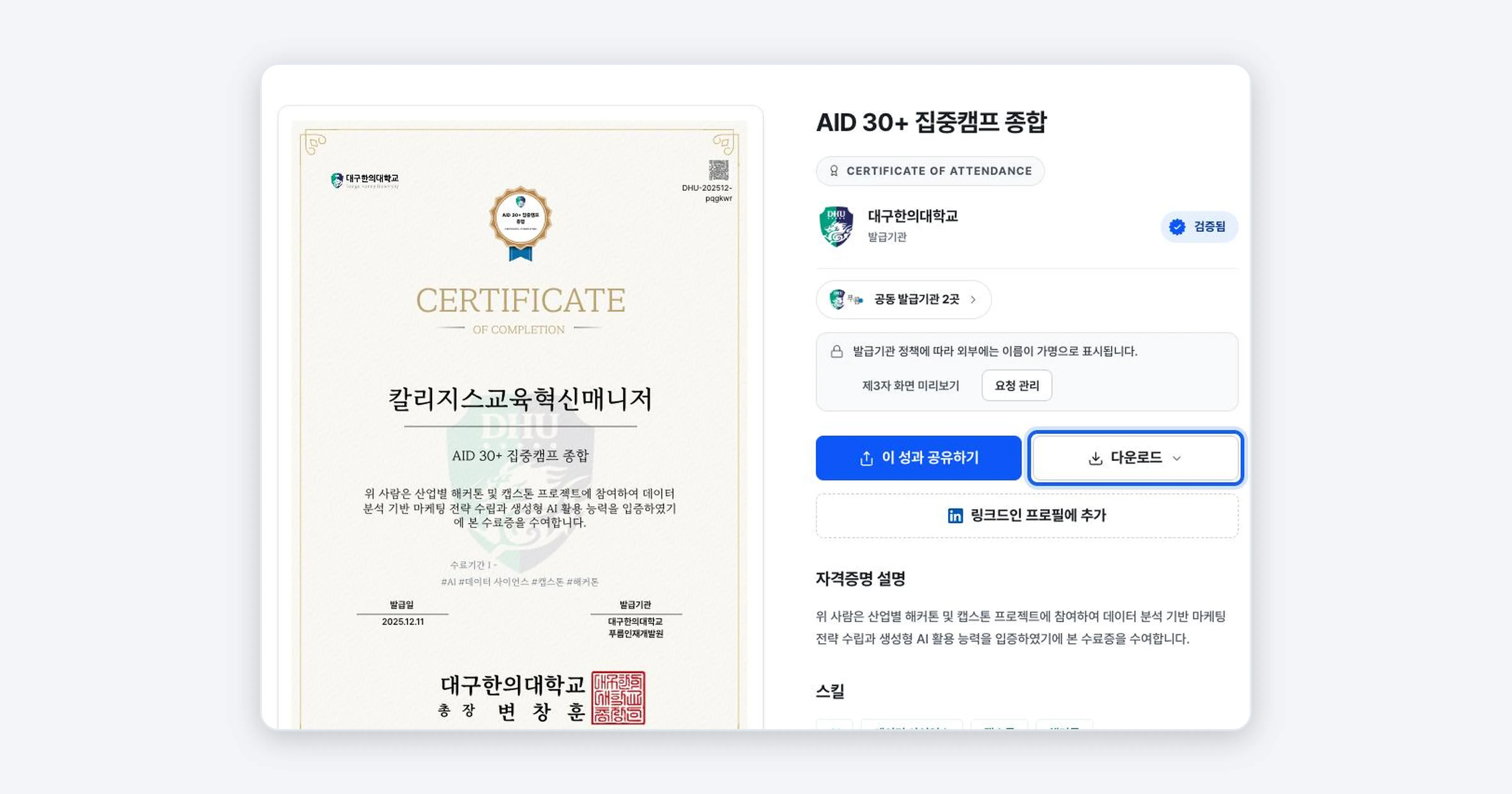
On the badge detail page, press the [Download] button. The save-format menu opens.
-
Pick the format that fits your purpose.
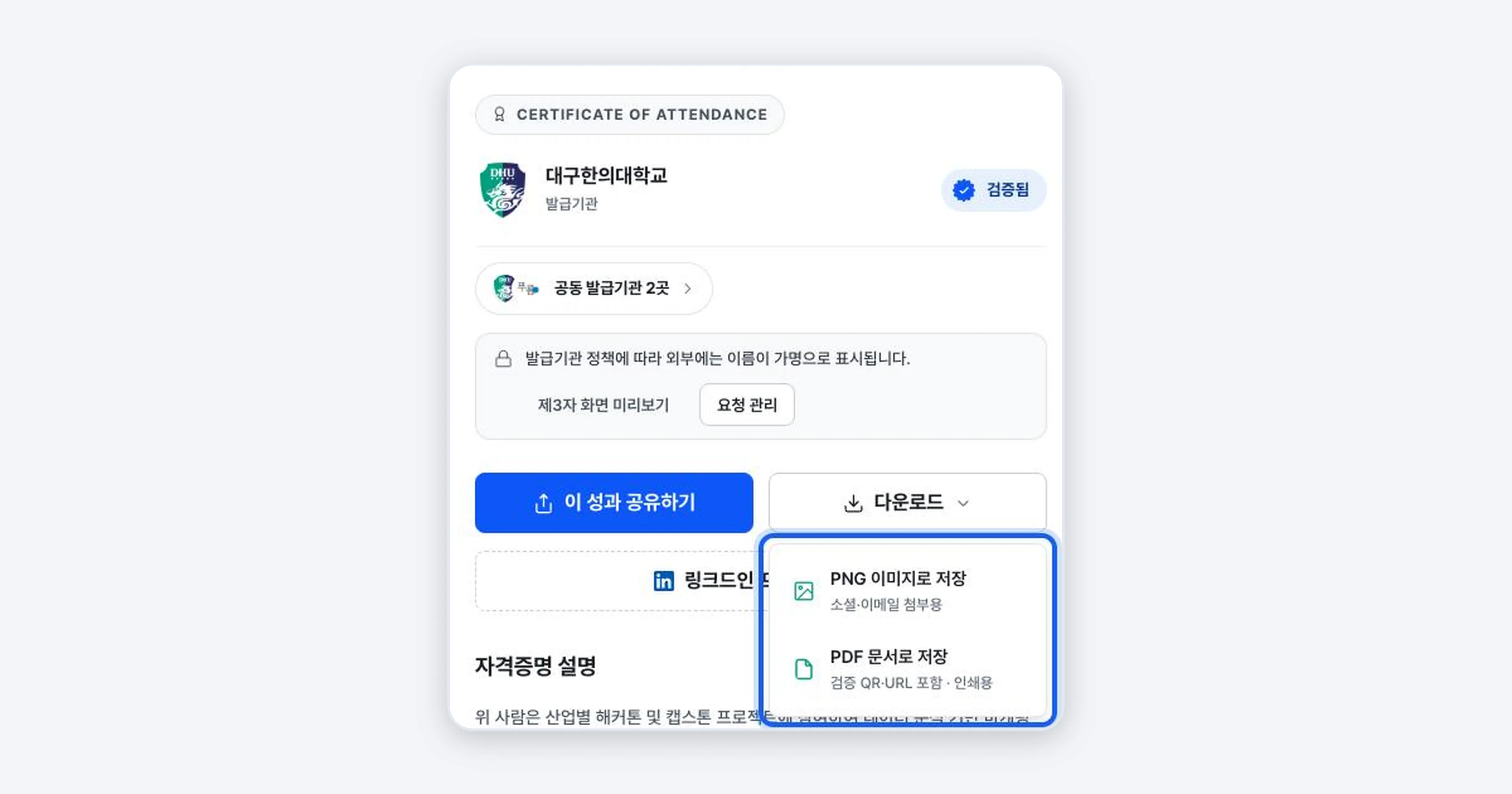
| Format | When to use it |
|---|---|
| Save as PNG image | For social posts and email attachments. Easy to drop straight onto a screen |
| Save as PDF document | Includes a verification QR and URL. Suitable for printing and formal submissions |
Confirming it worked
You are done once the certificate file (PNG or PDF) is saved at the bottom of your browser or in your downloads folder. Opening the PDF shows the certificate image along with the verification QR and URL.
Troubleshooting
The download doesn’t start Your browser may have blocked the popup or the download. Change the block notice in the address bar to allow, then try again. You can also save the image with [Download certificate PNG] in the share window.
The QR gets cut off when I print Print the PDF with ‘actual size (100%)’ or ‘fit to page’ selected. The QR and URL must come out intact for verification to work.
Related guides
- Checking the Badge Detail Page - Check the issue details before saving
- Sharing Your Digital Badge - Share via a link instead of a file
- Adding a Badge to Your LinkedIn Profile - Register it on LinkedIn automatically
Frequently asked questions
Want to turn learning outcomes into verifiable assets?
From issuing to verifying and amplifying, see it for yourself with Kolleges.
Request a Kolleges demo
Related posts
Checking the Badge Detail Page
The badge detail page shows every piece of information about a certificate: issuer, issue date, issuing criteria (earning criteria), skills, and co-issuers. Use the [Certificate] / [Badge] tabs on the left to switch between the two images.

Sharing Your Digital Badge
Tap the [Share this achievement] button on the badge detail page to share directly to LinkedIn, Facebook, or KakaoTalk, or copy the link and save the QR image to show your badge anywhere.

Adding a Badge to Your LinkedIn Profile
Press the [Add to LinkedIn profile] button on the badge detail page and the LinkedIn certifications screen opens with the name, issuer, issue month and year, and certificate URL filled in automatically. Check the details, save, and you're done.