
Pressing [Verify credential] on the badge detail page instantly confirms authenticity without the issuer's server. With just an issue code, verification link, or QR code, third parties such as recruiters can verify it themselves at [Credential Lookup].
Key points Pressing [Verify credential] on the badge detail page instantly confirms authenticity without the issuer’s server. With just an issue code, verification link, or QR code, third parties such as recruiters can verify it themselves at [Credential Lookup].
Digital badges are recorded with a tamper-proof international standard (W3C Verifiable Credentials). That means not only the person who received the certificate but also the person checking it can verify its authenticity directly. This document explains both how to verify your own badge and how a third party can look it up.
Method 1. Verifying from the detail page
-
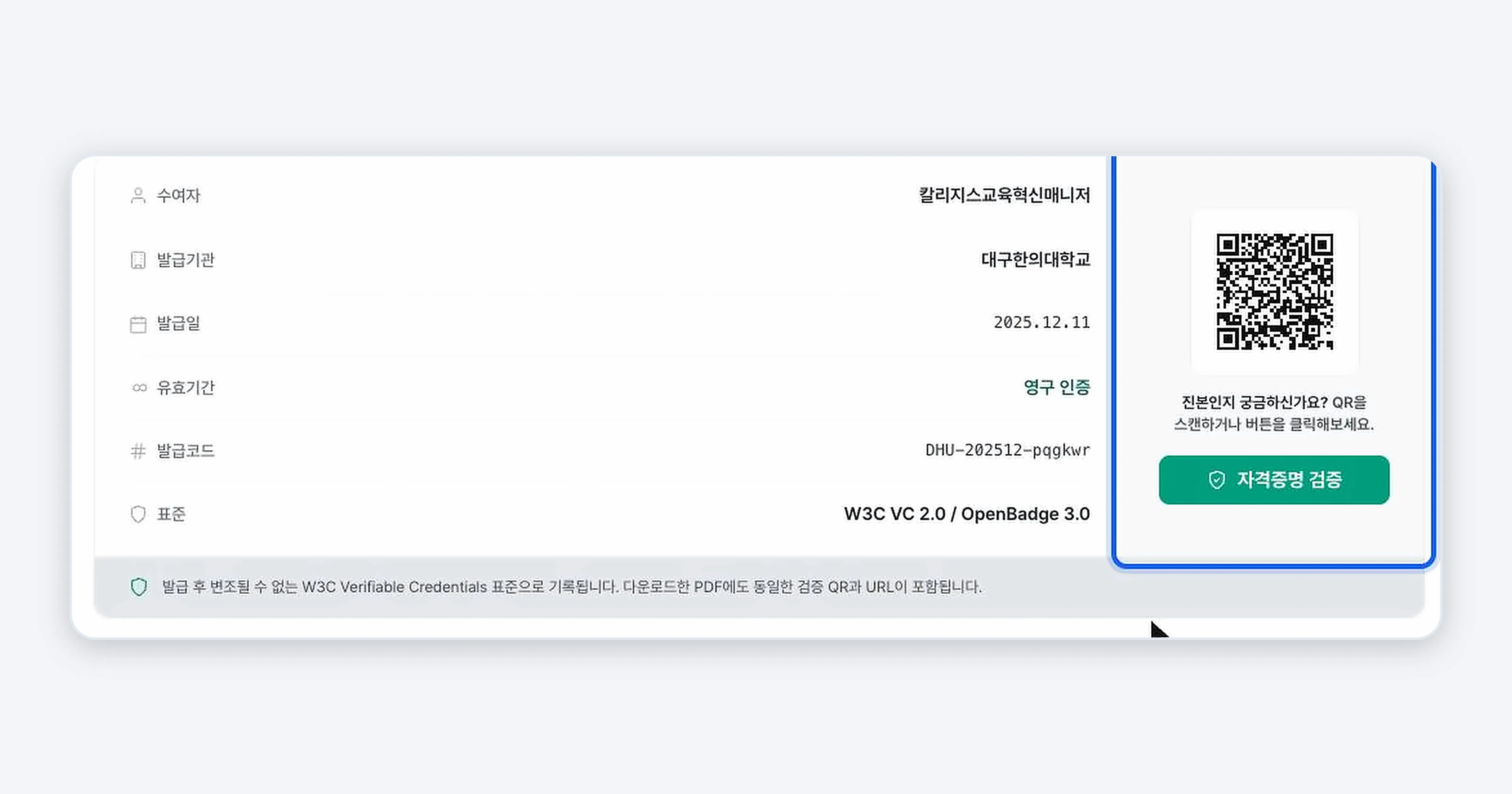
Press the [Verify credential] button to the right of the issuance information on the badge detail page.
-
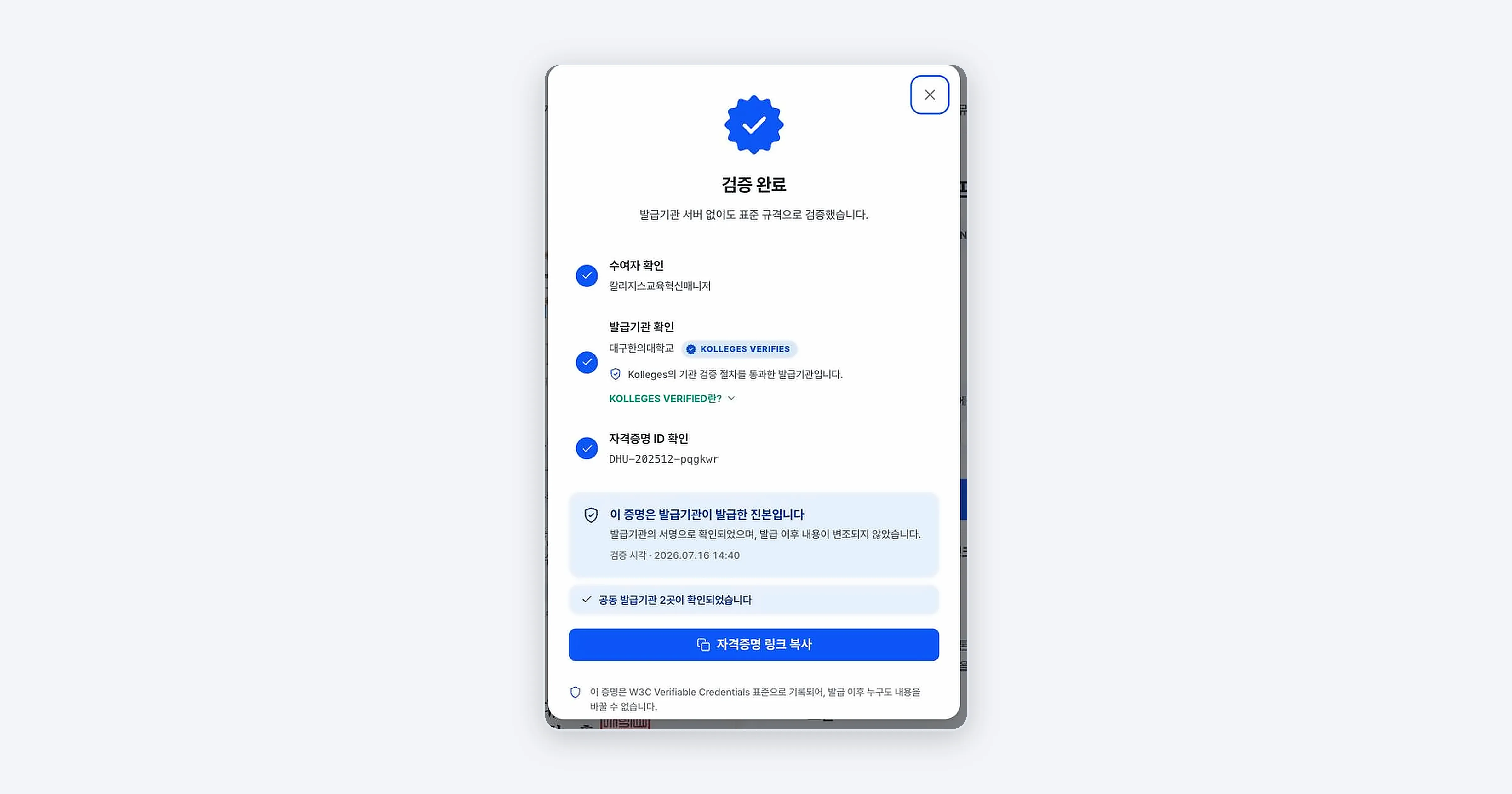
The verification result window opens. Check the recipient, issuer, and credential ID confirmations along with the message “This credential is authentic and was issued by the issuer”.
-
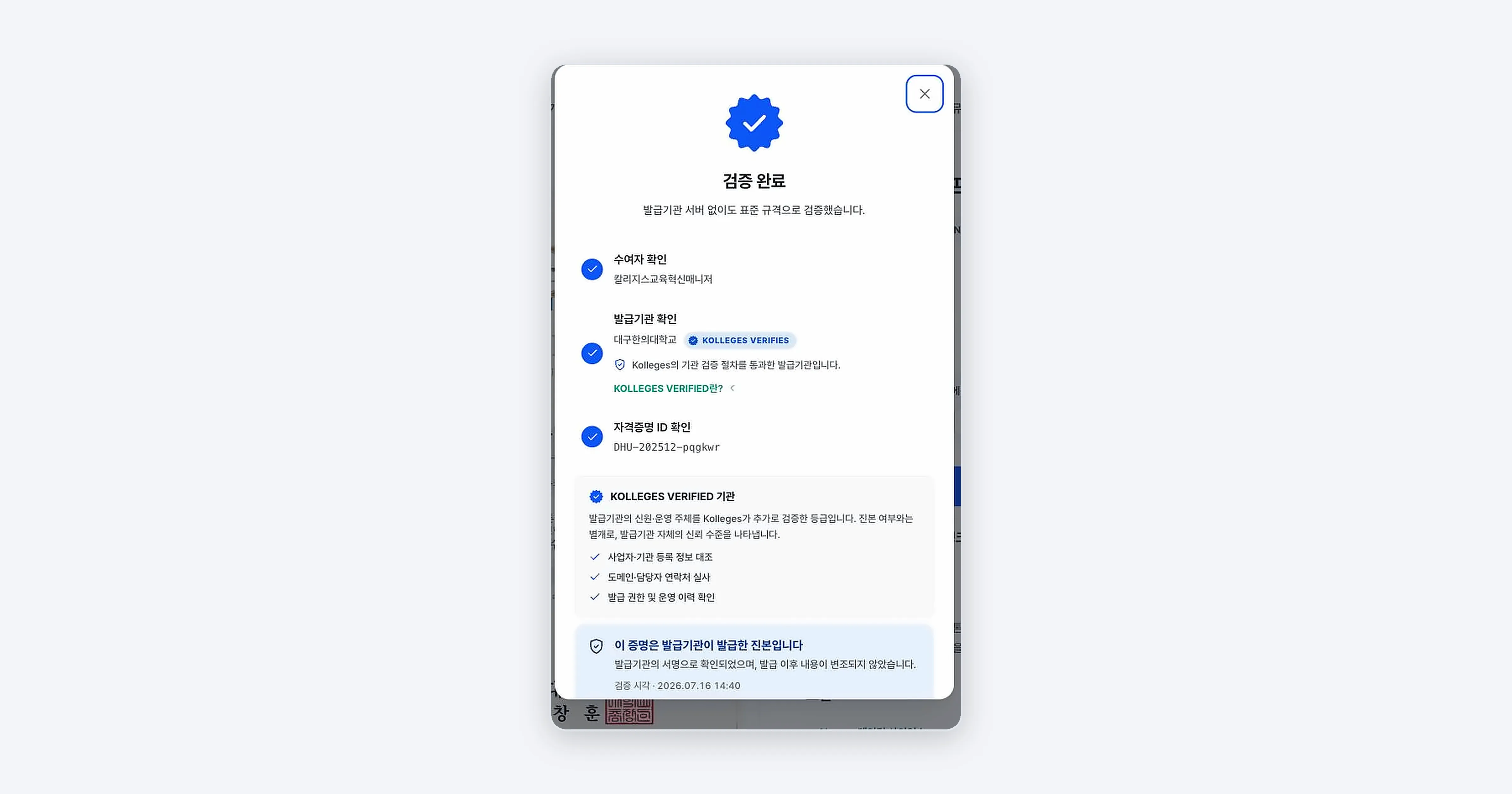
Press [What is KOLLEGES VERIFIED?] on the KOLLEGES VERIFIES mark next to the issuer to see what the issuer verification grade means.
Method 2. Looking it up with an issue code or QR code (for third parties)
People who have not received the badge can also look up the certificate. Go to [Credential Lookup] in the top menu.
-
Choose how you want to check it. Select one of issue code, verification link, or QR code.
-
If you chose the issue code, enter the issue code from the certificate or the issuance email and press [Check].
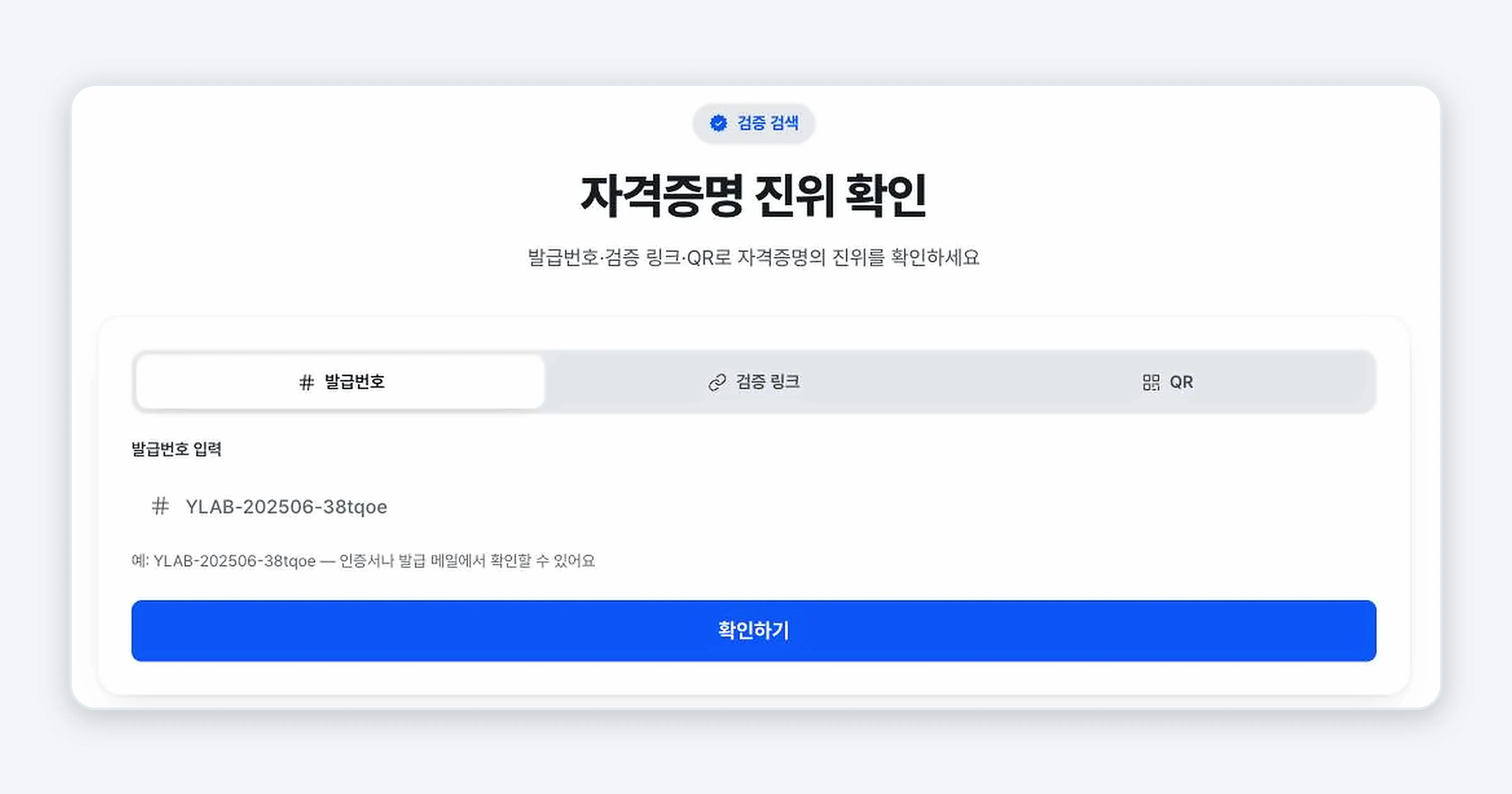
-
If the “Verified as authentic” card appears, the certificate is valid.
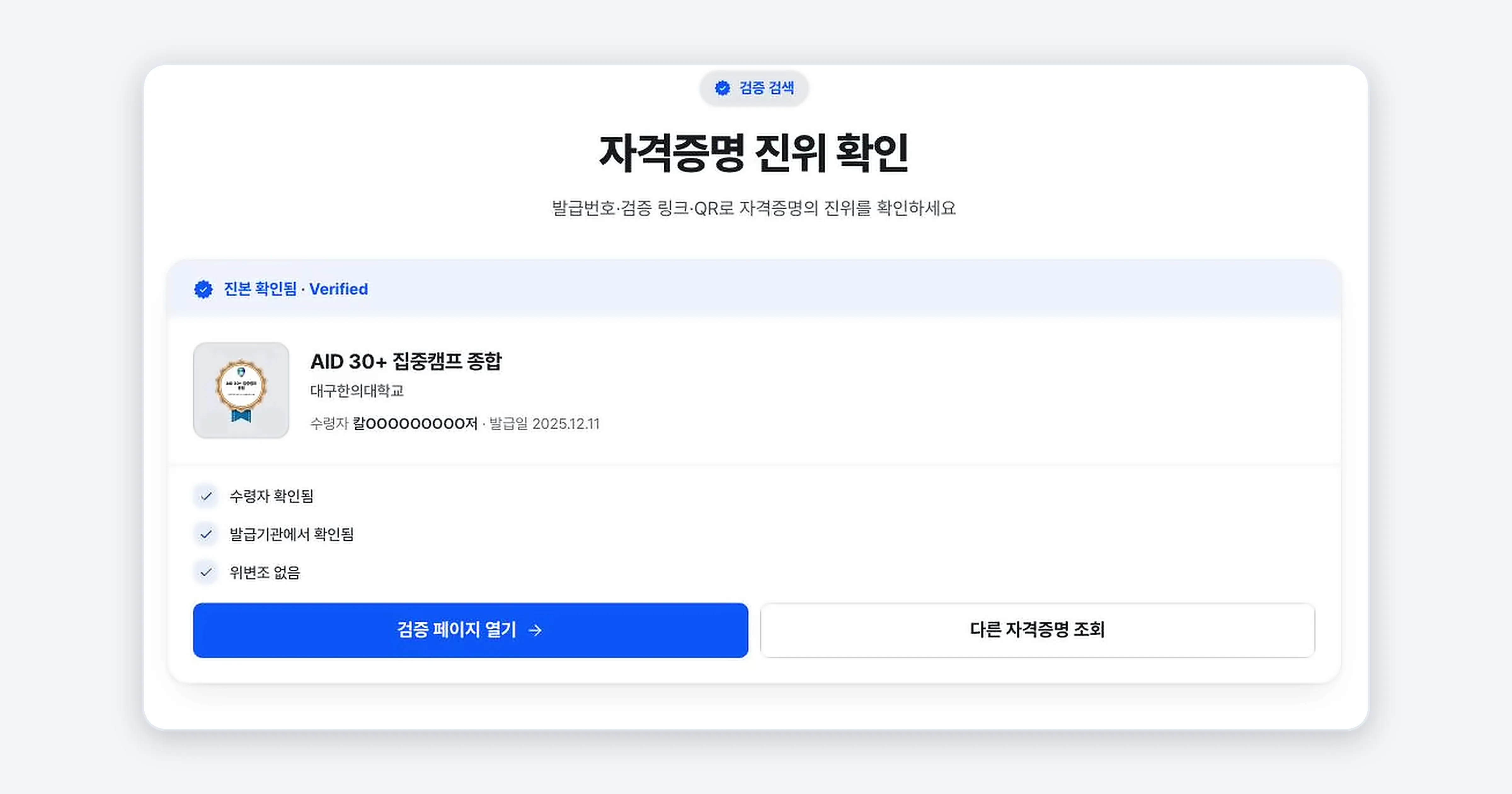
Confirming it worked
If the verification result shows “This credential is authentic and was issued by the issuer” or “Verified as authentic”, the certificate is valid. The verification time is displayed as well.
Troubleshooting
I looked it up with an issue code but got no result Check that you entered the issue code exactly, including uppercase, lowercase, and hyphens. You can find the issue code under ‘Issue code’ on the certificate screen or in the issuance notification email.
“Verified” is not showing or verification fails This happens when the contents changed after issuance or the issuer cannot be confirmed. Check that the certificate link is correct, and if it keeps failing, contact the issuer.
Related guides
- Checking the Badge Detail Page - Checking the issue code and issuer
- Sharing Your Digital Badge - Sharing with a verifiable link
- Recipient FAQ - Questions about safety and standards
Frequently asked questions
Want to turn learning outcomes into verifiable assets?
From issuing to verifying and amplifying, see it for yourself with Kolleges.
Request a Kolleges demo
Related posts
Checking the Badge Detail Page
The badge detail page shows every piece of information about a certificate: issuer, issue date, issuing criteria (earning criteria), skills, and co-issuers. Use the [Certificate] / [Badge] tabs on the left to switch between the two images.
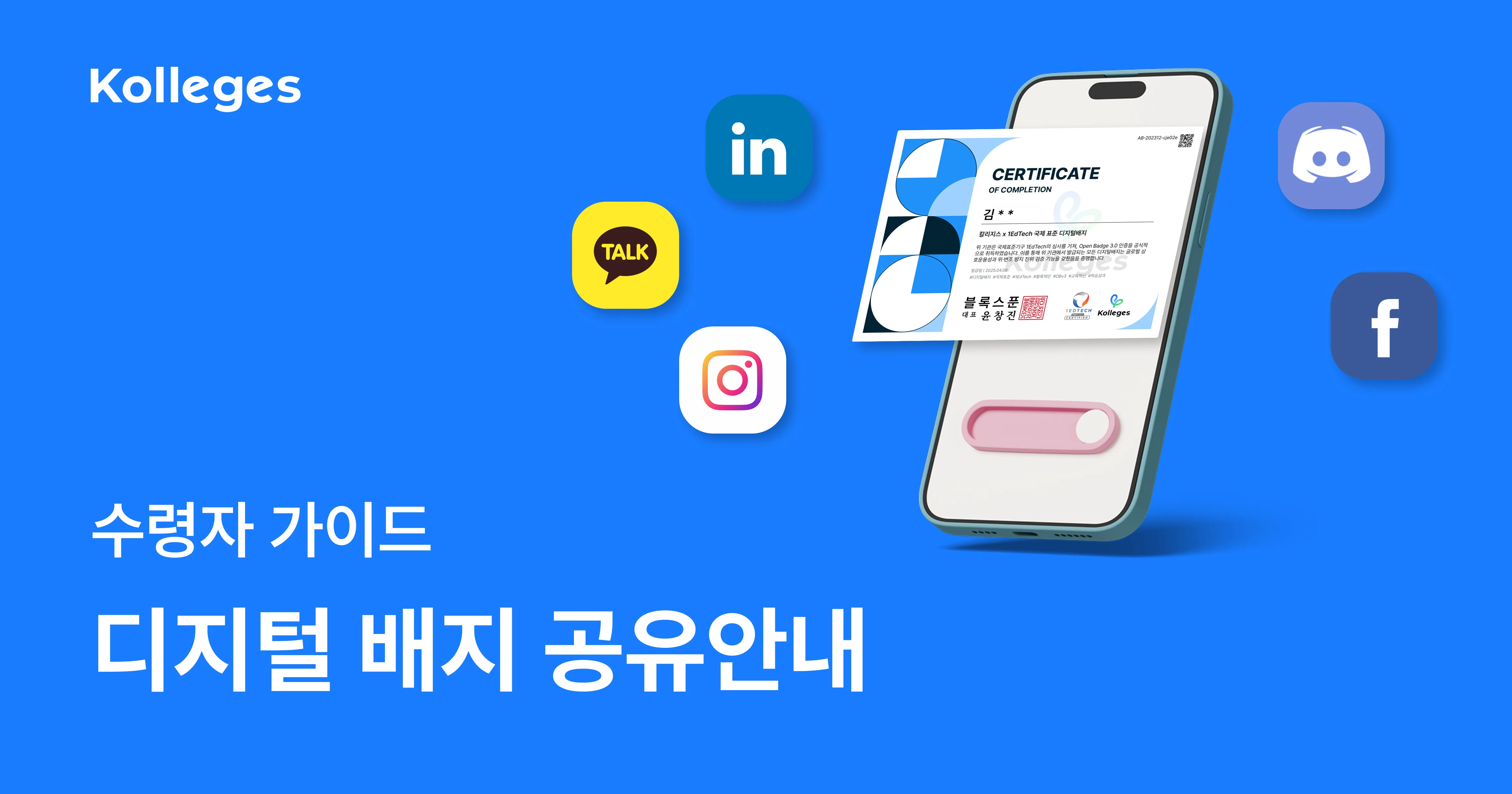
Sharing Your Digital Badge
Tap the [Share this achievement] button on the badge detail page to share directly to LinkedIn, Facebook, or KakaoTalk, or copy the link and save the QR image to show your badge anywhere.
Recipient FAQ
The questions recipients ask most often, gathered in one place: what a digital badge is, whether it is secure, whether it expires. For the detailed steps, see the guide linked from each answer.