
Listing Certificates in the Catalog

Creating a certificate registers it in your institution page catalog automatically. You only toggle its visibility and the application path.
Key summary
Creating a certificate registers it in your institution page catalog automatically. You only toggle its visibility and the application path.
Permissions required Owner, Admin
What is the catalog?
It is the list on your institution’s public page where visitors check “What badges does this institution issue?” It is visible to both recipients and outside visitors, and connecting an application path also makes it a channel for attracting new participants.
1. Opening the catalog
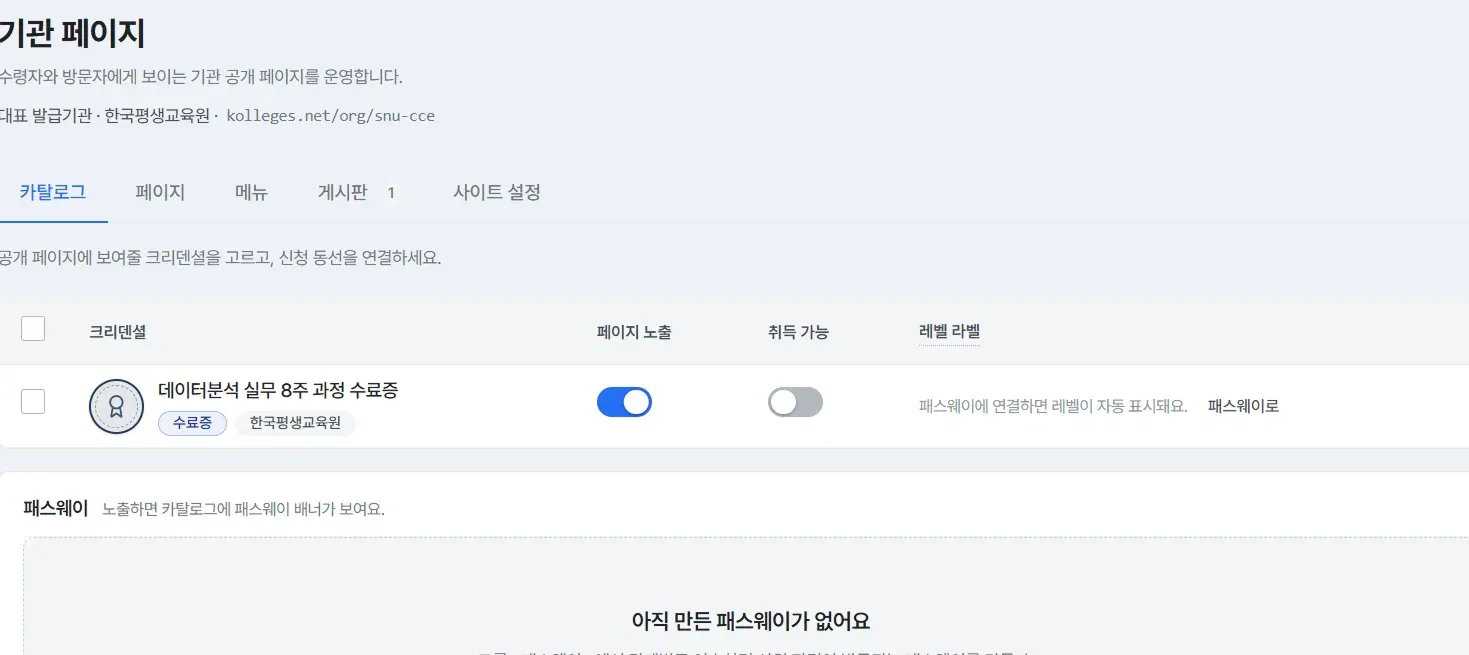
Entering the Homepage menu opens the institution page screen with the Catalog tab selected by default. Newly created certificates are added to this table automatically.
2. Deciding visibility
Adjust two switches on each certificate row.
- Page visibility - On by default for new certificates. Turning it off hides the certificate from the public page catalog.
- Available to earn - Turning it on connects visitors to a path where they can apply.
- Level label - Displayed automatically once linked to a pathway.
3. Previewing and checking
Check right away how it looks to visitors in the public page preview on the right of the screen. You can also open the actual page with [View public page].

Confirming completion
If the certificate card appears in the preview area, it is being shown correctly.
Showing a pathway banner as well (optional)
If you make a pathway visible in the Pathway area at the bottom of the Catalog tab, a banner is shown at the top of the catalog. If you have not created a pathway yet, no banner is shown.
Frequently asked questions
I want to hide just one certificate.
Turn off the page visibility switch on that row.
Where do I go to change the earning criteria or the sample certificate image?
How to earn it comes from the certificate’s earning criteria, and the sample certificate comes from the design. To change the content, use the [Go to certificate] link at the bottom of the screen and edit the certificate.
Related guides
- Creating a certificate - Creating the certificate to list in the catalog
- Styling your institution page - Configuring the whole public page
- Creating a board and linking it to the menu - Posting notices and news
- Creating a pathway - Building a staged program
Frequently asked questions
Want to turn learning outcomes into verifiable assets?
From issuing to verifying and amplifying, see it for yourself with Kolleges.
Request a Kolleges demoRelated posts

Styling Your Institution Page
On the Site settings tab of your institution page, manage search text, header style, brand color, logo, and even a custom domain, all from one screen.

Creating a Board and Linking It to the Menu
Create a board on the Boards tab of your institution page, then link it on the Menu tab and it appears on the public page.
Creating a Certificate
Press Create certificate in the Certificates menu and fill in the basic information and advanced settings, and it is ready to issue. There is also a feature where AI drafts it for you from course information alone.