
Create a board on the Boards tab of your institution page, then link it on the Menu tab and it appears on the public page.
Key summary
Create a board on the Boards tab of your institution page, then link it on the Menu tab and it appears on the public page.
Permissions required Owner, Admin
1. Creating a board
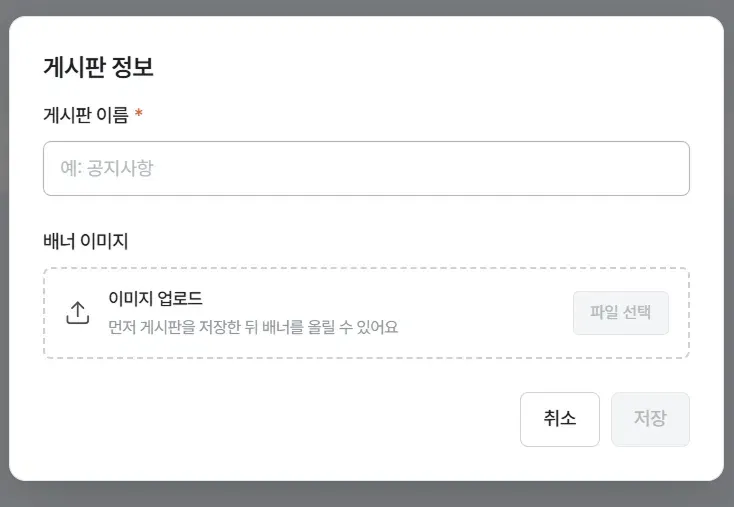
From the Homepage menu, go to the Boards tab and press [+ New board].
- Enter the board name (for example, Notices). This is required.
- Press [Save].
- If you want a banner image, save first and then come back in to register it. The screen also states, “You can upload a banner after saving the board first.”
2. Writing a post
Once the board exists, write your first post.
- In the board list, press the ”⋯” for that board and select [Posts]. The posts management panel opens on the right of the screen.
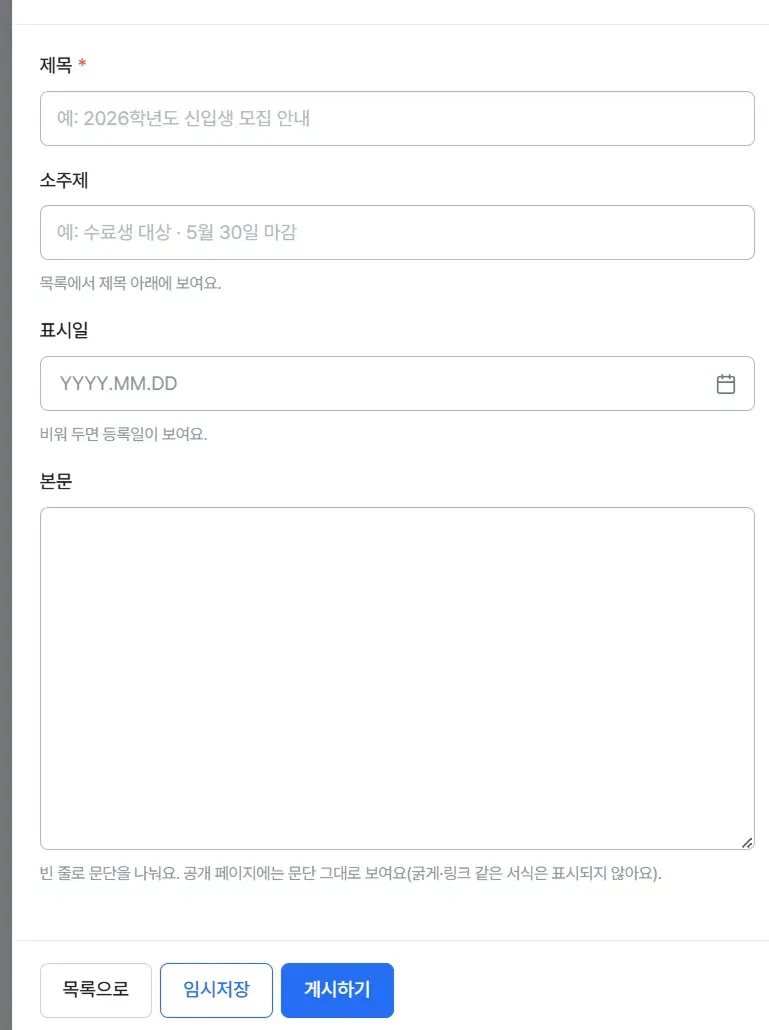
- Press [+ Write new post].
- Enter the title. This is required.
- Enter a subtitle if needed. It appears beneath the title in the list.
- Set a display date if needed. Leaving it blank shows the registration date.
- Enter the body. Separate paragraphs with blank lines; the public page shows the paragraphs as they are (formatting such as bold and links is not displayed).
- Press [Publish]. To hold it back from publication, use [Save draft].
3. Linking it to the menu
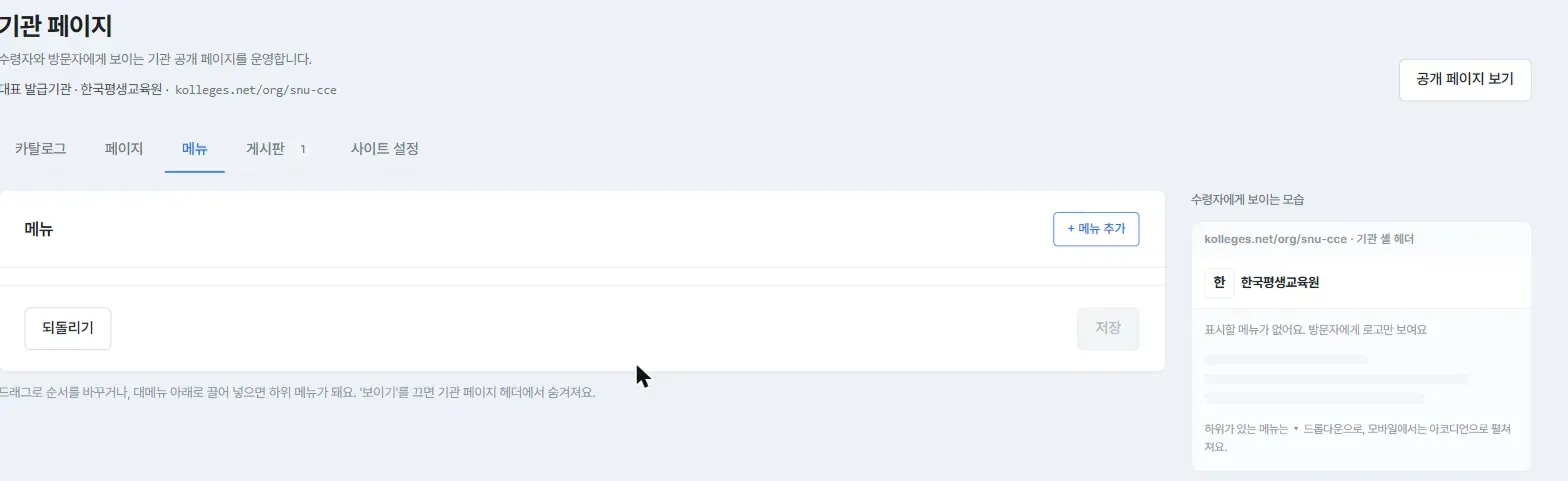
Creating a board alone does not make it appear on the public page. Go to the Menu tab and link it.
- Press [+ Add menu].
- Designate the board you just created as a menu item.
- Drag to change the order. Dragging it beneath another menu makes it a submenu.
- Press [Save].
When the status item in the board list changes from “Not linked,” the link is complete. Boards that are not linked also show “Not linked to a menu or page” at the top of the posts panel.
Confirming completion
It is done when the board name appears in the how it looks to recipients preview below the Menu tab. You can also check it on the real screen with [View public page].
In these cases
I created a board but it does not appear on the public page
Check whether you linked it to the menu, and whether ‘Show’ is on for that menu item. Turning Show off hides it from the header.
Frequently asked questions
How do submenus appear?
As a dropdown on desktop and as an accordion on mobile.
Can I edit a post later?
Yes. You can open and edit the post from the same posts panel.
Can I use bold text or links in the body?
No. Only paragraph breaks are reflected on the public page; formatting is not displayed.
Related guides
- Styling your institution page - Configuring the whole public page
- Listing certificates in the catalog - Showing the badges you issue
Frequently asked questions
Want to turn learning outcomes into verifiable assets?
From issuing to verifying and amplifying, see it for yourself with Kolleges.
Request a Kolleges demo
Related posts

Styling Your Institution Page
On the Site settings tab of your institution page, manage search text, header style, brand color, logo, and even a custom domain, all from one screen.

Listing Certificates in the Catalog
Creating a certificate registers it in your institution page catalog automatically. You only toggle its visibility and the application path.

Inviting Members and Managing Roles
On the Members tab of the Workspace menu, invite colleagues by email and check or adjust how far each role can reach.