
Setting Up Recommendations
A feature that automatically suggests the next program to recipients of a particular badge. You only choose the trigger badge and what to show.
Key summary
A feature that automatically suggests the next program to recipients of a particular badge. You only choose the trigger badge and what to show.
Permissions required Owner, Admin, Issuance operator
When to use it
The moment someone receives a badge is when their interest is highest. Showing the next cohort or an advanced course then is likely to lead to re-enrollment. The screen also states, “The moment a badge is received has the highest conversion rate.”
1. Starting a recommendation
In the Pathways and recommendations menu, go to the Recommendations tab and press [+ Create recommendation].
2. Choosing the trigger badge
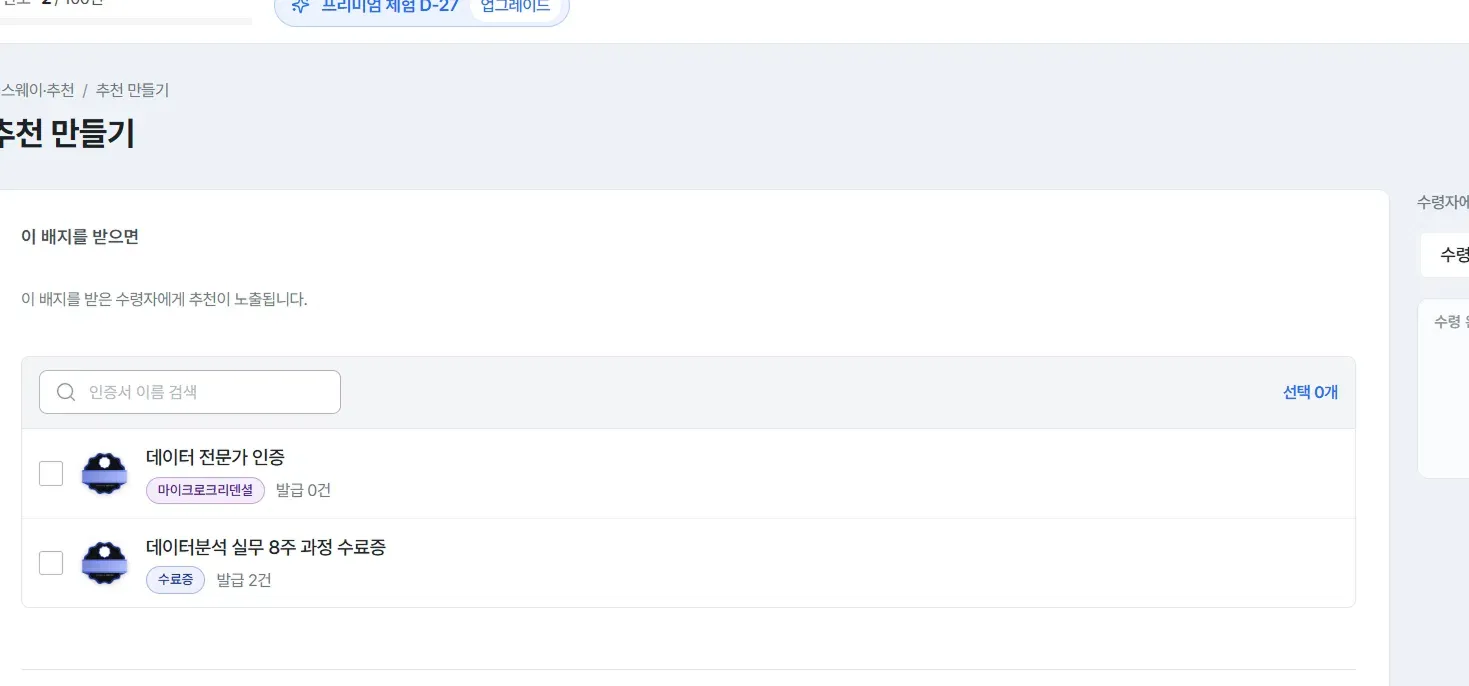
Under “When they receive this badge”, search for and select the certificate that triggers the recommendation. Only recipients of the badge you choose here see the recommendation.
3. Deciding what to show
Under “Show them this”, choose one of two methods.
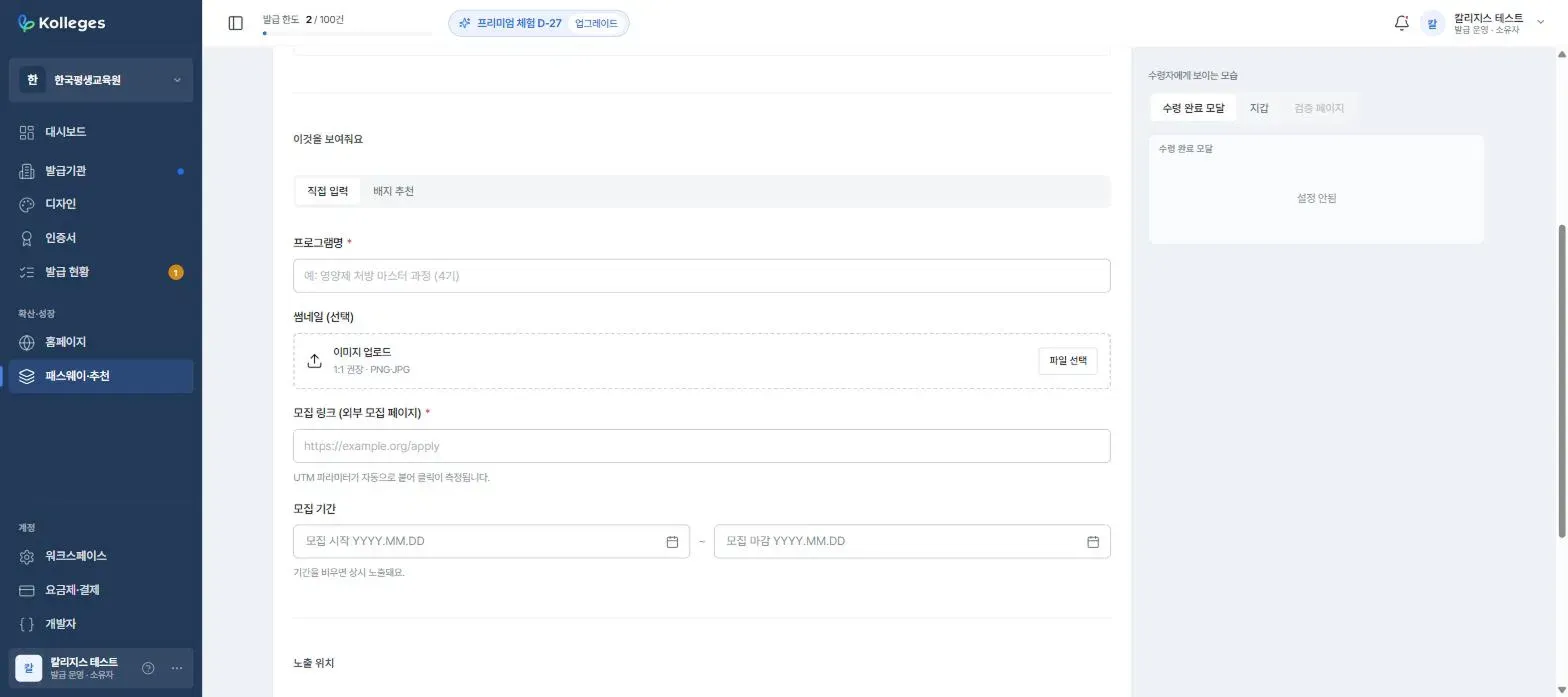
- Enter directly - Fill in the program name (required), thumbnail (1:1 recommended), recruitment link, and so on yourself. Use this to link to an external recruitment page.
- Recommend a badge - Designate another badge you already created as the recommendation target.
Confirming completion
After saving, it is done when a new item appears in the Recommendations tab list. From then on it is shown automatically to recipients of the trigger badge.
Worth knowing
- It is hidden automatically once recruitment ends. You need not worry about a closed program staying visible.
- Performance metrics are in preparation. There are slots for impressions, clicks, click rate, and re-enrollment at the top of the Recommendations tab, but as the screen states, “Recommendation performance measurement is in preparation. Impression, click, and re-enrollment tallies are coming soon.”
Frequently asked questions
Can I check recommendation performance now?
Not yet. Aggregation is in preparation, so the metric slots exist but the values are not filled in.
How long does a recommendation stay visible?
It is hidden automatically once the recruitment deadline you set passes, so you need not worry about a closed program staying visible.
Related guides
- Creating a pathway - Connecting courses into stages
- Listing certificates in the catalog - Recruiting from your public page
Frequently asked questions
Want to turn learning outcomes into verifiable assets?
From issuing to verifying and amplifying, see it for yourself with Kolleges.
Request a Kolleges demoRelated posts
Creating a Pathway
A feature for bundling several certificates into steps so that completing all of them issues a higher badge. Choose between automatic issuance and admin approval.
Listing Certificates in the Catalog
Creating a certificate registers it in your institution page catalog automatically. You only toggle its visibility and the application path.
Inviting Members and Managing Roles
On the Members tab of the Workspace menu, invite colleagues by email and check or adjust how far each role can reach.