
Handling Non-Delivery and Reissuing

When an email bounces, an Issuance failed panel appears automatically at the top of issuance status. From there you can resend one at a time or all at once.
Key summary
When an email bounces, an “Issuance failed” panel appears automatically at the top of issuance status. From there you can resend one at a time or all at once.
Permissions required Owner, Admin, Issuance operator (institution-limited roles only for their own institution)
Distinguish between two states
There are two situations in which a recipient has not received their badge, and the responses differ.
| Delivery state | What happened | What to do |
|---|---|---|
| Not received | The email was sent normally but the recipient has not opened it yet | Prompt the recipient to check, or send again |
| Delivery failed | The email bounced and could not be delivered (wrong address, blocked receipt, and so on) | Check the address and send again |
When there are delivery failures, a red “Issuance failed” panel appears automatically at the top of issuance status, and a count badge is shown on Issuance status in the left menu. It stands out without your having to look for it.

Method 1. Handling it from the issuance failed panel
The panel gathers all failed items, and you can handle them in three ways.
- [Send again] - Resend just one item from the right of each row
- [Resend selected] - Resend only the items you check
- [Resend all] - Resend every failed item in the panel at once
If several failed at the same time, [Resend all] is fastest.
Method 2. Handling them individually from the list
Not-received items do not appear in the failure panel, so find them in the list.
- Enter the recipient’s name or email in the search box, or use the all delivery filter to see only not-received items.
- Press the ”⋯” on that row and select [Send again].
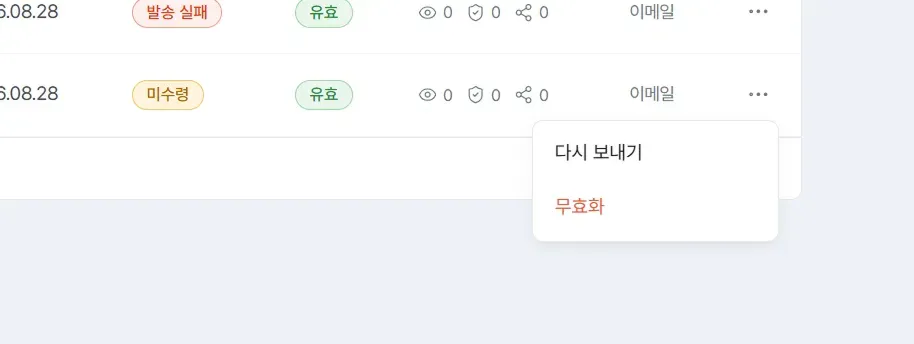
Confirming completion
When the notice “1 item was resent” appears, the send has been processed. Resending goes out through the same channel set at issuance (email or KakaoTalk), and there is no separate step for choosing a channel.
The delivery status only changes once the recipient actually opens the link, so it is normal for the status to stay the same immediately after resending.
In these cases
It keeps showing delivery failed even after I resend
There is likely a problem with the email address itself. Check in the following order.
- Check whether the email address has a typo. The address is shown partially masked in the list, so compare it against your original roster.
- Ask the recipient to check their spam and promotions folders.
- The institution’s mail server may be blocking external mail, so consider reissuing to a personal email address.
I issued it with the wrong address
Recipient information on an already issued item cannot be edited. Revoke that item and reissue to the correct address. For the procedure, refer to Canceling and revoking certificate issuance.
I entered the wrong issue date or expiry date
This can be fixed without revoking. Check the item in the list and use the [Edit issue and expiry dates] button that appears.
Frequently asked questions
Does resending consume my issuance limit again?
No. Resending is not a new issuance but a repeat notification for an existing item, so the count does not increase.
What is the difference between “not received” and “delivery failed”?
Not received means the email arrived but the recipient has not checked it yet; delivery failed means the email bounced and did not arrive. Only delivery failures are collected in a separate panel.
Related guides
- Checking issuance results - How to read delivery and validity status
- Canceling and revoking certificate issuance - Revoking mistaken items and reissuing
Frequently asked questions
Want to turn learning outcomes into verifiable assets?
From issuing to verifying and amplifying, see it for yourself with Kolleges.
Request a Kolleges demoRelated posts

Checking Issuance Results
On the issuance status screen you can check delivery and validity together. Items with problems are automatically collected at the top of the screen.

Canceling and Revoking Certificate Issuance
Mistakenly issued items can be revoked from issuance status. A revocation reason is required, and revocation is shown as a proper revocation rather than tampering.

Issuing Badges and Certificates
Press Issue in the certificate list and fill in recipients, common information, per-recipient information, and issuance options in order to complete issuance. One person or hundreds are handled on the same screen.