
Canceling and Revoking Certificate Issuance

Mistakenly issued items can be revoked from issuance status. A revocation reason is required, and revocation is shown as a proper revocation rather than tampering.
Key summary
Mistakenly issued items can be revoked from issuance status. A revocation reason is required, and revocation is shown as a “proper revocation” rather than “tampering.”
Permissions required Owner, Admin, Issuance operator (institution-limited roles only for their own institution)
Know this before revoking
Issued certificates are recorded in verifiable credential (VC) form to prevent tampering, so content such as the recipient’s name or email cannot be edited. If a correction is needed, you must revoke and reissue.
The issue date and expiry date are the exception. These two can be fixed without revoking. Check the target item in the list and use the [Edit issue and expiry dates] button that appears.
| What is wrong | What to do |
|---|---|
| Issue date or expiry date | Correct it directly with [Edit issue and expiry dates] |
| Recipient name, email, or any other content | Revoke and reissue with the correct information |
Caution: Revocation cannot be undone, and revoking does not restore the issuance limit you used. Reissuing consumes one more from your limit, which is exactly why checking before issuing matters.
1. Finding the target item
Find the item to revoke in Issuance status. Searching by issuance number (for example, KL-202608-y4d2c1) is the most precise.
2. Starting the revocation
Selecting the item to revoke with a checkbox reveals action buttons above the list. Press [Revoke] at the far right. You can also select several items at once for bulk revocation.
To handle a single item, you can instead select [Revoke] from the ”⋯” menu on that row.

3. Entering a reason and executing
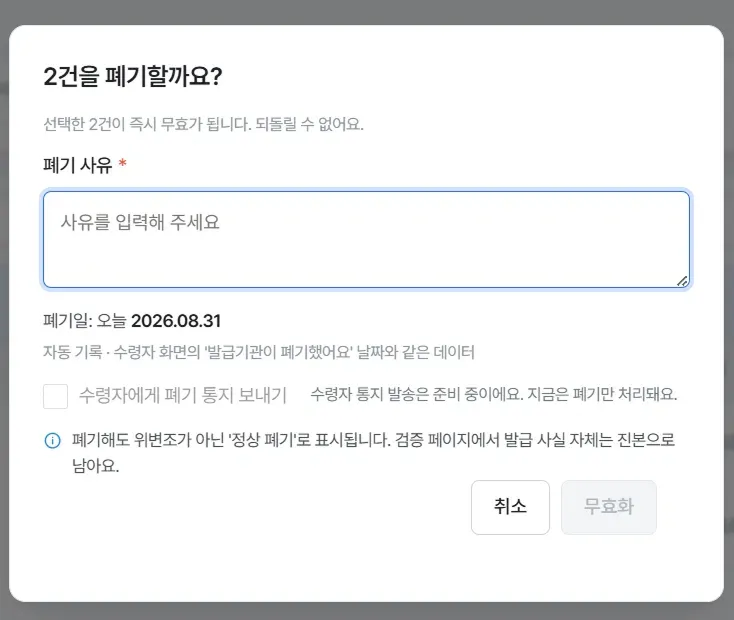
Check the following in the revocation confirmation dialog and proceed.
- Enter the revocation reason. This is required. It is recorded automatically and remains as the same data as the “The issuer revoked this” date on the recipient’s screen.
- The revocation date is recorded automatically as today’s date.
- Press [Revoke]. The button becomes active once you enter a reason.
Confirming completion
It is done when the notice “1 item was revoked” appears and that item’s validity changes to “Revoked.” The row does not disappear from the list and remains as it was.
It remains “authentic” even after revocation
The revocation confirmation dialog states this: “Even after revocation it is shown as a ‘proper revocation’ rather than tampering. On the verification page, the fact of issuance itself remains authentic.”
In other words, revocation is recorded to mean “the institution has formally ended its validity,” not “this certificate is fake.” Recipients and third parties who verify it will not suspect forgery.
Frequently asked questions
Can I restore a revoked certificate to valid?
No. It cannot be undone. If you need it again, you must issue a new one with the correct information, and that consumes an additional item from your issuance limit.
Is the recipient notified of the revocation automatically?
The revocation dialog has a “Send revocation notice to recipient” option, but it is not available yet. As the screen states, “Recipient notification is in preparation. Only revocation is processed for now.” Inform the recipient directly if needed.
What happens to files the recipient already downloaded?
The saved file itself remains on the recipient’s device, but looking it up on the verification page shows it as revoked.
Why do revoked items not disappear from the list?
Because records are kept for auditing and history tracking. Only the validity status changes and the row remains.
Related guides
- Checking issuance results - Finding the item to revoke
- Issuing badges and certificates - Reissuing with the correct information
- Handling non-delivery and reissuing - Checking whether resending solves it before revoking
Frequently asked questions
Want to turn learning outcomes into verifiable assets?
From issuing to verifying and amplifying, see it for yourself with Kolleges.
Request a Kolleges demoRelated posts

Checking Issuance Results
On the issuance status screen you can check delivery and validity together. Items with problems are automatically collected at the top of the screen.

Handling Non-Delivery and Reissuing
When an email bounces, an Issuance failed panel appears automatically at the top of issuance status. From there you can resend one at a time or all at once.

Issuing Badges and Certificates
Press Issue in the certificate list and fill in recipients, common information, per-recipient information, and issuance options in order to complete issuance. One person or hundreds are handled on the same screen.