

In the Kolleges admin menu, create a new page, change its status to 'Connected', then add it to the menu and save to organize your homepage navigation into the structure you want.
A guide on how to configure your menu. Efficiently organize badge and certificate features on the Kolleges platform.
Menu Settings
Adding a New Page
If needed, you can create additional pages.
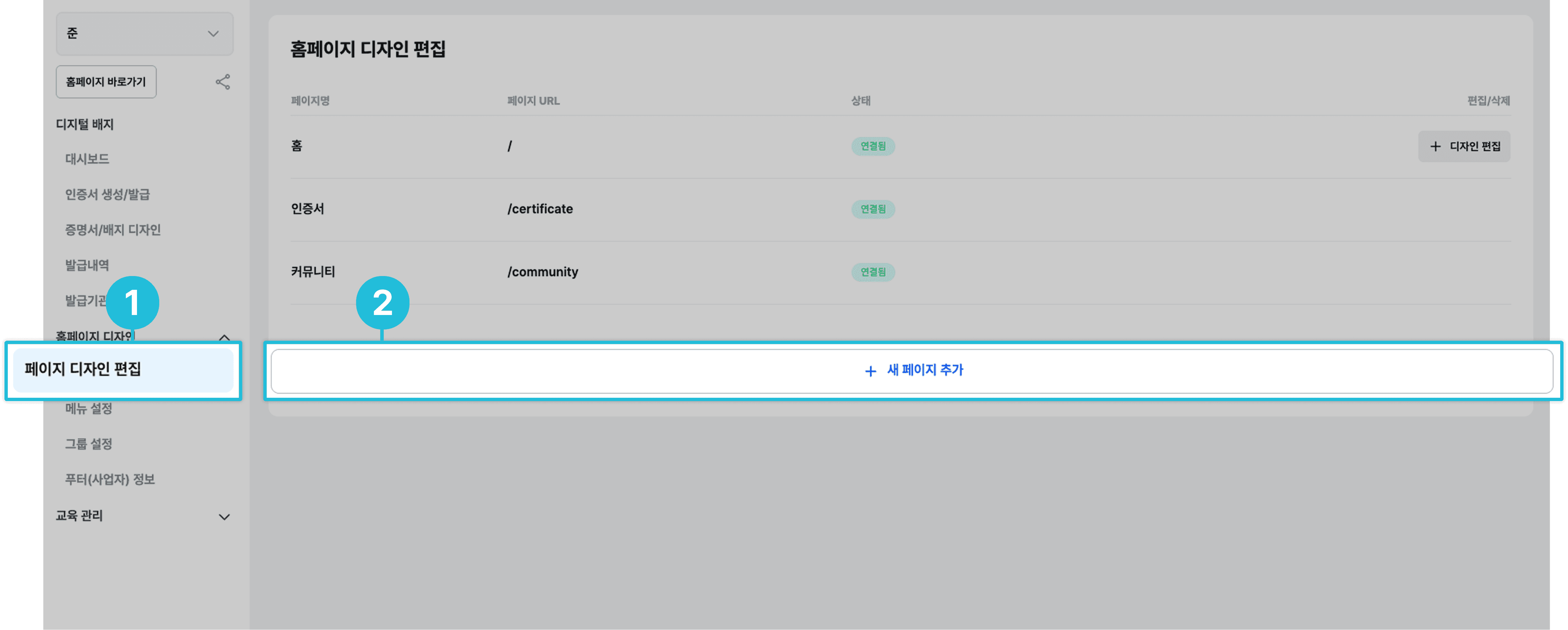
- In the left menu, click [Edit Page Design].
- In the homepage design editor, click the [+ Add New Page] button.
Menu Settings / Linking a New Page
To link the page you just created to your menu on the website, configure it as follows.
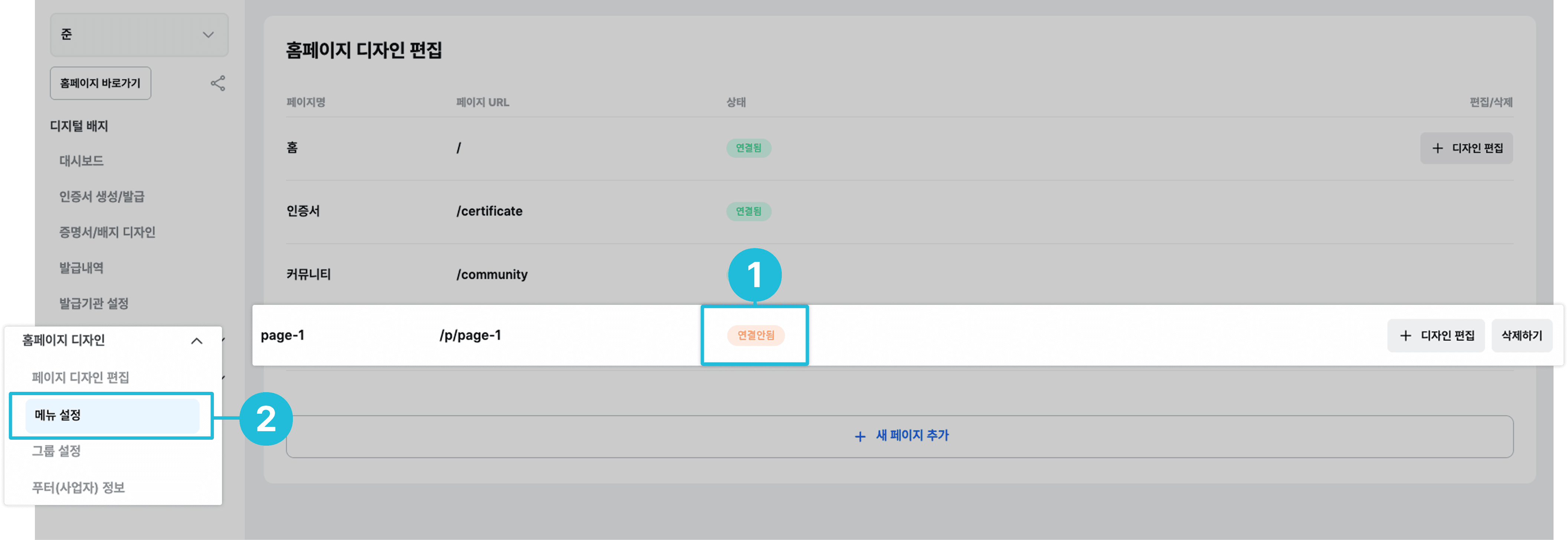
- You must change the status of the newly added page to ‘Connected’.
- In the left menu, click [Menu Settings].
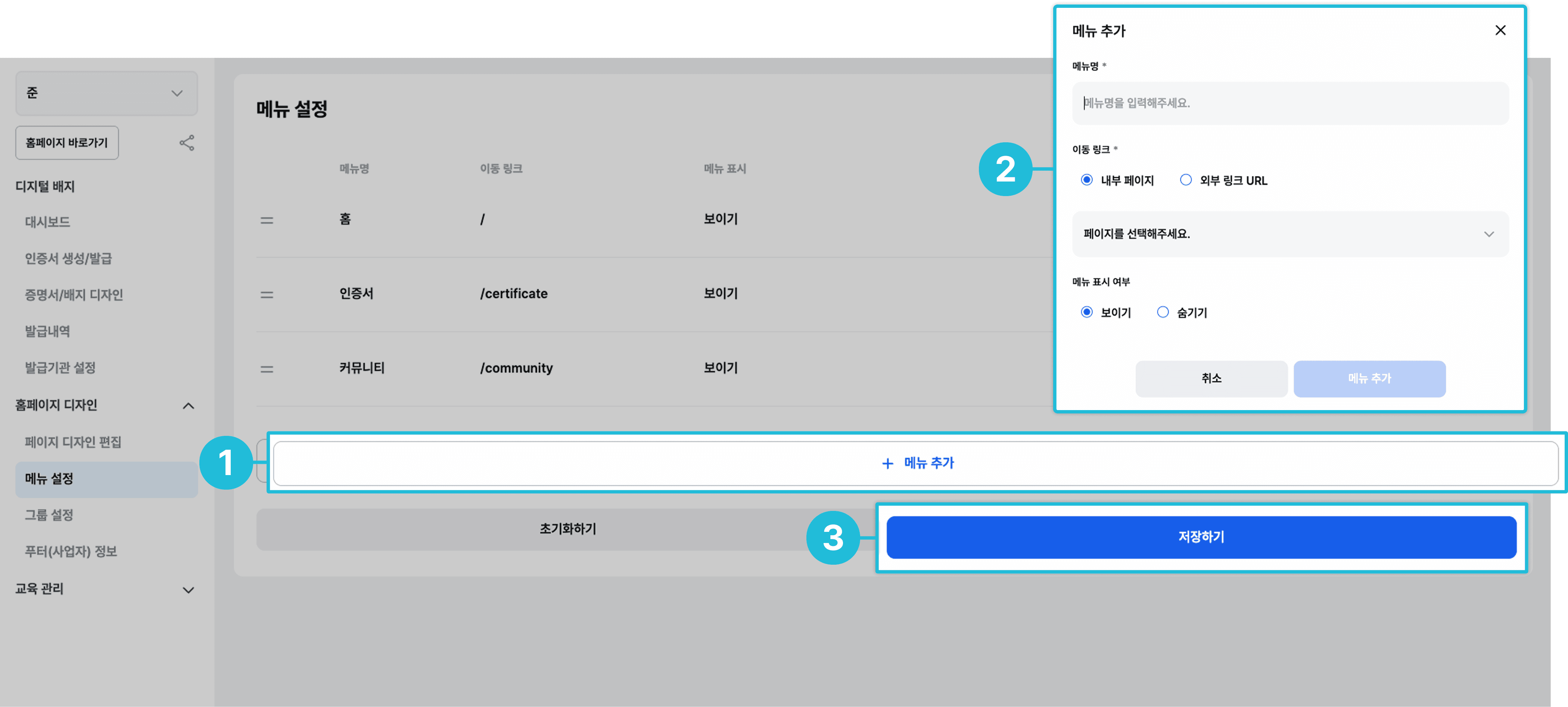
- Click the [+ Add Menu] button.
- Enter the menu name, navigation link, visibility, and so on, then click the [Add Menu] button.
- Finally, click the [Save] button.
Frequently asked questions
Want to turn learning outcomes into verifiable assets?
From issuing to verifying and amplifying, see it for yourself with Kolleges.
Request a Kolleges demo
Related posts

Styling Your Institution Page
On the Site settings tab of your institution page, manage search text, header style, brand color, logo, and even a custom domain, all from one screen.

Creating a Board and Linking It to the Menu
Create a board on the Boards tab of your institution page, then link it on the Menu tab and it appears on the public page.

Inviting Members and Managing Roles
On the Members tab of the Workspace menu, invite colleagues by email and check or adjust how far each role can reach.