
Deleting a Workspace

Deleting a workspace removes all members' access and hides the workspace. Already issued certificates and verification pages are preserved permanently.
Key summary
Deleting a workspace removes all members’ access and hides the workspace. Already issued certificates and verification pages are preserved permanently.
Permissions required Owner only
What happens when you delete
| What disappears | What remains |
|---|---|
| All members’ workspace access | Issued certificates |
| The workspace’s presence in the admin screens | Verification pages |
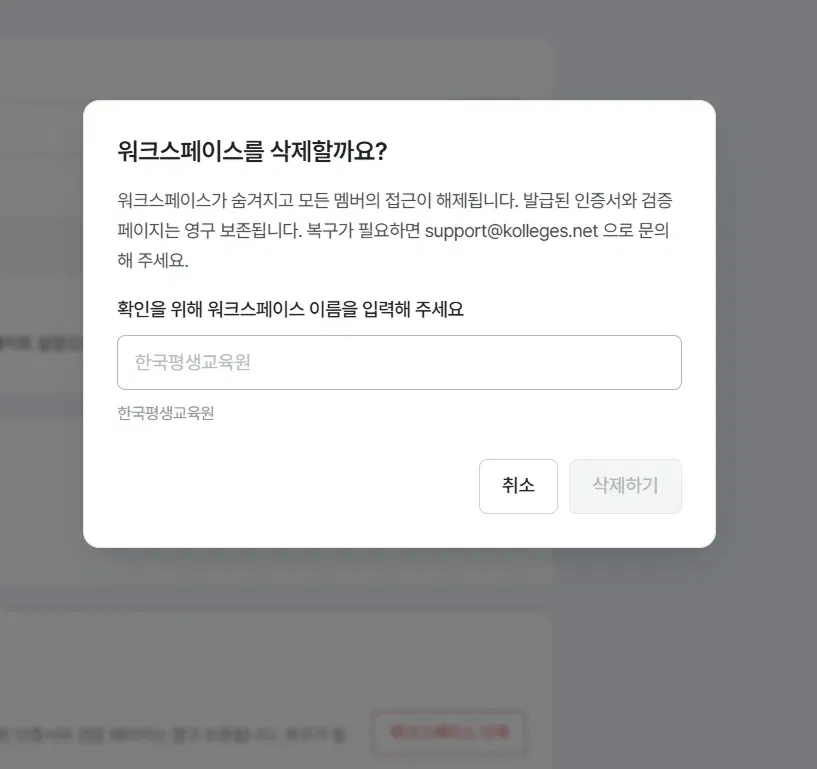
The screen also states explicitly that “issued certificates and verification pages are preserved permanently.” Recipients who already received badges can keep viewing and sharing them after deletion.
Caution: Deletion cannot be undone by you. If you need recovery, you must contact support@kolleges.net. We recommend downloading your issuance status as a file and keeping it before deleting.
Check these before deleting
- Whether you backed up your issuance history with [Download file] in issuance status
- Whether you told the members who share it in advance
- Whether [Transfer ownership] is the right choice instead of deletion, if only the person in charge is changing rather than operations closing
Deleting
- Go to the General tab of the Workspace menu.
- Find the red-bordered danger zone card at the very bottom of the screen.
- Press [Delete workspace].
- In the confirmation dialog, type the workspace name exactly. This step prevents accidental deletion, and the [Delete] button only becomes active when the name matches.
- Press [Delete].
Frequently asked questions
Can I undo a workspace deletion?
There is no way to undo it yourself on screen. If you need recovery, contact support@kolleges.net.
If I delete it, do recipients’ badges disappear too?
No. Issued certificates and verification pages are preserved permanently, so recipients can still view them.
Can an admin delete it?
No. Only the owner can.
I am worried about pressing it by mistake.
The delete button only becomes active once you type the workspace name exactly, so pressing the button by mistake does not delete anything immediately.
Related guides
- Editing workspace information - Transferring ownership instead of deleting
- Checking issuance results - Backing up your issuance history before deleting
Frequently asked questions
Want to turn learning outcomes into verifiable assets?
From issuing to verifying and amplifying, see it for yourself with Kolleges.
Request a Kolleges demoRelated posts

Editing Workspace Information
On the General tab of the Workspace menu, rename your institution or hand ownership to another member. Changing the address requires contacting customer support.

Checking Issuance Results
On the issuance status screen you can check delivery and validity together. Items with problems are automatically collected at the top of the screen.

Inviting Members and Managing Roles
On the Members tab of the Workspace menu, invite colleagues by email and check or adjust how far each role can reach.