
Editing Workspace Information

On the General tab of the Workspace menu, rename your institution or hand ownership to another member. Changing the address requires contacting customer support.
Key summary
On the General tab of the Workspace menu, rename your institution or hand ownership to another member. Changing the address requires contacting customer support.
Permissions required Owner, Admin (ownership transfer is owner only)
Renaming your institution
- Go to the General tab of the Workspace menu.
- Edit the contents of the workspace name field.
- Press [Save].
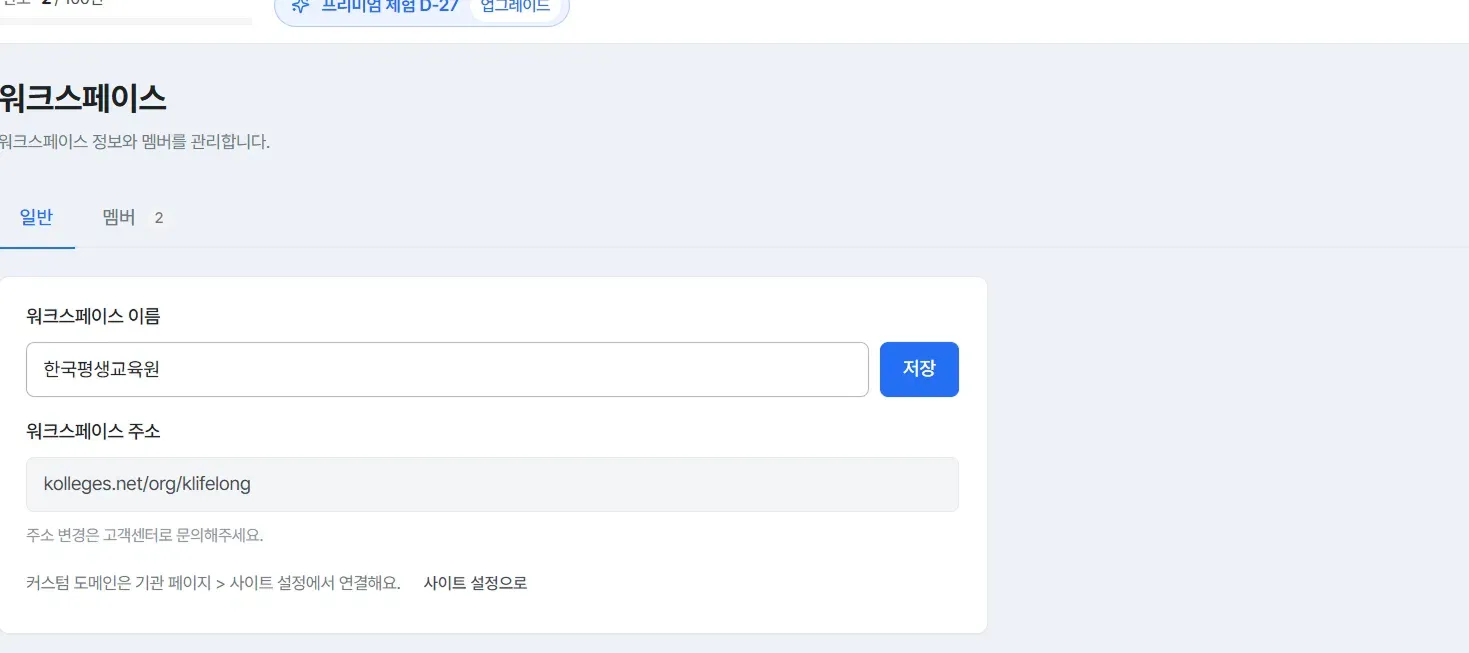
Caution: The primary issuer’s name follows the workspace name exactly. That means changing the name here also changes the institution name shown on certificates you issue from now on. The issuer screen also states that “changing the institution name, type, logo, or seal may require KOLLEGES VERIFIED re-verification,” so if your institution is verified, check the verification status after the change.
Why can’t I change the address?
The workspace address is used for your issuance page and login address, so it cannot be changed directly on screen. The screen also states, “For address changes, please contact customer support,” so request it from customer support if you need a change.
If you want to use a domain your institution owns, there is a way to connect a custom domain instead of changing the address. You can connect it in the site settings of your institution page.
Transferring ownership
If the person in charge has changed, you can hand the owner role to another member with [Transfer ownership] on the Owner card.
Caution: Transferring ownership also hands over plan, billing, and workspace deletion permissions. You cannot take it back yourself afterward, so proceed carefully.

Confirming completion
If you changed the name, the workspace display at the top left changes to the new name. If you transferred ownership, the role display in the member list changes.
Frequently asked questions
Where do I change the institution name shown on what I issue?
Changing the workspace name also changes the primary issuer name. The issuer screen does not allow editing the institution name directly and states, “You can do this in the workspace settings.”
Where do I enter the English institution name?
You can enter the institution name (English) separately under [Edit information] in the Issuer menu. It is displayed on overseas verification screens.
If I change the name, do already issued certificates change too?
The image files of already issued certificates keep the information from the time of issuance. The changed name applies from subsequent issuances onward.
Where do I ask about changing the address?
Contact customer support at support@kolleges.net.
Related guides
- Styling your institution page - Connecting a custom domain
- Inviting members and managing roles - Preparing for a handover
- Deleting a workspace - When you close operations
Frequently asked questions
Want to turn learning outcomes into verifiable assets?
From issuing to verifying and amplifying, see it for yourself with Kolleges.
Request a Kolleges demoRelated posts

Inviting Members and Managing Roles
On the Members tab of the Workspace menu, invite colleagues by email and check or adjust how far each role can reach.

Deleting a Workspace
Deleting a workspace removes all members' access and hides the workspace. Already issued certificates and verification pages are preserved permanently.

Styling Your Institution Page
On the Site settings tab of your institution page, manage search text, header style, brand color, logo, and even a custom domain, all from one screen.